EN
 FR
 DE
 IT
 PT
 ES


Ashampoo Burning Studio 26: a guide to burning and copying discs
A disc can finish burning without errors and still be useless to the person receiving it. This happens when songs are saved as files for a player that only supports audio CDs, or when a video is copied to a DVD in the expectation that a menu will appear on the television. Before choosing a speed or clicking “Burn”, decide what the disc needs to do and where it will need to work.
Ashampoo Burning Studio 26 brings together disc burning, copying, disc images, music tools and video projects. This guide focuses on that version, without automatically presenting it as the latest release. It explains how to prepare useful projects, check the results and review the licence before buying. The features described come from official documentation; the recommendations are not findings from our own tests.

Choosing between data, audio and DVD video
The important difference is not how the disc looks, but how its contents are organised. A data disc stores files and folders. An audio CD uses a structure designed to play tracks on compatible equipment. A video DVD requires audiovisual preparation, also called authoring, to include films, navigation and, if you want them, menus.
- To share documents, original photographs or work files, choose a data project and check that the recipient can open those formats.
- To listen to music on a traditional player, check its manual and create an audio CD if it does not support music files.
- To watch a film with menus on a DVD player, use a video DVD project, not simply a folder containing videos.
A disc containing MP3 files can hold more music than an audio CD, but it depends on the player understanding that format and its organisation. The same principle applies to videos: a device that reads DVDs does not necessarily play every file stored on them. The destination device determines much of the project.
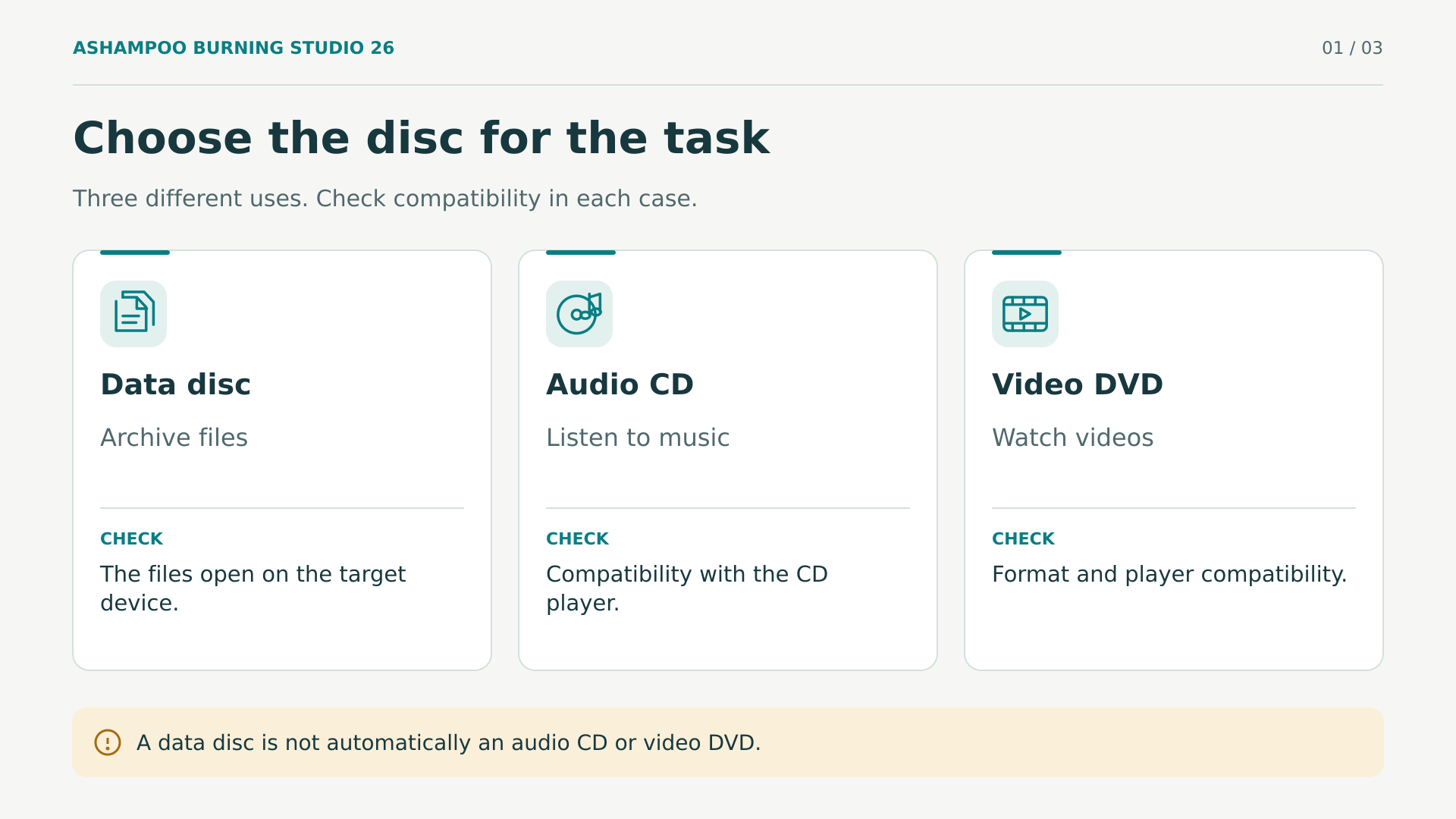
If you are unsure, prepare a small sample before tackling the whole job. This check avoids discovering an incompatibility after burning an entire collection.
Checking Windows, the burner and the discs
The official Burning Studio 26 requirements specify Windows 11 and Windows 10 in 64-bit versions, and exclude systems with ARM processors. They also specify an Internet connection for activating the program and periodic licence checks. Do not buy it expecting permanently offline operation, or confuse the program’s compatibility with the operating system’s current support status.
The optical drive must be able to write to the chosen medium: installing software does not turn a reader into a burner, and a DVD burner does not acquire Blu-ray capabilities. Check the exact model, supported formats and manufacturer’s instructions. For external drives, use a stable connection and the required power supply; a damaged cable can ruin a session.
Leave free space for temporary files. The installer’s size does not reflect the space needed to prepare a film or an image. The manufacturer details additional requirements for different projects; review them before working with large discs. Avoid filling the system drive while video is being encoded.
Finally, distinguish between recordable and rewritable media. With the former, deleting files does not reclaim space; the latter can be reused through the appropriate procedure, losing the previous contents. Neither guarantees universal compatibility. For an important delivery, choose media explicitly supported by the recipient’s reader and keep another independent copy of the data.
Preparing your files before opening the wizard
Create a working folder and gather everything you actually want to keep. Open the documents, review the images and play the videos before burning them. If a file is already incomplete or damaged, copying it correctly to a disc will not repair it. Downloading a faulty original again is more useful than repeating the burn.
Use clear names and a simple structure: separating photographs, documents and videos usually makes browsing easier. Avoid handing over folders full of ambiguously named versions or shortcuts pointing to your computer. If the recipient needs instructions, include a brief document describing the contents, required programs and any known limitations.
Make sure the files are available locally. An item displayed by a cloud application may only be a reference awaiting download. Also copy external project resources where appropriate; saving a presentation’s main file does not always include all its linked videos.
Before continuing, review permissions and privacy. A family folder may contain documents you did not intend to share; an automatic selection may include someone else’s material. Burn only content you have the right to copy and distribute. The tool enables technical reproduction, but does not grant permissions for third-party music, films, photographs or software.
Burning a data disc thoughtfully
In the data module, create a new disc and add the prepared files or folders. The manual describes a capacity bar that helps you check whether your selection will fit. Review it after each substantial addition: the medium’s storage space does not increase because the contents are organised into more folders.
- Select the correct burner, particularly if several drives appear or an external drive is connected.
- Check that the inserted disc is suitable and that the project contains the final files.
- Enable verification when available so the program checks the finished disc.
- Decide whether you need to add data later or close the disc to mark it as complete.
- Start writing and wait for both burning and checking to finish.
The finalisation option prevents further sessions from being added. It may be appropriate for a completed delivery, but should not be selected out of habit if you need to expand the contents. Conversely, keeping a session open does not guarantee that every reader will interpret later additions in the same way.
The manual also covers adding data to discs that have not been finalised. On non-rewritable media, removing a file from the list does not reclaim its physical space: it disappears from the new organisation, but still occupies capacity. For sensitive information, do not confuse this operation with secure erasure.
If a collection exceeds capacity, consider spreading it across several discs. Label each volume and keep the complete set; distributing information also means organising its retrieval.
Label the case with a recognisable title and the date of the contents. Avoid names such as “final copy” if there will be further deliveries: precise identification helps you find the right version.
Creating music your player can understand
For equipment that requires audio CDs, open the corresponding module, add the songs and check their order. The relevant limit is the duration supported by the project, not just the size of the original files. Rearrange the tracks before burning and listen to the transitions where a pause could interrupt a concert or narration.
Burning Studio 26 offers pause, normalisation and equalisation settings. Use them with a specific purpose in mind. Matching levels can make a compilation more comfortable to listen to, but it does not recover detail lost in a poor-quality recording. Listen to a sample before applying changes to every track and keep the originals unmodified.
If the player supports MP3 or other formats, a disc of music files may be more practical. Check formats, folders and playback order in its documentation. The program includes profiles for car audio systems, although finding a similar profile does not replace checking the exact model. Test the disc while the vehicle is stationary.
CD ripping turns tracks into files for your computer. Review automatically retrieved titles and artists: metadata can be incorrect. Choose the format and quality for the destination, without assuming that repeated conversion between compressed formats improves the sound.
For audiobooks, pay attention to chapter order and how your player remembers the playback position. Organising or grouping files can make listening easier, but a well-organised disc does not give a device the ability to remember playback positions if it lacks that feature.
Preparing a video DVD, not just copying videos
An MP4 file burned as data remains an MP4 file. To create a video DVD, use the movies and slideshows module, select a DVD project and add the clips. The program provides tools for ordering scenes, trimming material, adding images and preparing menus. Start with a simple structure that the recipient can navigate without instructions.
Check the aspect ratio and the television system appropriate for the destination. Do not force a widescreen image to fill a screen if that distorts people or crops important information. Also check text near the edges, audio volume and button legibility.
The length of the material affects the quality that can be maintained within the disc’s capacity. Adding more video does not necessarily preserve the same detail. Watch the project’s indicators and, if the expected result is unsatisfactory, split the contents rather than compressing them without limit.
Before burning, work through the preview: open each film, return to the menu and check the ending. This review detects navigation errors, although it does not replace playing the physical disc. Preparation time depends on the computer and the material; there is no universal duration that can be promised.
Keep the original videos even after creating a satisfactory DVD. A disc prepared for playback does not necessarily replace the quality or editing possibilities of the source material. If you want a different edit later, working from the originals avoids relying on a version that has already been transformed.
Do not confuse support for Blu-ray data discs with Blu-ray Video authoring: they are different tasks. This guide describes the DVD workflow and does not assume that every combination of codec, project and player will work. If your goal is another audiovisual format, explicitly confirm the feature and its requirements before buying.
Understanding an ISO image before burning it
A disc image stores the disc’s structure in a file. It can preserve a compilation or reproduce it later without rebuilding all its folders. Burning Studio 26 can create, browse and burn images; the official documentation mentions ISO, CUE/BIN and ASHDISC. These are not interchangeable labels, and not every format serves every type of disc equally well.
A common mistake is adding an ISO file to a data project and expecting to obtain the disc it represents. That only stores the image as a file. If you need to reconstruct its contents and structure on optical media, open the image-burning function and select the file there.
If, on the other hand, you want to transport or archive that ISO for later use, including it as a file may be exactly right. The difference depends on your objective. A disc containing an ISO will not necessarily boot or behave like the original disc represented by the image.
Check the provenance of downloaded images. When the provider publishes a checksum, comparing it using an appropriate tool helps detect alterations or incomplete downloads. That check does not make an unknown source trustworthy or grant rights to use the contents.
When creating your own image, choose a destination with enough space and a recognisable name. Also save a note about its origin and purpose. For projects with tracks or special structures, check the appropriate format rather than automatically converting everything to ISO.
Copying discs without confusing reading and writing
Copying a disc begins with reading the original. Select the drive containing it and let the program prepare the data before writing to the destination. If you use a single drive, you will need to replace the original with recordable media when the wizard tells you to. Do not remove the disc while it is still needed.
With separate drives, direct copying is possible, but the manual warns that reading must maintain a sufficient data flow. Creating an image first or using temporary storage may be more prudent when the source is difficult to read. You will need free space and patience, not necessarily the highest available speed.
If the original has errors, stop repeating identical burns. First check whether you can read its files consistently. The copy function does not guarantee recovery of unreadable sectors or circumvention of technical protections. Respect applicable restrictions, and do not treat possession of a disc as universal permission to duplicate or distribute it.
After copying, check the intended use: documents that open, music that plays or navigation that responds. Successful writing is only part of the result.
Designing backups you can restore
The backup module lets you select files and folders, choose a destination and adjust options such as compression or a password. It also supports external media and splitting the backup archive. It is useful for preserving documents and collections, but you should not assume that any file backup is equivalent to a complete, bootable system image.
Start by deciding what loss you want to prevent. For irreplaceable photographs, keeping the originals and another copy in a different location may be worthwhile. For frequently changing documents, you will need to repeat the backup at reasonable intervals. A disc stored months ago does not contain changes that were never included.
Review exclusions before accepting the selection. An overly broad rule may omit files you do need. Also check that open documents have been saved and that applications maintaining databases allow you to obtain a consistent copy; copying files in use does not guarantee consistency.
If you password-protect the backup, store the password separately in a secure place accessible to whoever needs to recover the data. Protection loses its usefulness if nobody can restore the contents afterwards. Also keep information about the program and the required procedure, without writing secrets on the disc label.
Backup reminders are not the same as automatic, unattended execution. The manual states that the program must be running to display these notices. Decide who will carry out the task and how they will check the result; a strategy depends on verifiable habits, not just ticked options.
Verifying, opening and rehearsing recovery
Verification after burning looks for errors on the finished disc. It is recommended, but answers a limited question. It does not prove that you selected every necessary document or that a video will be compatible with the recipient’s player. Nor does it establish that the originals were correct before you copied them.
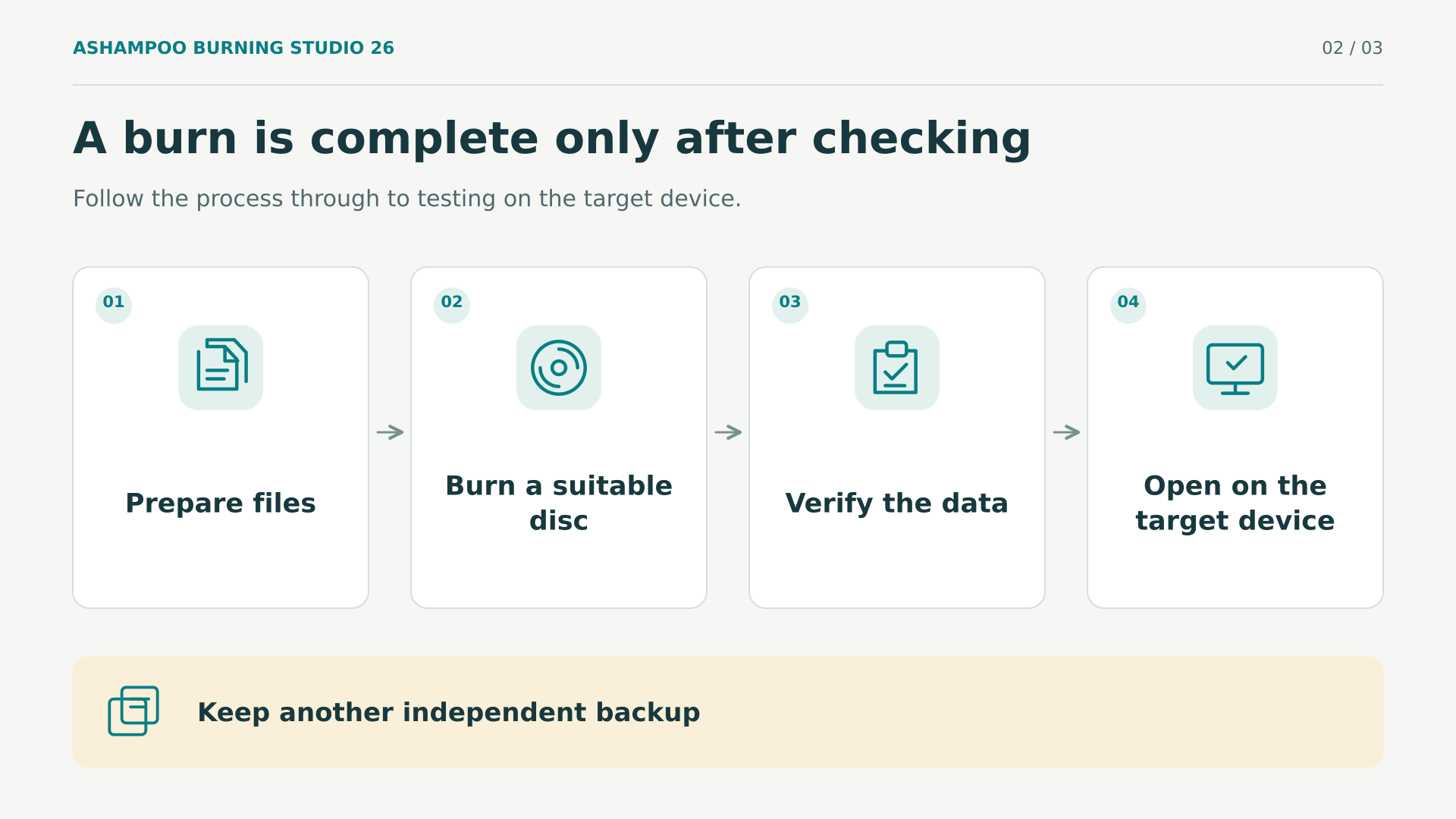
After verification, reinsert the disc and open a representative selection of files. Include large documents, deeply nested folders and an important item of each type. For an audiovisual delivery, use the destination device whenever possible; playing it only on the computer leaves part of the compatibility untested.
For backups, also perform a test restore to a folder different from the original. You can then review the result without overwriting current data. Open the recovered files and confirm that they are complete. If the backup spans several discs, check that the procedure recognises the volumes and requests those it needs.
For particularly important documents, you can compare the checksums of the originals and recovered files with an independent tool. That comparison checks identical contents, not document quality. An incomplete contract can match its copy perfectly; correct selection and human review therefore remain necessary.
Keep a simple record of the date, contents and check result. Store another independent copy, preferably separated from the same physical risk. Two discs inside a single bag do not protect against losing that bag. Review the archive periodically and plan its migration as equipment or needs change.
What scratch protection actually protects
Scratch protection does not harden the disc material or repair its surface. According to the manual, the program distributes several copies of the data and adds a recovery tool. When one area becomes unreadable, this redundancy may allow the contents to be recovered from another available copy.
The trade-off is usable capacity. Repeating data consumes space you can no longer devote to new files. Check the project indicator and decide whether that protection suits the contents. There is no point planning a collection at the capacity limit and then assuming redundancy takes up no space.
Nor is it a guarantee against every kind of damage. A broken disc, extensive deterioration, heat, loss of the medium or problems affecting all copies can prevent recovery. The feature must be used when preparing the disc; it does not retrospectively add redundancy to an ordinary recording that has already deteriorated.
Keep the recovery instructions and check that you can locate the included tool. The manual explains how to use Ashampoo Rescue Explorer for these discs. You do not need to deliberately scratch a disc to test the procedure: simply familiarise yourself with opening and extracting the contents without putting them at risk.
Do not confuse recovery with confidentiality. Scratch protection aims to keep data accessible; a password aims to restrict access. These are different needs. Decide which information can circulate freely and which material requires additional protection before preparing the project, without assuming that any security feature covers every risk.
Keep discs in their cases, protect them from dirt and extreme conditions, and handle them by the edges. For irreplaceable memories or documents, also keep a copy on another medium. Redundancy within the disc complements that separation; it does not replace it.
Troubleshooting without wasting discs blindly
When something goes wrong, change one variable at a time. Note the message, media type, burner model and operation performed. These details help more than a generic description such as “it does not work”. If the error always appears at the same stage, that pattern helps guide the investigation.
The drive does not appear or rejects the disc
Check that Windows recognises the burner, inspect the cable and power supply, and confirm that the disc is compatible with the model. Close other applications that might be using the drive. An already finalised disc or a read-only drive may explain the rejection without there being a program fault.
Writing stops or verification fails
Check temporary storage space and avoid working from unstable sources. Try another suitable disc and a more conservative supported speed; the manual covers reducing speed when errors occur. There is no magic minimum speed for every disc. If the problem persists, consult the burner manufacturer before updating firmware yourself.
The disc works on the computer, but not elsewhere
Return to the initial choice: data, audio or video. Review supported formats, finalisation and reader compatibility. For video, also test menus and sound. For music, check that you have not created MP3 files when the equipment needs an audio CD. Changing disc brands will not correct the wrong project type.
If you ask for help, share messages and technical specifications, but hide licence keys, private documents and personal data in screenshots. Keep the project and its originals until the problem is resolved; deleting them to free space may prevent you from reproducing the fault in a controlled way.
Assessing the version before paying
Buying makes sense when the features meet a specific need. For occasional file burning, first compare the basic options you already have. If you also organise music, prepare DVDs with menus, work with images and need backup wizards, bringing those tasks together in one interface can be convenient.
The Burning Studio 26 listing at Licendi identifies the product as SKU 5987 with digital delivery. The Spanish offer viewed on 21 October 2026 displayed EUR 19.95 and a purchase button. This is a dated observation of that page, not a promise of the final amount for every buyer or at every point in time.
Before paying, check the current price, applicable taxes, delivery method and included assistance. A digital download does not include a burner or blank discs. Nor does it establish, by itself, the number of authorised devices, the duration of the right to use the software or the scope of updates.
Compare versions by the features you need and compatibility, not just the number in the name. Buying version 26 does not mean receiving future major releases. Avoid interpreting general statements about updates as unlimited updates, perpetual support or guaranteed lifetime activation.
Reviewing the licence, invoice and activation
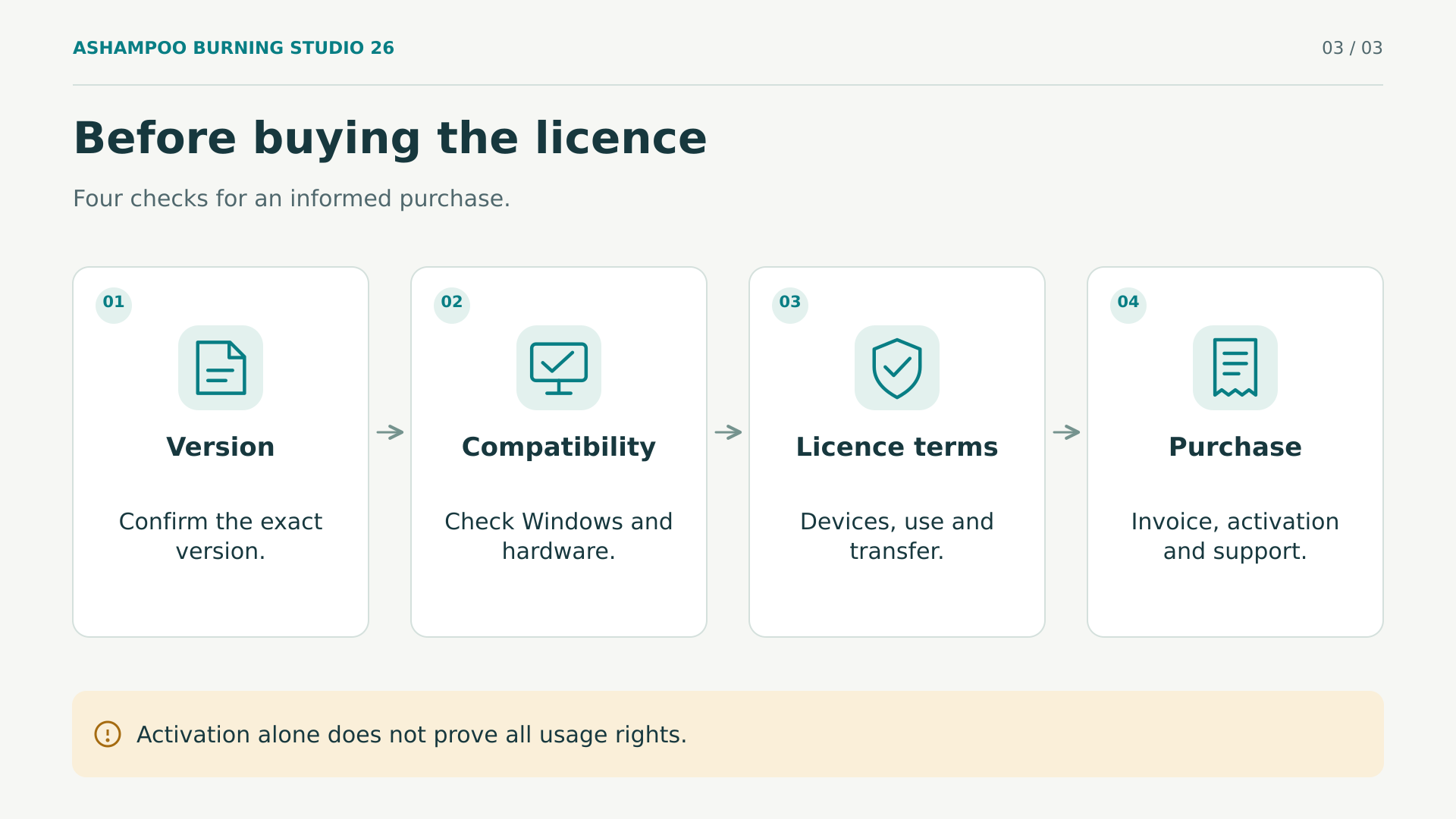
Before choosing an Ashampoo Burning Studio 26 licence, review the SKU’s conditions. The catalogue consulted assigns one device to this product, but does not clarify duration, business use or transferability. Ask Licendi for written confirmation: conditions from other offers do not automatically carry over.
The manufacturer’s selector distinguishes between a subscription offer and a one-off payment offer. Their coexistence explains why you should identify the arrangement you are buying rather than infer it from the product name. Their prices, promotions and guarantees should not be applied to another seller’s offer without checking the relevant conditions.
This precaution matters because the English agreement includes personal and non-commercial use wording, alongside conditions on devices and transfer. If you need to use the software in a business, ask Licendi to clarify the applicable authorisation before payment. A business invoice or successful activation does not replace that confirmation.
The seller’s general terms describe unlimited use on the same device, but do not guarantee that the key will work after formatting, reinstallation or hardware changes. This warning is not an absolute ban on reinstalling. Obtain written confirmation of its application to this offer and the procedure if you need to replace your computer later.
- Confirm the version supplied, licence duration and whether there is any renewal or prerequisite.
- Confirm that one device meets your needs and ask what happens after a reinstallation or computer replacement.
- Clarify whether business use is permitted and under what conditions the licence can be transferred to another person.
- Request instructions for authorised downloading, activation, recovering access and assistance with problems.
- Keep the invoice, conditions and correspondence; store the key privately, separately from any discs you hand over.
If used software is offered, its legality requires analysis of the transaction. The Court of Justice’s UsedSoft press release explains exhaustion of the distribution right under certain conditions: a first sale within the European Union with the rights holder’s consent, an unlimited-duration right of use in return for a price, and compliance with transfer requirements. It also states that the transferor must render their copy unusable and cannot split a multiuser licence to resell part of it.
That framework does not establish this SKU’s provenance or justify claiming that any cheap key meets the conditions. Nor does the press release replace a legal review of the case. Request relevant documentation when the licensing arrangement requires it, and distinguish technical activation from documented usage rights.
For installation, use the specified authorised source and verify that the product matches your purchase. Do not share the key with supposed checking services. If activation fails, keep the message and contact the seller before trying procedures outside the official instructions.
If you need to deliver work by a particular date, ask about the actual supply timeframe and assistance with problems. A purchase button does not, by itself, verify immediate key availability or instant problem resolution. Also allow time to install the software, prepare the project and check it.
With compatibility and conditions clarified, you can review the Ashampoo Burning Studio 26 offer or browse the Licendi catalogue. The most useful decision is not to accumulate features, but to buy what you need and finish with readable discs, recoverable backups and a documented licence.
Official sources consulted
The technical basis is the documentation specifically for version 26. The legal references describe general conditions; they do not verify the individual provenance of the product being sold.
- Ashampoo: Burning Studio 26 features.
- Ashampoo: requirements and connection for activation.
- Ashampoo: official Burning Studio 26 manual in PDF.
- Ashampoo: product licence agreement.
- Ashampoo: licensing arrangements offered directly by the manufacturer.
- Court of Justice: press release on UsedSoft and Oracle.