EN
 FR
 DE
 IT
 PT
 ES


ABBYY FineReader PDF: the complete business OCR guide for 2026
The invoice is somewhere in a folder, the contract arrived as a scan, and the quotation you need to update exists only on paper. Calling these documents digital does not necessarily make them easy to work with. If every enquiry means opening files individually or typing out another table, the bottleneck remains, even when the filing cabinet has gone.
OCR, short for optical character recognition, turns an image of text into information that software can search, copy or edit. ABBYY FineReader PDF combines recognition tools with functions for working on the resulting PDF. The benefit, however, depends on more than recognition alone: capture quality, the chosen output and the person checking the result all matter.
This guide sets out a practical approach for businesses in 2026, using the documentation for FineReader PDF 16 for Windows as its technical reference. It also examines a specific Licendi offer, FineReader 9 Pro, as a purchasing example. These are different generations. Keeping that distinction clear prevents an older licence from being mistaken for access to newer capabilities.
1. What OCR actually solves in a business
Suppose the administration team needs to find a reference across a hundred delivery notes. If those PDFs contain only images, searching for the reference may return nothing. Once a recognised text layer has been saved, compatible readers can find the content. The useful change is not the PDF extension; it is that the document no longer behaves like a sealed photograph.
Other everyday tasks include recovering a clause from a printed template, moving a price list into a spreadsheet, or preparing a case file for later consultation. Each task calls for a different result. For reference material, appearance matters; for rewriting, manageable paragraphs matter; for calculations, correctly separated rows, columns and values matter.
Do not confuse conversion with understanding the transaction. Recognising the word “total” and an amount does not establish that an invoice is approved, the supplier is correct or a payment should proceed. Nor does it automatically turn the document into a valid ERP record. Extraction and decision-making need a review stage between them, proportionate to the consequences of an error.
Before installing anything, complete this sentence: “We want to convert these documents so that this person can carry out this task.” A specific answer is much more useful than a request to digitise the entire office without describing what anyone needs to do afterwards. Bring the eventual recipient into that conversation. The person scanning pages may consider the job complete when every sheet is visible, while the person preparing a report needs reliable dates and searchable references. Agreeing on the destination prevents both people from measuring success against different expectations.
2. FineReader PDF 16 and FineReader 9 Pro are different purchases
The ABBYY FineReader 9 Pro listing at Licendi describes a permanent Windows licence, with a single installation per PC and no transferability. It also presents the offer as recommended for personal or home use. That detail matters in a business guide: a product name alone is not evidence that a particular licence permits a corporate deployment.
FineReader PDF 16, the reference for the technical steps below, belongs to a later generation. ABBYY's feature matrix distinguishes Standard and Corporate for Windows, alongside a separate Mac product. Do not assign PDF 16 features, compatibility, support arrangements or automation options to the FineReader 9 licence.
“Permanent” describes the duration of the acquired rights under their conditions. It does not promise future releases, movement to another computer, unlimited activations or indefinite compatibility with new operating systems. Similarly, a list of older operating systems on a listing is not a recommendation to use those systems on a connected workstation in 2026.
An older edition can be part of a comparison when you have a specific historical-document workflow in an already validated environment. For a business purchase, first confirm the exact version, authorised use, operating system and intended installation. Answering those questions before ordering is usually easier than doing so while a department is waiting to start work.
3. Identify the PDF before converting it
Not every PDF needs the same treatment. A file created by a word processor may contain actual text, whereas a scan often consists of images. Mixed documents are common too: digital pages, photographed attachments and text from an earlier OCR pass can coexist in one file. Applying a single recipe to everything creates unnecessary work and may disturb content that was already usable.
Try a quick check: select a sentence, paste it into a plain text editor and search for an unusual word. Repeat on a page in the middle and on an attachment. Success on the first page tells you little about the rest. If the pasted text is scrambled, incomplete or full of unexpected characters, investigate the existing layer.
In FineReader PDF 16, background recognition supports certain operations inside the application. It is not, by itself, the same as saving a permanent text layer for other users. ABBYY explains how to recognise a document and add or replace that layer. Save a separate copy and test it outside the application.
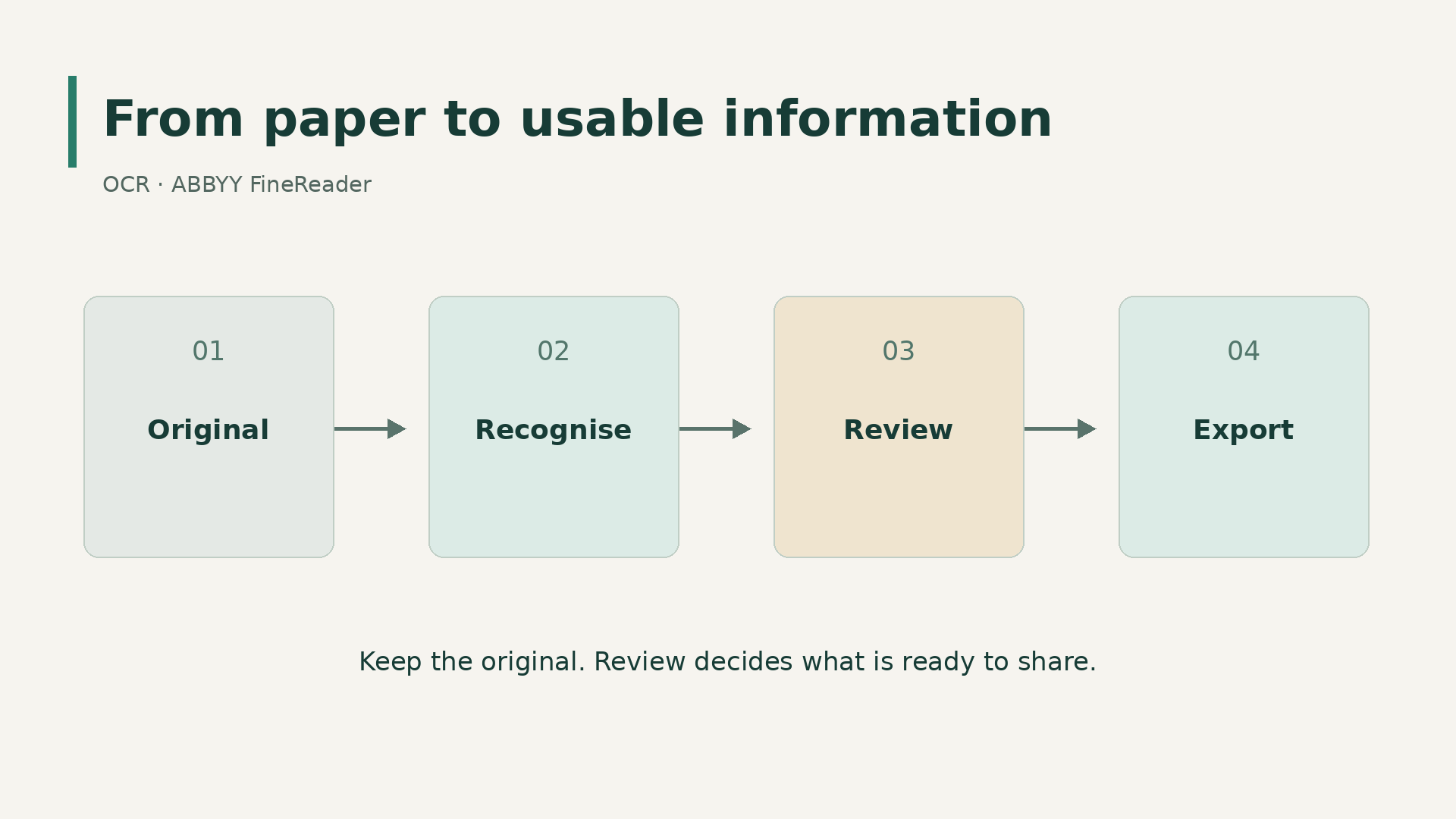
Always retain the file as received. A signed or protected PDF should not become your experimental working file: use an authorised copy and establish the consequences of any changes. The original and the version prepared for convenient searching serve different purposes, and your filing arrangements should make that difference obvious.
4. Build a small pilot around representative documents
The cleanest page in the office is not the best test. Collect a sample that includes ordinary documents and awkward ones: a clear invoice, small print, a contract with notes, a long table and a skewed page. Use fictional or properly authorised material when people outside the case are involved in the evaluation.
As a practical starting proposal, choose twenty documents distributed across those groups. This is not a universal statistical sample size or an official ABBYY recommendation. It is a manageable way to uncover problems before processing an entire archive. Record the page count and the required outcome for each document.
Decide in advance what counts as acceptable. For internal reference, finding the expected identifiers might be enough; for a table feeding a calculation, every relevant figure needs checking. Written acceptance criteria prevent one person from approving a conversion that another person cannot safely use.
Keep separate folders for originals, work in progress and reviewed outputs. Maintain a simple log with the filename, processing profile, issue found and reviewer. Successful settings become repeatable, while failures become easier to diagnose. This modest structure distinguishes an encouraging one-off result from a process that is ready for a department.
Test the handover as well. Ask a colleague who did not prepare the batch to find a document, locate a reference and identify the approved copy. If they need you to explain every folder or filename, the organisation still needs work. A successful pilot should make the output usable without relying on the memory of whoever configured the OCR.
5. Improve the scan before improving the software settings
For ordinary printed documents, ABBYY recommends 300 dpi as a starting point and greyscale for recognition. Treat that as a useful baseline rather than an unbreakable rule. Preserve colour when it carries information, such as annotations or stamps, and adjust capture settings against your sample. A higher resolution cannot recreate detail that was never present in the original.
Before scanning a batch, check cleanliness, orientation and paper feeding. A folded sheet, a shadow near the binding or a cropped corner can hide essential information. For duplex scanning, verify that every required reverse side was captured and that the pages are in the right order.
Photographs need a different kind of care. Keep the camera parallel to the paper, avoid reflections and use even lighting. If a line is blurred, taking another photograph is often better than applying more filters. Image enhancement should not be treated as a guarantee that missing content can be reconstructed.
The PDF 16 documentation covers TWAIN- and WIA-compatible scanners. Check the actual driver and installation environment for your device rather than relying on its manufacturer's name. Keep an original capture before cleaning or cropping it: a change that makes a page look tidier can also remove a faint but important annotation.
6. Set the languages and prepare recognition
Select the languages that occur in the document, rather than every available language. A Spanish contract with an English appendix needs a different setup from an invoice written entirely in French. ABBYY's help describes manual language selection and automatic detection from a defined list. Check the options available in your installation and licence.
The interface language and OCR language are different settings. Being able to install English menus does not establish equal recognition capabilities for every language combination. Separate printed material from handwritten notes too: do not build the project on an assumption that any form of handwriting will convert successfully.
Open the sample in the OCR Editor and inspect the images first. Correct orientation or skew where appropriate, without removing useful elements. When a document combines straightforward pages with problematic ones, avoid applying destructive changes across the whole document merely because it is convenient.
Record the profile settings alongside the pilot log. A name such as “printed invoices ES-EN” explains more than “final settings”. Whoever takes over needs to know which documents the profile covers and when to depart from it. Repeatability comes from explaining decisions, not simply remembering which button to press.
7. Check recognition areas and reading order
OCR can recognise the letters correctly and still reconstruct the document badly. Two columns may become interleaved, an image may be treated as text, or a margin note may interrupt the main paragraph. Area analysis therefore deserves attention before export, particularly for forms, catalogues and complex layouts.
FineReader PDF 16 lets you correct area boundaries and types in the OCR Editor. Mark text as text, preserve visual elements as pictures and designate tables where tabular structure matters. Then inspect the reading order. The sequence that looks obvious on the page does not always become the sequence in the exported text.
For tables, examine separators and merged cells. The official help explains how to adjust rows and columns and recognise the page again after correcting its structure. Where a description spans several lines, make sure it has not turned into several independent transactions.
Start with the hardest page rather than automatically starting with page one. A workable result there gives you a more useful basis for the rest. When documents have substantially different layouts, use separate profiles instead of forcing them into one template. Time saved in preparation can otherwise be lost many times over during correction.
If the review is interrupted, save an OCR project where the edition supports it. That project is not the final document for your colleague. It preserves the preparation context; the deliverable needs to open in the recipient's intended tools. Before closing a batch, confirm that all required outputs were exported, not merely that the project was saved.
8. Produce a searchable PDF without losing context
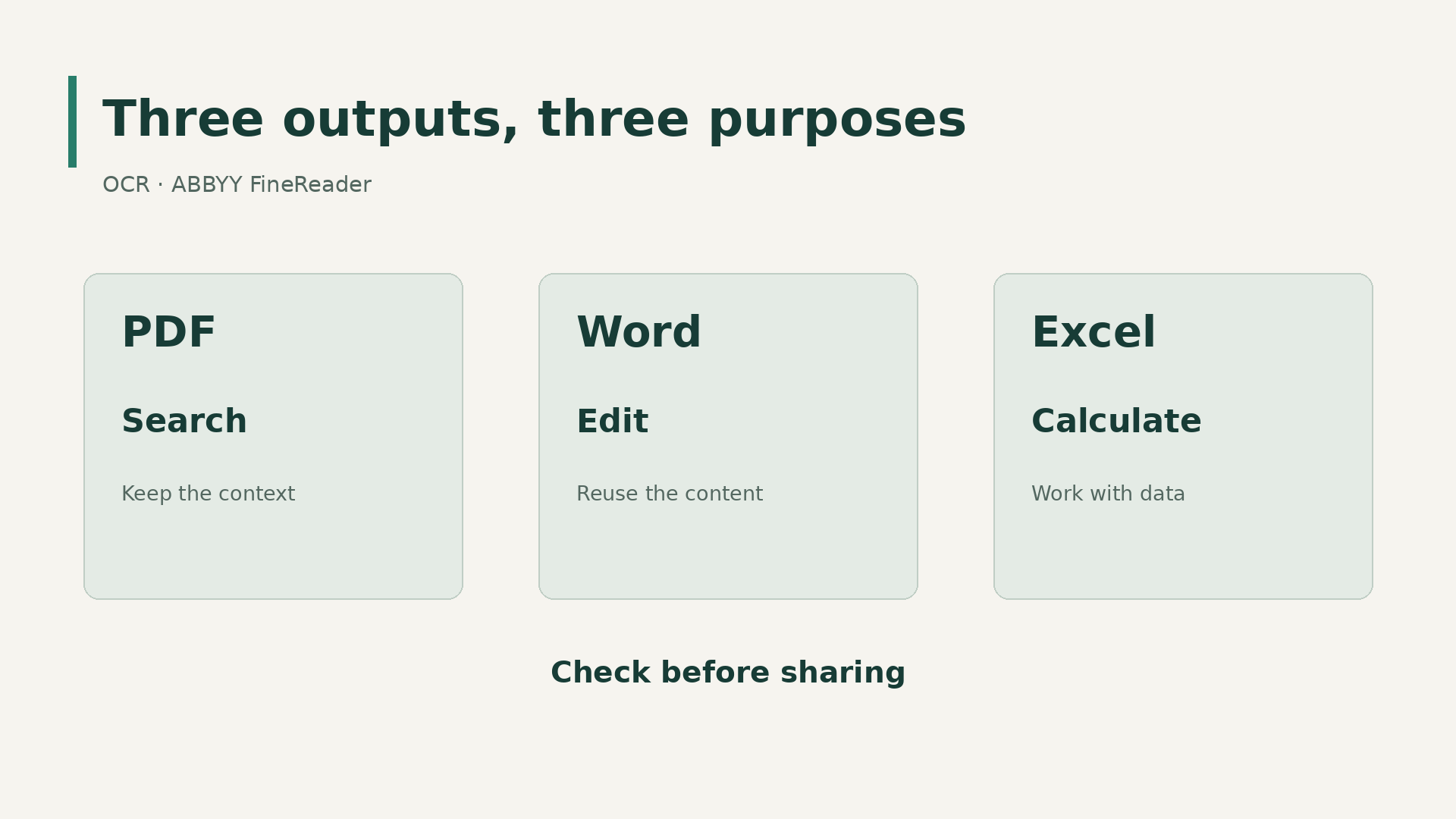
A searchable PDF is often the most useful output for reference and working archives. It can retain the page image while adding recognised text. PDF 16 offers different combinations of images and text in its saving options. Choose the mode that serves the intended purpose rather than reusing whichever format happened to be selected last.
When preserving the scanned appearance matters, investigate the mode that places text beneath the image. This does not make the recognised layer a certified transcription. It can contain mistakes that are invisible during ordinary viewing. Search for several references and copy passages to check whether that layer is genuinely useful.
The decisive test takes place after saving. Close the file, open it in another reader and search for references near the beginning, middle and end. Check the page count and the readability of stamps or notes as well. A small file size is not, on its own, evidence of a well-prepared PDF.
If a retention policy applies, establish which PDF/A profile it requires and validate the output through the appropriate process. PDF/A, OCR, accessibility and regulatory compliance are not interchangeable concepts. Selecting an export option does not replace the checks required by your organisation's archiving arrangements.
9. Convert scans to Word without rebuilding every page
When the aim is to update the wording, export an editable working copy. Decide how much formatting to preserve by considering the next task. A very close visual reproduction may introduce elements that make extensive rewriting awkward. For a new template, clean paragraphs and a clear heading hierarchy may matter more than reproducing every line break.
Try two pages before converting a whole contract. Inspect headers, footers, page breaks and numbered lists. Check that notes have not landed halfway through a sentence and that words split at the end of printed lines are not still broken inside the new paragraphs.
The converted document should not silently replace the received original. Label it as a working copy and retain a reference to the source file. A later change to a clause belongs to editing, not recognition. Keeping those activities separate helps the next person understand what changed and why when comparing versions.
Do not review only the appearance. A polished paragraph can still contain an incorrect date, a missing negative or an altered name. Where a document will support an important decision, compare sensitive content with the image. OCR removes some typing; it does not decide what the original document was supposed to say.
10. Move tables into Excel as usable data
A useful spreadsheet needs more than attractive columns. FineReader PDF 16 can save tables as XLS, XLSX and CSV. Choose according to whether you need to retain workbook structure and presentation or prepare data for another system. In either case, preserve the relationship between each row and its source document.
Check decimal and thousands separators, negative signs, percentages, dates and leading zeros. A reference such as 00127 may have commercial meaning even when the spreadsheet wants to treat it as a number. Codes resembling dates need similar care. Set the intended data type before importing where necessary.
For an amount table, use a simple reconciliation: expected line count, sum of amounts and comparison with the printed total. This is a suggested check for your workflow, not a claim that FineReader automatically validates accounting information. Correct recognition in the other rows cannot compensate for a missing line.
Do not mistake printed values for recovered formulas. A scanned table shows results, not necessarily the calculations that produced them. Build the calculations you need explicitly and document the logic. Before loading a file into production, test a controlled import and retain a practical way to identify rejected records and correct their source data.
11. Design a review that catches consequential mistakes
The OCR Editor includes tools for checking words and characters recognised with low confidence. They are useful assistance, not a complete catalogue of possible errors. An incorrect term can appear entirely plausible to the software. Combine its warnings with checks that reflect the document's actual purpose.
Classify information by the consequences of getting it wrong. Names, identifiers, dates, amounts, units and negatives deserve deliberate attention. For high-impact documents, review critical fields in full and decide whether a second reviewer is needed. For lower-risk reference material, a documented sampling approach may be appropriate, without presenting it as infallible.
Log errors by type. If several pages lose the same column, the profile probably needs correction rather than endless cell-by-cell repairs. If blurred characters dominate, return to capture quality. A useful issue log explains the cause and the response instead of merely counting mistakes.
End the review with a clear status: accepted, awaiting correction, or unsuitable for reliable conversion. The third outcome is legitimate. Some pages need manual transcription or a better copy from the supplier. Pushing a defective file into the completed folder merely passes the problem to its next user.
Set a rule for repeated corrections too. Replacing one letter sequence throughout a document can fix a recurring error while damaging names that were already correct. Search first, inspect several occurrences and restrict replacements where the meaning is ambiguous. Then recheck affected pages. Review should reduce uncertainty, not introduce unexplained changes that nobody can account for months later.
12. Protect information throughout the process
Digitisation makes information easier to find, including for people who should not see it. Define access to originals, working folders and final outputs. Avoid open shared folders for sensitive files, and check whether automatic synchronisation could copy them to destinations that were not part of the intended workflow.
When sharing a copy without certain details, use appropriate removal tools and examine the result. Drawing a black rectangle does not demonstrate that underlying text has gone. PDF 16 documentation distinguishes redacting confidential information from removing hidden elements. Confirm the actual effect in the final copy rather than relying on its appearance.
Search for removed terms, try selecting the relevant area, and examine comments, attachments and metadata. Retain the original in its authorised location, separately from the version intended for sharing. If an operation removes a text layer, remember that it may also affect the searching you expected users to perform.
Using a desktop application does not eliminate organisational responsibilities or guarantee that the surrounding environment is entirely local. Folder locations, backups, permissions and connected services matter. Agree with the appropriate owners which documents may be processed, how long they are retained and how temporary copies are handled.
13. Automate only after the process is stable
If a profile fails on twenty documents, do not release it on twenty thousand. First establish repeatable results and a route for exceptions. Automation becomes worthwhile when inputs are predictable enough and somebody can detect a missing, incomplete or stopped batch without waiting for a customer to report the problem.
In the official FineReader PDF 16 matrix, Corporate includes Hot Folder and cross-format document comparison. Standard also includes OCR and conversion; it would be wrong to say that it cannot process multiple files. Hot Folder is a specific scheduled automation capability, not another name for every kind of batch conversion.
The consulted documentation gives Hot Folder a limit of up to 5,000 pages per month, with the count resetting every 30 days, and conversion using up to two CPU cores. That allowance applies to Hot Folder, not all manual OCR. Confirm the terms of the licence you intend to buy, and do not transfer this feature to FineReader 9 Pro.
According to the help, the computer must be switched on and the user logged in for tasks to start. Test permissions, duplicate names, errors and recovery before leaving a workflow unattended. Separate input and output locations, retain originals and inspect the log. A watched folder is not a replacement for a server service or a purpose-built enterprise integration.
14. Three realistic ways to apply the workflow
In administration, begin with invoices from a regular supplier. The aim might be a searchable PDF and an extracted table for review, without automatic posting. The responsible person checks identifiers, dates, line items and amounts, keeping questionable documents out of the normal route. Recheck the profile when the supplier changes its layout.
In purchasing, work with a scanned price list. Recover product references as text, preserve leading zeros and check units, minimum quantities and currency. Do not mix individual-item prices with pack prices in one column. Review needs to understand what a value represents, rather than simply deciding whether it resembles the printed version.
For an internal documentation team, use an old printed procedure as material for a new template. Export editable content, separate OCR corrections from wording changes and appoint someone to approve the final version. This prevents a converted copy from being mistaken for an already authorised revision.
These examples share a method, but not necessarily a licence. If you are considering the FineReader 9 Pro offer, check its personal-use conditions and compatible environment before including it in a business workflow. The catalogue example helps identify the right purchasing questions; it does not supply assumed answers to them.
15. Rollout and cost: measure the whole job
A sensible rollout starts with an owner, a small user group and a short written procedure. Explain naming conventions, where each version belongs and what to do with a badly recognised page. Train people on documents they actually handle. A flawless demonstration is of little use if nobody knows how to tackle the first difficult case.
To estimate savings, measure preparation, recognition, review and correction, not just the progress bar. In a hypothetical example, if preparation and manual transcription take eight minutes per document and the complete new process takes three, the saving is five minutes. Across two hundred comparable documents, that would be one thousand minutes, or sixteen hours and forty minutes. These are illustrative numbers, not measured ABBYY results.
Include training, workstation maintenance, storage and exceptions in the cost comparison. A lower licence price does not compensate for an incompatible environment or excessive checking. Do not assume shared installation rights, remote-session rights or simultaneous use merely because you have received a key.
The permanent licence listed by Licendi can be compared meaningfully with other offers only after aligning version, duration, permitted use and number of workstations. Keep those variables in separate columns. “No subscription” then retains its actual meaning rather than becoming an implied promise of included maintenance or future development.
Record who maintains the profiles and who reviews changes to the application, scanner or operating system. A validated process can change when one of its components changes. Keep the original authorised sample as a regression set and process it again after significant changes. That gives you a practical reference beyond the fact that the application still opens without an error message. Include an ordinary page and a difficult one in that repeat check, and compare the outputs with the previously accepted versions. Record any changed setting before processing new work. If an update alters the result, pause the affected profile rather than quietly accepting a different standard of quality. A short, repeatable check is easier to maintain than an elaborate procedure that nobody follows.
16. What to check before choosing
Do you only need to read PDFs? Advanced OCR may not be your priority. Do you need to search scans? Test a permanent text layer. Will you edit documents or calculate from tables? Evaluate those outputs separately. A decision based on real documents is usually more dependable than a comparison of endless feature lists.
Standard or Corporate? For FineReader PDF 16, the decision particularly depends on cross-format comparison and Hot Folder automation. Do not choose Corporate simply because the organisation employs several people. Check the licence model and the rights required for the intended deployment as separate questions.
What about FineReader 9 Pro? The specific Licendi listing lets you examine that offer, but it should not be confused with PDF 16. Obtain confirmation of business use if that is your purpose, and validate installation, activation and compatibility before making it central to a department's work.
The strongest outcome is an understandable process: preserved originals, appropriate recognition settings, reviewed errors and useful outputs for the next person. OCR saves time by removing unnecessary transcription, not necessary controls. Start with a representative sample, test the whole journey and expand the parts you have already shown to work.
Sources and documentation
Consulted for this guide in November 2026. These technical references concern FineReader PDF 16; they do not describe the features included in FineReader 9 Pro.