EN
 FR
 DE
 IT
 PT
 ES


Windows 11 Pro N vs Windows 11 Pro: differences, media features and buying advice
Choosing between Windows 11 Pro N and Windows 11 Pro looks like a small decision until an important application needs something that is missing. Both names contain Pro. Both belong to the Windows 11 family. Yet the extra letter identifies a different edition, and that distinction matters when you install Windows, activate a licence, join a video meeting or prepare a computer for somebody else.
The useful question is not which name sounds more professional. It is which edition matches your existing installation, your software and the way you want to manage the computer. This guide compares the two options, explains the Media Feature Pack without promising a universal fix, and connects the technical differences with the Windows 11 Pro N and Windows 11 Pro offers available from Licendi.
1. The difference that actually matters
Windows 11 Pro N is a variant of Windows 11 Pro with certain media technologies excluded. Microsoft describes Windows N editions as retaining the corresponding Windows functionality except for Windows Media Player and related technologies. The important phrase is related technologies: the distinction reaches beyond whether a music player appears in the Start menu. Other applications can depend on those underlying components. Microsoft: Media Feature Pack.
Windows 11 Pro without the N suffix includes the standard media platform associated with that edition. That makes it the more straightforward starting point for a general-purpose computer used for work, communication and entertainment. It does not mean every conceivable format, accessory or application will work without additional software. Application requirements, drivers and particular codecs still matter on either edition.
Think of N as a different starting configuration, not as a higher performance tier. It is not a special edition for newer processors, a promise of greater privacy or a shortcut around Windows 11 hardware requirements. If you cannot identify a practical reason to choose N, the standard Pro edition usually offers the simpler purchasing decision. That is a recommendation about reducing setup work, not a benchmark claim.
2. What the two editions share
The Pro name remains meaningful. This comparison is not the same as Windows Home versus Pro: selecting N does not turn a professional edition into Home. Microsoft’s N documentation identifies media-related exclusions rather than a general removal of the professional Windows platform. However, individual features that depend on media components can still be affected, so sharing the Pro foundation is not a guarantee of identical behaviour in every workflow. Microsoft: Media Feature Pack.
Examples of the professional capabilities buyers often seek include BitLocker drive encryption and hosting Remote Desktop connections. These are useful for different reasons: protecting stored information is not the same task as connecting to an office workstation. Both require suitable configuration, and the presence of a feature is not evidence that somebody has enabled or tested it on your particular computer. Microsoft: BitLocker. Microsoft: Remote Desktop.
For a business purchase, write down the actual requirement rather than a vague preference for a professional system. Perhaps the computer must accept an approved remote connection, or the organisation requires disk encryption with recoverable keys. Confirm those requirements with the administrator. Then separately check the media-dependent applications. Keeping these questions separate prevents a correct Pro purchase from becoming an unsuitable N purchase.
3. Comparison at a glance
| What to compare | Windows 11 Pro | Windows 11 Pro N |
|---|---|---|
| Edition | Standard Pro edition | N variant of Pro |
| Media platform | Standard included media technologies | Certain media technologies excluded |
| Media Feature Pack | Not the N-specific configuration step | Optional feature; restart required |
| Additional software | Depends on the application and format | May need additional apps or codecs |
| Professional tools | Pro foundation; configuration required | Pro foundation; media dependencies still matter |
| Hardware requirements | Windows 11 requirements apply | Windows 11 requirements also apply |
| Activation | Match the installed edition and purchased licence | Match Pro N; do not assume key interchangeability |
| Licendi offer | OEM, Retail and Upgrade choices | Retail for one PC, digital delivery |
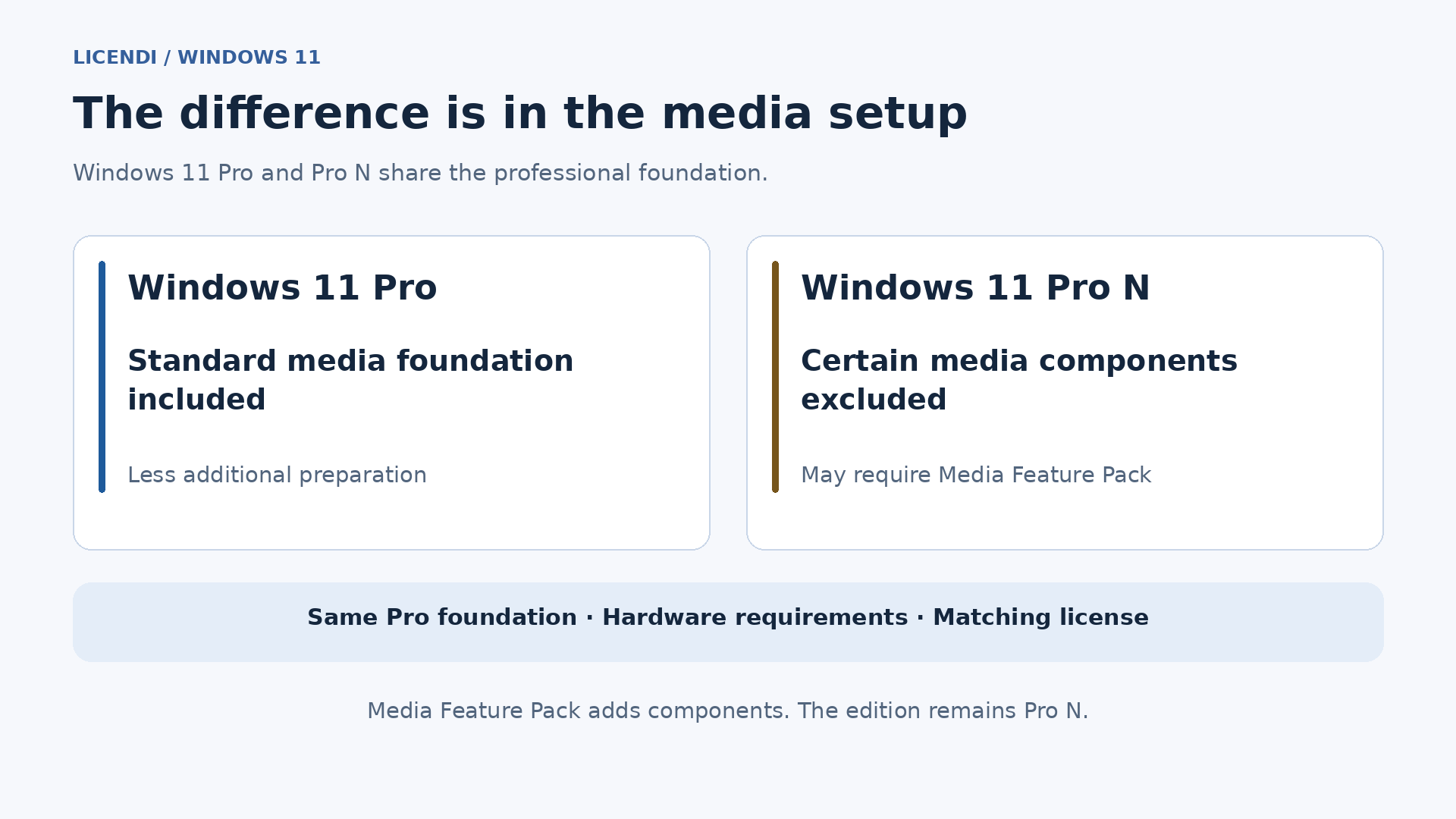
The table is a purchasing aid, not a promise that every application has been tested. It deliberately separates the edition, the media configuration and the licence offer. A Retail licence does not remove the N suffix, and installing a media component does not change the purchase conditions. Conversely, the absence of N does not tell you whether an offer is OEM, Retail or an upgrade.
This distinction is particularly helpful when comparing search results. Two listings may both mention Windows 11 Pro while referring to different variants and different rights. Read the complete product name, the selected option and the installation instructions. A small difference in the final price is less useful than knowing that the licence matches the edition you are actually planning to install.
If a supplier gives you only a screenshot of the desktop, ask for the edition shown in Windows settings. The desktop appearance alone is not an adequate way to distinguish Pro from Pro N. An accurate inventory should record the full edition name, the relevant Windows version and the intended licence type, without exposing product keys in shared documents.
4. Why a missing media platform can affect work
A modern workday rarely separates neatly into office tasks and multimedia tasks. A spreadsheet review may include a recorded explanation. A browser-based training session may use video and microphone access. A customer presentation may contain an embedded clip. An employee who says they never edit video can still depend on media technology several times before lunch.
Microsoft documents that media exclusions can affect other functions and applications, including certain browser media experiences and communication features. This is why installing a third-party player is not a universal answer. A player may contain what it needs for its own playback while another application continues to rely on Windows components. Success in one program does not establish compatibility across the whole computer. Microsoft: Media Feature Pack.
The practical response is to test tasks, not just application launch screens. Open a representative document, play the embedded media, join a meeting, switch the input device and check the saved result. Use your real equipment and the software versions you intend to deploy. These are proposed acceptance checks, not results from a laboratory test of every current application.
5. Video meetings, cameras and browser applications
For a computer used in client meetings, reliability includes more than seeing a camera preview. Test whether the other participant can hear you, whether you can hear them, whether screen sharing behaves as expected and whether the selected headset remains available after reconnecting it. A successful local recording is useful evidence, but it does not replace a complete meeting test.
With Pro N, begin by checking the media prerequisites documented by Microsoft and by the application vendor. The Media Feature Pack may be part of that preparation. Do not immediately blame the licence when something fails: browser permissions, application privacy settings, device drivers, organisational policies and the chosen microphone can also affect the outcome. Work through one variable at a time. Microsoft: Media Feature Pack.
If you are buying a new general-purpose machine for somebody who must simply get on with meetings, standard Windows 11 Pro is the lower-friction recommendation. If the organisation already uses Pro N successfully, retain its documented configuration and test process rather than improvising a different setup. Familiarity with a validated configuration can be more useful than a blanket rule about which edition everybody should use.
6. Media Feature Pack: what it does and does not do
Microsoft provides the Media Feature Pack for Windows N as an optional feature. Its purpose is to restore excluded media technologies, not to sell you a new Windows edition. Installing it is a configuration action within an N installation. It should not be described as converting a Pro N licence into a standard Pro licence or as making the two keys interchangeable. Microsoft: Media Feature Pack.
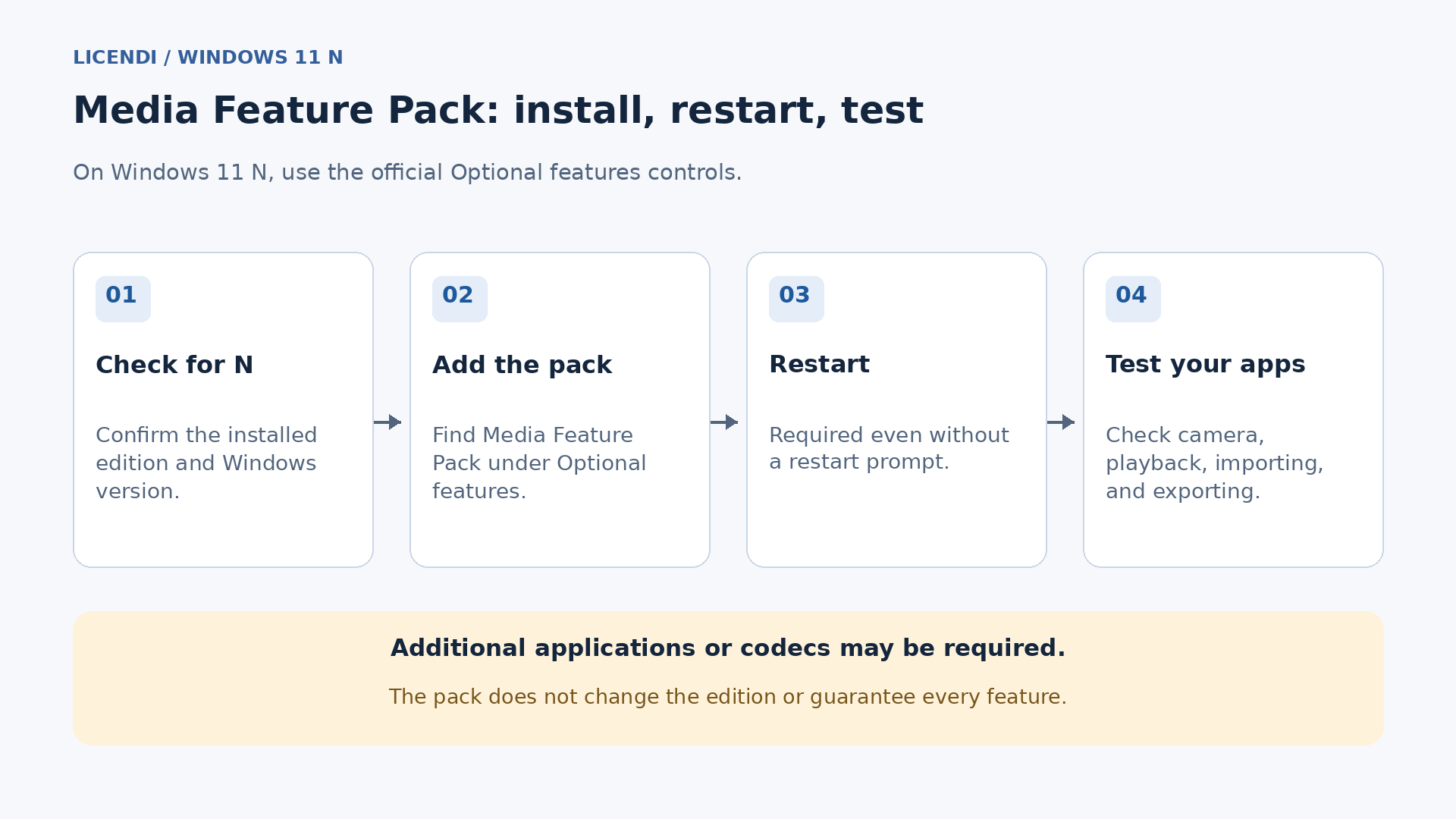
There are two further details that short buying guides often omit. First, Microsoft requires a restart to complete installation, even if Windows does not prompt you to restart. Second, additional applications or codec extensions may be needed for particular functions. The support article also warns that some affected features may still not work properly afterwards. There is no responsible universal promise of perfect equivalence. Microsoft: Media Feature Pack.
For a personal computer, this means allowing time to configure and verify your applications. For a managed fleet, it means treating the package as one dependency in a deployment plan, with the Windows build, relevant applications and required extensions recorded together. Avoid copying historical lists of retired applications into a current checklist: validate the services and software that your team actually uses today.
7. Installing the package with a sensible check afterwards
Start by confirming that the installed edition is Windows 11 Pro N. In Settings, use the search field to find Optional features; the exact navigation can vary with the Windows version. Open the option to add or view available features, find Media Feature Pack, select it and complete the installation. Follow Microsoft’s current instructions if your screen differs from an older walkthrough. Microsoft: Media Feature Pack.
Restart the computer deliberately when installation completes. Save open work first and choose a time that will not interrupt a meeting or a long-running task. After the restart, check the optional-feature status and reopen the application you were preparing. If the application vendor requires another component, install only the appropriate component from its official source rather than adding an unrelated bundle of codecs.
On an organisation-managed computer, an unavailable optional feature or a blocked download may require administrator assistance. Do not bypass security policies to get a package installed. Record the edition, the relevant Windows version, the displayed error and the affected task, then provide that information to support. A clear description usually makes troubleshooting more productive than repeatedly trying the same installation without checking what changed.
8. Codecs, players and professional creative work
A codec is one part of the media chain, not a replacement for the whole operating system platform. For a creative workflow, the file format, its encoding, the editing application, hardware acceleration and export requirements can all matter. Rather than assuming that a familiar file extension guarantees compatibility, test a real sample from the camera, customer or supplier you work with.
For example, an editor might be able to open one video while failing to import another from the same project. A presentation could play correctly on its author’s computer but behave differently in a meeting room. These examples are reasons to test the complete handover, not claims about a specific application defect. Keep a small collection of representative sample files with your deployment checklist.
Where multimedia work is central to the job, standard Pro is generally the easier baseline to recommend. Pro N can be considered when the exact application stack has been validated and there is a reason to maintain it. In both cases, check the software vendor’s requirements. Buying Windows alone does not include a separate commercial editing suite, its subscriptions or licences for other applications.
9. Gaming and home use without performance myths
The letter N is not evidence of higher frame rates, lower latency or longer battery life. A meaningful performance comparison would require controlled tests on the same hardware, Windows build, drivers and games. This guide does not claim such benchmark results. Choosing N simply because fewer media components are present turns an assumption into a buying criterion without demonstrating a benefit.
A gaming computer also does more than render the game itself. Users may watch cinematics, communicate with friends, record clips or stream content. Those surrounding activities belong in the compatibility check. Test the games and functions you actually use, including any launcher requirements and capture workflow, rather than treating a successful game installation as proof that every connected feature is ready.
For a family computer shared between work, study and entertainment, standard Windows 11 Pro is usually the more convenient of these two options. Choose Pro N when you specifically need that edition and are comfortable completing its configuration. Neither purchase removes the need for a suitable graphics driver, adequate hardware, game-specific requirements and careful management of the accounts used on the machine.
10. Requirements: N is not a route around compatibility
The basic Windows 11 requirements still apply. Microsoft lists a compatible 64-bit processor with at least two cores running at 1 GHz or faster, 4 GB RAM and a storage device of 64 GB or more. The platform also requires UEFI firmware with Secure Boot capability, TPM 2.0, compatible graphics and an appropriate display. Read the complete official requirements rather than checking memory alone. Microsoft: system requirements.
Minimum specifications are not a shopping recommendation for every workload. A computer that meets the installation threshold may still be a poor fit for large spreadsheets, virtual machines or demanding creative applications. Allow storage for programs, working files and updates. Consider what your actual applications require, how many you run together and whether the hardware manufacturer supports your intended Windows configuration.
Windows 11 Pro setup for personal use requires an internet connection and a Microsoft account according to Microsoft’s requirements page. Business deployment arrangements can differ, so follow the organisation’s supported process rather than a personal-setup workaround. The N suffix should never be presented as a way to avoid processor support, TPM requirements, account conditions or application compatibility checks. Microsoft: system requirements.
11. Edition, licence and activation are different questions
An edition identifies the Windows variant: Windows 11 Pro and Windows 11 Pro N are different names for a reason. A licence describes the rights attached to a purchase. Activation is the process by which the installed software checks its entitlement. Mixing these concepts leads to common mistakes, especially when somebody buys a key before checking which edition is already installed. Microsoft: activation.
Before ordering, look at the edition in Settings under System and About, and check the activation information in System and Activation. Record the full name rather than just Windows 11. If it says Pro N, keep the N in the information you send to the seller. If you intend to replace the existing installation, state the target edition explicitly instead of assuming the seller can infer it.
Do not assume a Pro key will activate Pro N, or that a Pro N key will activate standard Pro. This article does not promise key interchangeability. Confirm the matching edition and the conditions of the exact offer. If activation fails, keep the error message and purchase reference for private support; do not post a complete product key in a screenshot, review or public discussion.
12. What the two Licendi offers actually represent
The linked Licendi Windows 11 Pro N offer is described as a Retail licence for one PC with digital delivery. Its page explicitly explains the media difference and the possible need for the Media Feature Pack, a restart and additional components. That makes it an offer to consider when you specifically need the N edition, rather than a generic substitute for every product containing the words Windows Pro. Windows 11 Pro N.
The linked standard Windows 11 Pro product offers a selection of OEM, Retail and Upgrade variants. Choose the option that fits your situation and read its conditions before ordering. An upgrade option is not automatically appropriate for a computer without the qualifying starting installation. Likewise, a Retail option and an OEM option should not be compared as though their device-transfer conditions were necessarily identical. Windows 11 Pro.
This guide does not freeze a price or imply an unannounced discount. Check the current product page and the selected variant for the applicable amount and purchase conditions. Compare like with like: edition, licence type, number of devices and installation scenario. A lower number on one listing is not a meaningful saving if the purchase does not match the computer you need to activate.
13. Moving from N to standard Pro needs planning
Adding the Media Feature Pack and changing Windows edition are separate operations. If your objective is simply to supply media dependencies to an existing N installation, investigate the package first. If your objective is to move to standard Pro, verify the supported migration route and the licence for the target edition before changing anything. Do not treat either operation as a casual label change.
Microsoft’s edition-upgrade documentation describes corresponding N-to-N paths. Its broader upgrade-path guidance also warns that crossing between N and non-N types can preserve personal data while removing applications and settings in the described upgrade scenario. That is enough reason not to promise a seamless migration that keeps everything. Check the exact source edition, target edition and version involved in your plan. Microsoft: edition upgrades. Microsoft: upgrade paths.
Before any migration, back up important data and verify that you can restore it. Gather application installers, account access, configuration details and the licences needed to reinstall your tools. Set aside time to rebuild and test the working environment if required. The fact that a document survives a change is not the same as having a fully operational workstation with its applications and settings restored.
14. Three realistic buying scenarios
First, consider a self-employed consultant purchasing a licence for a new compatible computer. The machine will handle documents, browser applications and frequent customer meetings. There is no existing N requirement. Standard Pro is the practical recommendation because the work benefits from a conventional media baseline, and there is little reason to add an edition-specific preparation step to an otherwise straightforward setup.
Second, consider a small business replacing a failed drive in a workstation that was deliberately deployed with Pro N. The administrator has a validated N image, documented dependencies and an appropriate licence plan. Here, matching the intended edition can be more sensible than introducing standard Pro halfway through a recovery. The decision should follow the documented deployment, not a guess based on the shortest product name.
Third, consider somebody comparing two offers solely on price. One is Pro N Retail and the other is standard Pro with a selectable OEM option. Pause the comparison and make the conditions equivalent. Decide which edition and licence type you need, then compare suitable offers. These are illustrative purchasing scenarios, not claims that one licensing arrangement is right for every customer or jurisdiction.
15. A useful acceptance test before daily work
Create a short test plan based on a normal working day. Start with opening and saving a document, using the browser applications that matter and checking access to the required files. Then test a complete meeting with the actual camera, microphone and headphones. If recorded training or presentations are part of the job, include those rather than relying on an unrelated sample video.
For Pro N, record whether the Media Feature Pack is installed and whether the required restart has taken place. Note any application-specific extensions, but do not install components merely to make a checklist look complete. The objective is a repeatable configuration that supports your work. Keep the list understandable enough that another person can repeat the checks after an update or a replacement device.
Finally, test recovery as well as convenience. Confirm where backups are stored, who can restore them and where encryption recovery information is kept under your organisation’s policy. These checks do not depend on the N suffix, but they often get forgotten when a purchase discussion becomes fixated on edition names. A well-chosen licence is only one part of a dependable computer.
Prepare a small rollout, not six different experiments
When several people need new computers, agree on one documented baseline before ordering. Record the intended edition, the licence variant, the application list and who approves the final tests. Assign each machine to its user without placing product keys in the general inventory. This gives purchasing and technical support the same description of what is being delivered.
Prepare one representative device first. Ask its user to complete a realistic task, including any unusual attachment, meeting accessory or recorded material that matters to the job. Resolve the findings before repeating the configuration on the remaining computers. A pilot does not guarantee that every device will behave identically, but it provides a much clearer starting point than improvising every installation separately.
Finally, decide what happens if a necessary task fails on delivery day. Keep the previous working arrangement available where practical, identify the support contact and reserve time for correction. The aim is not to make the purchase complicated. It is to avoid discovering an edition mismatch or an untested dependency at the moment a customer is waiting.
16. Troubleshooting without creating new problems
If a media-related task fails on Pro N, first verify the installed edition and the exact task that fails. Next check the package status, restart history and the application’s documented requirements. Compare the result before and after one controlled change. This is more useful than changing several settings, installing multiple codec packs and then not knowing which action affected the behaviour.
If the problem is activation rather than media playback, use a different troubleshooting path. Check the purchased edition, the edition installed and the activation error. Installing the Media Feature Pack is not an activation repair for a mismatched key. Likewise, replacing a licence is not a reliable answer to an application permission problem. Clear separation avoids spending money on the wrong remedy. Microsoft: activation.
For managed devices, involve the administrator before changing policies or reinstalling Windows. For a new purchase, provide Licendi with the order reference and the complete edition name through the appropriate private support channel. Describe what you expected, what happened and the exact error. Keep sensitive keys and personal files out of public screenshots, and avoid irreversible changes before securing a usable backup.
17. Frequently asked questions
Is Pro N a more advanced version of Pro?
No. N identifies media-related differences, not an upgrade above Pro. Evaluate it as a variant with its own setup considerations. If your reason for buying Pro is a professional capability, verify that capability separately from the applications that use media technologies. A longer edition name does not establish extra performance or broader compatibility.
Does installing another player replace the Media Feature Pack?
Not necessarily. A player can support its own playback without providing the Windows components another application needs. Follow Microsoft’s package instructions and the relevant application documentation. Test the complete task afterwards, and remember that additional components may still be required. Avoid treating one successful playback test as a guarantee for every program. Microsoft: Media Feature Pack.
Does the Media Feature Pack turn Pro N into Pro?
No. It adds media technologies to an N installation; it is not a new Windows licence. Keep the distinction between configuration and edition. If you want standard Pro, plan the correct installation or migration and obtain the matching entitlement. Do not rely on a claim that any Pro key will work with either variant.
Should an existing working Pro N computer be replaced?
Not merely because of the suffix. If the installation is supported, appropriately licensed and validated for its tasks, assess the real need before changing it. A migration introduces work and requires preparation. If your applications are unreliable, investigate the cause and compare the effort of fixing the configuration with a properly planned move to standard Pro.
18. Which one should you buy?
For a new general-purpose computer, Windows 11 Pro is the straightforward choice when you want the normal media baseline alongside professional Windows capabilities. For an existing N deployment or a clearly defined requirement, Windows 11 Pro N can be the appropriate match. The deciding factor is your actual installation and application workflow, not the assumption that N is faster or that adding a package makes every distinction disappear.
Review the Windows 11 Pro N Retail offer if you specifically need that edition for one PC. Review the standard Windows 11 Pro offer if you want to choose among its available licence variants. In either case, confirm compatibility, match the edition, read the selected offer and prepare a backup before changing an existing system. A few precise checks before ordering are more valuable than an avoidable reinstall afterwards. Windows 11 Pro N. Windows 11 Pro.