EN
 FR
 DE
 IT
 PT
 ES


Master PDF Editor, Sejda and novaPDF: affordable PDF options
Working with PDFs should not mean paying for a long list of features you rarely use. Sometimes you need to correct a sentence, sometimes to bring several documents together, and sometimes simply to produce a clean PDF from a Windows application. These are different problems. Choosing a tool that solves your particular problem is usually a better starting point than choosing the longest feature list.
Master PDF Editor, Sejda PDF Desktop and novaPDF Lite approach that decision from three directions. The first two provide tools for working on existing documents; novaPDF Lite concentrates on creating PDFs through a virtual printer. This guide compares their practical roles, the differences between editions and the licence details worth checking, using three specific Licendi listings as examples.
Here, affordable means matching expenditure to a genuine need. It does not mean that these products have been established as the lowest-priced options across the entire market. There is no price ranking or implied promotion. The right choice depends on the work, the licence and the time required to produce an accurate result.
1. What saving money on PDF software really means
The cost of a tool does not stop at the purchase. Learning it, repeating unsuccessful conversions and buying another application to finish the job also matter. A relatively straightforward solution can be the better investment if it consistently handles the documents you actually receive. The important word is consistently, rather than spectacularly in one carefully chosen demonstration.
Start by reviewing the PDFs from a normal working week. Do you create them from your own documents, or receive files without editable originals? Do you change their contents or just organise pages? Are they selectable text, photographs of paper or interactive forms? This small classification exercise prevents you from comparing functions you are unlikely to need.
Define the expected result as well. Editing a PDF might mean adding a note, changing a figure, replacing an image or rebuilding a table. Those operations are not interchangeable. Write down two or three concrete examples and use them as purchase tests. They provide a much stronger basis for comparison than a generic list of benefits.
Finally, distinguish convenience from necessity. If exporting from your existing application already produces the correct document, you may not need an additional licence for that task. Paid software should contribute an identifiable improvement: fewer steps, better control or a capability your present workflow cannot provide.
2. Editor, task-based toolkit or virtual printer?
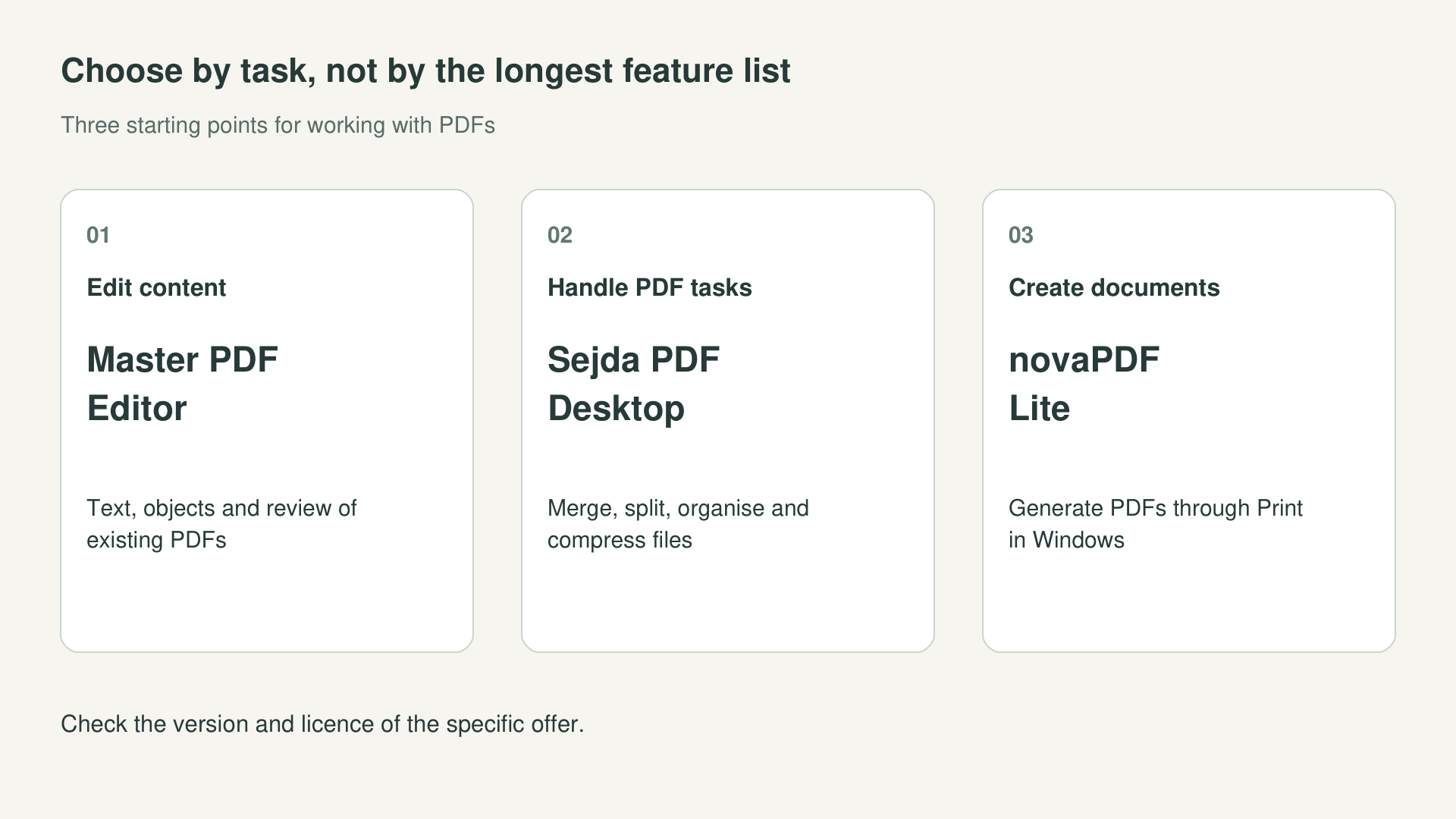
The central difference is where each product enters the process. An editor works on the contents of an existing PDF. A task-based toolkit helps with operations such as combining, splitting or reducing files. A virtual printer creates PDF output from an application that can print. Understanding that distinction makes the rest of the comparison considerably easier.
| Main requirement | Candidate to investigate | Decisive check |
|---|---|---|
| Change PDF text and objects | Master PDF Editor | Your actual file can be edited correctly |
| Handle varied page and file tasks | Sejda PDF Desktop | Tools and limits of the specific licence |
| Create PDFs through Print in Windows | novaPDF Lite | Output quality and Lite edition features |
These categories are useful starting points, not rigid boundaries. Editors can also create documents, and Sejda includes text editing. The table identifies sensible candidates to test; it does not claim exclusive capabilities or declare an overall winner.
The practical implication is significant. Buying novaPDF Lite to rewrite a paragraph in a received PDF means selecting a tool for a different job. Conversely, buying a full editor solely to print a spreadsheet may add complexity without delivering a meaningful improvement over your existing process.
3. Master PDF Editor for correcting existing documents
The official Master PDF Editor overview describes text and object editing, comments and page operations. That approach is worth investigating when you receive a PDF and need to change it rather than merely place notes over it. A service sheet with outdated information or a presentation without its editable original would be representative examples.
Before choosing it, try a realistic correction: change a sentence, adjust an image and save a copy. Check whether the typeface still looks right, whether the replacement text fits its space and whether the rest of the page remains intact. A small, relevant modification tells you more than simply opening a document and finding that it displays correctly.
Do not expect every PDF to behave like a word-processing document. The manufacturer's guidance on text problems explains difficulties involving structure and fonts. When the original file is available, correcting it and exporting again may be cleaner than rebuilding several separate text blocks inside the PDF.
The Master PDF Editor Pro listing at Licendi identifies the particular offer to investigate. A shop's commercial product name does not, by itself, establish a numbered software version or entitlement to every feature in the newest documentation. Match your test to the installer and edition you would actually receive.
A useful editing method is to save a newly named copy first, make one change at a time and review the whole page after each operation. If a longer sentence overlaps another block, decide whether to shorten it, adjust the layout or return to the original. Repeatedly covering awkward text with spaces or images can leave a document that looks corrected but is difficult to maintain.
4. Forms, annotations and scanned pages in Master PDF Editor
The manufacturer's manual covers comments, forms and optical character recognition. These solve different problems: comments support review without rewriting the document, forms collect information in fields, and OCR attempts to recognise text in an image. Decide which outcome you need before comparing the available tools.
For a form, test the fields the recipient will actually use. Enter a long name, a date and a decimal value, save the file and reopen it in another reader. Check the navigation order and look for clipped information. A form can appear perfectly tidy while still being inconvenient to complete.
With scanned documents, your aim may simply be to find a reference using search. You do not always need to reconstruct every page as editable text. The OCR documentation distinguishes searchable and editable text, a useful distinction when preserving the original page appearance matters more than changing its wording.
These product-family capabilities should be tested in the offered version, particularly if they are the reason for buying. Use a sample copy and check names, codes and numbers. Having OCR does not imply flawless recognition, and an annotation placed over a page does not demonstrate that its original content has been changed.
5. Sejda PDF Desktop for varied everyday tasks
The official Sejda PDF Desktop page presents tools for merging, splitting, compressing, converting and editing PDFs. This task-focused approach is appealing when each day brings a different request: separate an appendix, arrange a submission, reduce a file or make a brief correction. The useful question is whether its process feels clear and repeatable for your particular work.
Imagine a submission containing an application, several supporting documents and a final appendix. Establish the order first, combine the files second and review the complete document last. Successful processing is not enough: check duplicate pages, orientation and continuity. The software helps organise the submission; responsibility for checking its contents remains with the person preparing it.
To compare text editing with Master PDF Editor, use exactly the same document and correction. Note how much manual adjustment each application requires and what happens when you save. This need not become a universal contest. You only need to establish which tool handles your documents and working habits more comfortably.
The Sejda PDF Desktop listing at Licendi is an example of a desktop offer. Keep that listing separate from the plans Sejda currently sells directly: scope, duration and access to web services must not be assumed equivalent. There is a specific licensing difference to clarify, discussed below.
When splitting documents, check whether printed page numbers match positions within the file. An unnumbered cover can shift every reference. Identify the appendix by its contents, inspect its first and last pages, and use descriptive filenames. For repeated operations, open several outputs afterwards: a correct naming pattern does not prove that each file contains the intended material.
6. Sejda Desktop and Sejda Web are different environments
Sejda explicitly distinguishes its web service, which processes uploaded files on its servers, from Desktop, which processes them on the computer. Its desktop questions and answers explain this distinction. For an organisation, the location of processing can matter just as much as whether a particular function is available.
Choose the environment before beginning. If a document must not be uploaded to an external service, do not try the web version first and ask whether that was appropriate afterwards. Explore features using fictional material and follow your organisation's rules for real documents. Local processing does not mean that synchronised folders or external backups cease to exist.
Free use and paid plans also differ. Sejda publishes limits that depend on the tool and service, so a limit shown for the online editor should not be applied indiscriminately to the whole desktop application. Check the current conditions for the file sizes, page counts and volume of operations you need.
The Sejda security information describes measures used by the service. It helps assess that environment; it does not automatically establish suitability for every document or organisation. Likewise, a desktop licence should not be treated as including web access unless the particular offer explicitly says so.
7. novaPDF Lite creates PDFs rather than editing them
novaPDF enters the workflow at a different stage. It operates as a virtual printer: in a Windows application that supports printing, you select novaPDF to generate the PDF file. The manufacturer explains the distinction in its article on why novaPDF is not a PDF editor. This is the most important boundary in this comparison.
Its natural setting is a document you still control at source: a spreadsheet, a report or output from a business application. You correct the information there and use PDF printing to create the deliverable. If you subsequently find an error, return to the source, correct it and generate another version.
The novaPDF Lite listing at Licendi describes precisely this kind of Windows PDF creation solution. It should not be selected in expectation of paragraph editing, OCR or reconstruction of a received document. A virtual printer does not automatically turn an image of scanned paper into editable text.
Pay particular attention to paper size, orientation and page breaks. In a spreadsheet, make sure the last column is not missing; in a report, inspect headers and margins. Output also depends on how the source application prepares the print job, not just on which printer driver you select.
A useful additional test is a document containing both portrait and landscape pages. Check how the source application sends that job and whether the PDF retains the intended orientation. If particular content must fit on one page, establish the print area beforehand. Attempting to repair a clipped output later is no substitute for preparing the source correctly.
8. Why the Lite edition matters
novaPDF is offered in Lite, Standard and Professional editions. Its official edition comparison separates their capabilities. A feature mentioned on a general novaPDF page is not automatically included in Lite: read the relevant column and also establish which software version the specific offer supplies.
The current table includes profiles, font embedding, bookmarks and appending or inserting into existing PDFs in Lite. Graphics compression and image downsampling controls are excluded; encryption, password protection and certificate signing appear in Professional. These distinctions describe the manufacturer’s current comparison, not necessarily the version supplied by the listing. Reading the indicators in each column prevents features from another edition being attributed to Lite.
For work centred on generating documents, a simpler edition may be sufficient. Your test should answer a concrete question: does it produce the PDF you need correctly, using the settings available in that edition? If it does, there is little reason to pay for capabilities unrelated to the job.
If you need to preserve interactive elements, bookmarks or specialised document structures, inspect them in the output. Printing and exporting should not be assumed identical. Retain the original document and compare the two results before deciding which process will become your normal procedure.
9. Compare the actual licence, not just the product name
The three Licendi listings checked on 13 November 2026 describe offers for one Windows computer, with permanent licensing and non-transferable activation conditions. That is a description of the catalogue reviewed, not a promise about every licence sold by each manufacturer. Read the listing and order conditions for the particular offer you intend to purchase.
There is a relevant discrepancy for Sejda: the shop listing describes a permanent licence, whereas the current official website says perpetual licences are no longer offered and presents time-limited plans. Before buying, obtain written confirmation of the offered version, duration and scope. It would be inaccurate to present these two descriptions as the same licence.
Permanent licensing does not, by itself, establish entitlement to every future major version, indefinite support or external services. Those benefits must be stated explicitly. Separate the right to use a version from the updates included and from features that depend on additional accounts or services.
Similarly, the general availability of Master PDF Editor or Sejda on other operating systems does not turn a Windows offer into a macOS or Linux licence. It does not extend one activation across multiple computers either. For shared, remote or business use, confirm the appropriate licence model rather than importing rights from a generic product page.
10. Three practical situations that clarify the choice
A professional receives documents that need correction. If the regular problem is changing text, moving objects or reviewing existing forms, start by evaluating Master PDF Editor Pro. Try both an uncomplicated page and a troublesome one. The second often reveals more about the amount of manual work the tool will require.
An office assembles material from several people. If combining files, separating appendices and preparing delivery copies dominate the workload, investigate Sejda PDF Desktop. Establish document order and naming first. Consistent organisation helps distinguish an incorrect selection from an actual software problem.
A user produces PDFs from their own applications. If corrections happen in the original and you simply need finished output, consider novaPDF Lite. Compare its result with your application's existing export function. Buy when there is a useful improvement, not because every PDF-related task appears to require an editor.
Mixed requirements are possible, but there is no need to buy several tools immediately. Identify the dominant task and record exceptions during a trial. Then decide whether those exceptions justify another solution or can reasonably be handled using applications you already have.
11. OCR and conversion: assess the result, not the promise
A PDF containing selectable text and one containing photographs of pages need different treatment. OCR recognises text in images; conversion to an editable format seeks a different outcome and can alter the layout. The two expressions should not be used as if they describe the same operation.
Master PDF Editor documents OCR, and Sejda also presents an OCR tool. That gives you a direction to investigate but does not remove the need to check the offered version, service and limits. As a virtual printer, novaPDF Lite should not be presented as a substitute for those capabilities.
Build a sample containing the difficulties you actually encounter: a table, a skewed scan, accented characters and small text. Check a complete reference rather than a few isolated words. For searchable archiving, test search and copying; for editing, also assess structure and the time required to correct the output.
Keep the original and do not automatically approve sensitive results. A misread number can be overlooked on a visually convincing page. Include review in the cost comparison: the program that finishes processing first is not necessarily the one that leaves the least work to do afterwards.
12. Signatures, passwords and removing information
Adding an image of a signature is not the same as signing with a digital certificate. The Master PDF Editor signing documentation distinguishes these uses and explains that the program does not supply the certificate. Establish what kind of signature the recipient requires before selecting software for the task.
The Sejda editing and signing guide shows ways to type, draw or insert a signature. Do not automatically assign certificate-based signing properties to those actions. Check the final file in the recipient's environment, particularly where the receiving process has specific technical requirements.
Preventing a document from opening without a password is also different from restricting particular operations. Decide what problem you are trying to solve and use the appropriate feature in the available version. Simply saving with security settings does not justify claims of absolute protection or automatic compliance.
To remove confidential information, covering it with a rectangle is not proof of deletion. Use an appropriate redaction process and verify the result. The Master PDF Editor redaction documentation provides technical guidance, but availability must be checked in the offered version. Keep the original separately and also inspect comments and metadata.
13. Compress files without undermining their usefulness
Reducing file size is helpful when a portal limits uploads or an attachment becomes unwieldy. The aim should not be the smallest possible file, however. It should be a file that meets the delivery limit while retaining the required legibility. An unreadable invoice is not improved by occupying less storage.
Work on a copy and compare before and after. Enlarge small text, inspect stamps and examine images that communicate important information. If the document contains screenshots or plans, check the finest details rather than just the first page. Name the result so it cannot be confused with the original.
Compression is among Sejda Desktop’s documented tasks. Do not confuse that operation with creating a file through novaPDF Lite: the current table excludes graphics compression and image downsampling controls from Lite. Prepare the source document properly and assess the actual output without assuming settings from another edition are available.
Avoid unnecessary chains of conversions. If suitable output can be generated directly from the source, start there. Every additional step increases the checking burden and makes it harder to identify where quality was lost. A shorter, repeatable process can be more valuable than a slightly smaller file.
14. Calculate total cost without inventing savings
Compare offers on equivalent terms: the same duration, computer count, edition and intended use. A single-workstation licence and a multi-user plan cannot sensibly be ranked only by the first price displayed. Check applicable taxes and any renewal conditions associated with the particular offer as well.
Then measure working time using a genuine task. Record the time needed to open the document, carry out the operation, repair the result and verify it. Do not multiply a theoretical saving across an entire workforce when only one person performs that task occasionally.
Include costs that matter in your circumstances: learning, checking, certificates where required and possible supplementary tools. Do not assume that every one of these costs will arise, but do not assume they are included in the software price either. A useful comparison makes its boundaries clear.
To review each option's conditions, consult the offers for Master PDF Editor Pro, Sejda PDF Desktop and novaPDF Lite. The best-value choice is the one that meets your verified requirement, not necessarily the one advertising the largest collection of features.
15. A purchase test you can actually repeat
Prepare three documents without sensitive information: a straightforward example, a representative everyday file and a particularly difficult case. Preserve original copies and define the correct result in advance. That prevents you from favouring the application that merely produces the most attractive-looking output.
Run the same task with the appropriate candidates. For editing, change the same text; for organisation, use the same pages; for creation, print from the same application with equivalent settings. Do not compare an easy operation in one tool against an extreme case in another.
Reopen each result, check the content and record any necessary repair. Also confirm that you can find the file, identify its version and deliver it without extra explanation. Managing the output is part of the workflow even though it seldom appears in a feature comparison.
Before deciding, confirm the installer, supported system and licence. Testing the newest evaluation edition does not prove that an offer without a specified version supplies exactly the same capabilities. Evaluation watermarks and restrictions must also be distinguished from the behaviour of a purchased licence.
Make the assessment easier to compare by dividing requirements into essentials and preferences. A file that loses an important page fails, even if processing was quick. A less convenient menu may be only a preference if the result is correct and the task is infrequent. Establish these criteria beforehand rather than adjusting them to favour a tool you already like. Record untested tasks too: successfully combining pages says nothing about conversion quality or text editing. Keep a short list of unresolved points instead of treating an incomplete trial as a complete product evaluation.
For a shared workstation, agree who prepares documents, who checks them and where the approved version belongs. This need not become a complicated procedure: separate locations for originals, working copies and deliverables may be enough. Avoid two people correcting different copies without knowing it. For a monthly task, retain a fictional example and a short description of the expected result. This gives another colleague something concrete to repeat and helps identify whether a change of computer or settings has altered the process.
Also confirm that the particular installer supports the system you use. A historical requirements list is not a recommendation to retain an old operating system, and a current manufacturer download does not necessarily identify the version attached to an offer. Record the tested edition and ask about any difference before activation. Your decision will then relate to a defined combination of software, conditions and documents rather than merely a commercial product name.
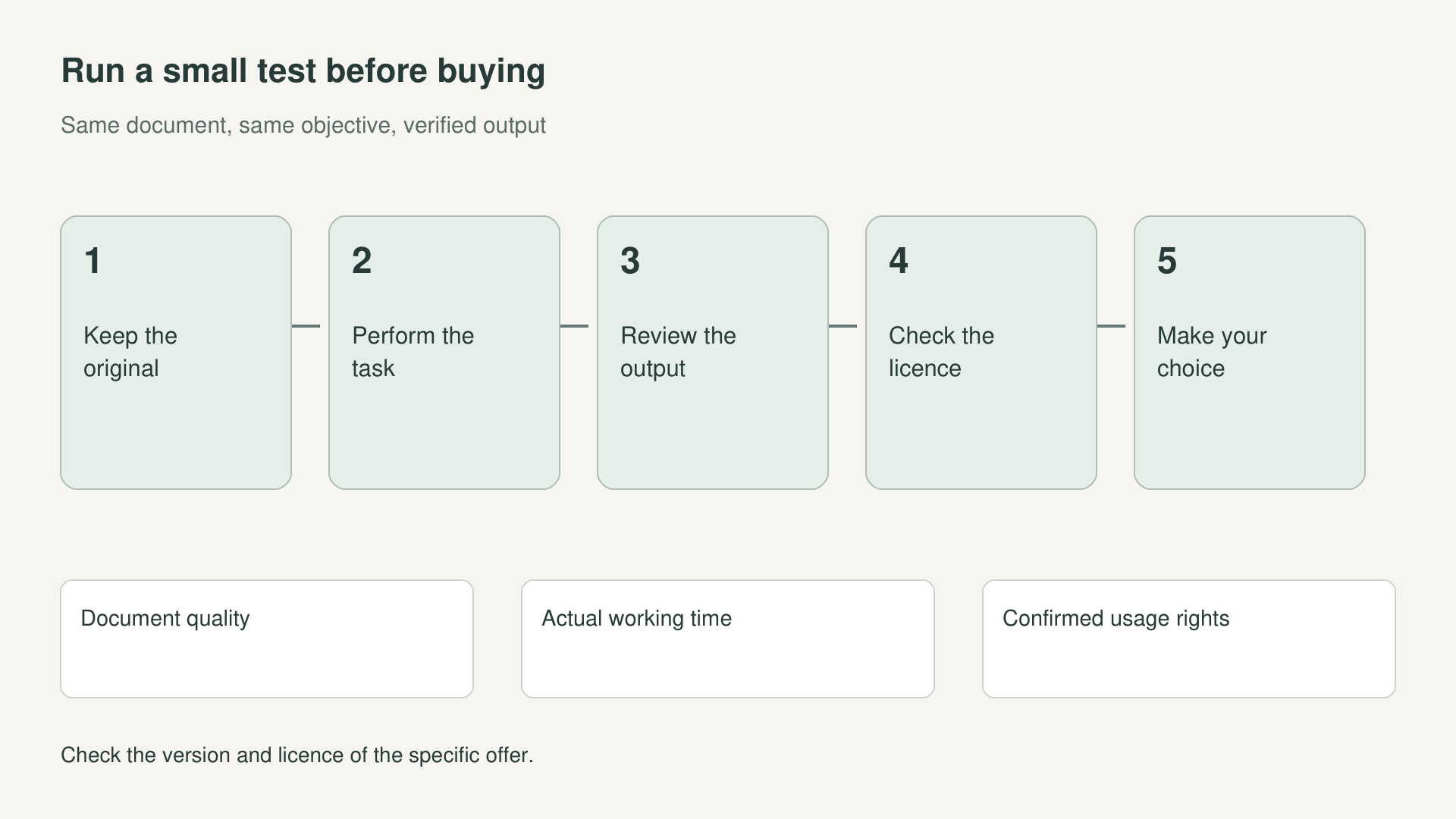
Write a short conclusion for each test: task completed, defects found and additional steps required. If somebody else will use the tool, ask them to repeat the process using those instructions. This exposes decisions that existed only in your head, such as selecting a page range or switching off an option. A repeatable workflow is worth more than an isolated demonstration that depends on its creator.
16. Frequently asked questions before choosing
Can novaPDF Lite change text inside a PDF? It is not the tool to choose for that purpose. Its role is creating PDFs through virtual printing. If you retain the source document, edit it there; if the PDF is all you have, evaluate a suitable editor instead.
Does Sejda Desktop require document uploads? The manufacturer says it processes documents locally. Sejda Web uses servers and is a different environment. That does not remove the need to consider where copies are stored, nor does every commercial offer necessarily include access to both products.
Does Master PDF Editor Pro mean the newest version? That should not be inferred from the listing name alone. Confirm the version number and update terms. Use the corresponding documentation to validate the capabilities that justify your purchase rather than relying on an unspecified product label.
Does a permanent licence include future major upgrades? Only where the offer's terms say so. Usage duration, updates and support are separate matters. For Sejda, the difference between the catalogue's permanent-licence description and the manufacturer's current plans also needs clarification.
Which is best for a small business? That depends on tasks, computers and usage requirements. A workstation that only generates documents has different needs from someone correcting received PDFs. Run a representative test and confirm the rights required for the intended environment.
17. The final choice: pay for what you will use
Master PDF Editor deserves evaluation when changing existing documents is the priority. Sejda PDF Desktop is a useful candidate for a varied PDF workload. novaPDF Lite makes sense when you need PDF output from Windows applications and make corrections in the original document.
There is no need to force a single winner. Define the task, test the result and verify the particular licence. Following that order avoids unnecessary purchases and prevents one edition from being credited with another edition's functions or rights. Above all, an affordable tool should reliably solve the work you actually have.
The linked technical references come from Code Industry, Sejda and Softland, the product manufacturers; the Licendi listings identify the offers considered. This comparison deliberately separates those sources. What a software family can do and what a particular licence authorises are related, but they are not the same question.