EN
 FR
 DE
 IT
 PT
 ES


Kofax Power PDF Standard vs Advanced: 2026 buying guide
Choosing a PDF editor is easier when you start with your documents rather than the edition name. Do you need to correct quotations, convert a report to Word and bring several appendices together? Or do you prepare case files that require you to remove confidential information, identify every page and connect to a document management system? These situations explain the difference between Standard and Advanced more clearly than an endless list of tools.
This 2026 buying guide compares Kofax Power PDF Standard 5.0 and Kofax Power PDF Advanced 5.0 for Windows. Both let you work with PDFs; Advanced adds specialist features that can make a decisive difference to particular processes. The choice comes down to recognising which ones you will actually use, without confusing a perpetually licensed version with the manufacturer's current offers.
1. Kofax, Tungsten and version 5: what are you comparing?
Kofax announced its name change to Tungsten Automation on 16 January 2024. That is why you can find official Power PDF documentation on Tungsten's domain alongside products or manuals that still use the Kofax name. The rebrand explains why both names appear; it does not automatically turn a Power PDF 5.0 licence into a licence for a later version.
Keep three details separate: manufacturer, edition and version. Kofax or Tungsten identifies the brand; Standard or Advanced identifies the feature set; 5.0 identifies the software generation. The year 2026 in this title refers to the buying guide, not to a supposed “Power PDF 2026” edition included with these products.
This comparison focuses on the Windows applications. Power PDF for Mac is a separate product and should not be treated as the same licence with a different installer. Nor does this guide attribute artificial intelligence features, web services or subscription options advertised for other generations to version 5.
This distinction avoids a common mistake: looking at a current sales page and assuming that everything it shows belongs to the product you are buying. For specific features, the appropriate reference is documentation explicitly identified as version 5.0.
2. The shared essentials: Standard is not just a reader
Power PDF Standard does much more than open documents. The version 5 help describes PDF creation, editing, conversion to editable formats, page organisation, comments, forms and security tools. Advanced builds on that foundation with features intended for more demanding document processes.
In everyday administrative work, these essentials cover tasks such as combining a quotation with its terms, rearranging appendices, making a correction, marking a paragraph for review or converting content to Word and Excel. Creating PDFs from compatible applications also makes it easier to supply documents that recipients can read without working on the original file.
Your buying criterion should not be “professional use means Advanced”. A self-employed professional may work extensively with PDFs and meet their needs with Standard. Conversely, someone who processes very few files may need Advanced because one of those files requires confidential information to be redacted.
Consider where your documents come from, too. A PDF generated from Word usually offers a different starting point from a photograph of a page. The file's quality, fonts, restrictions and structure influence the outcome of editing or conversion. Choosing a higher edition does not automatically remove these differences or replace a review of the finished document.
3. Comparison table: differences that help you choose
This table separates general tools from the features that Power PDF 5 documentation expressly associates with Advanced. In particular, it does not present OCR, local digital signatures or every operation involving multiple files as exclusive to the higher edition.
| Requirement | Standard 5.0 | Advanced 5.0 |
|---|---|---|
| Create, edit and convert PDFs | General tools for working with PDFs. | The same foundation, with additional specialist features. |
| OCR and scanned documents | Built-in text recognition. | Built-in OCR and specific automation options. |
| Comments, forms and digital signatures | General editor features. | General features and additional signing connectors. |
| Compare documents | Comparison is documented in the general version 5 help. | Not an exclusive distinction in its own right. |
| Redact confidential content | Does not include the Advanced redaction toolset. | Mark, search for and apply redactions. |
| PDF/TIFF Batch Converter | Does not include this specific converter. | Batch Converter and watched folders. |
| Bates numbering | Not part of its specific feature set. | Page identification across document collections. |
| DMS integration | No DMS integration; not to be confused with cloud storage. | Integration with compatible systems, subject to configuration. |
| DocuSign and SignDoc | Without the Advanced connectors. | Integration; services and accounts are managed separately. |
4. OCR: turning images into useful text
OCR stands for optical character recognition. Its purpose is to extract text from an image: for example, a scanned invoice, a contract received as a photograph or a PDF whose pages contain only images. This is different from converting a document that already has selectable text.
Power PDF 5 has built-in OCR; you do not need to choose Advanced simply because you want to recognise text. The important difference arises when, as well as recognising it, you want to organise a repetitive process using specific features such as Advanced's watched folders or Batch Converter.
Before you begin, check whether you can select a word and search for it within the document. If not, you may need recognition. Select the appropriate language, work from a legible original and check proper names, amounts, dates and references. These are precisely the details where a small error can have significant consequences.
Imagine receiving five scanned invoices and needing to locate their purchase order numbers. Your aim is to produce searchable documents and verify those numbers. If you continually receive folders of images and have to convert them using the same procedure, automation takes on a different value.
Do not confuse a searchable PDF with a perfect transcription. Recognition can make searching and reusing content easier, but it does not certify accuracy. For amounts or identifiers, keep the original and always compare the recognised text with the corresponding image.
For a useful test, choose an invoice containing a table, a clear letter and a page with a stamp overlapping the text. Then search for a specific reference in each result and copy a line into another document. This simple check reveals whether recognition meets your actual need. You do not have to measure thousands of pages to discover that a particular type of original needs a better scan or additional review before it goes into your working files.
5. Editing and conversion: avoid recreating documents
Editing tools are useful for specific adjustments: correcting text, changing an object, rearranging pages or combining content. If you have the source document and need extensive revisions, it is usually more practical to edit that source and generate a new PDF. A PDF editor is particularly useful when you only receive the final version.
Conversion to Word or Excel lets you recover content for further work. That does not mean every document will be transformed with every table, column and page break preserved perfectly, without review. A complex form, an unusual typeface or a poor scan requires more checking than a straightforward letter.
A sensible workflow for a report is to save a copy, convert the content you need, review the result and generate the final PDF once editing is complete. If you only need a table, consider extracting that area rather than converting the entire document and then sorting through information you will not use.
To choose an edition, list the changes you actually make. “Editing PDFs” is too broad: correcting a name, rebuilding a form and processing a folder of documents are different requirements. Basic editing tools do not automatically justify Advanced; specialist features should address a particular step in your work.
6. Document comparison: not an exclusive feature
The general Power PDF 5 help documents comparison between two PDFs and between a PDF and a Word document. It is therefore unhelpful to use “document comparison” as a blanket argument that Standard is unsuitable. Nor should the tab called “Advanced Processing” be confused with the Advanced edition: a tab's name does not, by itself, establish a licence restriction.
Comparison can focus on visual or textual differences. The result helps you locate changes between revisions and can appear as side-by-side documents or a combined presentation. These approaches answer different questions: “Has this clause changed?” is not the same as “Has a graphic moved?”.
For PDF and Word comparison, the documentation explains that Convert Assistant and Word are involved. You therefore need to check the required applications as well, rather than interpreting the feature as though every comparison could run without external dependencies.
When reviewing a contract, first identify which file is the original and which is the revision. Then choose the comparison type, examine the differences and validate the relevant text. Changes to margins or fonts can produce visual comparison highlights that do not represent changes to the content.
The tool helps you detect differences; it does not decide which ones you accept or replace reading the important clauses.
7. Redaction: the key distinction for confidential information
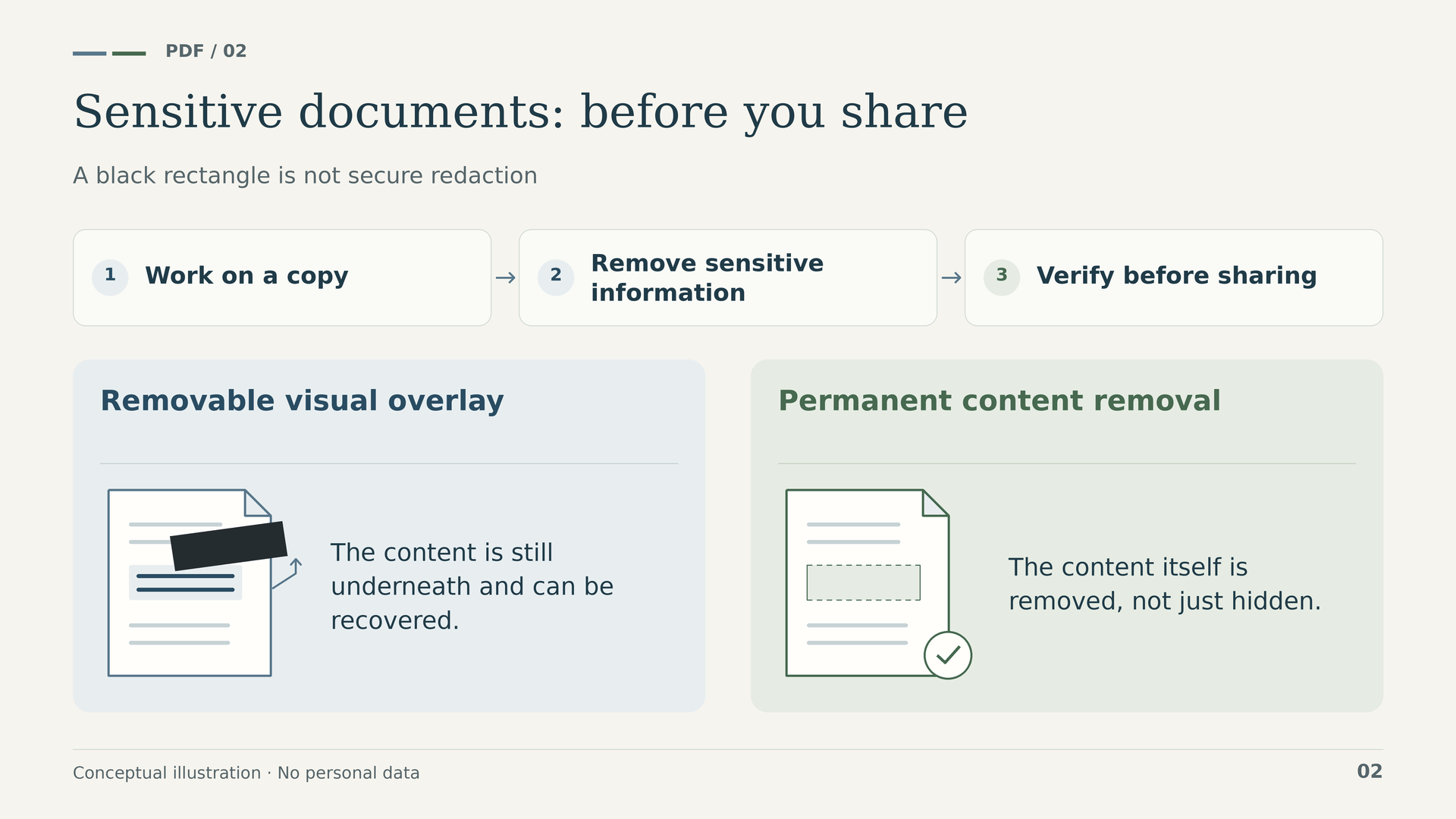
Content redaction is a genuine difference: the Power PDF 5 help identifies it as an Advanced feature. It lets you mark text or areas for removal and then apply the redactions. It also supports searching for content that needs to be redacted.
A black rectangle drawn over a name is not the same as removing that name. Nor is it enough to delete an element visually and assume that all recoverable information has disappeared. The documentation expressly warns that deleting and redacting are not the same thing.
The procedure must distinguish two stages. First, mark and review what you want to remove. Then apply the redactions. A pending mark is not a completed redaction. Because applying redactions cannot be undone, keep a protected original copy and work on a version intended for sharing.
Information also exists outside the visible content: comments, properties, attachments and other elements. Review these according to the document and its recipient. The tool helps you prepare a copy for distribution, but it does not, on its own, guarantee compliance with a regulation or replace your organisation's policies.
A clear example is sharing a case file with an external collaborator who must not see certain identifiers. If that requirement is part of your work, Advanced addresses a specific need, even if you only prepare a few case files each month. After saving, reopen the copy and check both the redacted areas and the remaining content that should still be legible.
8. Batches and automation: specify what you want to repeat
“Batch processing” can mean several things. Creating PDFs from multiple files, running a sequence of operations and using a dedicated converter between PDF and TIFF are not the same feature. A useful comparison should name the tool rather than simply tick a generic box.
The version 5 help describes assistants and sequences among the general operations. Separately, it identifies the PDF/TIFF Batch Converter as an Advanced feature. Watched folders and scan inboxes also appear among its specific capabilities.
These tools are worth considering when you receive groups of files that need consistent treatment. For example, a folder of images from a scanner may require uniform output as searchable PDFs. Choosing the OCR language and output destination still matters; automating an incorrect setting only multiplies the mistake.
Before processing an entire folder, test a representative sample. Include short and long documents, rotated pages and a difficult file. Check filenames, page counts, search results and the output location.
The converter documentation recommends using different folders for source and destination, because some scenarios can overwrite originals. Turn that recommendation into a working rule: preserve originals, keep results separate and review them before distribution. Advanced can reduce repetitive operations; it does not remove the need to define them correctly.
Also decide what will happen when a file does not process as expected. Who will review the result? How will you distinguish a correct output from an incomplete one? Where will you keep the original so you can repeat the operation? These questions turn an automation feature into a useful procedure. If every document requires entirely different decisions, the saving may not lie in processing everything together, but in preparing inputs better and grouping only cases that follow the same rules.
9. Bates numbering: identifying pages in a case file
Bates numbering is listed among the Advanced features in Power PDF 5. Its purpose is to identify pages within a document collection through controlled numbering. It is particularly useful when you need to cite a page unambiguously, even when it belongs to one of several files.
This is not quite the same requirement as adding “page 3 of 12” to a report. In a case file containing contracts, exported emails and appendices, each page needs a recognisable identifier within the collection, rather than each file restarting its own independent numbering.
Before numbering, decide which documents belong in the delivery, their order and the identification scheme you will use. Check the available space so that the stamp does not cover text, signatures or notes. Then review the beginning, the end and the points where the source document changes.
If you only prepare individual quotations or reports, this feature may not influence your purchase. If you work with case files that several people need to cite and review, it provides a specific reason to consider Advanced. The tool helps identify pages; the order and integrity of the case file still depend on your procedure.
10. Cloud storage and DMS: two different requirements
Saving a file to a storage service is not the same as integrating with a document management system, or DMS. This distinction avoids another misleading comparison: Standard does not lack all cloud connectivity.
The Power PDF 5 Getting Started Guide states that a typical Standard installation includes connectors for Box, Dropbox, Evernote, Google Drive and OneDrive. However, it does not include DMS integration. For Advanced, the guide explains that connectors are selected through custom installation; they are not all installed by default.
Advanced can open and save documents through compatible DMS systems. The outcome depends on the system, its version, installed components and access configuration. Before buying for a particular integration, identify the document management system your organisation uses and check its requirements.
A connector does not mean the purchase includes storage space, a business account or a subscription to the external service. The documentation requires registration and credentials to access these services. Compatibility documented for a particular version must also be checked against the environment you use today.
If you work with local folders and occasionally share files through your usual storage service, start with that requirement. If your procedure requires opening and returning documents through a corporate document management system, Advanced's integration deserves a specific evaluation.
11. Signatures: distinguish images, certificates and services
Saying that you need to “sign PDFs” does not yet identify the right edition. Distinguish between an image of a handwritten signature, a digital signature using a certificate and sending documents to other people through a signing service.
The general Power PDF 5 help covers handwritten and digital signatures. An image can reproduce the appearance of your signature, but the documentation itself states that this type of signature provides no security protection. A digital signature uses a digital identity and allows information about the signature and document modifications to be checked.
Integrations with DocuSign and Kofax SignDoc are specifically identified as Advanced features. The DocuSign help requires an account to sign or send through its service. Sending through SignDoc also requires an account and the appropriate service configuration.
Advanced should therefore not be presented as a purchase that automatically includes every signing service, subscription, certificate or sending entitlement. The connector is one part of the workflow; the signer's identity, the contracted service and the organisation's requirements are separate parts.
Before choosing, ask what the recipient needs to do: receive an already signed document, validate a digital signature or take part in a signing workflow. That answer is more useful than simply looking for a box labelled “electronic signature”. It also determines the checks you need to perform before sending the final version.
Complete the content review before starting a round of signatures. Check recipients, fields and the document version, and avoid mixing a copy awaiting changes with one prepared for signing. When the result arrives, verify the signature using the appropriate tools and retain the right file. A visual representation of a signature and successful validation are not interchangeable concepts; your procedure should specify what evidence you need to keep in each case.
12. Forms: filling in is not the same as designing
A form may be a page with blank spaces or a PDF with interactive fields. They can look similar, but they work differently. The Power PDF 5 help explains both filling in and creating forms, as well as adding fields.
For a regularly used form, define the information requested, the field names and the order in which users move through them. If you start from a scan, review field detection and placement. Recognition does not necessarily know what information your process expects.
Test the document as someone else would: enter long names, leave an optional field blank, save and reopen. Check that the result is understandable without extra instructions and that no data remains from an earlier test.
Do not attribute every form-related task to Advanced. Consider the higher edition when the form is part of a workflow requiring another specific feature, such as redacting a copy for third parties or using a signing integration. The complexity of the overall process matters more than the presence of boxes on the page.
13. Which edition fits the way you work?
Self-employed professional or small office. If you prepare quotations, convert reports, combine appendices and review documents with comments, Power PDF Standard 5.0 for everyday work is a sensible starting point. Choose according to routine tasks, not the assumption that a business always needs the higher edition.
Practice sharing case files. If you must redact data before supplying documents or use Bates numbering, Power PDF Advanced 5.0 for specialist document processes addresses those identifiable needs. Here, the decision depends more on the requirements of each delivery than on the number of people in the practice.
Department with repetitive incoming work. If you continually receive images or PDFs requiring consistent treatment, assess the Batch Converter and watched folders. Work out which steps repeat and who reviews exceptions. Automation makes sense when the procedure is sufficiently stable.
Organisation with a document management system. First check the integration you need, its components and deployment requirements. Do not confuse an individual Advanced licence with a volume licensing agreement or a corporate deployment project.
When several people contribute to the same process, identify who performs each step. One person may prepare documents, another review the content and a third manage delivery. Do not assume that everyone needs the same tools, but equally do not assume that sharing a folder means sharing a licence. Define tasks for each workstation and then review the licences required. This ties the decision to each user's work, rather than simply the department's name.
14. A practical workflow from receipt to delivery
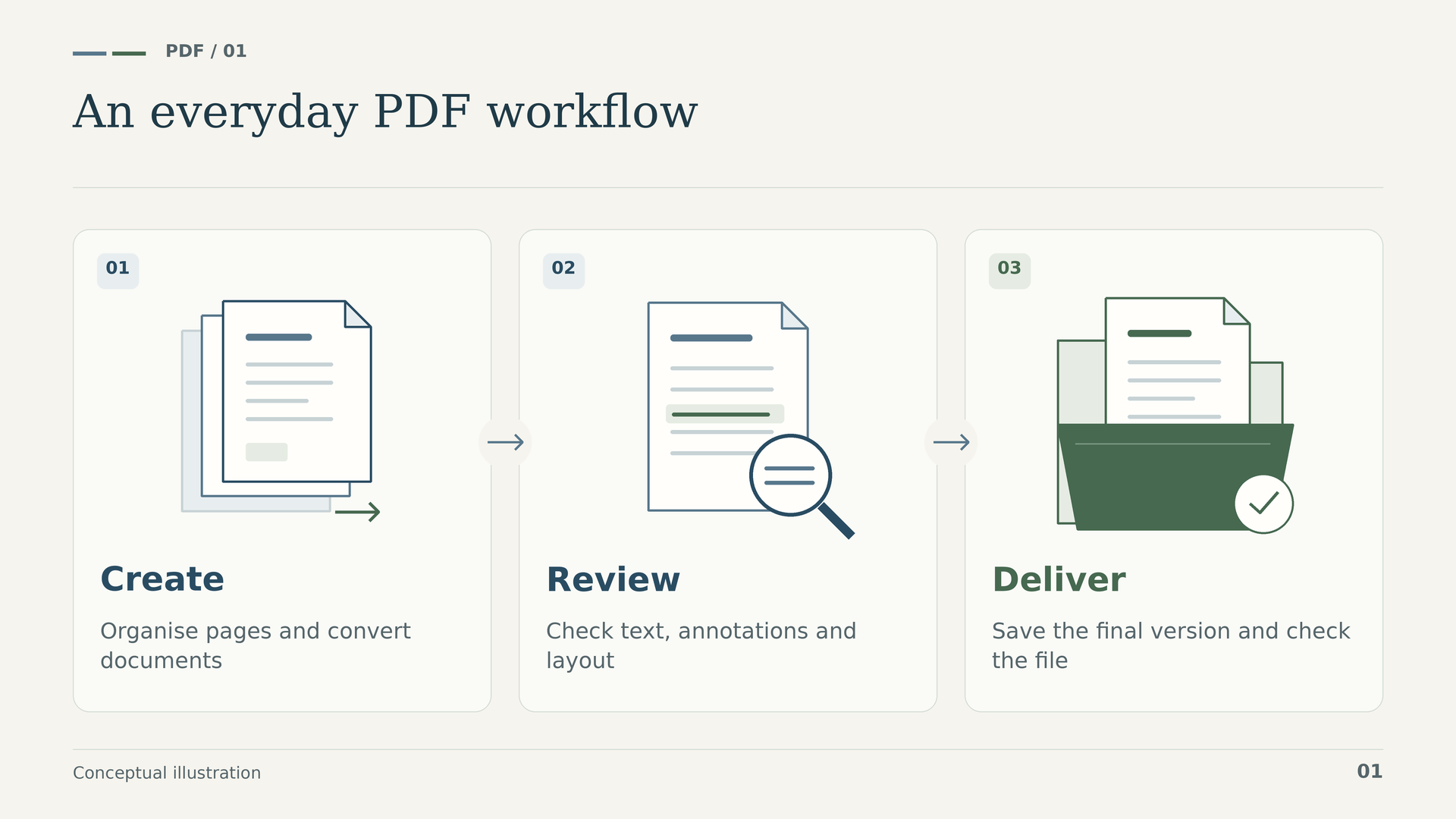
To assess a PDF editor, follow a real document from start to finish. This helps you distinguish essential tools from the features that genuinely change your choice.
- Receive and retain. Save the original, identify its source and create a working copy. Check that all expected pages and appendices are present.
- Prepare. Rotate pages where necessary, organise the collection and use OCR if the file contains only images. Verify the details you will need to search for later.
- Edit and review. Make authorised corrections, add comments or compare revisions. Keep clear which file is the reference and which is the modified version.
- Apply specialist steps. Where appropriate, redact content with Advanced, add Bates numbering or use the intended document management integration. Do not add these steps when the work does not require them.
- Validate and deliver. Reopen the result, check pages, legibility, sensitive information and signatures, and save a clearly identified final version.
This method also provides a useful purchasing test. Use one straightforward document and another representing your usual difficulties. Note where you intervene manually and which feature you need for each step. That helps you avoid choosing on the strength of an attractive demonstration that bears little resemblance to your work.
For delivery, use filenames that distinguish the case file, revision and purpose. An internal review copy should not be confused with one intended for a third party. If you retain versions containing different information, check the actual file you are about to attach, not just its name. A program can provide the right tools, yet selecting the wrong file can still undo all your work. The final check should be part of the workflow, not an optional extra.
15. Perpetual licences, Windows and pre-purchase checks
Both Licendi product pages specify a perpetual licence for one PC, multilingual and non-transferable, with a single activation. These are the terms of these particular offers, not a rule to apply to every Power PDF licensing arrangement. A perpetual licence for the purchased version should not be interpreted as automatic access to future major versions.
Before buying, confirm which computer will run the software. If you expect to change computers, do not assume transfer rights, further activations or unlimited reinstalls. The published single-activation condition should inform your decision from the outset.
For technical compatibility, consult the Power PDF 5 for Windows documentation and check the applications you want to integrate with it. Opening a PDF is not the same as using an Office add-in, a particular scanner or a corporate document management system.
The official technical specifications include Windows 11 and earlier versions, but make support conditional on versions supported by Microsoft. A historical operating system list is not a recommendation to keep using any old system in 2026. Similarly, installation minimums do not necessarily describe the right computer for your largest documents.
If you use macOS, stop comparing these two offers and look for a Mac-specific licence. If you need to deploy the program across several workstations, check the appropriate licensing arrangement instead of assuming that a one-PC licence covers the entire department.
Prepare a brief checklist before deciding: the computer's operating system, the applications you will use alongside the editor, your usual document types, the exclusive feature you need and the activation conditions. If you depend on a scanner or a corporate connector, include that component in your test. With this information, you can assess the edition in practical terms, without confusing what the program does with what other services provide or the rights attached to the licence.
16. The final decision: buy for the feature you need
Choose Kofax Power PDF Standard 5.0 when your work centres on creating, editing, converting, recognising text, commenting on and organising documents. It is a reasonable choice for many professional tasks: you do not need Advanced simply because you use PDFs every day.
Choose Kofax Power PDF Advanced 5.0 when you can identify a specific requirement for redaction, Bates numbering, DMS integration, dedicated batch conversion or signing connectors such as DocuSign and SignDoc. Check external dependencies before considering the entire process resolved.
One final test is to complete this sentence: “I need this edition because every week I have to…”. If your answer describes a real step and a verified feature, your choice has a sound basis. If it merely says “have more options”, revisit your usual documents. The best editor is not the one with the longest list of tool names, but the one that lets you complete your work with a clear procedure and results you can verify.
17. Official sources for further comparison
- Official Kofax Power PDF 5.0 documentation.
- Getting Started Guide: installation and connector integration.
- Technical specifications for version 5 for Windows.
- Features specific to Power PDF Advanced.
- Redaction and removal of document elements.
- Comparing PDF documents.
- DocuSign integration in Power PDF Advanced.
- Official announcement of the Kofax rebrand to Tungsten Automation.