EN
 FR
 DE
 IT
 PT
 ES


Setting up a new workstation: a licence checklist and the real cost
A new colleague starts on Monday. The computer switches on, but the customer's spreadsheet loses a function, email asks for a password nobody knows, and the scanner saves documents to the account of someone who has left the company. There is equipment, and there are purchased keys. What is missing is a functioning workstation.
Preparing for a new starter means closing those gaps before anyone has to improvise. It does not mean buying every program in the catalogue. It means knowing what work will be done, which usage rights are already available, and who will take responsibility when something goes wrong. The cheapest licence stops being a good purchase if it means repeating the installation or does not cover the intended use.
We will follow a single workstation: one person who needs documents, spreadsheets, email and access to company files. We will look at when to buy Windows, Office or a PDF editor, which records to keep, and how to calculate a budget that includes more than just software.

Before the shopping basket: write down what needs to work
The first discussion should be with the person who will supervise the new starter, not with a shop. Ask what the employee will need to deliver during their first week. “Administrative work” is too broad. “Prepare quotations using this template, check the CRM and return signed contracts” lets you check specific applications, permissions and file formats.
It is worth recording the answers in a short requirements sheet. This does not need to become a perfect inventory of the entire company. Its purpose is to avoid duplicate purchases and identify dependencies before promising a handover date.
- Duties: routine tasks, essential applications and a representative file for each workflow, without unnecessary personal data.
- Location: office, home or travelling; available connectivity, screen, video calls, printing and authorised remote access.
- Data: required folders, confidential information, read or edit permissions, and the person responsible for authorising each access.
- Existing resources: assigned computer, documented licences, available subscriptions and services the company already pays for.
- Handover: approved budget, person setting up the computer, deadline and contact for resolving problems.
Separate first-day requirements from things that would be useful later. If the new starter needs to issue invoices, access to the invoicing application is essential. If they will edit a complex PDF once a quarter, perhaps they can initially use another department's authorised process, without installing the same licence on several computers.
A practical way to complete the requirements sheet is to define an acceptance test: receive a sample order, open its attachment, prepare a response and save it in the right folder. If that sequence depends on a permission that nobody can yet grant, buying another licence will not solve the problem. You need to identify who can authorise it.
Some decisions also belong to the department manager. Can the employee work temporarily without a printer? Do they need to edit the customer's documents or simply read them? Settling this now is more useful than discovering, with the person waiting, that you bought an application for a task they will never perform.
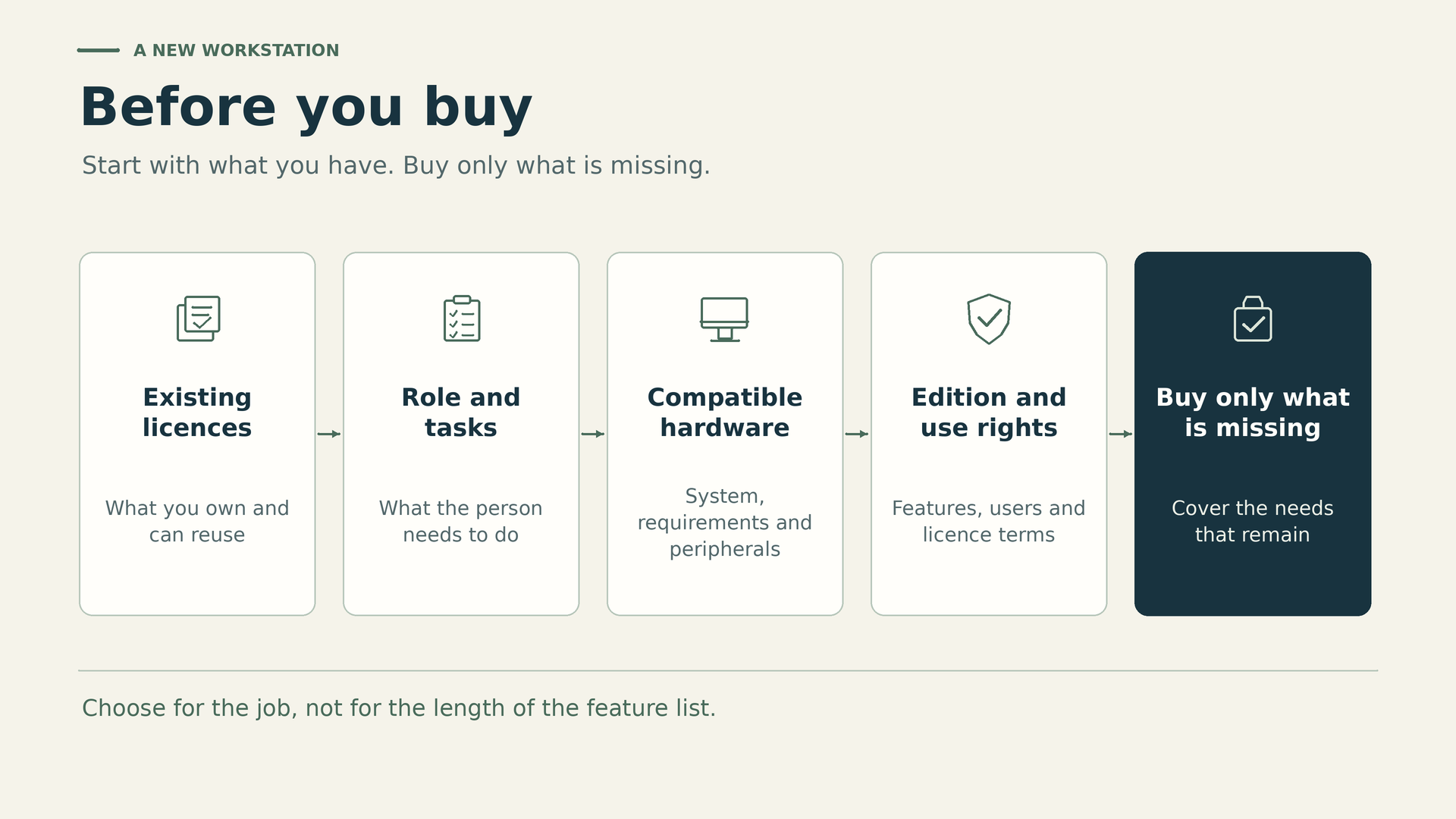
Check the computer that will actually be handed over
A computer advertised as new may include Windows Home, Windows Pro, another operating system or none at all. Ask for the invoice to identify what is supplied. For a reused computer, also check the inventory and previous records: seeing “Windows is activated” does not, by itself, prove that the company can assign it as intended.
Check the installed edition and activation status in Settings. Then compare the available rights with the task. If the computer already comes with valid, suitable Windows rights, buying another licence does not improve the workstation. If it comes with Home and the organisation needs Pro features, assess the appropriate option without confusing an upgrade with a full licence.
The official Windows 11 requirements include a compatible processor, TPM 2.0 and UEFI firmware with Secure Boot capability. A key cannot make incompatible hardware compatible. Nor do the minimum requirements guarantee comfortable working with large documents, video calls and several applications open. Size memory and storage for the actual work, not merely to tick the installation box.
Test the connections: screen and resolution, docking station, charger, headset, camera and adapters. For someone who works with spreadsheets all day, a suitable screen may contribute more than another application. Also check the keyboard, posture and available space; the purchase must accommodate that person's accessibility needs.
When buying hardware, confirm which accessories are included before setting aside money to duplicate them. For a repurposed computer, check the battery, any remaining warranty and the condition of its storage. A perpetual licence installed on a laptop that is nearly due for retirement may mean repeating part of the expense much sooner than expected.
Do not use an old operating system as a shortcut without a support strategy. For a new workstation, decide from the outset how you will keep the system updated and who will check that critical applications still work after changes.
Windows 11 Pro: choose the licence type, not just the name
Windows Pro can make sense when you need business management capabilities, BitLocker or specific professional features. It should not be bought automatically simply because this is a business: identify the required feature and check how it will be managed. Encryption, for example, is of little use if nobody knows where to recover its key when the user cannot sign in.
As a purchasable reference, the Windows 11 Pro offer from Licendi allows different options to be selected. This article uses only Retail with Digital delivery, SKU 2303, parent product 23020, at a public price of €23.13. This is not the lowest price of a different variant on that page.
OEM, Retail and Upgrade are not interchangeable labels. An OEM licence is normally tied to the computer; an upgrade requires an underlying licence that meets its conditions. The selected Retail offer is advertised as reinstallable and transferable, but that does not mean installing it simultaneously on the office computer and the laptop at home.
The official Windows terms distinguish between preinstalled and standalone software. Where transfer of the latter is permitted, they provide for removing the software from the previous device, subject to the applicable contractual and legal conditions. The example uses a single licensed computer, not permission for multiple users.
Before paying, keep a record of the selected licence type and request written confirmation if the shop's general terms appear to contradict the Retail listing. A specific answer about that product is more useful when planning a replacement than assuming rights from the word “perpetual”.
Office LTSC: local documents, not every service
For someone who works mainly with Word, Excel, PowerPoint and local files, a perpetual licence may be a good fit. First ask whether the company already has a subscription that grants that user desktop applications. If those rights exist and cover the intended computer, another Office purchase may be redundant.
The reference here is Office 2024 Professional Plus LTSC, selecting 1 PC, SKU 7319-1, parent product 7319, for €60.32. This offer's listing ties activation to the first machine. Do not budget for a free transfer to the next laptop or extrapolate terms from packages for several computers.
Microsoft explains in its Office LTSC 2024 overview that this edition is distributed to organisations through volume licensing and does not receive new features after release. The commercial presentation of an offer for one computer does not, by itself, establish its provenance or turn the product into a new official Retail licence.
Outlook is an email application; it is not the same as subscribing to a business mailbox. Nor does this purchase automatically include hosted storage, Teams, Microsoft 365 Copilot, Project or Visio. If the workstation needs collaboration or cloud services, review their rights and costs separately, without assuming that every feature requires the same subscription.
Test a copy of the usual documents: formulas, authorised macros, add-ins, fonts, printing and export. Opening an empty file is not enough. The customer's collaboration requirements also matter; a workflow based on simultaneous editing may call for a different solution.
If there are legacy macros or add-ins, record their owner and the required version. Do not enable unknown content just to get a test to pass. Consult the person responsible for the application and use controlled copies of documents. The urgency of a new starter's arrival does not turn a file received by email into a trustworthy installation source.
Support for Office LTSC 2024 ends on 9 October 2029. The duration of the usage rights does not extend that date. Schedule a review with enough time to assess migration, compatibility and budget before security updates end.
PDF: pay for a task, not a file extension
Receiving PDF documents does not mean you have to buy an advanced editor. A suitable reader may be enough for viewing, printing or completing certain forms. For signing, identify the type of signature the procedure requires and which certificate or service is needed; having an editor does not automatically meet those requirements.
The purchase makes more sense if the person frequently combines documents, corrects content, processes scans using OCR or prepares case files. Request representative examples and check the required features before deployment. To conceal information, a black box drawn over the text is no substitute for actually removing the content.
Kofax Power PDF Advanced 5.0, SKU 12461, is included as an example at €200.00. The offer specifies one computer, a single activation and a non-transferable licence. This is an important restriction if the computer is temporary or will be replaced soon.
Do not add it by default to the workstation of someone who only reads invoices. If it does prove suitable, assign it to the final computer and keep the terms. This budget does not establish any entitlement to future reactivation or transfer, or a manufacturer's support date for that version. These are points worth clarifying before becoming dependent on the program.
Buy on the secondary market with documentation
A used licence can be a reasonable alternative, but “the key works” is not a sufficient legal test. Windows' own terms warn that successful activation does not confirm authenticity or proper licensing. The records should explain which right was acquired, where it comes from and how it may be used.
The CJEU's official summary of UsedSoft and Oracle describes conditions for the exhaustion of the distribution right in certain software. It does not certify every digital offer. Relevant factors include authorised initial marketing in the European Union, a right of unlimited duration in exchange for appropriate remuneration, and the previous purchaser making their copy unusable.
For a chain of ownership relying on rights in the EU or EEA, request documents establishing the applicable territorial scope; do not infer validity from the seller's nationality. It also matters that a multiuser licence is not improperly split to resell only part of it. Subscriptions, hosted services and keys of unknown origin do not become transferable simply by being called “second-hand”.
- An invoice identifying the buyer, seller, product, edition, quantity and reference for the purchased offer.
- Applicable usage and transfer terms, identifying the licence and its scope per device or user.
- Evidence of authorised marketing, perpetual rights and the chain of ownership where necessary.
- A declaration that the previous holder has stopped using or uninstalled the software, and an explanation of how any grouped licences have been handled.
Keep the documents alongside the inventory, with restricted access. If there is a material gap, ask for clarification before deployment; an activation guarantee does not fill it. The commercial references in this article are not a provenance audit of the specific units or legal advice applicable to every contract.

Business accounts and services: who retains control?
Setting up email through the technician's personal account is convenient until that technician moves to another company. The domain, billing and administrator accounts must remain under the organisation's control. The new starter needs an identity of their own, not the shared password of the person who previously held the role.
Review each service according to its licensing metric. An application licensed per device does not work like a subscription licensed per user. And a subscription permitting several devices does not necessarily authorise sharing the account between people. Check assignment, concurrent use, remote use and rules for personal devices.
Enable multifactor authentication and prepare a controlled recovery process. Decide who holds emergency codes and how the identity of someone requesting help will be verified. If everything depends on one person's private phone, the company may lose access precisely when it needs it most.
Before subscribing to email or cloud services, check the existing administration panel. There may be an available seat or a plan that already includes applications. However, “there is storage” does not prove that an independent, recoverable backup exists. Define which data is backed up, how long it is retained and who can restore it.
Also check the billing date and the contractual commitment. A fee expressed per month may correspond to an annual obligation, not a service that can be cancelled monthly. Identify who receives renewal notices and who authorises changes. The new starter should not have to accept a free trial using their own card just to begin work.
Also establish where work documents are stored. A company folder with the right permissions supports continuity; a synchronised personal folder may leave files outside the intended control. Do not turn a new starter's arrival into a permanent exception to access rules.
Three software baskets that can genuinely be compared
These public amounts come from the Spanish storefront checked on 16 October 2026. Select the specified variants; the headline price of a configurable product may refer to another option. The baskets include only the licences described, not a computer, installation or services.
| Workstation situation | Planned purchase | Software outlay |
|---|---|---|
| Valid, suitable Windows rights already available | Office LTSC 2024 for 1 PC | €60.32 |
| Computer without Windows; both products required | Windows 11 Pro Retail Digital and Office | €83.45 |
| Advanced PDF work will also be needed | Windows, Office and Kofax | €283.45 |
The basic calculation is 23.13 + 60.32 = €83.45. Adding the editor adds €200.00, not a monthly fee. The first basket requires existing, sufficient Windows rights; it does not suggest relying on an activation without documentation. If valid Office rights also exist for the intended use, review that purchase too.
Licendi's public terms state that VAT is included for B2C end customers. We take those prices as reference public outlays, without adding another tax on top. No B2B invoice or your company's tax treatment has been verified: confirm the total, tax details and deductibility with the supplier and your adviser.
The availability observed does not guarantee immediate delivery or keep the price fixed indefinitely. Allow time to check supply and conditions before the employee's start date.
The real cost: separate purchasing, setup and running costs
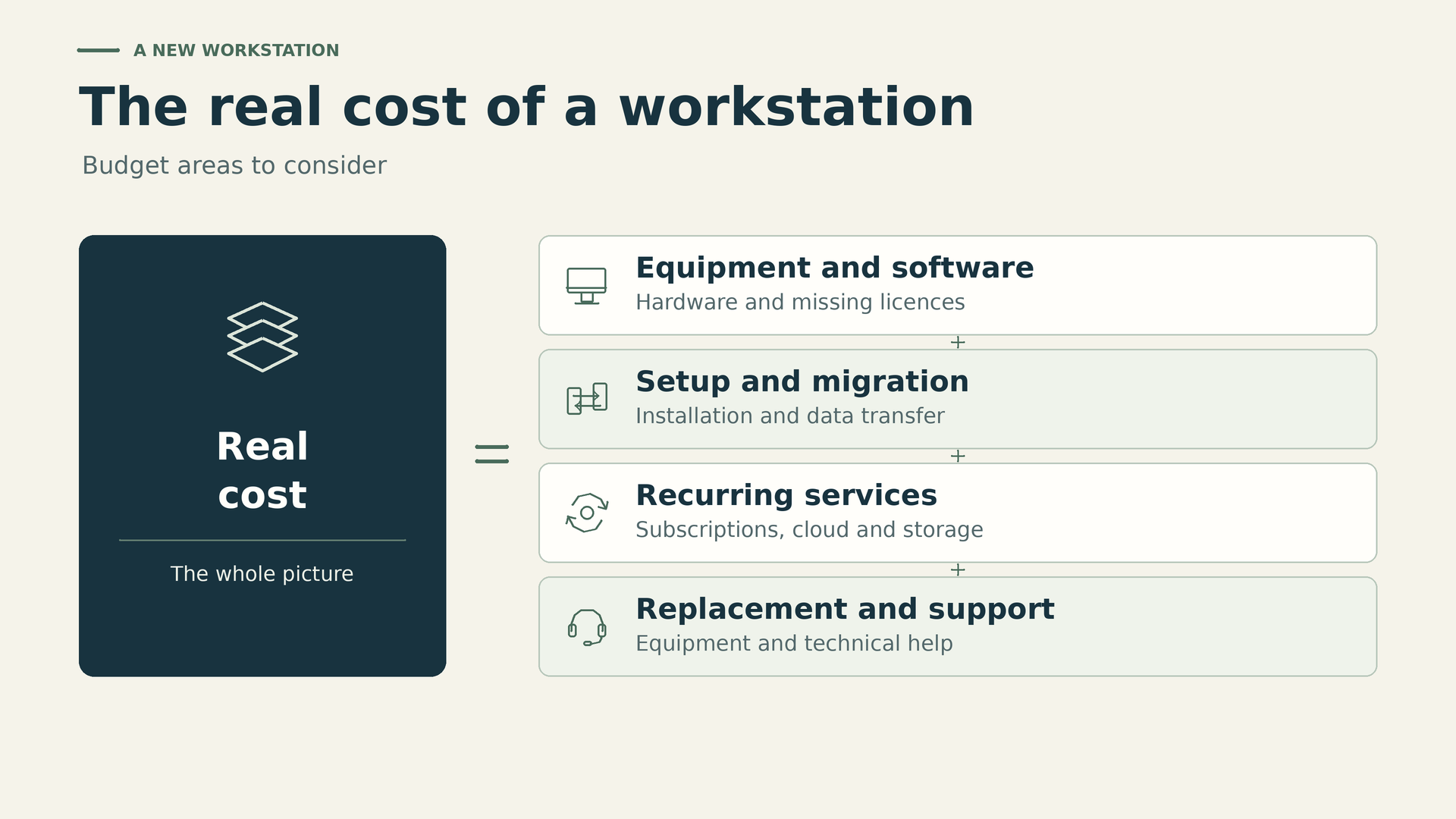
Let us build an example for that one employee. We assume a computer sold without Windows and a set of peripherals, with a combined allowance of €900. We add three hours of setup at €45 per hour, or €135, and the Windows plus Office basket at €83.45.
For running costs, we set aside €8 per month for email and cloud services and €4 per month for independent backup. That is €12 monthly, €144 annually and €432 over 36 months. Hardware, technical work and services are assumed final gross outlays: they are not Licendi quotations, verified Microsoft rates or promises of sufficient capacity.
| Item | First year | 36 months |
|---|---|---|
| Computer without Windows and peripherals | €900.00 | €900.00 |
| Setup: 3 hours at €45 | €135.00 | €135.00 |
| Windows Retail and Office for 1 PC | €83.45 | €83.45 |
| Email, cloud services and independent backup | €144.00 | €432.00 |
| Basic scenario total | €1,262.45 | €1,550.45 |
| Total with optional PDF editor | €1,462.45 | €1,750.45 |
The three hours of setup are an estimate, not a guaranteed completion time. Ask for the scope of work to specify installation, account creation, migration and testing. A migration involving disorganised folders, large files or an old application may require considerably longer. Agree what happens if the expected time is exceeded and which work is excluded before accepting a rate.
When comparing a computer with Windows included and one without an operating system, compare the overall specifications and warranty, not just the difference between licences. The example separates the items so that you can replace them with real offers; it does not recommend always buying the computer without Windows. If you reuse a screen or already have an email service, adjust those lines, but first check that no new capacity, connectivity or administration needs arise.
The initial outlay excluding services is 900 + 135 + 83.45 = €1,118.45. The later totals add the relevant services only once. They do not include a new domain, subsequent support, incidents, replacements, electricity, extensive training, industry-specific applications or price changes. If the domain already exists, it makes no sense to charge its full purchase cost to this person again.
This calculation does not resolve the end of support either: 36 months from 16 October 2026 takes us to 16 October 2029, after Office's deadline. You need a migration or upgrade allowance that has not yet been quantified or included. The total is therefore a comparable scenario, not a guarantee of supported operation throughout the period.
The checklist before the first day
Installation should finish with tests carried out from the employee's account, not the administrator's. That distinction reveals missing permissions and settings that only worked for whoever prepared the computer. Use representative test files and record the result, rather than declaring a program suitable simply because its installer finished.
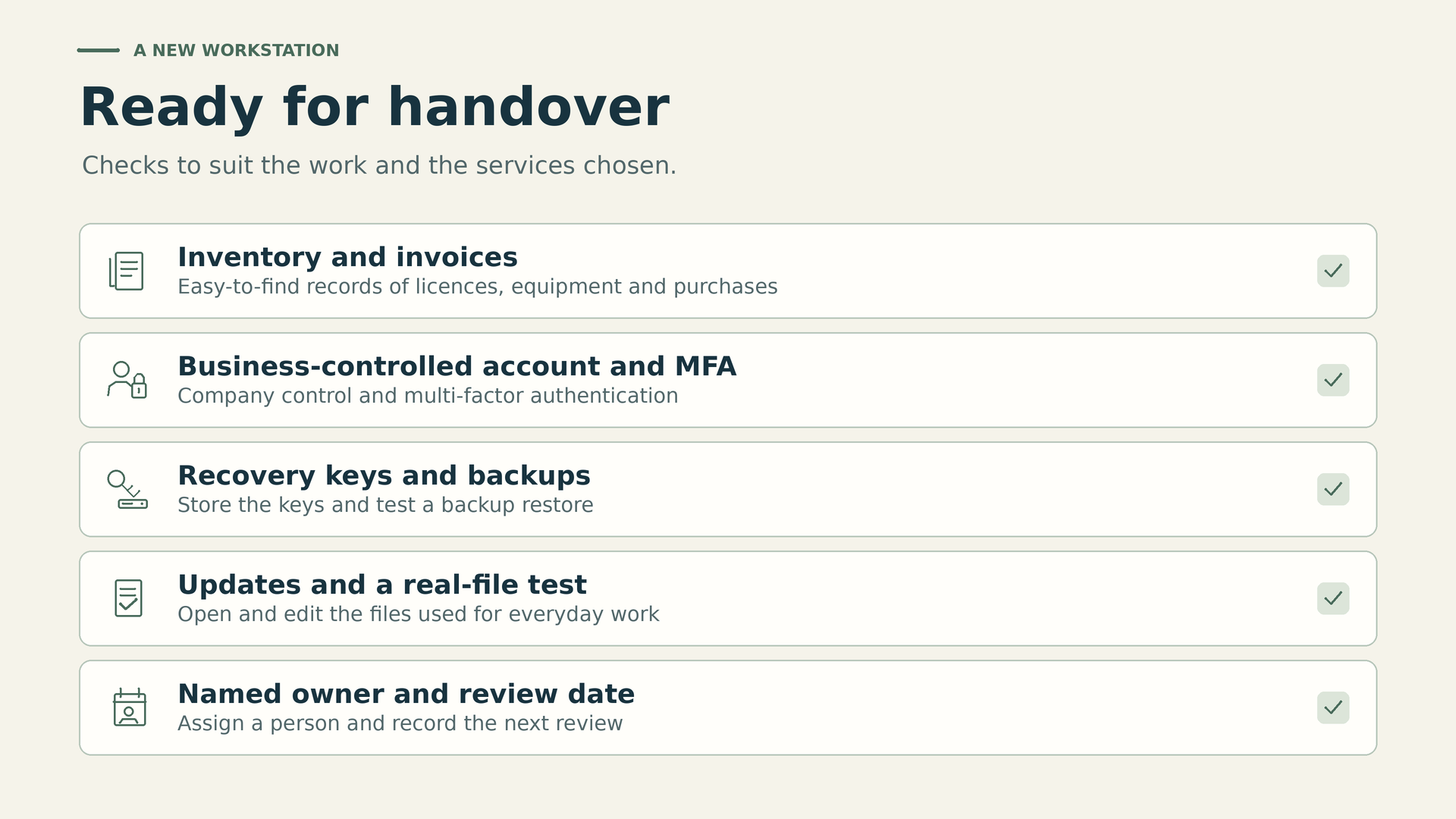
- System: correct edition, updates applied and restart completed; check that no setup remains pending.
- Identity: individual access to email and required services, multifactor authentication and a documented recovery procedure.
- Permissions: open authorised folders, save in the right place and verify that restricted areas remain inaccessible.
- Documents: edit, save, reopen and export the usual formats; check macros and add-ins only if authorised.
- Communications: send and receive a test message, make a call and check the microphone, camera and headset.
- Peripherals: test the screen, printing and scanning where needed; confirm that documents go to the company destination.
- Recovery: run the planned backup and restore a test file to a separate location, checking its contents.
- Remote access: check the VPN or authorised tool from an external connection, if the workstation needs it.
When migrating information, agree a cut-off time and retain the source until the destination has been checked. Verify folders, representative files and permissions; copying does not mean access has been correctly preserved. Avoid both locations continuing to receive changes without coordination, because then nobody will know which version the new starter should use.
Security should not be limited to buying another antivirus product. Review existing protections: Microsoft describes the available controls in Windows Security. Decide whether additional management is needed according to risks and obligations, avoiding duplicate or incompatible products. Keep the everyday user account without administrative privileges unless there is a justified need.
Check automatic locking and encryption where appropriate, but also ensure that recovery information is kept somewhere other than on the computer itself. For home working, agree secure physical storage and a loss-reporting process. A strong password does not protect a printed document left unattended or recover a stolen laptop.
Restoration deserves an additional question: how much work could we afford to lose, and how long could we be unable to work? The answer determines backup frequency, retention and recovery priority. Check that an accidental deletion or compromised account cannot also delete every backup. Backup needs separation and control, not simply a green tick on a screen.
Finally, assign someone to review the Windows 11 support lifecycle. Maintaining Windows means keeping up with supported releases, not installing an edition once and forgetting about it. The update procedure should include a way to detect problems without leaving the computer indefinitely out of date.
If an essential test fails, record it and decide whether handover can proceed. A printer still awaiting setup may allow an authorised alternative; inappropriate access to other departments' data requires permissions to be corrected. Do not hand over someone else's credentials as a quick fix. The responsible person must know about the limitation, approve any temporary solution and assign a specific, realistic date for resolving it. This prevents an exception made for a new starter from becoming the normal way of working.
Hand over the workstation with a simple acceptance check
Set aside a few minutes with the person to go through their main tasks. Have them open their document, find the shared folder and learn how to ask for help. Handing over a bag containing a charger and an email full of keys is no substitute for that check. Initial training also helps correct habits before improvised workarounds appear.
The handover record can be brief: assigned person and computer, asset number, date, applications, licence references, accessories, completed tests and responsible person. Add outstanding issues with a temporary solution and a review date. Do not mark something “correct” if nobody has checked it.
Record where the supporting documents are kept and who can consult them, rather than putting passwords or complete keys in a shared spreadsheet. Secrets must be stored in a system with access controls. Recovery needs named people responsible for it and a procedure that can be used when the employee is absent.
Explain how to report an incident and which information to include: affected application, error message and blocked task, avoiding unnecessary sensitive data. Define an alternative channel if email fails. It is also worth stating what the employee should not do: share their password, disable protections or install support tools suggested by a contact whose identity has not been verified.
One particularly useful test is to ask: “If this computer will not switch on tomorrow, where is your latest work, and who will help you recover it?” If the answer depends on remembering a personal password or manually copying files at the end of the month, the workstation still has a dependency to resolve.
Plan for replacement and departure too
Onboarding leaves decisions for the future. If the computer breaks, not every licence will be able to move to its replacement. Windows Retail has transfer conditions; Office in this offer is tied to the first machine; Kofax is advertised as non-transferable and limited to a single activation. Budget for replacement with those differences in mind, rather than applying one common rule.
For working from home, check whether the same laptop or a second computer will be used. One person's identity does not multiply the rights of a per-device licence. Nor does it automatically make remote desktop, virtualisation or shared access authorised uses.
When someone leaves, coordinate access blocking, session revocation, device returns and continuity of documents. Retain only the data needed under the applicable policy and obligations. Do not keep their identity active as a shared account for the next employee.
Do not release a subscription before reviewing how this affects its associated data. A mailbox, personal folder and business application may have different retention procedures. Assign the transfer to the authorised person and record the result. Cancelling a payment does not replace checking who retains access to the information.
Before reassigning or retiring the computer, confirm which information has been preserved and erase it through a controlled procedure. Update the inventory and review subscriptions that can be unassigned or cancelled, respecting existing commitments. A properly managed departure avoids paying for forgotten access and handing someone else's data to the next user.
Buy less, deliver a better workstation
Common mistakes have something in common: they confuse an indicator with a guarantee. Activation is not sufficient documentation; synchronisation is not independent backup; a perpetual licence is not perpetual support; an installed application is not a completed task. Reviewing those distinctions prevents more concrete problems than any full shopping basket can.
If you are preparing for a new starter, take a short list to Licendi: the final computer, existing rights, missing applications and transfer conditions you need clarified. Compare the exact variant and request documentation before completing the purchase. This lets you assess the secondary market by how well it actually fits, not solely by the advertised price.
The aim for that first Monday is simple: the person can work, their data is protected, and someone knows how to respond if anything fails. A well-prepared workstation ends with that check, not with the payment.