EN
 FR
 DE
 IT
 PT
 ES


Automatic software renewals: how to avoid charges you don’t need
The bank notification arrives on an ordinary Tuesday: a subscription has renewed for software you barely remember signing up for. Perhaps you needed it for a project, started a free trial, or someone in the office bought it through an account they no longer use. The amount may seem small, but the frustration is paying again without having decided to.
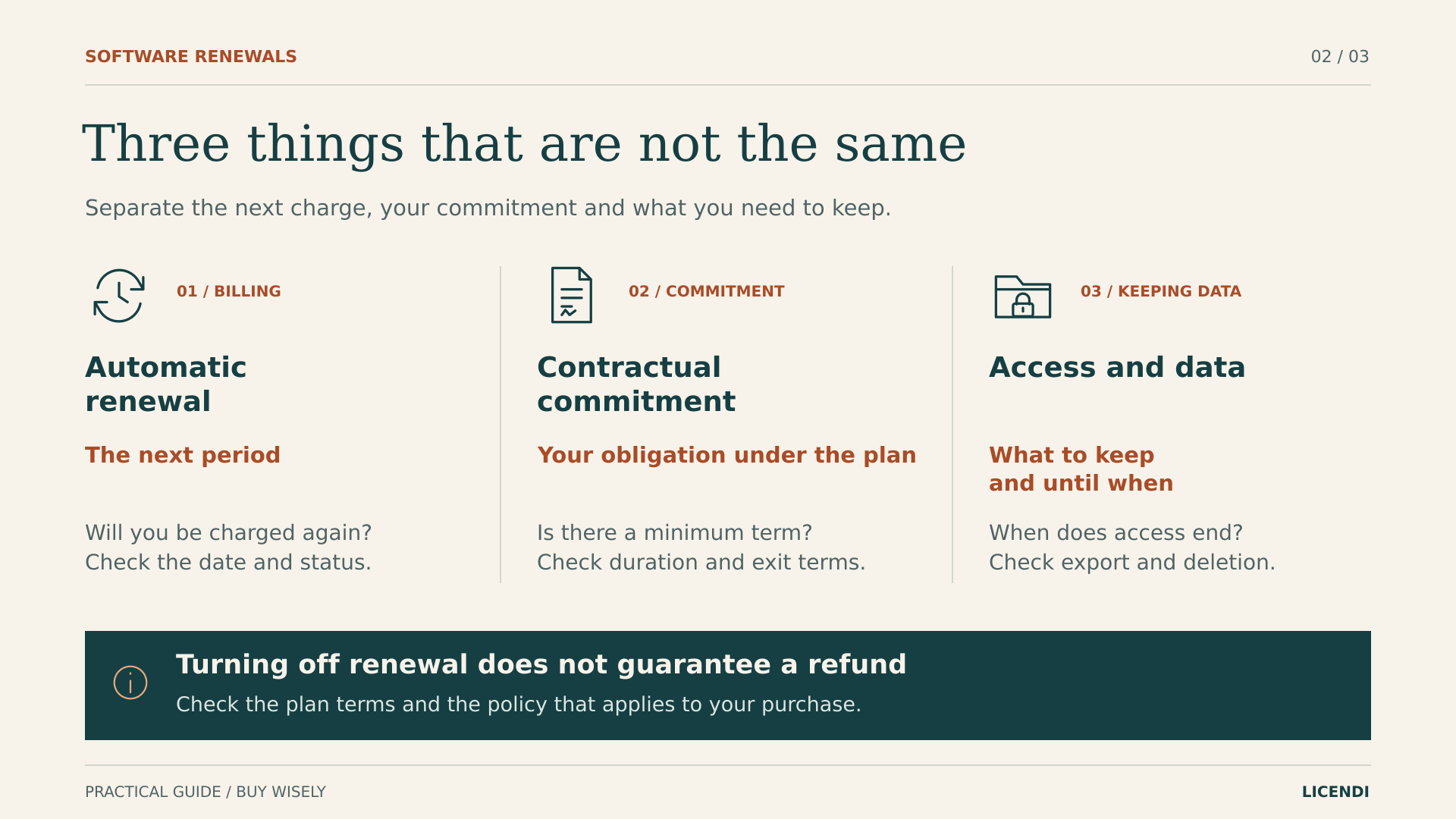
Avoiding these renewals is not about cancelling everything or changing your card. It means finding the contracts, understanding when you can leave them and checking that cancellation has actually gone through. Then you can decide which tools to keep, which to replace and which simply to stop paying for, without losing documents along the way.
1. Look for charges over the past twelve months
Start with your statements, not the icons on your desktop. Review the past twelve months of card, bank and PayPal statements to find annual payments as well as monthly charges. Look further back if you know a contract runs for longer. An uninstalled application may still have an active subscription; an installed program may be covered by a licence you have already paid for.
Match each transaction to its receipt. Search every email address you have used, including old accounts and billing aliases. In a small business, ask who originally subscribed to the tool and who now manages that account. The merchant name on your statement is not always the name you see when you open the program.
Put together a simple spreadsheet. You do not need another paid application to keep track of the ones you already have:
- The tool, the account holder and the person responsible for reviewing it.
- The company issuing the bill, the purchase channel, the amount and the currency.
- How often payments are taken and how long the commitment actually lasts.
- The renewal date and the last day to give notice that you do not want to renew.
- The number of user licences, recent usage and documents you will need to keep.
To assess usage, ask what task each tool has helped with recently and what it achieved. “It’s installed” is not enough of an answer. Check whether you are still paying for people who no longer work with you, too. Equally, do not rule out a program just because it has not been opened for weeks: it may be needed for a quarterly task. Base the decision on identified needs, not simply on how often its icon appears.
Mark any unclear charge as “not yet identified”; do not assign it by guesswork. If two payments look similar, compare their references, accounts and billing periods before treating them as duplicates. They could cover different users or separate contracts. The aim is to be able to explain every line, not to produce an impressive savings figure.
2. Distinguish monthly payments from a monthly contract
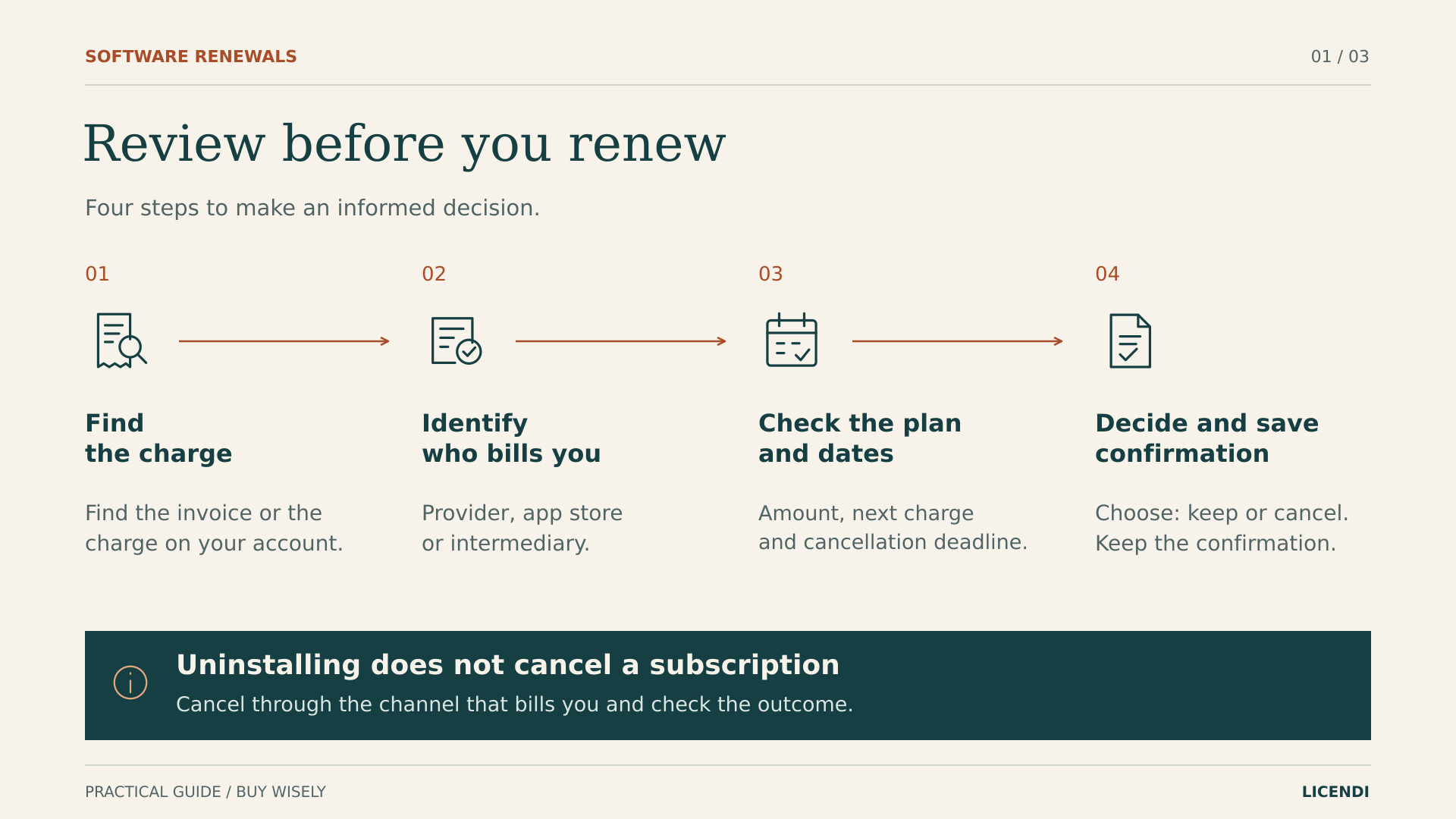
“I pay every month” describes how the money leaves your account, not necessarily how long your obligation lasts. A rolling monthly contract and an annual contract paid in twelve instalments may produce similar bank transactions, but they do not offer the same way out. In the latter case, stopping the next renewal can still leave instalments outstanding for the year you have already committed to.
Look for the full plan name and its terms, not just the prominently displayed price. Record the sign-up date, the end of the commitment, the renewal date and the deadline for giving notice separately. The deadline to opt out of renewal may fall before the charge: setting a reminder only for the payment date could be too late.
If the dates are unclear, ask the provider to confirm in writing the last day to avoid the next period and which payments would remain due. Ask those two questions separately. An answer about the next payment date does not necessarily settle the notice deadline or the length of the commitment.
Here is a hypothetical example, unrelated to Licendi’s prices: a tool costs 12 euros a month with an annual commitment, or 144 euros a year. If you give notice of non-renewal after six instalments, you should not automatically count the other 72 euros as a saving. First check which obligations still apply and what effect your request has.
With Adobe, check the specific plan, country, purchase channel and terms shown in your account before confirming cancellation. Save any cancellation charge or refund amount displayed. Do not assume someone else’s experience applies to you, or switch plans as a supposed shortcut: you could be accepting a different commitment rather than ending the previous one.
3. Choose between non-renewal, cancellation and a refund
Before clicking a button, write down what you want to achieve. “I don’t want to be charged next year” is not the same as “I want to stop using it today” or “I want yesterday’s payment back”. Providers may bring these options together on one screen, but their effects remain different.
| Action | What to check |
|---|---|
| Turn off renewal | That another period will not start, and when your current access ends. |
| Cancel the contract | The effective date, any outstanding obligations and the consequences for users. |
| Request a refund | The charge being disputed, the reason, the requirements and the provider’s explicit response. |
| Exercise the right of withdrawal | Whether it applies to you as a consumer, the deadline and any exceptions. |
| Revoke an automatic payment | Which payment authorisation changes, without assuming that the contract has ended. |
Read the final screen particularly carefully. A discount offer, a survey or a “sorry to see you go” message does not, on its own, confirm cancellation. Continue until you see the final status and save the effective date. If the system offers you a pause, check when billing will resume.
For a tool you still need for a few weeks, turning off renewal may be more appropriate than ending the service immediately. For a payment already taken, also submit the relevant refund request. Do not assume one process includes the other, or that the provider will interpret an ambiguous request as you intended.
4. Keep your files before closing the account
List everything that depends on the account: documents, email, shared storage, templates, projects and collaborators’ access. Do not limit the list to files you remember creating yourself. In an office, a seemingly individual subscription may support a folder used by the whole team.
Export the content you need before the service ends and keep an independent copy. Where possible, save both the original editable format and another format you can open without the tool. Download invoices and receipts as well. A folder being visible on your computer does not, by itself, prove that all its contents are available offline.
Test the copies: open several documents, check images, formulas and attachments, and make sure you are not saving only links. If you are moving to another application, test representative files first. Discovering after cancellation that an essential template does not work can turn the expected saving into hours of lost work.
Store exports somewhere with controlled access, particularly if they contain client data. Do not upload confidential documents to an unfamiliar converter just to finish sooner. If several people need the files, check that they can open the copies from their own accounts: your administrator access may conceal a permissions problem that they will encounter.
With Microsoft 365, pay particular attention to storage. Microsoft warns that if you exceed the free allowance when your subscription ends, restrictions apply to uploading, editing or syncing files in OneDrive and to sending or receiving email in Outlook.com. Turning off renewal today does not mean your documents disappear today; what matters is preparing for the position you will be in when access expires.
5. Microsoft: check the expiry date
If Microsoft bills you directly, sign in to your Microsoft account and open Services & subscriptions. Find the correct product, select “Manage” and look for “Turn off recurring billing”. Read the consequences and complete the confirmation. Make sure you have signed in with the account shown on the receipt, not simply the one you use for Windows.
Microsoft’s official guidance says that after you turn off recurring billing, you can keep using the subscription until its expiry date. If you see “Turn on recurring billing”, the feature is already turned off. This is a useful check when you remember completing the process but cannot find the confirmation email.
Note the expiry date and keep a screenshot of the status. If you use Microsoft 365 Family, let the people you share the subscription with know so they can review their files and requirements. Avoid promising continued access that you have not checked in the account.
If you want a payment back, also review the refund policy and the eligibility information shown during cancellation. Microsoft explicitly states that not every cancellation results in a refund. If you bought through Apple, Google Play or a reseller, you need to manage the subscription through that channel. The application’s publisher and the company charging you are not always the same organisation.
6. Apple: find the right account and cancel trials early
For subscriptions billed by Apple, open “Settings” on your iPhone, tap your name and open “Subscriptions”. Select the subscription you want to end and tap “Cancel Subscription”. According to Apple, if there is no cancellation button or you see an expiry message in red, the subscription is already cancelled.
If you cannot find it, search your email for “receipt from Apple” or “invoice from Apple”. Check which account made the purchase. If the receipt belongs to a family member, that account holder needs to cancel it. Do not share passwords to sort it out; coordinate with the person who has the appropriate access.
Do not leave trials until the last minute: Apple asks you to cancel at least 24 hours before they end if you do not want to renew. This guidance applies to trials managed by Apple; it is not a universal deadline for every provider. Also read what happens to your access when you cancel that particular trial.
Already been charged? Request a refund separately at reportaproblem.apple.com, Apple’s official reporting portal, selecting the transaction and explaining the reason. A refund is not guaranteed. And if the receipt is not from Apple, identify the actual provider: installing an application on an iPhone does not determine who manages its billing.
7. Google Play: uninstalling is not enough
Open your Google Play subscriptions with the correct account. In the subscription settings, select “Cancel subscription”, give a reason if asked and complete the process. If the product is not listed, check any other Google accounts you have used and compare them with the receipt.
Google is clear about this: uninstalling an application does not cancel its subscription. Deleting the icon, no longer opening the app or changing phones does not confirm cancellation either. You need to check the subscription’s status through the channel that bills you.
With a standard cancellation, you can continue accessing the content for the period you have already paid for. However, Google Play also supports subscriptions with multiple payments: even if you stop renewal, you remain responsible for outstanding payments under the current commitment. This distinction explains why another instalment may arrive without necessarily meaning your request has failed.
If you choose to pause rather than cancel, note the resumption date and reconsider whether the pause meets your needs. For someone who no longer uses a tool, postponing the decision may simply put off the problem. Always keep the confirmation, and do not confuse retaining access until expiry with receiving a refund for the period already paid for.
8. PayPal: revoke the payment without forgetting the contract
On PayPal’s website, open “Settings”, then “Payments”, and look for “Subscriptions and saved businesses” or “Automatic payments”. Select the seller to view the authorisation and, where appropriate, cancel it. This screen can also help you identify a merchant you did not recognise on your statement.
However, the payment authorisation and your contract with that merchant are separate matters. PayPal’s terms warn that even after you end a payment agreement, you may still owe money for products or services received. You should therefore also notify the provider of cancellation or non-renewal through its own process and keep its response.
Do not use a card change or a payment block as a substitute for that process. They may leave the contractual obligation unresolved and make it harder to establish what happened later. If you dispute the amount, document the issue and make a specific complaint rather than relying on a failed payment to close the matter.
Do not wait until the last moment, either: the terms allow for some payments already scheduled to go through before the agreement ends. If renewal is close, check directly with the merchant what has been cancelled, from what date and whether any transaction is still pending.
9. If you have already been charged, gather useful evidence
First identify which period the charge covers. It could be a new annual term, an outstanding instalment or a transaction linked to another account. Gather the invoice, payment reference, agreed terms and any previous cancellation confirmation. Include the dates of your requests and the replies received, organised so that someone else can follow them.
Then ask for a specific resolution. For example: “I requested non-renewal on the date shown in the attached confirmation, but there is a charge for the following period. Please review the transaction and confirm whether a refund is due.” If you simply forgot to cancel, explain that and ask what options are available.
Do not describe an authorised renewal you had forgotten about as fraud. A genuinely unrecognised or unauthorised charge requires a different investigation and may mean contacting your payment provider. An accurate complaint helps resolve the problem; overstating the reason may make it more difficult.
Keep the case reference and final response. If you are offered a refund, check how much it covers and whether renewal has also been disabled. A one-off refund does not necessarily remove the need for that check. Review a later statement to confirm that the money has actually returned, rather than relying on a “request received” message.
If the cancellation button fails, record the error and the time, then use the provider’s designated contact channel. Explain which contract you are trying to cancel and keep evidence that you sent the request. Do not assume it has gone through because you have made several attempts: ask for confirmation of the outcome and the effective date they will apply.
If no agreement is reached and you are acting as a consumer, you can contact consumer advice services for guidance on your complaint. If it is a business contract, or the amount and terms are complex, seek appropriate advice before assuming that the rules for a personal purchase settle your case.
10. Set reminders that give you time to act
Plan reminders around the last day to give notice of non-renewal, not just the payment date. As a personal routine, you could schedule a review several weeks ahead and another a few days before the deadline. These are not legal notice periods or provider guarantees: they are time you give yourself to decide, export files and resolve access problems.
The reminder should include the tool’s name, the account, the management link and the person responsible. “Review software” invites postponement; “decide whether to renew the PDF editor and check cancellation” gives you a specific task to finish. Save the link from the official website, rather than signing in through suspicious messages.
In a small business, appoint an owner and another person who can find the documentation if the first is away. When someone leaves the team, review their tools, paid seats and permissions before closing their email account. Do not delete accounts blindly if you still need to retrieve invoices or transfer documents.
If you are offered a discount to stay, check how long it lasts, what happens afterwards and whether it changes the commitment. A lower price solves nothing if you are still paying for something you do not use. If you accept, update the inventory and reminders straight away; do not leave the previous plan’s dates in place.
Give the inventory a brief monthly review as well. Mark each contract as keep, reduce, do not renew or investigate, then check any outstanding actions. Before starting another free trial, note its end date and decide what result would justify paying for it. That way, trying a tool will not turn into funding it for months simply because you forgot.
11. Decide what you need before buying another licence
Cancelling a subscription does not mean you have to replace it with another product. If you only used an occasional feature, check whether the tools you already have cover it. Review existing licences too: buying a program again when you already have the right to use it does not eliminate unnecessary spending; it merely changes its form.
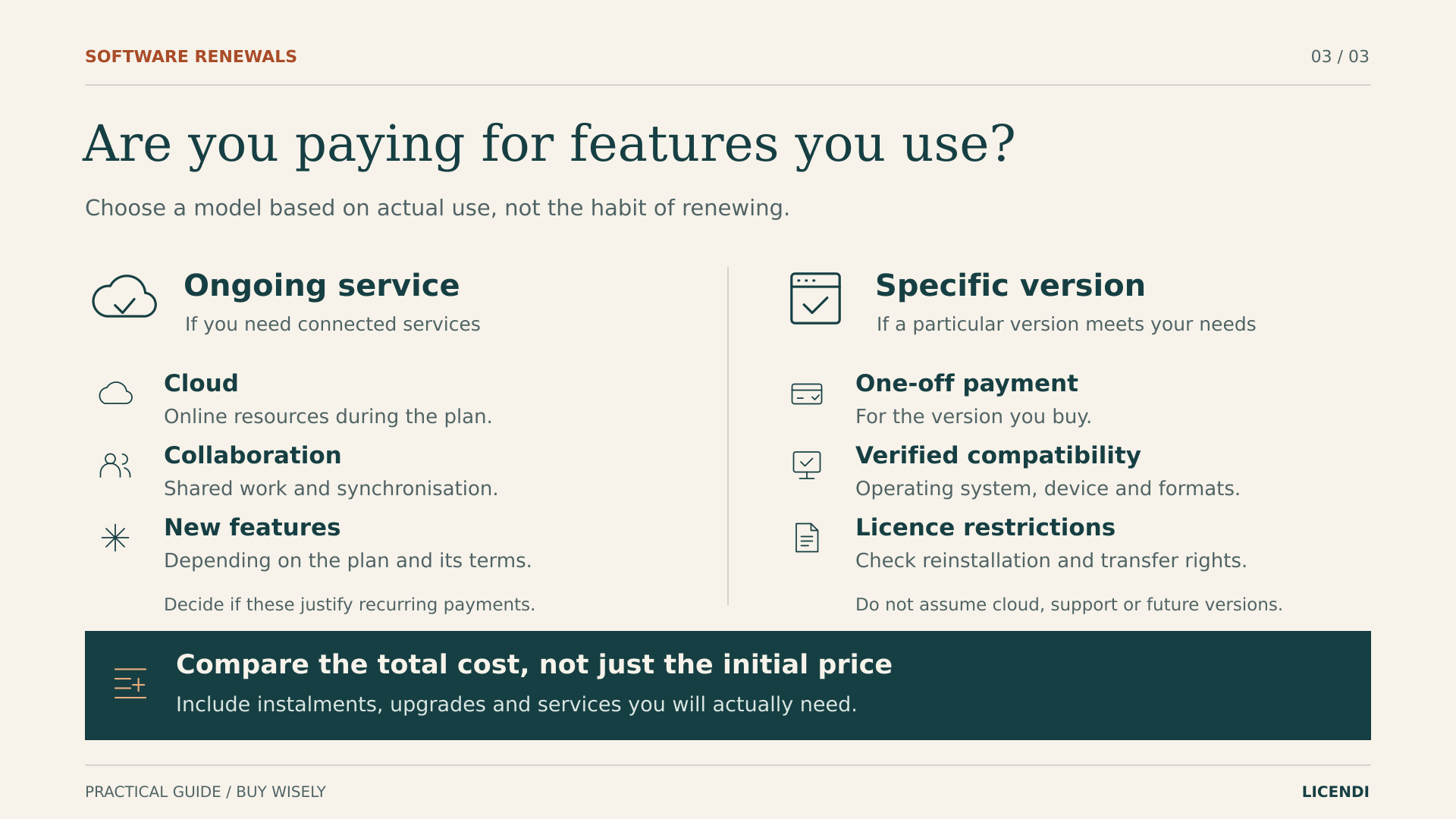
A subscription can make sense when you are paying for collaboration, storage or ongoing services you genuinely need. A perpetual licence may be a better fit when your work depends on a specific version installed on a computer. Neither option is automatically better; compare the work you can do and the obligations you will retain.
Calculate the total cost, including migration, training, storage you need to keep and possible future purchases. Do not compare a suite with cloud services to a local application as though they offered exactly the same thing. And do not count a monthly payment as a saving if it will still be due under your current commitment.
Before replacing an entire package, separate its components. You might want to keep email and stop paying for an extra feature, or reduce the number of seats rather than close the account. Ask for the details of the alternatives and when they take effect. A well-planned reduction may be more useful than a complete migration, especially if several people work on the same documents.
The following second-hand offers from Licendi address three different needs. Start with compatibility and the limits of each licence, not a blanket promise to “forget about every subscription”.
12. Windows 11 Pro: only if you need that licence
If you need an operating system licence for a compatible computer, take a look at Windows 11 Pro at Licendi. For the offer described here, select “Retail” and “Digital” delivery: this is variant 2303 and covers one PC per licence.
The product page distinguishes this variant from OEM: Retail allows reinstallation and transfer to another PC; OEM does not offer that transfer. This does not permit you to use the same licence on several computers at once. Check the selected variant before paying, because the general product name is not enough to establish its terms.
Windows meets an operating system need. It does not replace Microsoft 365, a storage service, a collaboration platform or a PDF editor. Buying it to “cancel the cloud” would therefore make no sense. Nor do you need another licence if your computer already has one that is suitable for your work.
Before adding it to your basket, confirm which edition you have, which features you need and whether the computer meets the requirements. Retail’s flexibility may be relevant when planning to change computers, but that does not make every Windows purchase a way to save money.
13. Office LTSC: desktop applications, not the whole cloud
For a workstation using desktop applications on Windows, consider Microsoft Office 2024 Professional Plus LTSC, selecting “1 PC”. The offer includes a perpetual licence tied to the first machine on which it is activated. Do not buy it on the assumption that you can freely move it between computers or reinstall it without limits.
It may suit you if you need tools such as Word, Excel or PowerPoint for local work and do not depend on services in the plan you want to cancel. However, it is not a complete Microsoft 365 package for a one-off payment: this offer does not include Microsoft 365 Copilot, real-time co-authoring or Exchange Online connectors, and you should not assume it provides cloud storage.
Microsoft explains that Office LTSC 2024 receives no new features after release and has five years of mainstream support, with no extended support. Perpetual describes the licence, not a commitment to support it forever or a right to every future version.
To test its suitability, prepare a spreadsheet with your usual formulas, a presentation and a document in the format you deliver to clients. Also check any add-ins and automation you consider essential. Define those needs before choosing the edition; a list of included applications does not, on its own, describe all your work.
Review your documents and workflows before switching. If you need simultaneous collaboration or want to keep services associated with Microsoft 365, budget for those separately. The one-month activation guarantee advertised on the product page does not mean the licence lasts for one month: those are different things.
14. Kofax: PDF editing if you will actually use it
Kofax Power PDF Advanced 5.0 is another option if you need to edit, convert or apply OCR to PDF documents on Windows. Licendi’s specific offer is for one PC, with a perpetual licence, a single activation and no transfer.
Those limits matter if you expect to replace your computer: do not count on moving the licence, reactivating it or reinstalling it. The purchase covers version 5.0, not future versions, cloud services or features added to other later plans. Check that this edition covers the document tasks you need.
If you only open PDF invoices, do not assume you need an advanced editor. If, on the other hand, you spend time modifying documents or converting scans, compare those functions with what you use in your current subscription. Base the comparison on specific tasks, not lists of features you never use.
You can review these options at Licendi and ask about any uncertainty over the variant before buying. The aim is to keep the right software and cancel what you no longer need, not to replace every cancelled payment with a new purchase.
15. Consumer rights worth knowing about in Spain
When you buy as a consumer in Spain, distance purchases generally carry a right of withdrawal of fourteen calendar days, subject to exceptions. This is not an unconditional refund after any charge, nor does every renewal automatically start another fourteen-day period. These rules cannot simply be applied to purchases made for business or professional purposes either.
For paid digital content supplied without a physical medium, the exception requires performance to have begun, with prior consent to start during the withdrawal period, acknowledgement that the right will be lost and contractual confirmation. It is not enough to claim that “digital purchases are never refundable”. Services have specific rules that should not be confused with this exception.
The legislation also requires contractual information and protects against onerous or disproportionate barriers to ending a contract. This does not mean every annual commitment can be broken free of charge. If there is a disagreement, review the actual terms and correspondence rather than relying on a generic rule found online.
Keep the offer, the terms you accepted and the purchase confirmation alongside the invoice. For a business purchase, raise any questions about devices, intended use and activation before paying. If you will need to change computers soon, that information is more useful to your decision than a generic “perpetual licence” label.
For second-hand software, the CJEU’s official press release on UsedSoft explains the exhaustion of the distribution right subject to conditions: a first sale in the EU by the rights holder or with its consent, payment and an unlimited right of use. The seller must make its own copy unusable and cannot split a multi-user licence to resell only part of it. That principle does not, on its own, establish the validity of every key or remove the restrictions of the offers described here. This explanation is general guidance and is not a substitute for individual legal advice.
Official sources to check your own situation
- Microsoft: managing recurring billing.
- Microsoft: cancelling Microsoft 365 and refund policy.
- Apple: cancelling subscriptions and requesting a refund.
- Google Play: cancellation, pauses and multi-payment plans.
- PayPal: managing automatic payments.
- PayPal: payment agreement terms.
- BOE: Spain’s General Law for the Protection of Consumers and Users.
- Microsoft Learn: Office LTSC 2024 features and support.
- CJEU: press release on UsedSoft, case C-128/11.