EN
 FR
 DE
 IT
 PT
 ES


Office on Linux in 2026
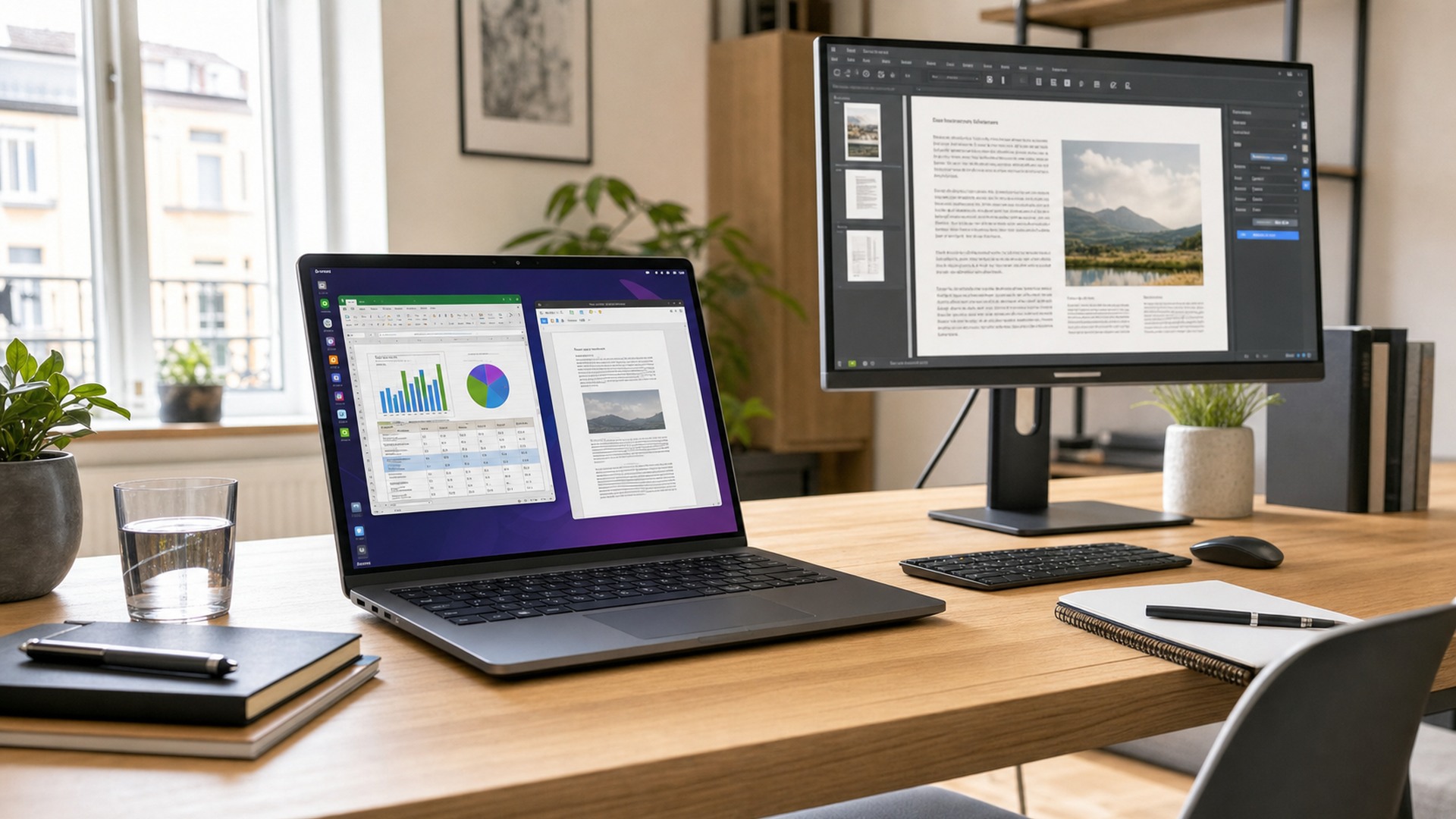
Using Office on Linux in 2026 is no longer a niche habit for technical users. Many companies run Ubuntu, Debian, Fedora, Linux Mint or managed Linux workstations, yet still receive DOCX contracts, Excel workbooks, PowerPoint decks and Outlook calendar workflows. The practical question is not whether Linux can replace Windows everywhere, but which setup lets you work without breaking documents, losing formatting or slowing down a commercial process.
The honest answer is that there is no single perfect route. Microsoft does not provide the full desktop Word, Excel, PowerPoint, Outlook and Access applications for Linux as it does for Windows and macOS. There are, however, real options: Microsoft 365 in the browser, native suites such as LibreOffice, ONLYOFFICE and WPS Office, limited Wine experiments, Windows virtual machines, remote desktops and dual boot. Each route has clear strengths and limits.
Table of contents
- The reality: native Microsoft Office is not available for Linux
- Option 1: Microsoft 365 in the browser
- Option 2: LibreOffice for local work and open formats
- Option 3: ONLYOFFICE and WPS Office for Microsoft-like layouts
- Option 4: Wine, CrossOver and containers
- Option 5: Windows virtual machine or remote desktop
- Option 6: dual boot for maximum compatibility
- Which option should you choose?
- Licensing: when buying Office still makes sense on Linux
The reality: native Microsoft Office is not available for Linux
The first point prevents wasted time: installing full desktop Microsoft Office directly on Linux is not an officially supported business scenario. Community guides and compatibility layers exist, but a company that needs support and continuity should not build a critical workflow on an unsupported installation.
Linux can still be part of an Office environment. Separate three needs: editing normal documents, collaborating with Microsoft 365 users and running advanced Office features. Basic documents are fine on Linux; collaboration often works well in the browser; complex macros, COM add-ins, Access, strict templates and full Outlook still point to Windows.
Option 1: Microsoft 365 in the browser
The simplest route for Office 365 on Linux is Word, Excel, PowerPoint, OneDrive and Outlook in a modern browser. It avoids installation problems and keeps users inside the Microsoft ecosystem, which matters if the company already relies on SharePoint, Teams or corporate Microsoft accounts.
The limit is desktop depth. Excel for the web covers a huge amount of daily work, but it is not a full replacement for advanced macros, Power Query scenarios, specialist add-ins or old workbooks with automation. Outlook on the web is strong, but local PST files, desktop rules and deep Windows integrations need a different route.
Microsoft Learn and The Document Foundation are useful references when checking support and compatibility.
Option 2: LibreOffice for local work and open formats
LibreOffice remains the most important native office suite for Linux. It is free, open source, mature and available on almost every distribution. Writer, Calc and Impress cover documents, spreadsheets and presentations without relying on the cloud.
Compatibility with DOCX, XLSX and PPTX is much better than it used to be, but it is not perfect. Normal business documents usually open well; risk rises with corporate templates, missing fonts, SmartArt, VBA macros, forms, complex charts and spreadsheets that depend on exact Excel behavior.

Option 3: ONLYOFFICE and WPS Office for Microsoft-like layouts
ONLYOFFICE Desktop Editors and WPS Office are popular with Linux users who want a Microsoft-like interface and careful visual compatibility with DOCX, XLSX and PPTX. ONLYOFFICE also offers Linux, Windows and macOS editors, which helps mixed teams.
Interface similarity is not the same as full equivalence. These suites can handle proposals, reports, presentations and everyday spreadsheets well, but they do not replace every detail of VBA, Access, Outlook or company-specific add-ins. Test your real files before committing.
ONLYOFFICE Desktop Editors also provides editors for Linux, Windows and macOS, which helps mixed teams.
Option 4: Wine, CrossOver and containers
Wine can run some Windows applications on Linux, and technical users often try older Office versions this way. The problem is reliability. A system update, dependency change or Office feature can break the workflow.
Use Wine only for secondary or experimental cases. If Word or Excel desktop is part of your daily professional work, a Windows VM or remote Windows desktop is usually more predictable and easier to defend.
Option 5: Windows virtual machine or remote desktop
A virtual machine is the most realistic route when Linux is the main operating system but full Microsoft Office is still required. With VirtualBox, VMware, KVM/QEMU or corporate VDI, you can run Windows inside Linux and install Office with a valid license.
Size the experience properly. A VM needs memory, CPU, fast storage and an appropriate Windows license. Heavy Excel workbooks, macros and large Outlook mailboxes should not be improvised. Decide where files live: shared folders, OneDrive, SharePoint or network storage.
Option 6: dual boot for maximum compatibility
Dual boot still makes sense when full Office is used intensively but not constantly. The user works in Linux most of the time and restarts into Windows for final document review, Access, macros or a critical presentation.
It is not ideal for people who switch every hour, but it gives native performance and keeps environments separate. Backups and a clear file-location policy are essential to avoid duplicate versions.
Which option should you choose?
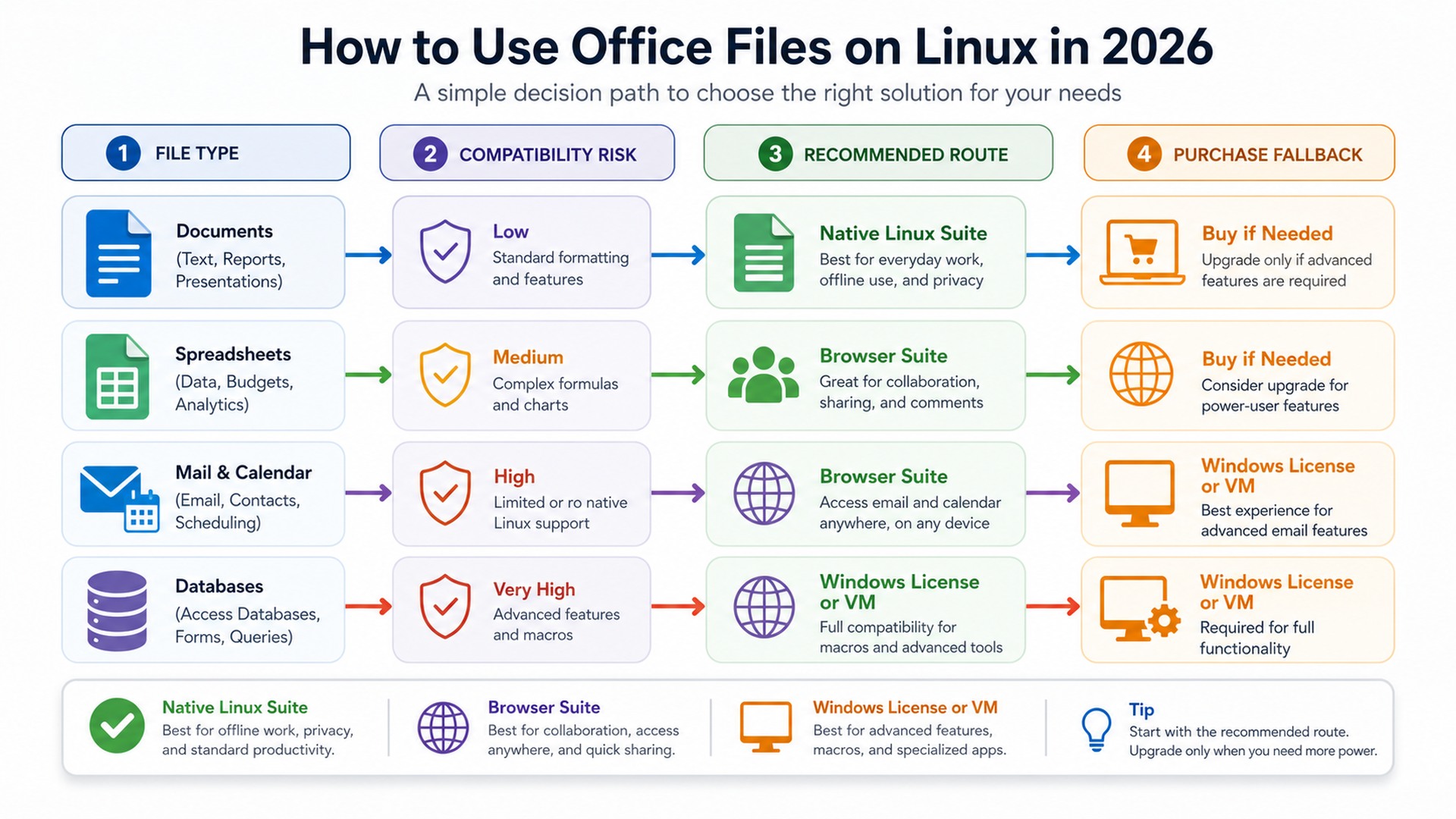
For students, freelancers and home users, LibreOffice or ONLYOFFICE plus Microsoft 365 web covers most needs. For small businesses collaborating with Microsoft 365 clients, the browser plus a native Linux suite can work if documents are not macro-heavy.
For finance, legal and sales departments with strict templates, validation in real Microsoft Office is usually mandatory. If the file is external and formatting matters, check it in Office before sending. If it contains macros, Access, automation or add-ins, use Windows.
Licensing: when buying Office still makes sense on Linux
Buying an Office license can make sense even if the main workstation runs Linux. The license can be used in a Windows VM, on a secondary laptop, on an administrative workstation or in a validation environment.
Licendi offers Microsoft Office licenses for these cases. Professional Plus is appropriate when maximum compatibility and advanced applications matter; Standard can fit simpler scenarios. Buy it for a defined compatibility need, not because Linux failed.
View Office licenses at Licendi. Office Standard
Compatibility checklist before choosing an Office route on Linux
Before choosing a tool, open the files that actually decide your daily work. Do not test with a blank document or a simple spreadsheet; test with a customer contract, a protected workbook, a sales presentation, a template with corporate fonts and an Outlook invitation. This is the only way to know whether Office on Linux is enough for your real workflow.
Start with Word files. Check headers, footers, tracked changes, comments, tables, page breaks, automatic numbering and embedded images. Then check Excel files with formulas, filters, pivot tables, charts, protected sheets, external links and macros. Finally, check PowerPoint decks with animations, speaker notes, custom fonts and exported PDF output. If the final PDF looks different, the problem will usually appear in front of a client, not during a private test.
Fonts deserve special attention. Many document problems blamed on Linux are font problems. If a company template uses Calibri, Aptos, Arial, Segoe UI or a paid brand font, install the correct fonts where licensing allows it and define a fallback policy. A Linux suite can preserve layout much better when the same fonts are available.
Recommended setups by user profile
A private user who writes letters, manages simple spreadsheets and exports occasional PDFs can work comfortably with LibreOffice, ONLYOFFICE or Microsoft 365 web. The priority is convenience, file ownership and a clean backup routine.
A freelancer who exchanges files with clients should combine a native Linux suite with Microsoft 365 web and a validation route in real Office. The validation route can be a Windows laptop, a small VM or a remote desktop. It is not needed for every draft, but it is important before sending a final proposal, contract or invoice model.
A small business needs a stricter policy. Decide which documents may be edited in Linux, which must be reviewed in Microsoft Office and which must remain in Windows from the beginning. Accounting sheets, legal templates, public tenders and macro-enabled workbooks should not depend on guesswork. A short internal rule avoids inconsistent decisions between employees.
For larger organizations, Linux workstations can still fit well in development, support, analysis and operations teams. The key is to separate productivity from compatibility. Users can work in Linux most of the day, while Office validation runs in Windows through VDI, a VM pool or dedicated administrative machines.
Migration plan for teams moving from Windows to Linux
Do not migrate every Office workflow at once. Build an inventory of file types, departments and risk levels. Mark documents as low risk when they are simple and internal, medium risk when they go to customers, and high risk when they include macros, legal formatting, finance formulas or external compliance requirements.
Run a pilot with a small group before changing the whole company. Give users a clear decision tree: browser first for Microsoft 365 collaboration, native suite for local drafts, Windows VM for advanced Excel or Outlook, and dual boot only where performance or hardware access makes virtualization uncomfortable.
Measure success by fewer support tickets, not by ideology. If a Linux setup saves license cost but creates hours of manual formatting work, it is not cheaper. If one Windows VM prevents repeated document failures, the license cost is justified. In 2026 the best Office strategy on Linux is usually hybrid: keep Linux where it is strong and keep Windows where Office compatibility is business-critical.
Common mistakes when using Microsoft files on Linux
The most common mistake is treating all Microsoft Office files as equal. A simple DOCX report and a macro-enabled Excel model are completely different risks. The first can often be edited safely in a Linux suite; the second may depend on VBA, Windows paths, regional separators, add-ins or protected cells that only behave correctly in Excel for Windows.
Another mistake is saving over the only copy of a customer file after opening it in a different suite. Keep the original untouched, edit a working copy and export the final version to PDF when the recipient does not need to edit it. This small habit prevents most formatting disputes.
Finally, do not ignore Outlook. Many Linux users solve Word and Excel but forget calendars, shared mailboxes, PST archives and desktop rules. If Outlook is central to the business, plan for Outlook on the web, a Windows VM or a dedicated Windows workstation from the beginning.
Frequently asked questions
Can Microsoft Office be installed directly on Linux?
Not as an officially supported desktop installation. Use Microsoft 365 in the browser or run Windows through a VM, remote desktop or dual boot.
Does LibreOffice open Word and Excel files?
Yes, it opens and saves DOCX and XLSX, but complex documents with macros, strict templates or advanced formatting should be checked in real Microsoft Office.
What is best for businesses?
For general work, Microsoft 365 web plus a Linux suite works well. For macros, full Outlook, Access or critical templates, Windows in a VM or dedicated machine is the stable route.
Conclusion
Licendi offers Microsoft Office licenses for these cases. Professional Plus is appropriate when maximum compatibility and advanced applications matter; Standard can fit simpler scenarios. Buy it for a defined compatibility need, not because Linux failed.