EN
 FR
 DE
 IT
 PT
 ES


New Outlook vs Classic Outlook

New Outlook vs classic Outlook: retirement dates and what you lose when switching. The comparison between new Outlook and classic Outlook is no longer just about design. For Windows users and small businesses it affects PST files, COM add-ins, offline mail, Exchange on-premises, public folders, advanced rules, delegated mailboxes and the value of perpetual Office licences.
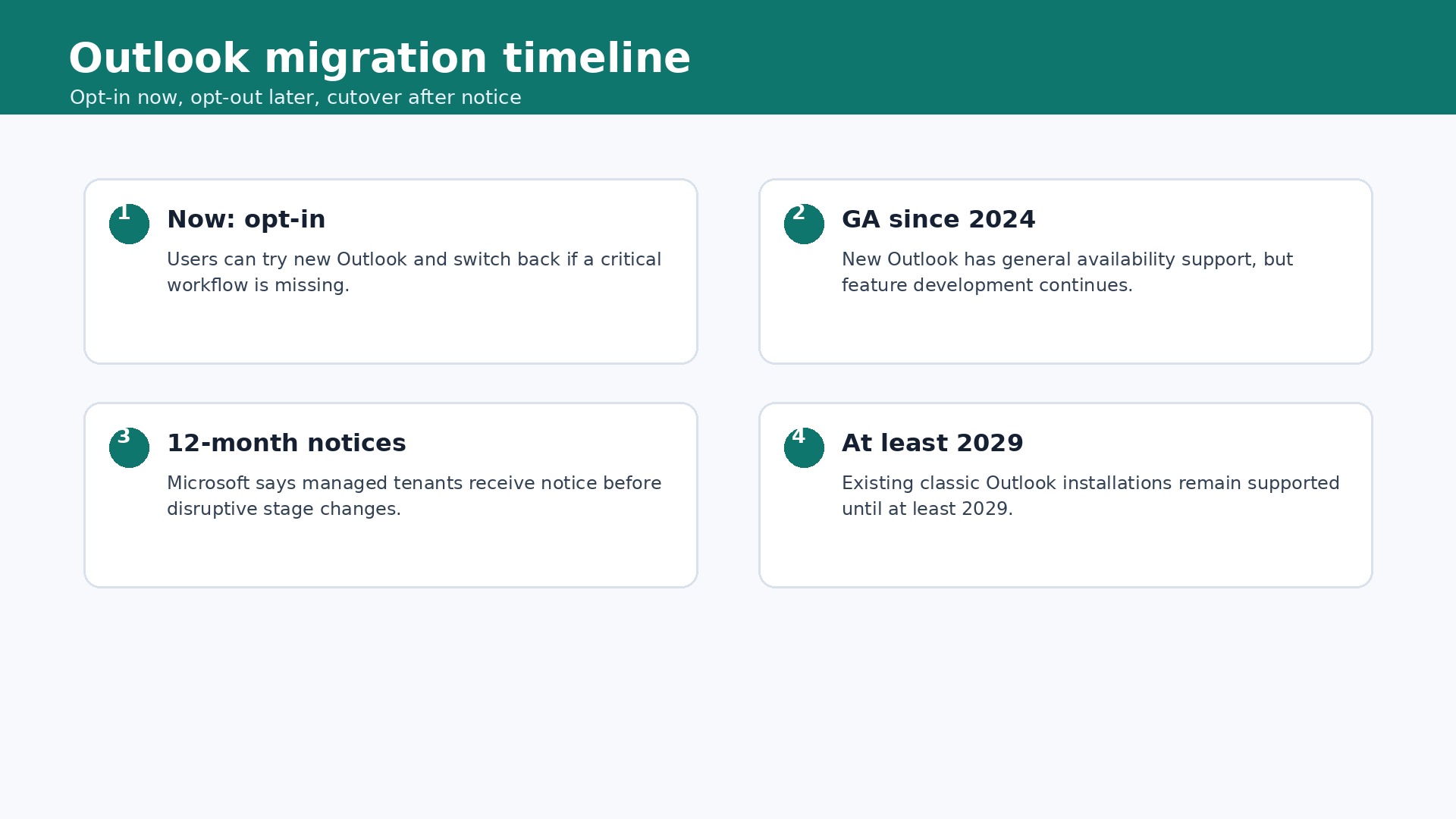
Microsoft presents new Outlook for Windows as the modern client with faster updates and a more consistent Microsoft 365 experience. But Microsoft has not removed classic Outlook overnight. Its official migration model has three stages: opt-in, opt-out and cutover. In July 2026, classic Outlook is still available and Microsoft says existing installations remain supported until at least 2029.
That gives businesses time, but not an excuse to ignore the change. The sensible approach is to test real workflows, identify blockers and choose whether each user should stay on classic Outlook, move to new Outlook, or keep both during transition.
Microsoft documents the staged transition, and official feature matrix helps compare new Outlook with classic Outlook.
Contents
- Retirement dates: what Microsoft has confirmed
- What new Outlook really is
- What you may lose when switching
- Accounts, Exchange on-premises and licensing
- Why classic Outlook still makes sense
- When new Outlook is the better choice
- Recommended migration plan
- Which licence should you buy?
Retirement dates: what Microsoft has confirmed
The date to remember is 2029. Microsoft states that existing classic Outlook installations, whether through perpetual or subscription licensing, will continue to be supported until at least 2029. Microsoft also says managed enterprise tenants will receive at least 12 months' notice before disruptive stages such as opt-out or cutover are implemented in production rings.
New Outlook reached general availability in August 2024, so it is no longer just an experimental preview. However, the migration remains progressive. Many users still see a Try the new Outlook toggle and can switch back to classic Outlook if an important workflow is not ready.
For buyers, this matters. A company purchasing Office today is not forced to abandon classic Outlook in 2026, but it should understand whether it needs mature desktop compatibility or a cloud-first Microsoft 365 model.
What new Outlook really is
New Outlook for Windows is not simply a refreshed skin for the old desktop application. It is closer to Outlook on the web delivered as a Windows app, with faster service updates, a simpler interface and tighter alignment with Microsoft 365.
The benefits are real: easier deployment, a consistent experience across web and Windows, quick access to new capabilities and less reliance on heavy local configuration. For users already living in Exchange Online, Teams, To Do and Outlook web, the experience can feel familiar.
The trade-off is that classic Outlook is a mature Win32 desktop client built around MAPI profiles, local data files, COM add-ins and many years of business workflows. Moving to new Outlook should therefore be treated as a workflow migration, not as a cosmetic upgrade.
What you may lose when switching
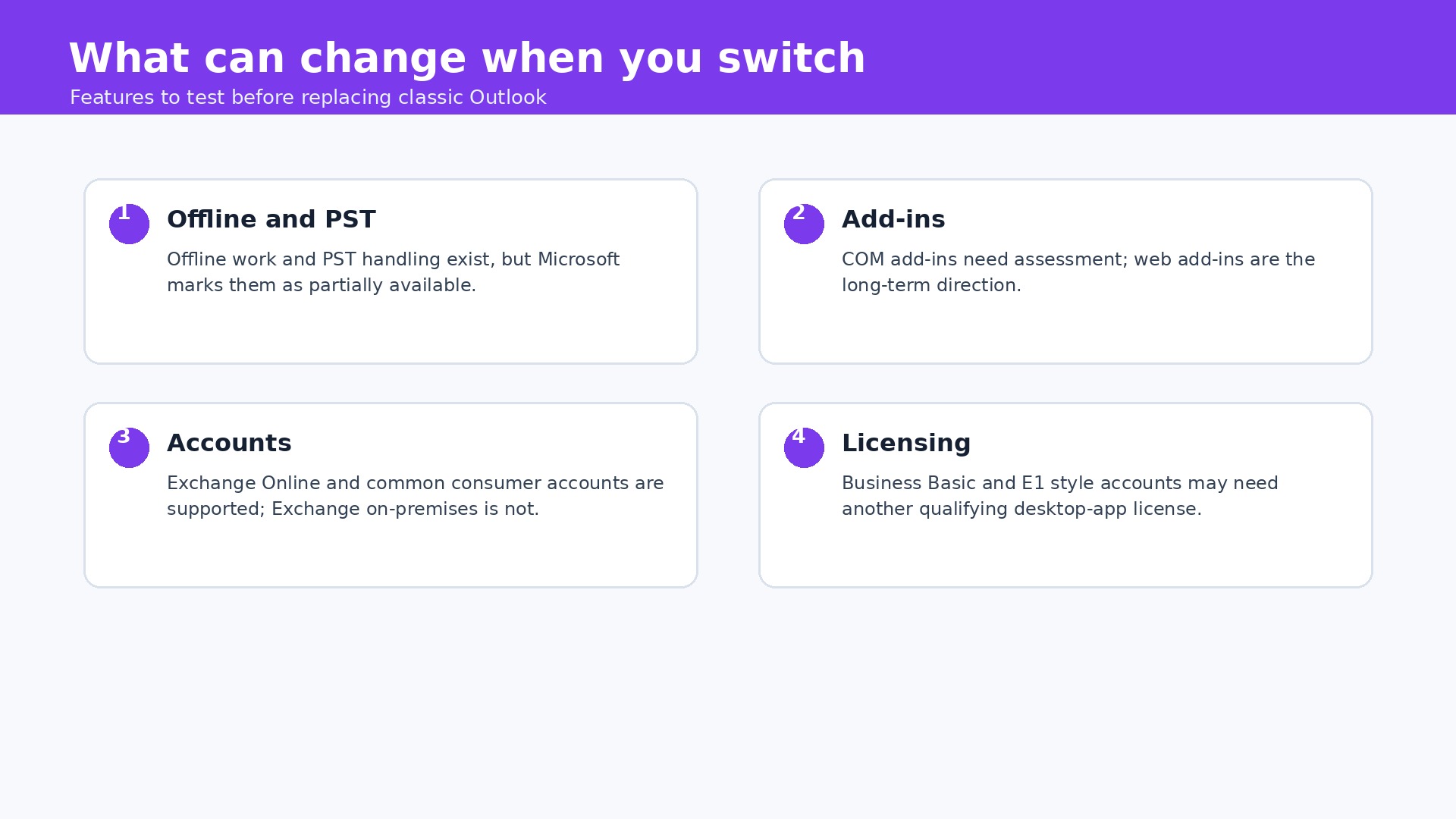
Offline work is one of the first areas to test. Microsoft's feature comparison describes offline support in new Outlook as partially available compared with classic Outlook. That may be enough for light users, but it matters for travelling staff, field teams and anyone who depends on large local mail history.
PST handling is another sensitive area. Classic Outlook remains the most comfortable environment for opening, searching and managing historical PST archives. New Outlook is improving, but Microsoft still treats PST support as a partial capability.
Add-ins can be the biggest hidden blocker. Many companies use COM add-ins for CRM, document management, signing, archiving, telephony or ERP workflows. New Outlook's long-term model is web add-ins, so every business should inventory its add-ins before moving users at scale.
Accounts, Exchange on-premises and licensing
Microsoft lists Microsoft 365 work and school accounts with Exchange Online, Outlook.com, Gmail, Yahoo, iCloud, IMAP and POP as supported account types. Exchange on-premises is not supported in new Outlook for Windows. That is decisive for organizations that still run local Exchange or complex hybrid environments.
Licensing also works differently in practice. To use Outlook as a desktop app with a Microsoft 365 organizational account, the user needs a plan that includes desktop apps. Microsoft says new Outlook checks the licence of accounts added to the app.
That means a Business Basic or E1 style user may be fine in web Outlook but not necessarily in the desktop app unless another qualifying account is present. Licence choice and client choice need to be planned together.
Why classic Outlook still makes sense
Classic Outlook still makes sense where predictability matters. It is familiar, mature and strong for profiles, local archives, rules, delegation, public folders, shared mailboxes, PST files and older business add-ins.
It also fits perpetual Office licensing. Office 2021 Professional Plus, for example, gives users the classic desktop apps including Outlook without a monthly Microsoft 365 subscription. For small businesses that want a one-off cost and a stable setup, that remains attractive.
The point is not to reject new Outlook out of habit. The point is to avoid breaking revenue, support or compliance workflows just because a toggle appears in the corner of the screen.
When new Outlook is the better choice
New Outlook is strongest in cloud-first organizations. If users work in Exchange Online, rarely touch PST archives, do not depend on COM add-ins and already use Outlook on the web, the migration can reduce support complexity.
It can also be the right starting point for new employees. Microsoft recommends onboarding new users directly into new Outlook once the organization has validated its requirements, reducing the need to retrain them later.
For lightweight users, mobile-first teams and businesses that want a consistent Microsoft 365 interface, new Outlook is often enough. The key is to define fallback rules before the rollout begins.
Recommended migration plan
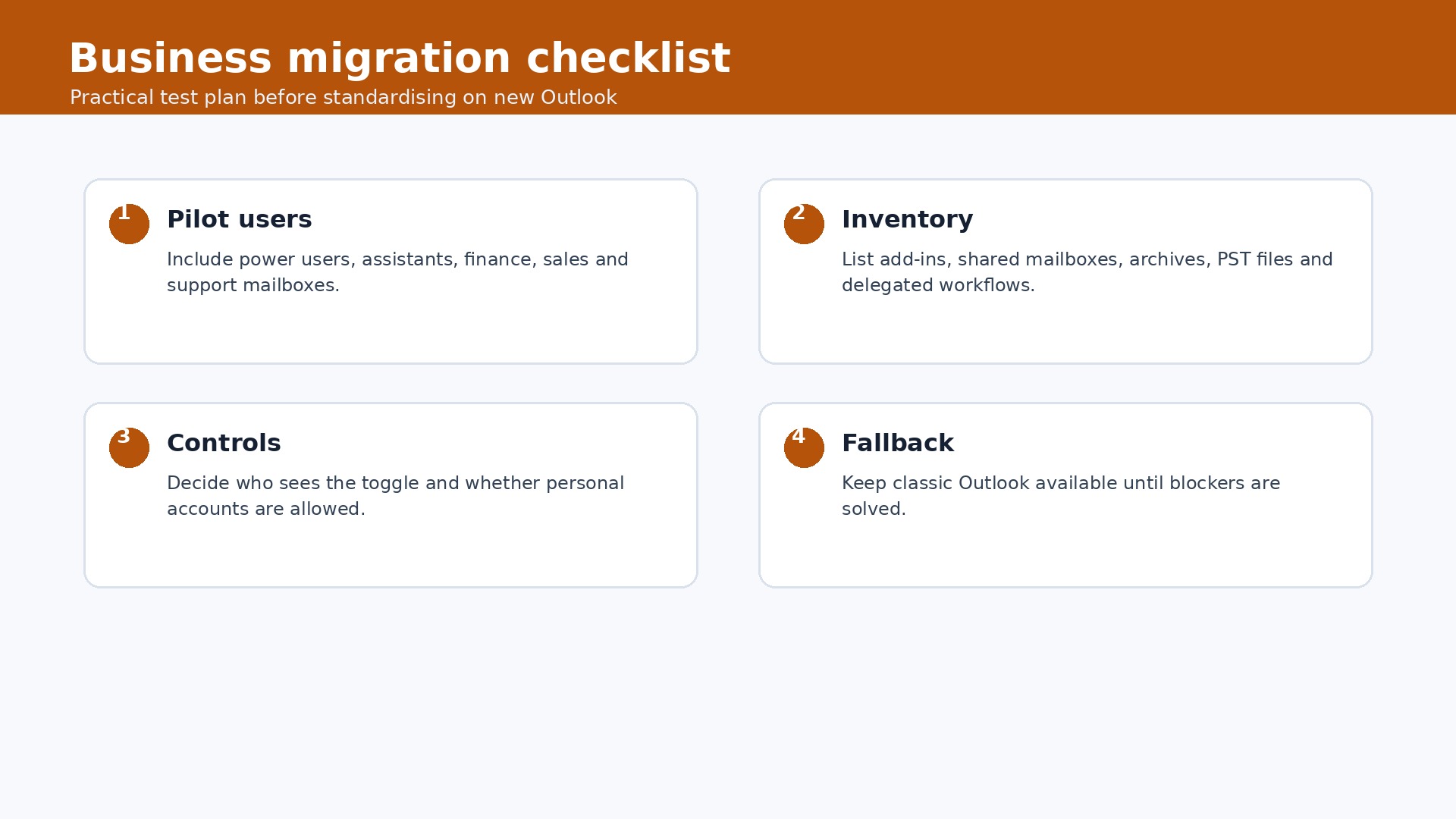
Start with an inventory: add-ins, shared mailboxes, delegated access, PST files, public folders, rules, templates, signatures, CRM links, ERP links and calendar workflows. Anything not listed before migration usually becomes an urgent support ticket later.
Then run a pilot with real user profiles. Include finance, sales, support, assistants, managers and heavy calendar users. Test attachments, search, shared mailbox sending, delegation, offline work, meeting invites and archive access.
Finally, decide by user group. Some users can move now, some should stay on classic Outlook for a while, and some can run both side by side. Microsoft explicitly supports side-by-side evaluation during the transition.
Which licence should you buy?
If the priority is a stable desktop client, one-off cost and classic Outlook, perpetual Office licences are still practical. Licendi offers Microsoft Office licences including editions with Outlook, such as Office 2021 Professional Plus and Office 2019 Professional Plus.
If the priority is cloud services, continuous feature delivery and modern administration, Microsoft 365 subscriptions may fit better. Just make sure the selected plan includes desktop apps if the user needs Outlook as an app rather than webmail.
Many small businesses end up with a mixed approach: keep classic Outlook for complex users and use new Outlook or Microsoft 365 for lighter users. The licence should follow the workflow, not the other way round.
Real-world user scenarios
An administrative user often depends on classic Outlook more than expected. They search old mail, drag attachments into local folders, maintain supplier rules and keep PST archives for accounting years. This profile should not be migrated until new Outlook has been tested with real historical data.
A sales team with CRM integration must review every add-in. If logging activity, syncing contacts, creating opportunities or saving emails to customer records depends on a COM add-in, the migration can interrupt commercial follow-up. Ask the vendor for a compatible web add-in before rollout.
Executives may like a cleaner interface, but they also delegate calendars, move between mailboxes and handle last-minute meeting changes. Testing must include assistants, recurring meetings, rooms, delegated calendars and send-on-behalf workflows.
Support teams live in shared mailboxes. Reading mail is easy; the hard part is sending as the right mailbox, keeping history, classifying issues and avoiding duplicate replies. If public folders or archive workflows are involved, classic Outlook may need to stay longer.
Light users are better first candidates. If they only need mail, calendar, basic contacts and Exchange Online, new Outlook can reduce friction and align them with Outlook on the web. This group is ideal for early adoption waves.
Tests to run before migration
Start with search. Test sender, subject, attachment, date, category and body-text searches in long conversations. Compare results with classic Outlook and document differences that affect daily work.
Test attachments next: drag to desktop, attach from local folders, attach from OneDrive, save multiple files and forward large messages. Small workflow changes become expensive when repeated hundreds of times.
Review rules carefully. Server rules, client rules, forwarding, categories, alerts and automatic folder movement do not always behave the same way across clients. Any rule that requires classic Outlook to be open must be identified.
Delegation is critical. Test send as, send on behalf, shared mailbox sending, accepting meetings for another user, creating meetings in delegated calendars and editing recurring events.
Offline behaviour should be tested without network access. Open the client, search recent messages, prepare replies and review the calendar. For travelling users this matters more than interface polish.
Finally, define policy. Decide who sees the toggle, whether personal accounts are allowed, whether users can revert to classic Outlook and who approves exceptions.
Perpetual licence or subscription?
A perpetual licence makes sense when the company wants a one-off cost, a predictable desktop cycle and stable local apps. Office 2021 Professional Plus is a strong fit when users need classic Outlook plus Word, Excel and PowerPoint without a monthly subscription.
Office 2019 Professional Plus can still fit older hardware or tighter budgets, although support and requirements should be checked before purchase. Compatibility should lead the decision, not price alone.
Microsoft 365 fits organizations that value cloud storage, central administration, continuous collaboration and frequent new features. If users need Outlook as a desktop app, make sure the plan includes desktop applications.
Mixed teams often benefit from mixed licensing. Critical workflow users stay on classic Outlook with perpetual Office, cloud-first users move to Microsoft 365, and temporary or light users rely on web access.
The right question is not which Outlook is newer. It is which Outlook creates fewer incidents for a specific role. A cheap licence that breaks an add-in is expensive; a full subscription for a mailbox-only user may be unnecessary.
Common migration mistakes
The first mistake is confusing general availability with full feature parity. New Outlook is supported, but that does not mean every classic Outlook feature is equivalent.
The second mistake is excluding power users from the pilot. The heaviest Outlook users often depend on custom views, folders, rules, templates and archives that are invisible to IT until they break.
The third mistake is ignoring PST files. They may feel old until an auditor, customer or former employee needs a specific message. Decide how PST files will be opened and governed.
The fourth mistake is migrating everyone on the same day. Outlook is too central for a big-bang move without fallback. Roll out by groups and measure incidents.
The fifth mistake is failing to document rollback. Users should know how to return to classic Outlook and how to report the blocker. Reversibility lowers resistance.
The sixth mistake is buying licences before mapping workflows. The client, account type and licence plan are part of the same decision.
Quick comparison
| Criterion | Classic Outlook | New Outlook |
|---|---|---|
| Desktop maturity | Very high | Still evolving |
| PST and local files | More complete | Partial according to Microsoft |
| Exchange on-premises | Traditional scenario | Not supported |
| Ideal model | Stable Office licence | Cloud-first Microsoft 365 |
For specific requirements, also review Microsoft's migration planning, supported account types and new Outlook licensing.
Frequently asked questions
When will classic Outlook disappear?
Microsoft says existing classic Outlook installations remain supported until at least 2029. Managed tenants should receive 12 months' notice before disruptive migration stages.
Can I switch back after trying new Outlook?
In the current stage, many users can switch back or open Outlook (classic) from the Start menu, unless an administrator blocks it.
Does new Outlook support PST files?
PST support is improving, but Microsoft still describes it as partially available compared with classic Outlook.
Does new Outlook support Exchange on-premises?
No. Microsoft states that Exchange on-premises accounts are not supported in new Outlook for Windows.
What should a small business choose?
If the business relies on local archives, add-ins or mature desktop workflows, classic Outlook with a suitable Office licence is often safer. Cloud-first teams may prefer new Outlook.
Conclusion
New Outlook is Microsoft's direction, but classic Outlook remains the safer client for many working environments in 2026. The right choice is the one that protects daily workflows while preparing for the transition ahead.
Compara opciones en Microsoft Office, revisa Office 2021 Professional Plus o valora suscripciones Microsoft 365 si tu equipo trabaja en la nube.