EN
 FR
 DE
 IT
 PT
 ES


Movavi Photo Editor 2025 vs Movavi Unlimited 2025: which fits your projects?
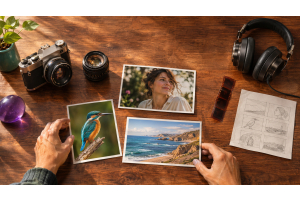
A folder of photographs waiting to be edited and a project involving video, music and images call for different tools. Although both start with visual material, they do not require the same combination of capabilities. Choosing between Movavi Photo Editor 2025 and Movavi Unlimited 2025 is easier when you start with the result you want to deliver, rather than simply comparing names or long feature lists.
If your work ends with individual images, take a closer look at Movavi Photo Editor 2025 at Licendi. If you need to combine photography, video editing, conversion and screen recording, Movavi Unlimited 2025 at Licendi takes a broader approach. A wider range of tools does not automatically make it the better purchase: what you will use regularly matters too.
This comparison separates the features documented by Movavi from the scope of the offer described by Licendi. The examples suggest ways to organize your work; they are not performance tests or verified instructions for a particular interface.
The main difference: a photograph or a multimedia project
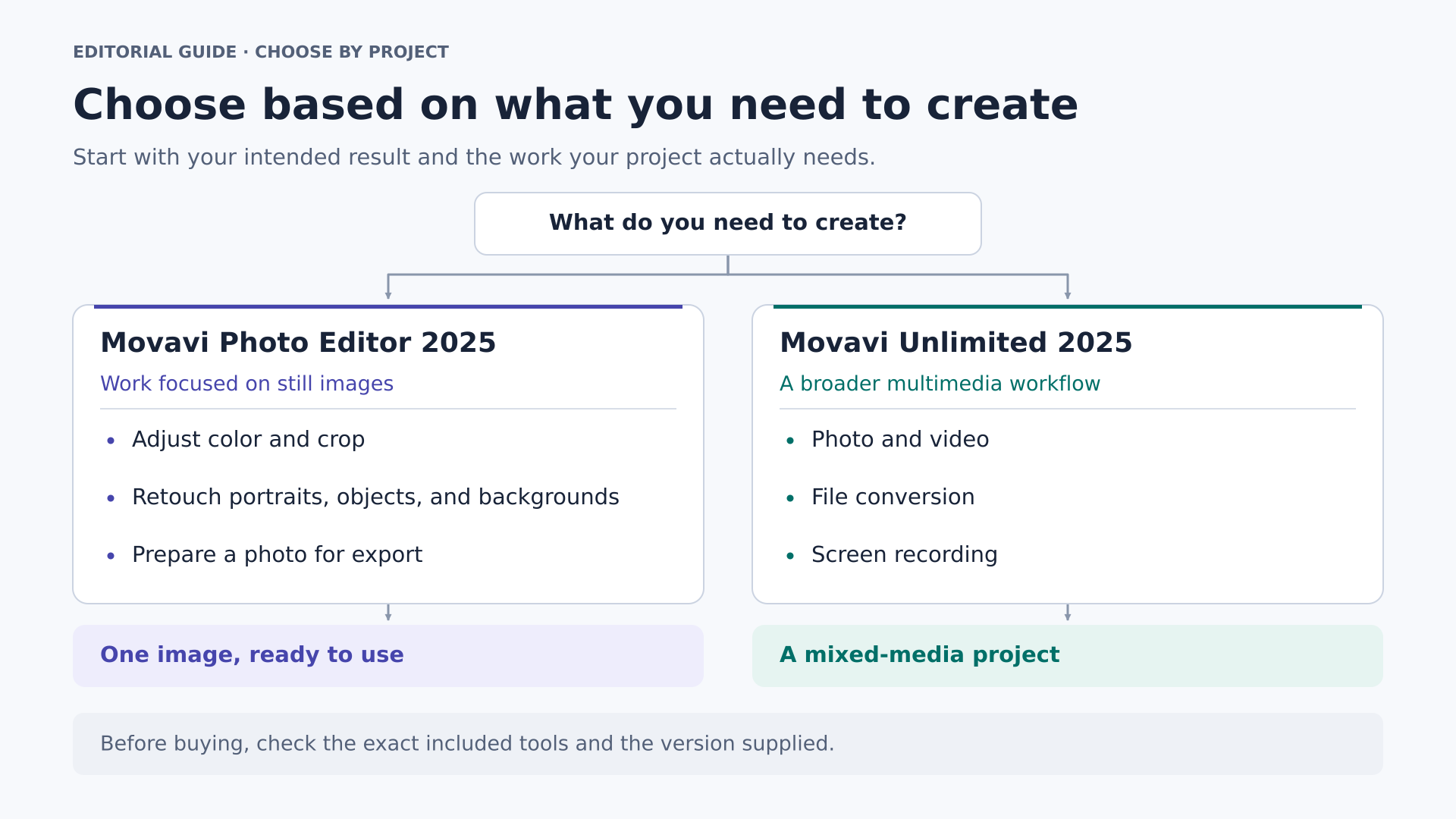
Photo Editor focuses on still images: correcting their appearance, improving composition, retouching details and preparing a finished copy. Licendi presents Unlimited as a package that also covers video, audio, conversion and screen recording. It becomes relevant when you need to link several of those tasks to produce a finished piece.
| Typical need | Movavi Photo Editor 2025 | Movavi Unlimited 2025 |
|---|---|---|
| Preparing individual photographs | This is the focus of the offer. | This is part of the scope advertised by Licendi. |
| Correcting color, composition and small details | Fits the established photographic tasks of the product family. | Relevant when those images become part of other projects. |
| Editing sequences with video and sound | Not a reason to choose this offer. | Video editing appears in the seller's description. |
| Converting media and recording your screen | Outside the photographic scope of this comparison. | Both areas are included in the advertised offer. |
| Choosing based on specialized features | Check the version supplied and your own files. | Also check the components, platform and scope of each tool. |
The table compares reasons for buying; it does not confirm that all the tools share an application, installer or interface. Nor does it establish that the package's photographic component is exactly the same build as the standalone license.
What the 2025 label actually means
In this article, 2025 identifies the two Licendi offers. It does not identify a verified internal build. The official Photo Editor release history for Windows consulted includes features from before that year and runs through version 24.3, dated October 30, 2024. It documents manual color adjustments, presets, retouching, object removal, backgrounds and text elements.
The official Photo Editor release history for Mac lists version 24.3.1, dated November 5, 2024. These records provide a basis for discussing established tasks, but they do not, on their own, identify the installer sold as 2025. Historical features appearing on both platforms do not guarantee complete parity either.
The current official Movavi Unlimited page describes an annual subscription. Licendi advertises Unlimited 2025 as a permanent license, but we have not verified documentation establishing the duration of that specific license. Confirm it with the seller before purchasing. We also do not assume that the subscription’s current application lineup, future updates or ongoing access to effects are included.
This distinction avoids a misleading comparison: we are assessing two specific offers, not comparing an older edition with every feature currently available from the manufacturer.
What Photo Editor brings to image editing
The appeal of a photography-focused tool lies in working through a familiar sequence of decisions. First, choose the framing; then balance light and color; finally, review distracting elements and prepare the output. The official comparison table of Movavi's photo tools lists tasks such as cropping, rotating, straightening, adding text and retouching portraits. It provides functional context for the product family, not a technical specification for the particular 2025 installer.
For an album, a product photograph or an image for a presentation, that approach may be enough. You do not need to turn every session into a video project. The useful question is whether your finished work is still a set of images, even if their dimensions, backgrounds or presentation change.
It is also worth distinguishing correction from transformation. Correcting a color cast can bring an image closer to what you saw; replacing a background deliberately changes the scene. Both can be valid creative decisions, but they serve different purposes. Decide which you are aiming for before piling on adjustments.
A practical example would be preparing twelve photographs from a day trip. You can select those that best tell the story of the outing, aim for consistent color and save detailed retouching for your favorites. The value lies not in using every tool, but in finishing a coherent selection without losing track of the originals.
What Unlimited adds when you work with several media types
According to the scope described by Licendi, Unlimited 2025 brings together video and photo editing, conversion and screen recording. Its description covers timeline editing, precise cuts, effects, transitions, graphics and audio resources. It also mentions artificial intelligence features for backgrounds, motion tracking, noise reduction and upscaling, along with support for more than 180 media formats.
Those features come from the seller's offer; they are not an independent verification of each installer. The official release history for Movavi's multimedia software provides background on several of those technologies, including precise cuts, tracking, background processing and noise reduction. That history describes the manufacturer's multimedia components; it does not establish the exact contents of the permanent-license package sold by Licendi.
The practical difference emerges when you prepare, for example, a travel recap with photographs, recorded clips and commentary. The images are no longer the final product: they become part of a sequence. You need to decide how long each shot lasts, how it connects to the next and how it relates to the sound.
Unlimited becomes more relevant when you work with that combination regularly. If you are simply curious about editing a video someday, you have not yet identified a recurring need. Start by listing your planned projects and checking how many genuinely require more than photography.
Choose based on tasks you already understand
To avoid buying on the strength of a list of possibilities, write down three specific projects of your own. Do not simply write "improve content"; describe the files you will receive and what you need to deliver. This small exercise helps distinguish a real need from an eye-catching feature.
- A collection of photographs: correcting composition, keeping colors consistent and preparing copies to share point toward Photo Editor.
- A recorded explanation: combining screen recordings, voice and video clips points toward the multimedia scope advertised for Unlimited.
- An audiovisual presentation: alternating photographs and sequences with sound requires thinking about timing and editing, not just retouching.
- A deliverable with specific requirements: if you need a particular format, automatic feature or component, confirm that essential requirement first.
Frequency matters too. A task you repeat every week may justify learning a consistent process; an occasional need might not deserve to drive the entire purchase. Choose for your everyday work and use exceptional cases as an additional check.
A photography workflow: from originals to a coherent collection
Preserve and select before making corrections
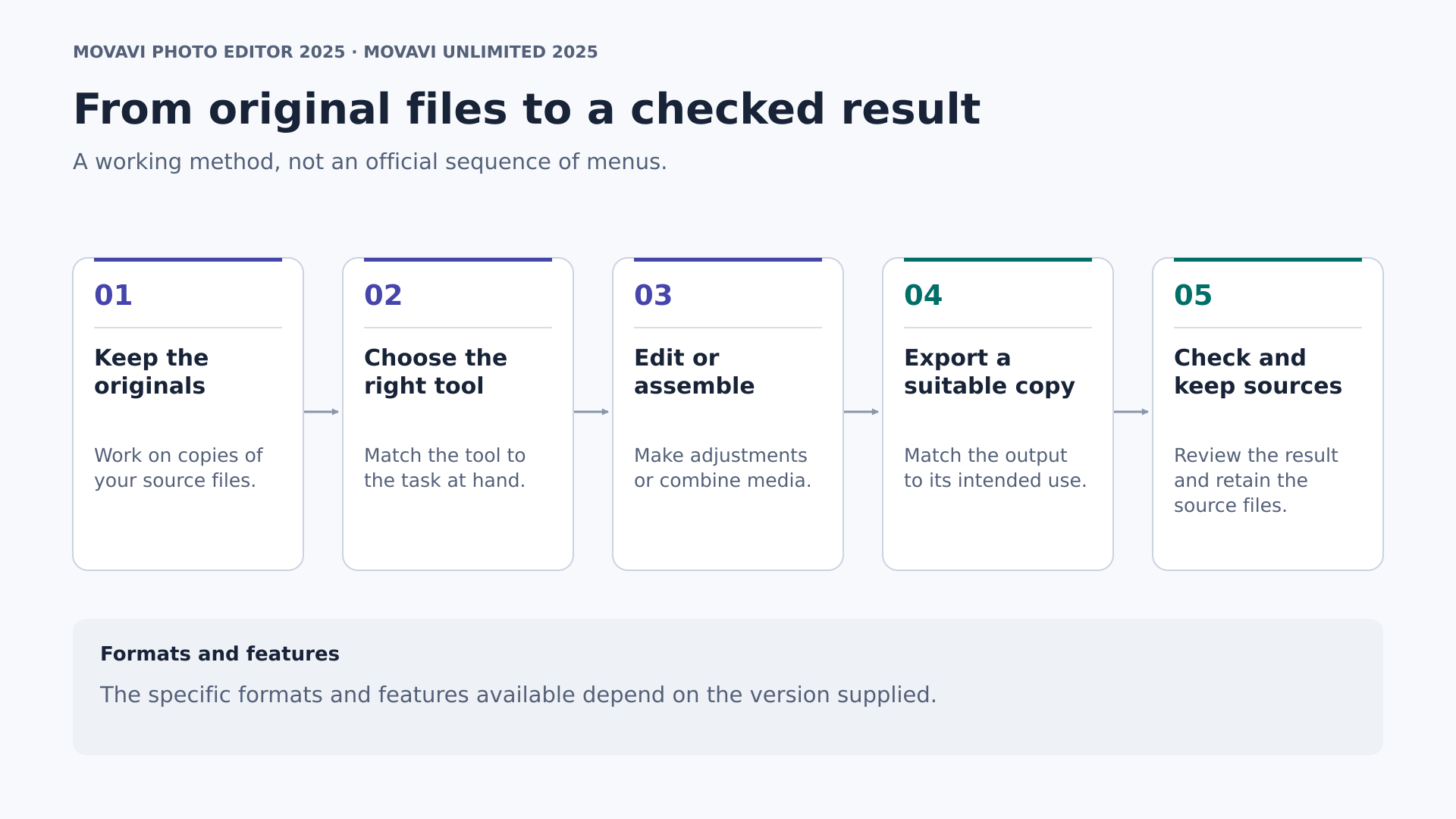
Start by creating one folder for originals and another for working files. Keep filenames that let you identify where each image came from, and experiment on copies. This is a workflow recommendation, not a promise that the program offers nondestructive editing.
Then make your selection. If you have five nearly identical photographs, decide which best expresses the idea before spending time on retouching. Review expressions, composition and background elements. You can keep an alternative when you have a genuine doubt, but you do not need to treat every shot as a final choice.
Define the destination too: an album, a print and an image for a web page call for different decisions. Note the dimensions and aspect ratios requested by the recipient. This gives you a basis for cropping and avoids starting again when you discover that a horizontal composition needs to fit a vertical space.
Work through composition, light and color
Start with the overall composition. Ask yourself where the viewer's eye should go and which elements help direct their attention. A modest crop may remove a distraction without having to reconstruct the background. Also consider whether a sloping line looks intentional or simply distracting.
Next, assess light and color together. Aim to keep the scene believable rather than pushing every adjustment to maximum intensity. For a series, choose a reference image and compare the others against it. The reference provides a visual benchmark; it does not imply an automatic synchronization feature.
If you try a preset, use it as a starting point and examine what it changes. Not every photograph needs the same treatment. A sunset scene can retain its warmth, while an image of an object should remain faithful to the appearance you need to convey.
Retouch with a specific purpose
Before removing an object, decide why it does not belong. In a creative photograph, removing an accidental element may strengthen the composition; in a documentary image, altering relevant information may defeat its purpose. Keep a copy that lets you return to the original scene.
For portraits, review the overall image and the details separately. Skin texture, the outline of the hair and the edges of the face deserve attention when retouching or changing backgrounds. Do not judge the result only when zoomed in: return to the intended output size and check that it still looks natural.
Export and review after editing
Set aside a folder for finished copies and give them clear names. If you prepare several sizes, label them without replacing the originals. Reopening each file lets you check that you have delivered the right image, with the intended framing and dimensions.
Give the collection one final review. Look for unintended color differences, misplaced text or a duplicate image. In this workflow, Photo Editor makes sense because it concentrates on photographic tasks; Unlimited adds value only if those copies will later feed into other multimedia stages that you genuinely need.
If the photographs will be printed, ask the lab for the print dimensions and aspect ratio. Check which parts of the frame would be cropped out, and leave space around faces or important details. For a series intended for a web page, prepare a sample and check how it looks before repeating the process for every image. Do not confuse exporting a small copy with retaining a file suitable for other uses. Keeping clearly labeled versions lets you adapt the delivery without turning a one-off decision into a permanent limitation on your collection.
A multimedia workflow: building a story from different materials
Organize the material around an idea
For a multimedia project, start with a sentence explaining what you want to communicate. It might be demonstrating a process, summarizing a celebration or presenting a collection of images. Write a simple sequence: opening, development and closing. A script prevents an abundance of resources from taking the place of a purpose.
Separate photographs, clips, narration and other sounds into clearly named folders. Note which pieces are essential and which are alternatives. Before editing, check a sample of your actual files with the tools you plan to use, observing the applicable trial and activation terms.
When combining screen recordings and other footage, also prepare the content that will appear in them. Close unnecessary documents and avoid displaying private information. Well-prepared material makes it easier to explain things clearly and reduces the need to conceal problems during editing.
Edit the essentials first
Build an initial sequence that makes sense without embellishment. Arrange the clips logically, remove repetition and check that every change of image adds information. For photographs within a video, consider how long someone needs to look at them, not how much time remains to be filled.
Then review the cuts. A change can accompany an idea, show another detail or introduce a different stage. Transitions make more sense when they help the viewer understand that relationship. You do not need to keep switching styles to make the project look carefully crafted.
If you are adding text, give it a purpose: identifying, explaining or highlighting something. Make sure it can be read without competing with a voice saying something else. This design principle is independent of where the tools appear in the program.
Prepare a screen recording that is easy to follow
When the project includes screen recording, break the explanation into short actions. Rehearse the steps and check that important elements are legible at the final size. A complete recording is not always a clear explanation: the viewer needs to know what to look at and why each step matters.
Before recording a long session, make a short test with the intended content and sound. Play it back and confirm that no notifications, personal data or unrelated windows appear. Then organize the takes by stage so that a correction does not mean repeating the entire process. These recommendations concern preparing the material; they do not verify specific controls in the version included with Unlimited.
Review the sound separately
Listen to the narration without looking at the images and ask yourself whether the explanation is clear. Then review the complete combination. Check that music, voice and effects are not competing for attention when the message needs clarity.
If you use noise reduction within the available feature set, compare the result with the original and listen particularly closely to important words. It is better to make a decision using a representative sample before applying the same treatment to the entire project. We do not assume perfect results or any particular processing speed.
Deliver a file, not just a project
Save the editable project and retain the associated materials you need to resume work on it. Also prepare the final file requested by the recipient. An editing project and a finished export serve different purposes; deliver what was actually requested.
Play the result from beginning to end. Check the opening frame, the ending, the text, changes in sound and any empty sections. This is especially useful when a late correction has changed the sequence's length or order.
You may need to deliver the same piece in different aspect ratios. Plan for that possibility when choosing shots and placing text: a horizontal composition does not always retain its meaning when cropped vertically. Review each variant as a separate deliverable, paying particular attention to faces, titles and elements near the edges. If someone else needs to approve the result, clearly identify the version you send and gather their feedback before making changes. Keep a copy of the approved deliverable alongside the project and its materials. This organization helps distinguish a pending correction from a final file, without relying on ambiguous names that later make it harder to find the right version quickly.
How to assess automatic features without buying on expectations
In the Unlimited offer, artificial intelligence is associated with specific tasks, not a general guarantee of quality. Background removal, motion tracking, noise reduction and upscaling each call for different checks. If one of them is driving your purchase, first identify the component and version that provide it.
For a background, inspect outlines and delicate areas. For tracking, check the moments when the subject moves or becomes partly obscured. For sound, listen for intelligibility. For upscaling, compare the result at the size at which it will be used. These are suggested evaluation criteria, not results obtained by testing these products.
In photography, apply the same discipline to any automatic assistance available: observe what it corrects and what it changes in unwanted ways. Being able to adjust an image does not mean you should transform every feature. The final decision still depends on the photograph's purpose.
Automation is valuable when it handles a specific part of your work acceptably. Do not let it replace selecting good material, preparing a recording or reviewing an export. Those decisions remain part of the project whether you use a specialized tool or a broader package.
Formats: check input and output separately
The official Photo Editor format documentation distinguishes between input and output files. It also explains that opening RAW files is not the same as editing their original data in a RAW development workflow. This is a useful distinction: access to an image should not be confused with a specialized photographic workflow, and the exact compatibility of the 2025 installer still needs to be checked.
Make a short list of the files you usually work with and the formats you need to deliver. If you use a particular camera, prepare examples of its actual files. Recognizing an extension in a list is not enough when that compatibility is the main reason for buying.
The reference to more than 180 formats in the Unlimited offer does not mean that every component can import and export all of them, or that there is complete parity between operating systems. Ask for the details relevant to your case: the operation, file type, platform and version. A specific answer is more useful than a large number.
Learning and organization: a broader toolkit also means more decisions
To learn, choose a small but complete project. For photography, this might be a selection of six images with a common destination. For multimedia, it could be a short sequence with a beginning and an end. The important thing is to work through the entire process, including export, before adding complexity.
A photography-focused product lets you concentrate your practice on composition, color and retouching. Choosing Unlimited expands the areas you need to organize: materials, editing, sound, conversion and screen recording. We are not claiming that either is universally easier; the difficulty will depend on the tasks you decide to take on.
Document your own decisions: final aspect ratio, folder names, approach to color or script structure. Those notes can save you uncertainty on the next project without relying on memorizing an interface. They also help you recognize whether you genuinely need an additional feature or simply a clearer method.
How to compare value beyond the price
Price only becomes informative once you have defined what you need. A broader purchase may be unnecessary if you will never use its other areas; a photography-focused tool may miss the mark if your deliverable requires screen recording and video editing. Compare the tasks first, then check the current terms of each offer.
Also consider the time you will spend learning and organizing files. This is not about assigning an invented figure to your productivity, but about recognizing the effort you are prepared to make. You can start with one list of essential features, another of useful features and a third of options that simply spark your curiosity.
The first list should drive the decision. The second may tip the balance when both offers meet your main needs. The third should not justify the purchase on its own. This keeps a future possibility from becoming an obligation to learn tools for which you do not yet have a specific project.
License and computer: terms that affect your choice
The terms described by Licendi for these offers specify a permanent license for the purchased version. Permanent does not mean access to every future version. Nor should it be interpreted as including cloud storage, ongoing effects subscriptions, artificial intelligence credits or all present and future Movavi applications.
The activation condition is particularly specific: a single activation on a single computer, a nontransferable license and no reinstallation, even on the same computer. Do not confuse keeping your files with having the right to reinstall the program. If you expect to replace your computer, reformat it or reorganize your setup, clarify that scenario before buying.
Licendi lists Windows 10/11 or macOS 12 and later as platforms for the offers. That compatibility does not grant two seats or authorize moving an activation from Windows to Mac. Nor does it establish that every Unlimited component has identical availability or requirements on both systems.
Confirm the requirements for the specific installer and, for the package, the components you need. We do not state minimum figures for memory, processor or disk space without verifying which components are included. Storage for your photographs, videos and exports needs to be planned separately from the installation.
It is also worth confirming the usage rights you need for your work and for any materials you incorporate. The product name or the availability of music and effects is not enough to infer specific commercial-use permission. Ask for an answer tied to the particular license and resources.
Three situations that can help you decide
You want to organize and improve personal photographs
Your finished work will be an album or a selection of files. You want to correct composition, balance color and retouch a few details. Photo Editor is the option most closely aligned with that need. Before buying a broader package, check whether any result you need genuinely cannot be described as a finished image.
You prepare explanations using images and recordings
You need to alternate screen recordings, photographs, voice and video. Unlimited's potential value lies in covering several stages of the same job. Check that the required components are part of the offer for your operating system, and prioritize a clear sequence over the number of effects available.
Your work combines photographic and audiovisual deliverables
One week you need individual images; the next, an explanatory video. Unlimited may fit if that combination is routine. However, having several areas available does not prove that its photographic component exactly matches the standalone edition: ask about the versions if that equivalence is essential.
Common questions about these two offers
Does Unlimited automatically mean better photographs?
That cannot be inferred from the name or the breadth of the package. If your need is photographic, compare the specific features and the component supplied. Unlimited's potential advantage in this comparison is covering more multimedia stages, not proven image-quality superiority over Photo Editor.
Do I need the package to add text to an image?
Text is among the documented photographic tasks. If that is your only additional requirement, it is not enough to justify a multimedia package. Describe the composition you want and confirm that the version offered can produce it; distinguish a label on a photograph from titles accompanying an audiovisual sequence.
What information should I request about the package?
Ask for the names and versions of the components supplied for your operating system, along with confirmation of the feature you want. If you need particular effects or music, ask which are included and under what terms. A functional description of the package does not replace that detail when the purchase depends on a specific resource.
Useful questions before confirming your purchase
- Will the usual deliverable be a photograph or a sequence with video and sound?
- What specific feature do I need, and which supplied version provides it?
- Can my actual files be opened and exported on the chosen platform?
- Exactly which components and resources does the Unlimited offer include for my operating system?
- Do I accept a single activation, with no transfer or reinstallation, even on the same computer?
- Have I distinguished the features of the purchased version from subscriptions, services and future enhancements?
These questions are not intended to complicate a straightforward purchase. They help resolve anything that could prevent you from finishing a project before you buy. If everything depends on one feature, getting precise confirmation matters more than comparing dozens of secondary functions.
Conclusion: choose for what you will deliver
Choose Movavi Photo Editor 2025 when your work focuses on individual images and you want to concentrate your learning on composition, color and retouching. Consider Movavi Unlimited 2025 when you regularly need to combine photography, video, conversion and screen recording within the scope advertised by Licendi.
There is no universal winner. The right purchase is the one that covers your real tasks, supports your files and fits your computer and the activation terms you will be working under. Preserve the originals, prepare a small deliverable and verify the result: that method adds value whichever approach you choose.