EN
 FR
 DE
 IT
 PT
 ES


MiniTool Partition Wizard Server: partitioning Windows Server
A server can have hundreds of gigabytes free and still run out of space on C:. This often happens when the operating system, logs and applications grow within a partition sized years ago. Buying another disk does not always solve the problem: first you need to understand where the available space is, which volume needs it and what changing its boundaries would involve.
MiniTool Partition Wizard Server belongs to a category of tools that help manage partitions through a graphical representation of the disk. Here, however, the full product designation is particularly important: Licendi's offer is for version 8.1, not the manufacturer's current edition. We must not assume that this version supports Windows Server 2016, 2019, 2022 or 2025, or attribute features to it that were introduced many years later.
This guide explains how to plan a cautious intervention, from diagnosis through to checking the service afterwards. It also helps you assess Licendi's MiniTool Partition Wizard Server 8.1 offer for an environment with documented compatibility. The examples are educational: they do not describe a test carried out on a server or replace your organisation's recovery procedure.
What buying version 8.1 actually means
MiniTool's official history dates the version 8 family to 2013: it lists version 8.0 in July and 8.1.1 in September. That latter entry does not prove that a licence advertised as 8.1 includes precisely the 8.1.1 revision. Before installing, ask for identification of the installer and the documentation for the Server edition you will receive.
There are significant differences from the modern product. The manufacturer documents the Migrate OS to SSD/HD Wizard as an addition in version 9.0. MBR-to-GPT system disk conversion and the new WinPE-based media builder appear in 10.0. Data Recovery, Disk Benchmark and Space Analyzer arrive in 11.0. We will therefore not present these capabilities as features of this older offer.
The history does show partitioning, copying and preview operations predating the version 8 family. However, a general timeline cannot replace each edition's feature and restriction matrix. Nor is it enough for the executable to open: correctly detecting a disk does not prove that a write operation is supported with that combination of operating system, controller and format.
We were unable to verify a complete archived manual for version 8.1 through the routes consulted. This limitation prevents us from providing a definitive list of compatible systems or exact instructions for every screen. We use the official history to distinguish product generations and Microsoft documentation to explain storage concepts; where that documentation is current, it does not certify compatibility with MiniTool 8.1.
Language support also needs clarification. The product listing says “multilingual”, but MiniTool's history dates the addition of Spanish to version 11.6. Confirm the languages included in the specific package: buying from a Spanish store does not demonstrate that the 8.1 interface is translated into Spanish.
Keeping an old server for a legacy application does not eliminate its security risks. Review its network exposure, access controls and replacement plan independently of the partitioning tool. Gaining space may resolve an operational emergency, but it does not extend operating system support or fix vulnerabilities. Reserve this purchase for a clearly defined need, with named responsibilities and a genuinely viable technical recovery plan.
Before changing anything: map the actual storage
Open Disk Management and document each disk, its capacity, partition style and volumes. Record drive letters, labels, mount points and free space. Include small partitions without drive letters: they may contain boot files, recovery components or reserved information that Windows needs even though they do not appear in File Explorer.
Three different measurements matter. Disk capacity is the size of the device recognised by Windows. Partition size defines a region of that disk. Free space within the file system belongs to that partition and is not automatically available to another. Having 150 GB free on D: is not the same as having 150 GB of unallocated space next to C:.
Also identify where the device comes from. It might be a physical disk, a logical drive presented by a RAID controller, a virtual disk or storage presented by a storage array. The number “Disk 0” is not enough to identify it after booting into another environment. Keep identifiers, sizes and a diagram that lets you distinguish source and destination without relying exclusively on drive letters.
Before deciding on a structural change, investigate what is growing. It might make more sense to correct log retention, relocate a repository using its application's procedure or extend a separate data volume. Repartitioning will not fix a storage policy that fills C: again next week.
The backup that matters is the one you can restore
“We have a nightly backup” is a starting point, not authorisation to modify partitions. Check when the latest backup finished, what it included and where it resides. A backup stored on another partition of the same disk shares too many risks with the original. For this intervention, you need recovery that is independent of the storage you intend to modify.
Define two objectives: how much data you can afford to lose and how long the service can remain unavailable. If the business accepts losing one hour of changes, last night's backup does not meet that objective. If restoring takes six hours, a thirty-minute maintenance window does not allow for a realistic rollback. Set aside time to recover, boot and check applications, not just to carry out the partitioning.
Distinguish file backup from complete server recovery. Recovering documents does not necessarily rebuild the boot environment, system configuration or installed roles. The wbadmin documentation explains options for including critical volumes and system state; the selection must suit the server and the backup product being used.
Applications matter too. An active database needs a backup consistent with its own protection method, not simply a folder copied while its files are changing. Coordinate VSS-aware services and review the backup result. Do not arbitrarily switch between VSS full and VSS copy backup modes: they can affect logs and other backup chains.
Perform a test restore in an isolated environment. Verify that you can access the repository, decrypt the backup where applicable, locate the necessary drivers and recover representative files. For critical services, also test startup and application integrity. Do not connect a restored clone to production without controlling identity conflicts and its effects on other systems.
Finally, prepare console access that is independent of Windows. If the server fails to boot again, a Remote Desktop session is no longer useful. Have authorised credentials, the relevant recovery keys and someone capable of intervening available. After the reboot is not the time to discover a missing driver.
Extending C: depends on where the space is
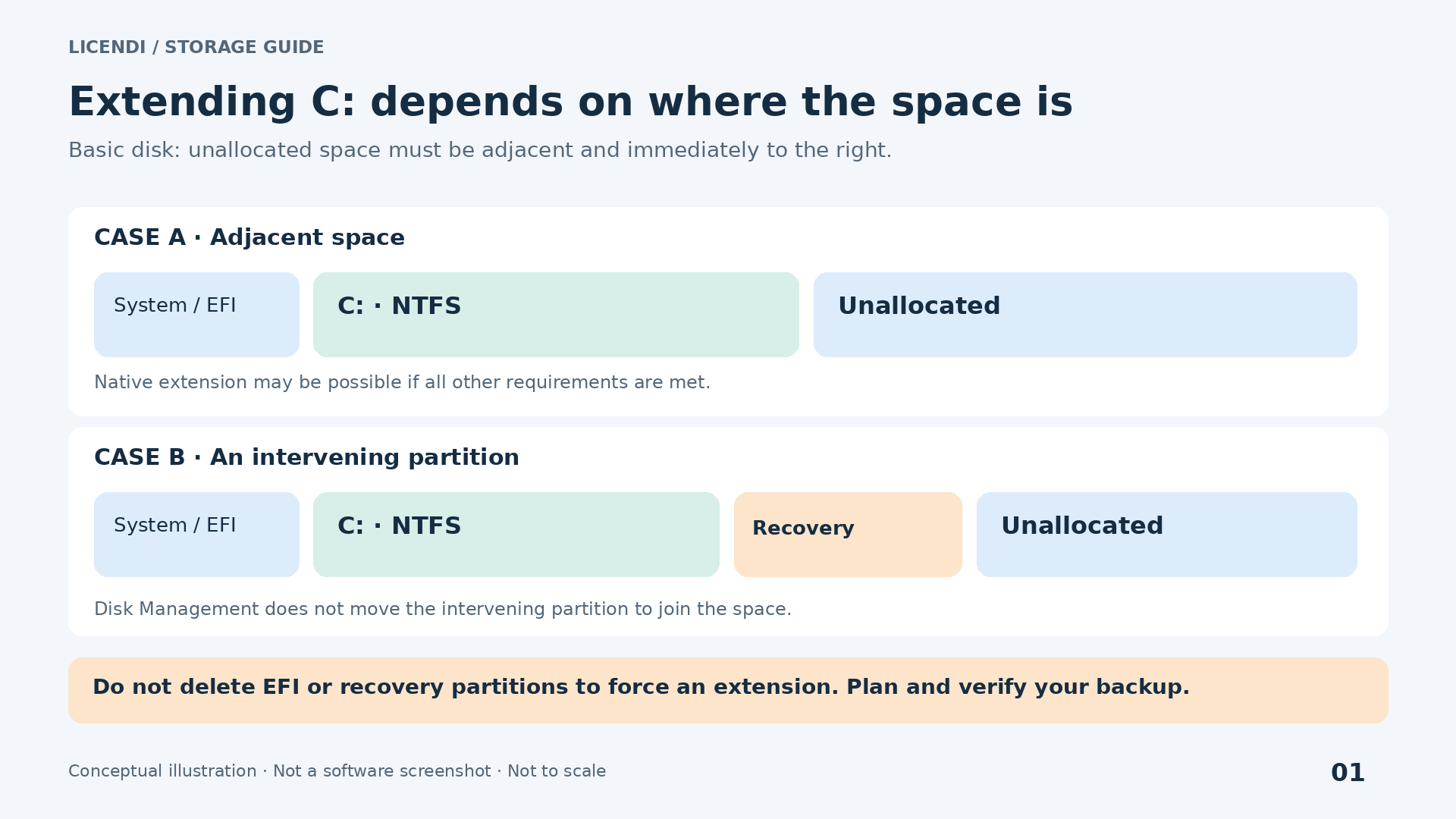
On a basic disk, the usual extension procedure through Disk Management requires unallocated space immediately after the volume, on the same disk. Microsoft documents this adjacency requirement for its procedure. Current documentation also covers NTFS and ReFS, but that does not mean an old tool can handle both file systems.
Imagine this layout: a 100 GB C: partition, an 800 MB recovery partition and 60 GB of unallocated space. Although the space exists, it is not adjacent to C:. The small partition in between prevents a direct extension. This is not a faulty button or a problem that random reboots will solve.
Another common situation is C: followed by D:, with plenty of free space inside D:. Shrinking D: from its end usually leaves unallocated space after D:, not after C:. You have freed capacity, but have not yet created the required layout. This detail explains many searches for “Extend Volume greyed out”.
A tool capable of moving partitions may allow you to reorganise that space in supported configurations. However, moving is not a purely visual operation: it can involve relocating data and changing metadata. The time required depends on the actual work, the storage and its condition. Do not promise completion within minutes simply because the final diagram looks straightforward.
If a recovery partition sits between the two areas, first establish its purpose and dependencies. Do not delete it just to enable the extend option. Deleting it may disable a recovery mechanism; moving it also requires checking that it can still be located and used. On a legacy server, document which recovery tools actually exist before changing anything.
Alternatives deserve consideration. You could create another volume in the available space, relocate data according to the application's instructions or restore the server onto a planned layout. Sometimes that last option is more predictable than a series of moves on an old system. The best intervention is usually the least complex one that meets the need.
When Disk Management is enough
If the inventory confirms a compatible basic volume, adjacent unallocated space and a verified backup, you can assess the built-in tool first. Open Run, enter diskmgmt.msc and obtain the required elevated privileges. This is general guidance for Windows; check the procedure applicable to the installed version before making changes.
In the lower pane, identify the disk by its details, not just its position. Select the intended volume, open its context menu and check whether “Extend Volume” is available. If it is greyed out, return to diagnosing adjacency, format and capacity. Do not accept a disk type conversion as an improvised workaround.
In the wizard, review the available space and specify only the approved increase. Pay attention to the units displayed: a value expressed in MB must not be copied as though it were GB. Check the expected final size and preserve the space needed for other purposes. Completing the wizard applies the change; it does not merely save a draft.
If the operation requires deleting an intervening partition, this straightforward route no longer applies. Do not continue with a sequence of deletions. Return to the change plan, compare alternatives and assess a tool whose version explicitly supports the required reorganisation.
Practical example: planning an extension without improvising
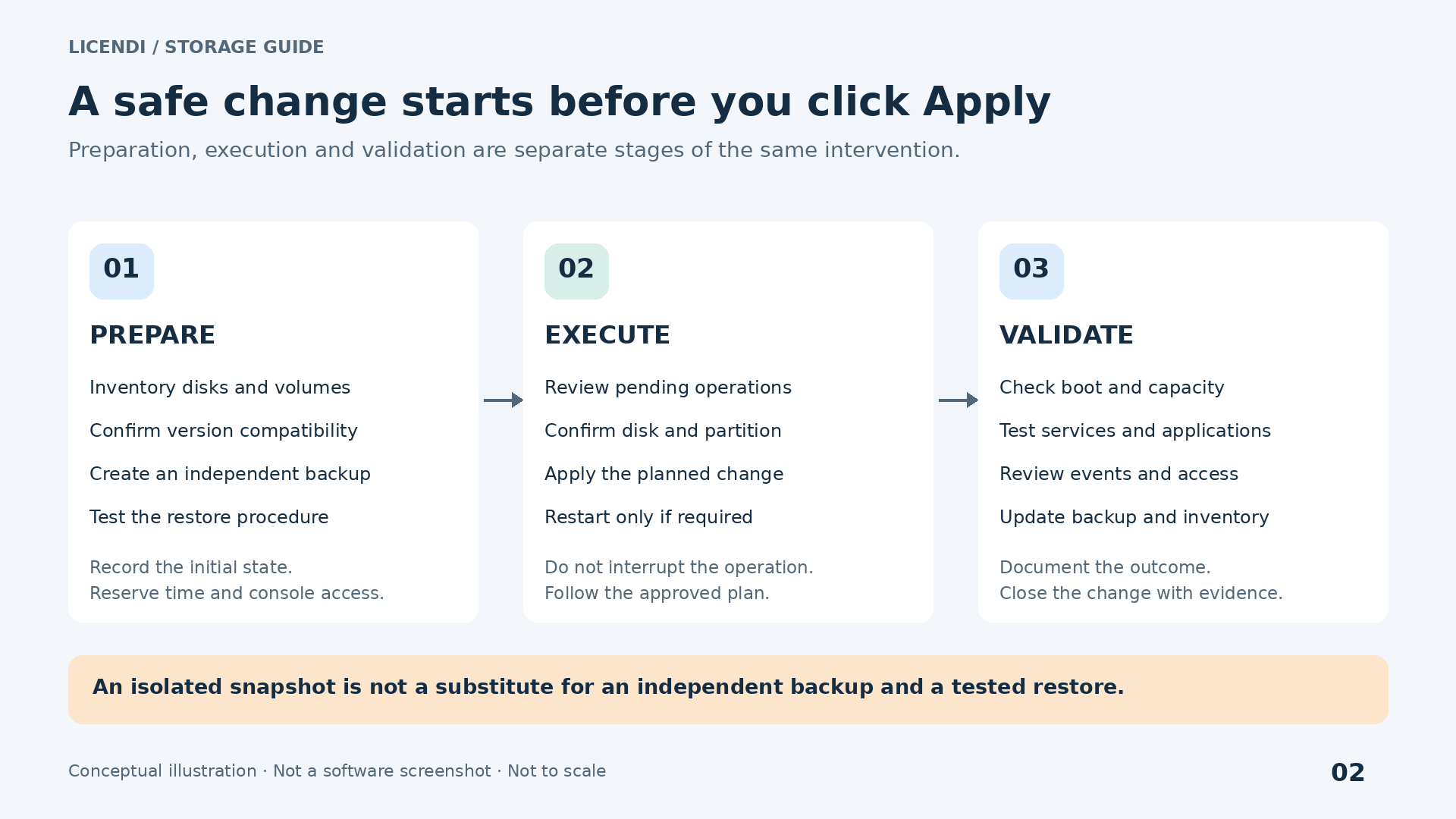
Suppose a legacy server has a nearly full C: volume and a D: data volume on the same basic disk. This is an illustrative scenario, not a confirmation of compatibility. Before choosing MiniTool 8.1, you must check the exact Windows edition, file system, controller and intended operation against documentation applicable to the package purchased.
- Define the outcome. Record how much C: needs to grow and how much headroom D: will retain. Base the figure on observed growth, not the temptation to use the entire disk. State which services will stop and who will accept the result.
- Capture the initial state. Save the partition map, sizes, identifiers, drive letters and mount points. Check storage health and relevant events. A disk with read errors requires the incident to be addressed first, rather than forcing extensive data moves.
- Validate the backup. Confirm a recent, independent and restorable backup. Review its application consistency. Prepare compatible recovery media and demonstrate that it can see the disks and repository before modifying the server.
- Choose the simplest route. If adjacent space already exists and the native procedure is sufficient, do not add unnecessary moves. If D: needs reorganising, examine that operation separately and determine whether it requires a longer outage.
- Review the entire proposal. In a tool with pending operations, distinguish the preview from actual writes. Check the selected disk and every change against the plan. If unexpected deletions, formatting or conversions appear, cancel before applying.
- Execute within the authorised window. Close or stop services according to their procedures, avoid concurrent jobs on the volumes and maintain stable power. If a reboot is requested, check that the intervention allows for this step and that console access is available.
- Check the service. After completion, verify sizes, drive letters, permissions, startup and logs. Open representative data, check applications and confirm that backups work again. Keep before-and-after evidence.
For an environment that passes these checks, the MiniTool Partition Wizard Server 8.1 licence available from Licendi can form part of the maintenance budget. Its price does not replace the cost of preparation or make an intervention advisable when the configuration lacks documented support.
What to check afterwards, beyond the size of C:
A larger capacity bar does not prove that the server has recovered. First check that all expected drives are still present, retain their drive letters or mount points and that the relevant volumes are accessible. Look for new storage or file system errors; a new warning deserves investigation even if users have not yet noticed anything.
Next, validate the service from outside the server. On a file server, open a share using an authorised non-administrator account and check its permissions. In a business application, perform a query and, if approved, a reversible test write. For databases, use the integrity and availability checks recommended by the vendor.
Include tasks often omitted from the first review: scheduled jobs, exports, monitoring, backup agents and hard-coded paths. A drive letter change can go unnoticed during startup and break a nightly task. That is why identifiers and paths should remain unchanged unless modifying them is an explicit part of the project.
Run a new backup once the system has passed the checks. Also retain the previous backup for the agreed period, without overwriting your only known recovery option. Record the final size, the time the service resumed and any issues observed. This information helps the next administrator understand what changed and avoids repeating the same diagnosis a few months later.
A specific person must be responsible for acceptance. Do not close the intervention merely because the tool reports a completed operation: ask the service owner to confirm the agreed tests. If an anomaly remains, record its scope and decide whether to investigate or initiate recovery within the available window.
Basic and dynamic disks: not interchangeable
On a basic disk, you work with partitions. On a dynamic disk, volumes have additional characteristics: they may span multiple disks or form mirrored or striped sets. The fact that two drives have letters and store files does not mean they support the same operations or recovery methods.
Microsoft considers dynamic disks a deprecated technology for new deployments and recommends alternatives according to the situation. That current recommendation does not require the immediate conversion of a legacy server: a migration needs its own analysis. Nor does it justify applying modern instructions without checking the Windows version in front of you.
The documented native procedure for returning to basic involves deleting the affected volumes. This is a destructive operation requiring planned backup and restoration. Although MiniTool's history mentions dynamic disk management before version 8, it does not demonstrate that every volume type can be converted without data loss using edition 8.1.
Before a conversion, identify all participating disks and the volume type. Do not convert to dynamic simply because a wizard suggests it as a way to use capacity on another disk. You may introduce dependencies and recovery difficulties into a problem that originally only needed more space.
RAID: the controller and Windows solve different problems
With hardware RAID, the controller usually presents a logical drive to Windows. The operating system partitions that drive; it does not directly manage every member disk in the array. Consequently, extending a partition does not itself add another physical disk to the RAID array or change its redundancy level.
When additional capacity is needed, the sequence may be to expand the array using the manufacturer's tools, wait for the operation to finish and then check how much capacity Windows recognises. Only then should volume extension be considered. The specific possibilities depend on the controller, its firmware and configuration; there is no universal sequence.
Avoid combining a RAID rebuild with partition moves wherever possible. Check the array's condition and resolve degraded disk issues before intervening. Redundancy does not replace backup either: accidental deletion, logical corruption or selecting the wrong target can affect the entire protected volume.
Storage arrays, shared LUNs and cluster storage also involve ownership, paths and coordinated services. Do not apply this local example to a shared volume. You need a platform-specific procedure and explicit confirmation that the chosen tool is compatible.
GPT, MBR and EFI: capacity does not guarantee bootability
MBR and GPT describe partitioning schemes; NTFS and ReFS describe file systems. Changing one is not equivalent to changing the other. Nor does the disk scheme alone explain how the server boots: firmware, the bootloader, boot configuration and the partitions containing their files all play a part.
The usual MBR limit is around 2 TiB when 512-byte logical sectors are used. GPT allows that barrier to be exceeded and supports more partitions. But finding inaccessible capacity on a large disk does not justify immediately converting the system disk. First confirm the logical sector size, platform and supported procedure.
In a UEFI boot configuration, the EFI partition has a specific purpose and must not be treated as spare space. It should not be confused with a recovery partition or the Microsoft reserved partition either. Document each one and avoid changes unnecessary to the approved objective.
The historical distinction is decisive: MiniTool mentions conversions between GPT and MBR in version 8.0, but dates MBR-to-GPT system disk conversion to 10.0. We cannot turn that first general reference into a promise of boot migration with 8.1.
Meanwhile, the Microsoft conversion procedure cited in the sources requires the disk to be emptied. Deleting partitions, formatting or running a disk clean operation destroys structures and can cause data loss. Do not copy conversion commands from a generic guide onto the production server. If you need to change the boot configuration, treat it as a separate project.
Virtualisation: expand outside, then check inside
A virtual machine has several layers of capacity. There may be spare space in the storage array, insufficient space in the hypervisor's datastore or unallocated space inside the disk Windows sees. Expanding the virtual disk from the host does not automatically extend C: inside the guest: partition positions matter again.
Compatibility also applies at each layer. Installing a tool inside a virtual machine does not make a Windows Server version compatible if support is undocumented for version 8.1. Similarly, an old guest operating system does not guarantee that old boot media will recognise the configured virtual controller.
Check the hypervisor's expansion requirements, disk format and restrictions imposed by existing checkpoints. Do not confuse a dynamically expanding VHDX with a Windows dynamic disk: they are different concepts. With thin-provisioned storage, also monitor available physical capacity so that growth does not exhaust the datastore.
A checkpoint can help with certain changes, but is not equivalent to an independent backup. Microsoft warns of consistency risks with standard checkpoints, especially on systems that replicate data. Define an application-compatible restore procedure and do not manually delete differencing disk files to free space.
Reboots, incidents and criteria for stopping
Modifying a volume in use may require work outside the normal Windows session. Do not promise an extension “without rebooting” merely because some operations allow it. Behaviour depends on the volume, the ability to lock it, the operation and the specific version.
Boot media is not an automatic solution either. It must be authorised by the licence, recognise the storage and work with the relevant firmware. Do not assume that a 2013 edition supports Secure Boot, recent controllers, NVMe or modern encryption features. If BitLocker is involved, include its keys and a specific approved procedure.
Stop preparation if verified backups are missing, disk errors appear, the device identification changes or the tool proposes something different from the plan. Once an operation has begun, do not force a shutdown out of impatience: consult the incident procedure and assess the situation with competent support. A real rollback means recovering a known state, not blindly attempting reverse moves.
The second-hand offer: what to confirm before buying
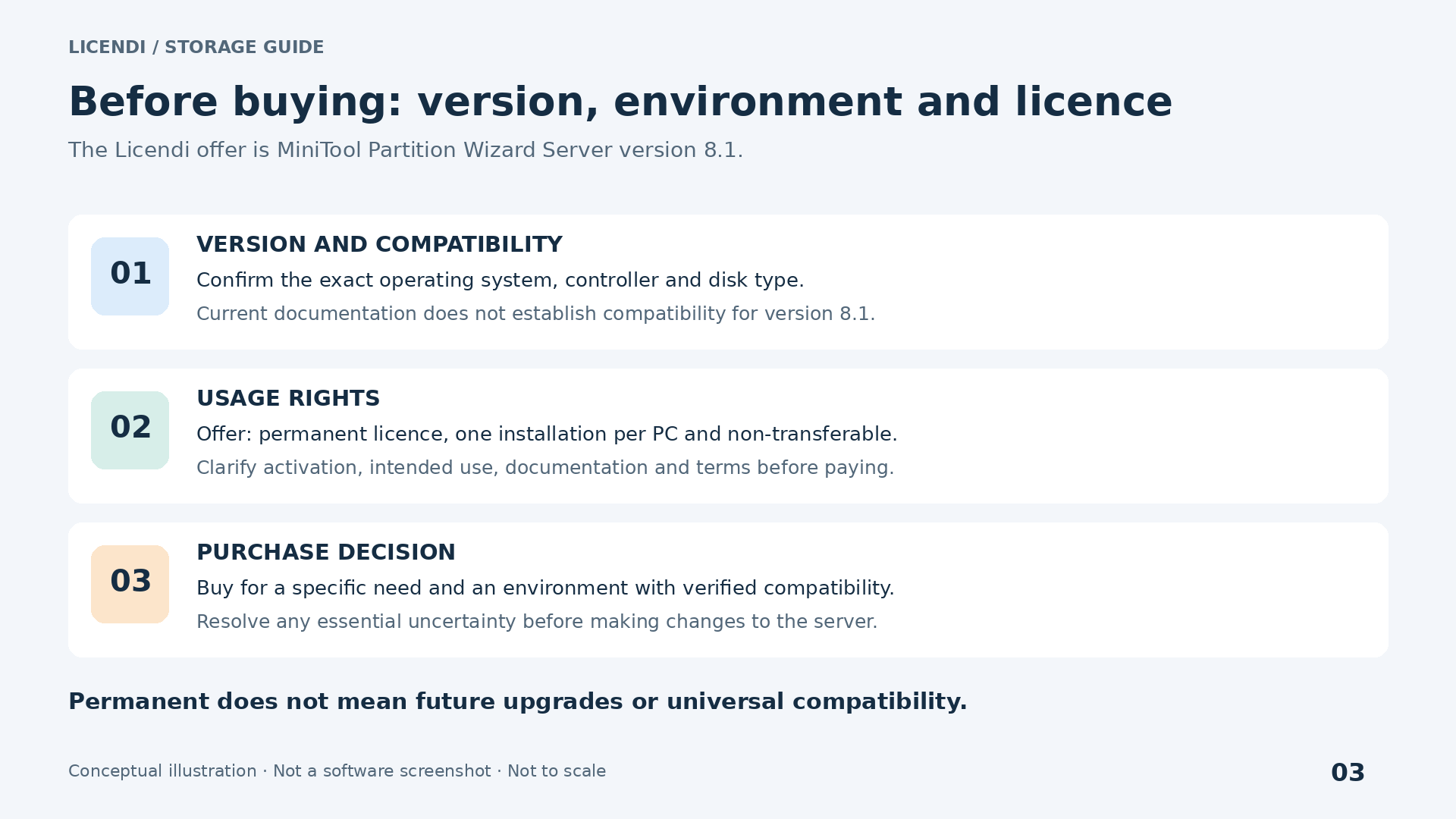
The listing consulted identifies the product as SKU12458 and displays a price of €20.00 at the time of consultation. It specifies version 8.1, Windows-only use, a permanent licence, a single installation per PC, non-transferability, multilingual support and digital delivery. The price may change: check the order terms before paying.
If you specifically need this version for a compatible computer, you can consult the MiniTool Server 8.1 product listing and terms. The economic value of this second-hand offer depends on the match between your technical needs and the rights supplied, not on a comparison with features in a current edition.
“Permanent” describes the stated duration of use, not a promise of future updates, indefinite support or compatibility with newer Windows Server releases. “Single installation per PC” and “non-transferable” require attention if you expect to replace hardware, rebuild the computer or move a virtual machine. Request written confirmation about reinstallation, recovery after hardware failure and virtual use rights.
For documentary due diligence, keep the invoice, version identification, applicable terms and any available provenance documentation. Ask about the scope of the licence and any requirements relevant to your organisation or jurisdiction. Second-hand status does not automatically establish that every transaction is valid or that all rights are identical.
Digital delivery does not necessarily mean immediate receipt either. Confirm the process, exact installer and available activation assistance before booking a maintenance window. Verify the file's origin and integrity using the means provided; do not ignore security warnings or download a supposed old version from an arbitrary repository.
A decision appropriate to the server
MiniTool Partition Wizard Server 8.1 should be assessed as a tool of its era, not as an automatic substitute for the current version. For documented tasks in compatible environments, a partitioning interface can help plan operations. On recent platforms, without applicable evidence, the responsible choice is another solution with explicit support.
Start with the disk map, test restoration and use the least invasive method. If the native feature solves the problem, do not complicate the change. If partitions need reorganising, require a technical justification and recovery time. And if compatibility remains unclear, postponing is better than experimenting on production.
Once these checks are resolved, you can consider buying MiniTool Partition Wizard Server 8.1 from Licendi with a specific expectation: obtaining the advertised version for authorised, verified use. Success is not merely about gaining gigabytes, but about keeping data recoverable and the service running.
Official sources and the scope of the documentation
Historical references identify when features appeared; current references explain procedures and concepts. None replaces specific confirmation of compatibility for the supplied 8.1 installer.
- MiniTool: official version history. Historical references to the version 8 family and later features.
- MiniTool: current download centre. Current compatibility information that cannot be extrapolated to 8.1.
- Microsoft: extend a volume. Current documentation on requirements and adjacency.
- Microsoft: dynamic and basic disks. Current conversion guidance and warnings.
- Microsoft: conversion between GPT and MBR. Destructive procedure and requirements.
- Microsoft: wbadmin start backup. Critical volumes, system state and VSS.
- Microsoft: Hyper-V checkpoints. Types, consistency and precautions.