EN
 FR
 DE
 IT
 PT
 ES


Migrate Google Workspace to Microsoft 365
A migration can seem successful on an administrator's screen. But employees might notice problems. For example, a shared mailbox could disappear. A shared drive might go to the wrong team. A meeting room calendar might not work. Or old links might stop working.
That's why moving from Google Workspace to Microsoft 365 should be seen as a business change, not just a simple copy job. It's the safest way to ensure everything works well for everyone.
The new system is also more than just new apps. Gmail changes to Exchange Online and Outlook. Your personal Drive files usually move to OneDrive. Shared drives often need a planned setup in SharePoint or Teams. Google accounts become Microsoft Entra ID accounts. Also, familiar ways of working with labels, sharing, meetings, and online editing must adapt to the new system.
This guide shows small businesses (SMBs) and IT administrators how to migrate. It covers these steps:
- Find out what you have.
- Choose your subscriptions.
- Prepare accounts and make sure both systems can work together for a while.
- Move mail and files.
- Run a test (pilot).
- Switch over your domain name system (DNS).
- Check the results.
- Support your users.
Microsoft's tools and experiences change over time. So, always use the latest Microsoft migration overview as your main source of information when you start your project.

Table of contents
- Why organizations migrate, and when not to
- Google-to-Microsoft workload map
- Phase 1: discovery and business case
- Phase 2: licensing and target architecture
- Phase 3: identity, domains and coexistence
- Phase 4: Gmail, calendar and contacts
- Phase 5: Drive and shared drives
- Pilot, cutover, DNS and rollback
- Validation and common failures
- User adoption and change management
- Cost, risk and timeline controls
- Choosing Microsoft 365 through Licendi
- Frequently asked questions
Why Organizations Migrate, and When Not To
Most organizations don't move because one software suite is better in every way. They move because Microsoft 365 fits better with their existing systems. If a company already uses Microsoft technology, things like Windows device management, desktop Office apps, Teams, SharePoint, Microsoft Entra ID, and Microsoft security services can work together more smoothly.
Other reasons for moving include:
- A merger might require everyone to use one system.
- A customer or regulator might demand stronger device security.
- The finance department might want fewer overlapping tools.
- Users might need advanced features in Excel, Word, or PowerPoint that are hard to use in browser-based tools.
When Not to Migrate
These reasons are only good if the new system solves a real problem. A company that works well with Google Workspace, has little Microsoft experience, and relies on Google-specific tools might face problems without enough benefits. The same warning applies if the project is only about saving money on subscriptions. Don't forget the costs of:
- Migration work.
- Running both systems at the same time.
- Training.
- Extra tools.
- Fixing problems.
- User support.
You should delay the migration if:
- You don't have a full list of your current systems.
- Key applications depend on Gmail or Drive, and you haven't tested them.
- It's unclear who owns user accounts.
- There's no executive sponsor to help users adapt to the change.
Also, think twice about moving everything at once if you have:
- Legal holds on data.
- Regulated data.
- Complex shared drives.
- Business-critical mail routing that needs careful, step-by-step checks.
Sometimes, the best choice is a phased migration (moving in stages), a short period where both systems run together, or no migration at all for now.
Google-to-Microsoft Workload Map
Comparing Google and Microsoft tools one-to-one can hide important choices you need to make. For example, a Google shared drive shouldn't automatically become one huge SharePoint site. Also, Google Chat spaces don't always fit perfectly into every Teams structure. Use the table below as a starting point. Then, design your new system based on who owns the data and how people work.
| Google workload | Typical Microsoft 365 destination | Planning decision |
|---|---|---|
| Gmail | Exchange Online and Outlook | Addresses, aliases, delegates, routing, retention and message limits |
| Google Calendar and Contacts | Outlook calendar, Exchange resources and contacts | Rooms, shared calendars, colors and contact-field limitations |
| My Drive | OneDrive | Ownership, sharing, storage, paths and unsupported items |
| Shared drives | SharePoint sites or Teams-connected sites | Site boundaries, owners, permissions, sensitivity and lifecycle |
| Docs, Sheets and Slides | Word, Excel and PowerPoint files | Conversion fidelity, formulas, scripts, comments and links |
| Users and groups | Microsoft Entra ID and Microsoft 365 groups | Naming, domain mapping, duplicate objects and external members |
| Meet and Chat | Teams meetings, chat and channels | New collaboration model; history may need separate handling |
Phase 1: Discovery and Business Case
Gather Information (Discovery)
Start by collecting facts. Export details about:
- Users, groups, and email aliases.
- Suspended and archived accounts.
- Shared mailboxes or delegated access.
- Resources (like meeting rooms).
- Email routing rules and domains.
- Mobile devices.
- Third-party apps that use Google accounts (OAuth applications).
- Administrator roles.
For files, list everything in My Drives and shared drives. Note:
- Owners and external sharing.
- File types and total number of items.
- Total storage volume.
- Oversized files and very long file paths.
- Content without a clear owner.
Also, include Google Vault retention or legal-hold needs in this step. A migration tool isn't a replacement for proper records management analysis.
Identify Dependencies
Next, create a list of what depends on what. Ask:
- Which applications send emails through Gmail?
- Which scanners, websites, and business systems use SMTP (for sending email)?
- Which workflows use Apps Script, Google Forms, Sheets macros, Drive shortcuts, or fixed web addresses (hard-coded URLs)?
- Which teams share documents with clients outside the company?
You can use a simple "traffic-light" rating:
- Green: Standard tasks.
- Amber: Risks with converting files or permissions.
- Red: Unsupported items or critical systems that need a separate plan.
Build a Business Case
Use this information to create a business case with clear goals. Examples include:
- Combining user accounts.
- Deploying managed desktop applications.
- Improving device security.
- Reducing duplicate collaboration tools.
- Standardizing how documents are managed.
Figure out your current costs for subscriptions, support, storage, security tools, and user experience. Include the cost of running both platforms during the migration. Also, set aside money for fixing problems. Don't claim you'll save money until you know your new system design and how users will work.
Assign Owners and Set Goals
Assign people to be responsible for:
- User accounts (identity).
- Email.
- Files.
- Security.
- DNS.
- Compliance.
- Applications.
- Communications.
- Business acceptance.
The project manager will coordinate these people, but they can't make every decision alone. Set clear "go/no-go" criteria now. This prevents making bad decisions later due to deadline pressure.
Phase 2: Licensing and Target Architecture
Choose Licenses Based on User Needs
Licensing should match what each user needs, not just their job title. A frontline worker who uses a browser, a finance analyst who needs desktop Excel, and an administrator handling sensitive data might all need different plans. Confirm if each user requires:
- Hosted email.
- Desktop Office applications.
- Device management.
- Advanced threat protection.
- Compliance features.
- Or just application rights.
Also, check the requirements for migration tools and the storage you'll need. Having an account doesn't mean every service or security feature is included or licensed.
For many smaller organizations:
- Microsoft 365 Business Basic works for users who mainly need cloud services and web or mobile apps.
- Business Standard adds desktop Office apps for users who need them installed locally.
- Business Premium combines these with extra identity, device management, and security features.
Review the current Business Premium resources. Don't assume every control is included or set up automatically. Product names, features, and availability can change, so check the latest terms before buying.
Design Your New System
Design the new system before you start copying data. Define:
- Accepted email domains.
- User principal names (UPNs) and aliases.
- Exchange recipients.
- OneDrive setup.
- SharePoint site structure.
- Teams naming conventions.
- Group ownership.
- External sharing rules.
- Retention labels and sensitivity controls.
- Administrator roles.
Decide where personal work files end and team records begin. If every shared drive is mapped to one person's OneDrive, the migration might technically finish, but you'll have an ownership problem from day one.
Build with Security in Mind
Build your system with "least privilege." This means giving people only the access they need. For example:
- Separate migration operators from global administrators if the tools allow it.
- Protect emergency accounts.
- License pilot users early to set up policies and test workloads.
Microsoft's current guided Google Workspace setup sequence can simplify initial setup for eligible small businesses. However, it should fit into your overall design, not replace it.
Phase 3: Identities, Domains, Security, and Coexistence
Map User Accounts
Mapping user accounts is key for both mail and files. Before migration, standardize primary email addresses, aliases, duplicate names, and group addresses. Decide if the Microsoft Entra user principal name (UPN) will match the primary email address.
Create a detailed mapping file that links every Google user and group to one Microsoft 365 account. This includes former employees whose data you need to keep. Test for special characters, renamed users, and multiple domains. Don't assume that matching email addresses will solve every issue.
Google Identity Sync
Microsoft now offers Google Identity Sync for eligible accounts. This tool allows one-way syncing of users and groups from Google Workspace to Microsoft 365. It has specific conditions for tenant size and mapping. Existing Microsoft 365 users are not simply overwritten. Archived users are handled differently from active or suspended users. External or custom-permission group members might need separate handling. Review the current eligibility and reports before choosing this over manual or third-party provisioning.
Set Up Domains and Security
Add and verify your business domain in Microsoft 365. Do this without moving your main email service too early. Set up basic security before users get real data:
- Multi-factor authentication (MFA).
- Conditional Access (if licensed).
- Separation of roles.
- Audit logging.
- Device or app protection.
- External sharing rules.
- Recovery accounts.
Avoid applying an untested policy to the whole company during the switch. Use pilot groups to test. Make sure administrators can recover from being locked out without weakening security.
Enable Coexistence
Coexistence means both systems work together for a time. This needs clear email flow. The standard Exchange method uses routing domains. This allows users on either platform to exchange mail during staged migrations. Microsoft's migration prerequisites explain how to set up mail users, create routing subdomains, and check forwarding. The combined Microsoft 365 experience and Simplified Gmail Migration can automate some steps. So, follow the method chosen for your system, rather than mixing instructions from different guides.
During coexistence, keep one main source of truth for account status. Define:
- Where new users are created.
- Where password or federation changes happen.
- How employees who leave are disabled.
- How group membership is managed.
Stop nonessential name changes close to the switch. If user accounts change while files and permissions are being mapped, the errors might look like random migration failures. But the real cause is often poor management.
Phase 4: Migrate Gmail, Calendars, and Contacts
Choose Your Mail Migration Method
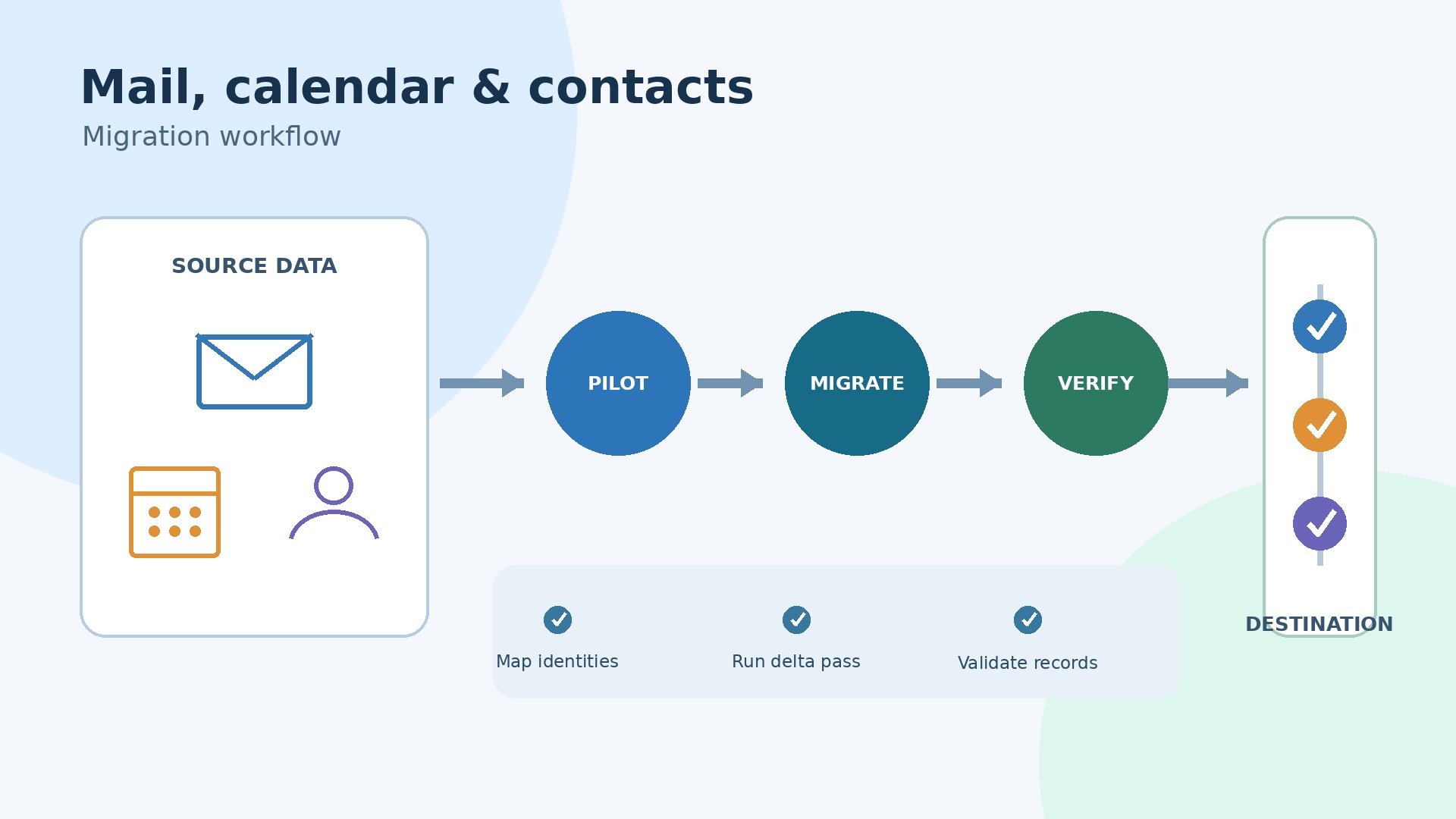
Select the best mail migration method after your discovery phase. Microsoft's automated tools in the Exchange admin center can move mail, rules, calendars, and contacts. It supports staged migrations, which is helpful if you can't move everyone at once.
The current Microsoft 365 admin center also offers a combined Google Workspace migration experience. Additionally, Simplified Gmail Migration uses a Google Marketplace app to guide smaller organizations. Availability and eligibility can change, so no single method works for everyone.
Prepare and Run Migration Batches
For the standard automated route, complete the necessary steps for:
- Service accounts.
- APIs.
- Administrator roles.
- Routing domains.
- Recipient prerequisites.
Create migration batches from a carefully checked user list, not a hastily made spreadsheet. Start with a pre-stage pass. This copies old content while users continue working in Google. Review any errors, fix problems, and restart or resume as needed. A final sync close to the switch reduces the gap, but don't promise zero downtime.
Understand Limitations
The automated batch migration overview lists important limits. In the standard batch method:
- Shared calendars and event colors are not migrated.
- Room bookings are not migrated.
- Vacation and automatic-reply settings are not migrated.
- Gmail tags and some custom contact fields or URLs have limitations.
- A maximum of three email addresses per contact is allowed.
- The default single-message limit is 35 MB, but can be set up to 150 MB.
Treat these as test cases and points for user communication, not surprises after the switch.
Rebuild What Can't Be Migrated
Recreate anything that can't be moved cleanly. Create Exchange room and equipment mailboxes. Assign booking policies. Recreate shared calendars as needed. Document who has delegated access. Ask users to check recurring meetings after the switch.
Gmail labels don't work exactly like Outlook folders or categories, especially when one message has several labels. Check how labeled messages appear and explain the differences to users before they think data is missing.
Monitor and Verify
Use the current Exchange admin center procedure for your chosen automated method. Monitor:
- Number of items.
- Skipped items.
- Reasons for failures.
- Last synchronization time.
Disable or adjust destination retention and archive policies if Microsoft's method requires it. This is because an item moved or deleted by policy might seem missing during verification. Don't delete Google mail right after a "successful" dashboard message. Keep the source data until an agreed-upon check and retention period is over.
Phase 5: Migrate Drive and Shared Drives
Plan Your File Migration
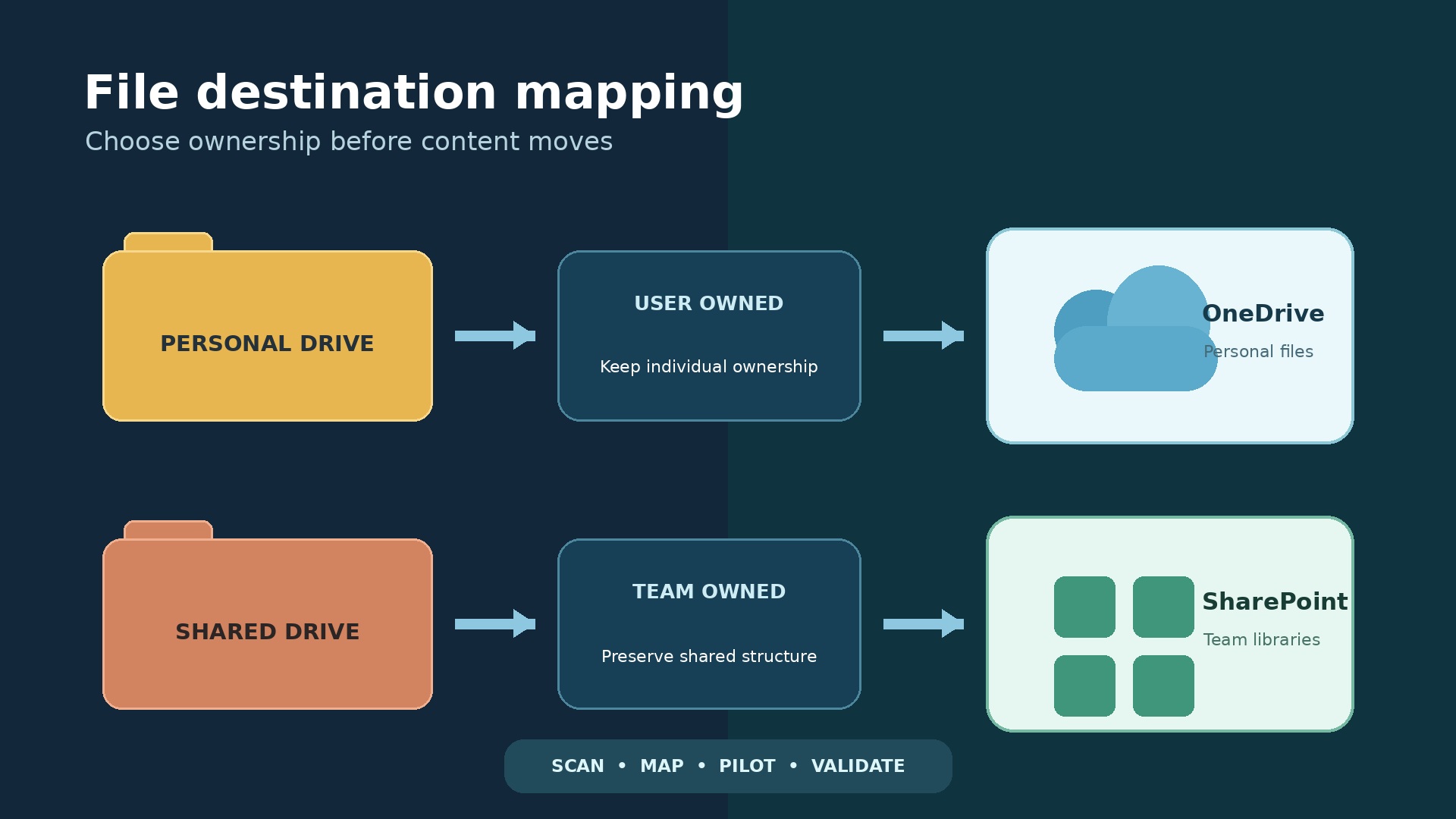
File migration is really about organizing your information, disguised as a copy job. Personal work files usually move from My Drive to OneDrive. Team-owned shared drives should move to SharePoint sites, often accessed through Teams.
Before you start, decide on:
- Site boundaries.
- Owners and members.
- External sharing rules.
- Sensitivity levels.
- Retention policies.
- Naming conventions.
If a shared drive is too big or contains data for different departments, confidentiality levels, or lifecycles, split it into multiple destinations.
Use Microsoft Migration Manager
Microsoft Migration Manager for Google Workspace follows a clear process:
- Connect to your Google Workspace.
- Scan and assess your files.
- Add ready sources to the migration list.
- Review destination paths.
- Map user accounts.
- Migrate and monitor the process.
Use the full workflow for complex migrations. A simpler experience might be available for eligible small businesses, but even a simple tool requires you to know where your content should go.
Scan and Review Reports
Always scan first and read the reports. Look for:
- Unsupported files.
- Restricted items.
- Excessively long file paths.
- Invalid names.
- Ownership problems.
- Large items and volumes that could delay the schedule.
Review destination mapping instead of accepting every automatic match. Map users and groups before expecting permissions and metadata to transfer correctly. Run a test (pilot) with a variety of content, including:
- Native Google files.
- Externally shared folders.
- Inherited permissions.
- Large folder structures.
- Content owned by former employees.
Understand File Conversion
Converting files changes them, not just their location. Microsoft's current guidance on unsupported files states:
- Google Docs, Sheets, and Slides are converted to DOCX, XLSX, and PPTX using the Google Export API. The original Google files remain in Google.
- Google Drawings are converted to PNG images.
- Google Sites and Google Maps are not migrated.
- Shortcuts are skipped.
- Unorganized or orphaned files are not scanned or reported.
How forms and other item types behave can change, so check the documentation when you start your migration project.
Conversion can change formulas, scripts, page layout, comments, embedded objects, and links. Create a test set of complex documents. Ask their actual owners to approve the converted results. Permissions also need checking. Internal users, groups, guests, anonymous links, and custom access don't always translate perfectly. Keep a log of files that need manual export, redesign, archiving, or deletion. Migration Manager copies content; it doesn't remove the originals from Google. So, deleting source files is a separate, managed action.
Pilot, Cutover, DNS, and Rollback
Run a Credible Pilot
A good pilot test should include the challenging parts of your company, not just helpful IT users. Include:
- Several departments.
- Executives or assistants with delegated access.
- Remote staff and mobile users.
- Owners of shared drives.
- External collaborators.
- Users who book rooms.
- At least one account with a large or unusual mailbox.
Set clear goals for success, such as:
- Mail flow working.
- Users signing in successfully.
- Outlook profiles, mobile access, and meetings working.
- Document conversion being correct.
- Support tickets being manageable.
Run the pilot in conditions similar to your live environment. Use the planned subscriptions, policies, DNS setup, and device configurations. Record the number of items, known exclusions, user feedback, and time needed to fix problems. If a pilot shows that 5% of files need manual work, add that effort to your schedule. Don't call the pilot successful just because 95% copied over.
Prepare for Cutover and DNS
Before the final switch (cutover), reduce your DNS time-to-live (TTL) if your provider and policy allow. Do this far enough in advance for the old value to expire. Confirm you have access to your DNS host. Document every current record. Prepare the exact new values from the Microsoft 365 admin center. Review MX, Autodiscover, SPF, DKIM, and DMARC records. SPF must remain one valid record that includes all authorized senders; adding a second SPF TXT record can break it. Test business-specific email senders and third-party gateways separately.
Sequence the Cutover Event
Plan the cutover steps carefully:
- Stop any unnecessary account or structure changes.
- Complete final or delta (difference) passes for data.
- Verify the status of migration batches.
- Change mail flow records.
- Confirm inbound and outbound email delivery.
- Enable or validate domain security records.
- Release users in planned groups (waves).
Microsoft's overview places domain connection after mail and calendar migration. This is because changing MX records is a service transition, not just a preparation step.
Plan for Rollback
You must have a rollback plan written before you decide to go live. Define:
- Who can stop the migration wave.
- The latest safe point to make that decision.
- How MX records or routing would be restored.
- How new mail delivered to Microsoft 365 would be handled.
- Whether users can edit files in both systems.
DNS rollback isn't instant due to caches. Reversing mail flow also doesn't automatically combine data created in both systems. For many failures, it's safer to pause the next wave and fix the problem rather than reverse users who are already working successfully.
Set up a command center with named technical and business owners. Record all changes and their times. Keep the help desk script, user announcements, and vendor contact details ready. Don't schedule the first major wave right before payroll, quarter-end, a public launch, or a holiday, unless your business has clearly accepted that risk.
Validation Checklist and Common Failures
A "completed" status doesn't mean the business accepts the migration. Microsoft's file guidance notes that tasks can show as ready or completed even if some unsupported items failed. Validate by workload, user, and type of exception.
Validation Checklist:
- Identity: Users can sign in, MFA works, licenses are assigned, aliases work, groups have correct owners, and disabled accounts stay disabled.
- Mail: Inbound, outbound, and internal email delivery works. Historical folders or label outcomes are understood. Delegates, aliases, rules, and large message exceptions are checked.
- Calendar: Recurring meetings, time zones, organizer behavior, rooms, shared calendars, and mobile sync are tested.
- Files: Counts and sizes match, allowing for known conversion differences. Owners, permissions, external access, and sample documents are approved.
- Clients: Outlook, Teams, OneDrive, and Office activation work on typical Windows, macOS, and mobile devices.
- Security: Audit events arrive, Conditional Access works as designed, sharing controls apply, retention is tested, and emergency access is still available.
- Operations: Procedures for new hires, transfers, departing employees, data recovery, support, and escalations work in the new platform.
Common Failures:
Common failures are usually predictable:
- Unmatched accounts: Leads to lost permissions.
- Unprepared OneDrives or sites: Blocks data from reaching its destination.
- Old aliases: Creates email conflicts.
- Expired OAuth or API permissions.
- Unsupported paths or files.
- External guests not mapped correctly.
- Retention policies moving items during verification.
Another frequent mistake is comparing raw file counts without considering Google-native file conversion or skipped shortcuts. Classify every difference as:
- Expected.
- Fixed.
- Accepted by an owner.
- Still blocking the migration.
Keep records. Export migration reports, error lists, mapping files, DNS records, acceptance approvals, and decisions about fixes. Check high-risk users, don't just look at averages. Keep access to the source system in a read-only or controlled way for the approved validation period, following legal and security rules. Then, remove migration apps, service accounts, temporary permissions, forwarding rules, and old routing domains when they are no longer needed.
User Adoption and Change Management
Guide Your Users
Users don't need to know every Microsoft 365 feature. They need to know how their daily work changes. Provide short, role-based guides on:
- Outlook folders and categories versus Gmail labels.
- OneDrive sharing versus Drive.
- Teams channels versus ad hoc chat.
- SharePoint team ownership.
- Creating meetings.
- Booking rooms.
- Offline files.
- Where to ask for help.
Show the differences that could cause mistakes, not just the similarities that make training seem easy.
Support and Feedback
Recruit "champions" from your pilot group. Give managers a cutover checklist. Publish a clear way for users to get support. Send login details and setup instructions through a channel that works even if email is down. Offer "office hours" during the first waves of migration and track common questions. Repeated confusion is feedback on your design. It might point to bad naming, missing permissions, an overly complex site structure, or an undocumented policy.
Measure Adoption
Measure how well users adopt the new system after launch. Review:
- Sign-ins.
- Active use.
- Support ticket volume.
- Unresolved sharing requests.
- Storage growth.
- Duplicate work still happening in Google.
Don't cancel the source system just because the migration deadline passed. Retire it only when data validation, retention, business acceptance, and contract notice requirements are met.
Cost, Risk, and Realistic Timeline Controls
No responsible guide can promise a fixed time or price. A company with 50 users, standard Gmail, and organized Drives might be easier to migrate than a 20-user studio with terabytes of media, extensive external sharing, and Apps Script automation. Factors affecting the timeline include:
- Data volume and item count.
- API limits (throttling).
- Mailbox size.
- Unsupported content.
- Quality of user accounts (identity).
- Number of domains.
- Need for coexistence.
- Legal holds.
- Device readiness.
- Business calendars.
- Speed of owner decisions.
Control Costs and Risks
Control costs with migration waves and decision points. License pilot users first if it makes commercial sense. Avoid buying migration software if a built-in tool can meet your needs. Budget for running both subscriptions for a while. Prioritize fixing problems based on their business impact, instead of chasing minor count differences. Keep a risk log with:
- Probability.
- Impact.
- Owner.
- Mitigation plan.
- Trigger points.
Set aside extra funds for complex documents, shared permissions, and application integrations.
Create a Realistic Schedule
A useful schedule is broken into phases, not just promises:
- Discovery.
- Architecture and procurement.
- Tenant and identity preparation.
- Pilot.
- Problem fixing.
- Staged pre-copy.
- Cutover waves.
- Validation.
- Source system retirement.
Each phase should end based on clear evidence. If discovery shows the project is bigger, update the timeline openly. Rushing testing doesn't remove risk; it just shifts that risk to employees and the help desk.
Choose the Microsoft 365 Plan That Fits Your Migration
Licendi's marketplace offers Microsoft 365 plans and other software licenses. Choose subscriptions based on the users, applications, security controls, and compliance needs of your new system. Don't assume every subscription is a transferable, one-time purchase license. Microsoft 365 services are generally ongoing subscriptions. Other software on the marketplace might have different licensing models and transfer conditions.
Compare Microsoft 365 plans available through Licendi. Consider Microsoft 365 Business Basic for users who primarily use cloud services. Choose Microsoft 365 Business Standard when desktop Office apps are needed. Opt for Microsoft 365 Business Premium if your design requires its extra identity, device management, and security features. Confirm current features, user limits, and commercial terms before ordering.
Conclusion
A successful Google Workspace migration isn't about how fast data leaves Google. It's about whether people can communicate, find information, keep important records, and work securely in Microsoft 365 after the old system is gone. Most avoidable problems can be prevented by careful discovery and account mapping. Pilot tests reveal the rest while it's still practical to fix things.
Use Microsoft's current tools for what they actually support. Document every known limitation. Let business owners approve converted documents and permissions. With staged data transfers, controlled DNS changes, careful checks, and focused training, the move can be predictable. It won't be perfect or invisible, but it can be smooth.
Frequently Asked Questions
Can Microsoft migrate Gmail, calendars, and contacts?
Yes. Microsoft's Google Workspace migration tools can move Gmail data and supported calendar and contact content into Exchange Online. The exact data and setup options depend on the method available in your system. Shared calendars, room bookings, event colors, Gmail tags, and some contact fields have limits in the standard automated batch method. So, test and communicate what your chosen method covers.
Does Google Drive migrate directly to OneDrive?
Personal My Drive content usually moves to OneDrive. Shared drives should typically move to managed SharePoint or Teams-connected sites. Migration Manager copies supported content, details (metadata), and permissions based on your setup. However, you still need to make decisions about the new system's structure, how accounts are mapped, and how to fix unsupported items.
Are Google Docs converted to Microsoft Office files?
Yes. Migration Manager uses the Google Export API to convert Google Docs, Sheets, and Slides into DOCX, XLSX, and PPTX files. This conversion might change formulas, scripts, layout, comments, embedded content, or links. So, owners should check complex files. The original Google files stay in Google unless your organization removes them later.
Will every permission and sharing link keep working?
No, there's no guarantee. Account mapping can keep supported permissions. But custom access, external users, anonymous links, shortcuts, ownership, and new system policies can change the outcome. Test common sharing patterns, publish new links where needed, and keep a record of exceptions that need fixing.
How much downtime should a migration require?
There's no single answer. Moving data in stages and running both systems together for a while can reduce disruption. However, the final data sync, DNS changes, setting up user devices, and support issues still create risks. Plan for a controlled service window and avoid promising zero downtime.
Can Google Workspace and Microsoft 365 coexist during migration?
Yes. Supported staged email methods can use routing domains and set up recipients so that users on both systems can exchange mail. However, coexistence adds complexity. You must document and test things like account ownership, forwarding, group changes, calendar behavior, and support boundaries.
When can the Google Workspace subscription be canceled?
Cancel only after you've checked mail and files, completed legal and retention reviews, received approval from business owners, passed the rollback expiry date, and removed or exported anything that won't migrate. First, confirm your domain and DNS hosting arrangements. The migration tools copy supported data; they don't make decisions about retiring the source system for your organization.
Which Microsoft 365 plan is best after Google Workspace?
The best plan depends on what each user needs. Business Basic might suit users who mainly work in the cloud. Business Standard adds desktop Office apps. Business Premium offers additional identity, device management, and security features. Check current features, compliance needs, user limits, and migration requirements instead of choosing one plan for everyone by default.