EN
 FR
 DE
 IT
 PT
 ES


Running Windows on an Apple Silicon Mac: practical options
Buying a new Mac and discovering that an essential application is only available for Windows does not mean you have to return it. Perhaps you need your firm's accounting software, an engineering tool or a utility that configures a particular device. There are several ways to solve this, but they do not all provide the same Windows environment or support the same programs.
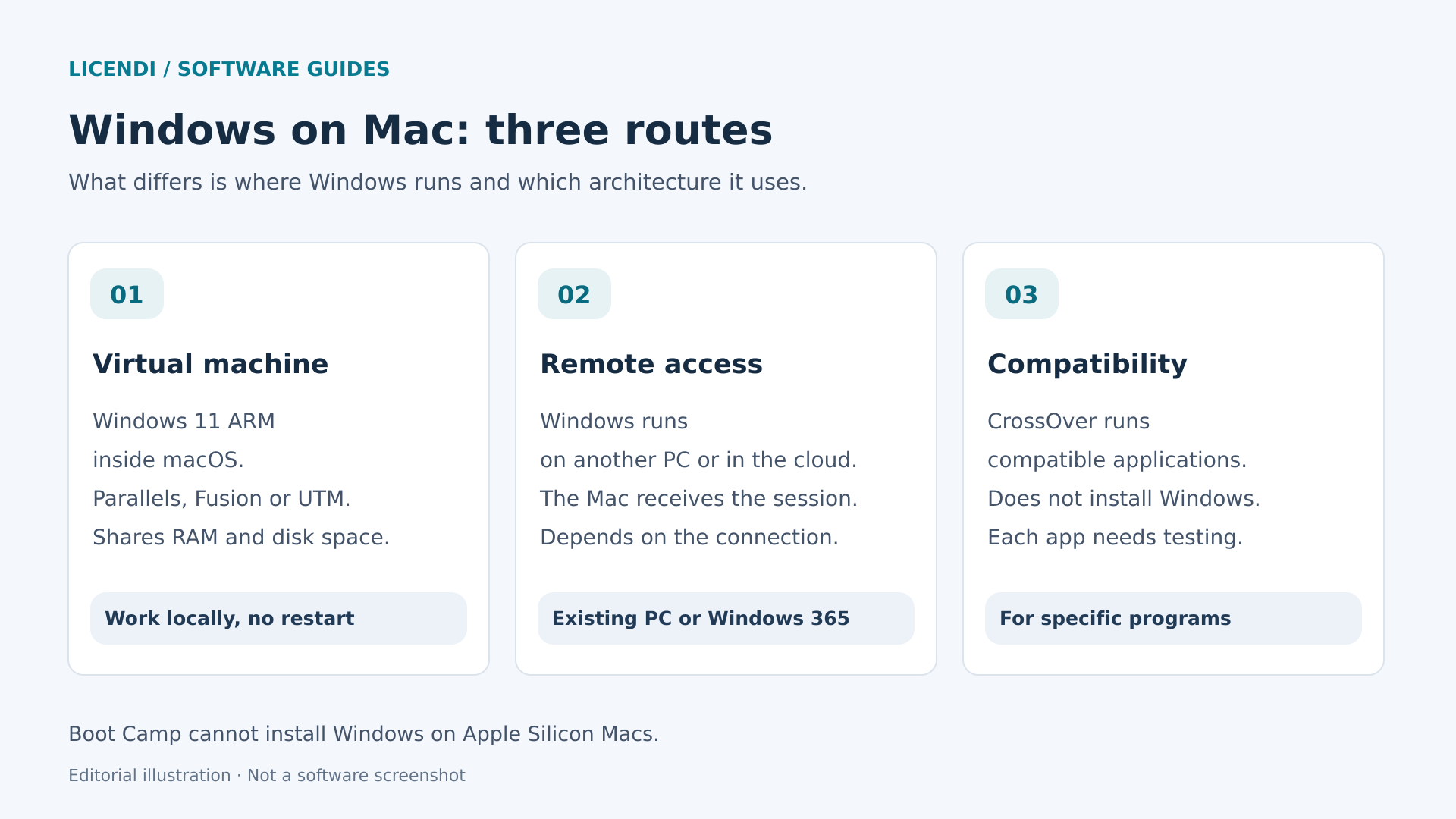
On an Apple Silicon Mac, the usual starting point for working locally is Windows 11 Pro for ARM inside a virtual machine. You can also connect to a remote Windows computer or run certain applications without installing the full operating system. What matters is choosing based on your actual work, not a screenshot showing the Windows desktop.
Why Apple Silicon changes how you install Windows
Chips in the Apple Silicon family use the ARM architecture. Many traditional PCs and older Intel Macs use x86 or x64. These are not just marketing labels: they describe different instruction set families. That is why copying a Windows image designed for an Intel or AMD PC onto a USB drive does not make it compatible with your Mac.
Virtualization provides a guest operating system with a virtual computer, using the capabilities of the host processor. In the usual approach on Apple Silicon, macOS keeps running and the guest is Windows ARM64. You can switch between the two without restarting, although they share memory, storage and processing power.
Emulating a different architecture requires translating instructions. Two situations are often confused here: Windows 11 ARM can run many x86 and x64 applications through its own emulation; emulating an entire x86 computer to boot x86 Windows inside it is a different matter. This second approach is usually much slower and is not the general recommendation for getting work done.
Applications with an ARM64 version avoid this translation of program instructions. Those available only in x64 may work, but you need to check their components. A compatible executable does not guarantee that its add-ins, services or drivers will also be compatible.
Boot Camp is for Intel Macs
Boot Camp is not available for installing Windows on Apple Silicon. Apple's documentation for this tool requires a Mac with an Intel processor. There is no equivalent procedure that simply creates a partition and boots the Windows version used on a conventional PC.
The official Windows 11 ARM download does not mean that Apple supplies all the drivers needed to boot it directly on Mac hardware, either. In this guide, a local installation means a compatible virtual machine, not replacing macOS or promising dual boot.
The practical options and when each makes sense
Parallels Desktop: integration for everyday use
Parallels Desktop is a practical option when you want to open Windows applications alongside macOS apps and spend little time setting up the environment. Its wizard simplifies installation, and its integration tools let you adjust the display, clipboard and shared folders. It is worth reviewing these options: convenience does not have to mean sharing your entire home folder.
Microsoft explicitly identifies Parallels Desktop 18, 19 and 20 as authorized solutions for running Windows 11 Pro and Enterprise ARM on M1, M2 and M3 Macs. That reference has a specific scope. We should not automatically extend the same statement to every later Parallels version or every new chip; check the documentation for your particular combination.
The cost of Parallels and the cost of Windows are separate items. If this approach suits you, you can consider a Windows 11 Pro license from Licendi and confirm which variant is appropriate for your virtual machine before activating it. A Windows license does not remove the environment's technical limitations.
VMware Fusion: virtualization without a hypervisor fee
VMware Fusion deserves a place in the comparison, particularly if you would rather reserve your budget for Windows and your applications. Broadcom announced that it was free for personal, educational and commercial use in November 2024, and the official Fusion 26H1 announcement, published in May 2026, explicitly maintains those terms.
The free offering does not include a Windows license or standard access to Broadcom's global support team. The free model relies on documentation and the community. For a business, this matters as much as the price: someone has to take responsibility for setup, troubleshooting and recovery.
Fusion supports Windows 11 ARM on Apple Silicon. Do not assume that an older x86 virtual machine from an Intel Mac will run the same way when imported. Review the version requirements, install its guest tools and check the integration features you actually need.
UTM: understanding “Virtualize” and “Emulate”
UTM is an open-source alternative available free from its website. The App Store edition is a way to support the project and receive automatic updates; it does not make the free version a cut-down edition.
For Windows 11 ARM on Apple Silicon, virtualization is the logical route. x86 emulation lets you explore systems built for another architecture, but adds considerable overhead. It can make sense for recovering an old environment or carrying out a one-off check, not for promising a conventional Windows workstation.
There is also a crucial graphics distinction: the official UTM page consulted states that Windows does not have GPU-based 3D acceleration in this environment. I would therefore not choose it as a first option for games or applications that depend on accelerated DirectX. It can be useful for simple utilities and learning, provided you accept more manual configuration and check the documentation for the installed version.
Windows 365 or access to a PC you already own
With a remote desktop, Windows runs on another computer while the Mac receives the image and sends your input. The Mac's processor no longer determines the application's architecture: the remote computer is what matters. This separation can solve incompatibilities that no amount of extra local RAM would fix.
Windows 365 provides a cloud PC through a subscription, with its own configurations and terms. A perpetual Windows license purchased separately does not replace that subscription. Review the plan, access requirements and capabilities of the computer included in your subscription.
If you already have a compatible PC at home or in the office, you can access it using a suitable remote-access solution. It will need to be powered on, reachable and protected. Check remote-use rights and the application's terms; do not expose the Remote Desktop port directly to the Internet.
Before choosing remote access, test it from wherever you will be working: the office, your home or a connection while traveling. Stability and response time matter, not just the advertised Internet speed. Typing in a window, dragging a drawing and holding a video call place different demands on the connection.
Also check how files will be transferred and what will happen with printers, microphones or USB devices. Not every solution redirects the same peripherals. If you work with confidential information, review where it is stored, who administers the computer and how access will be restored if authentication fails or the person responsible changes.
CrossOver: specific applications, not a full Windows system
CrossOver uses a Wine-based compatibility layer to run certain Windows programs on macOS without installing Windows. It may be the simplest solution if you only need one application that is listed as compatible in its database.
It does not provide the same environment as a virtual machine: you will not have a complete Windows system in which to install any service or driver. Check the exact program version, test its critical functions and keep the relevant application licenses. You do not need to buy Windows to use CrossOver in a way that does not install that operating system.
Test compatibility with your work, not just the installer
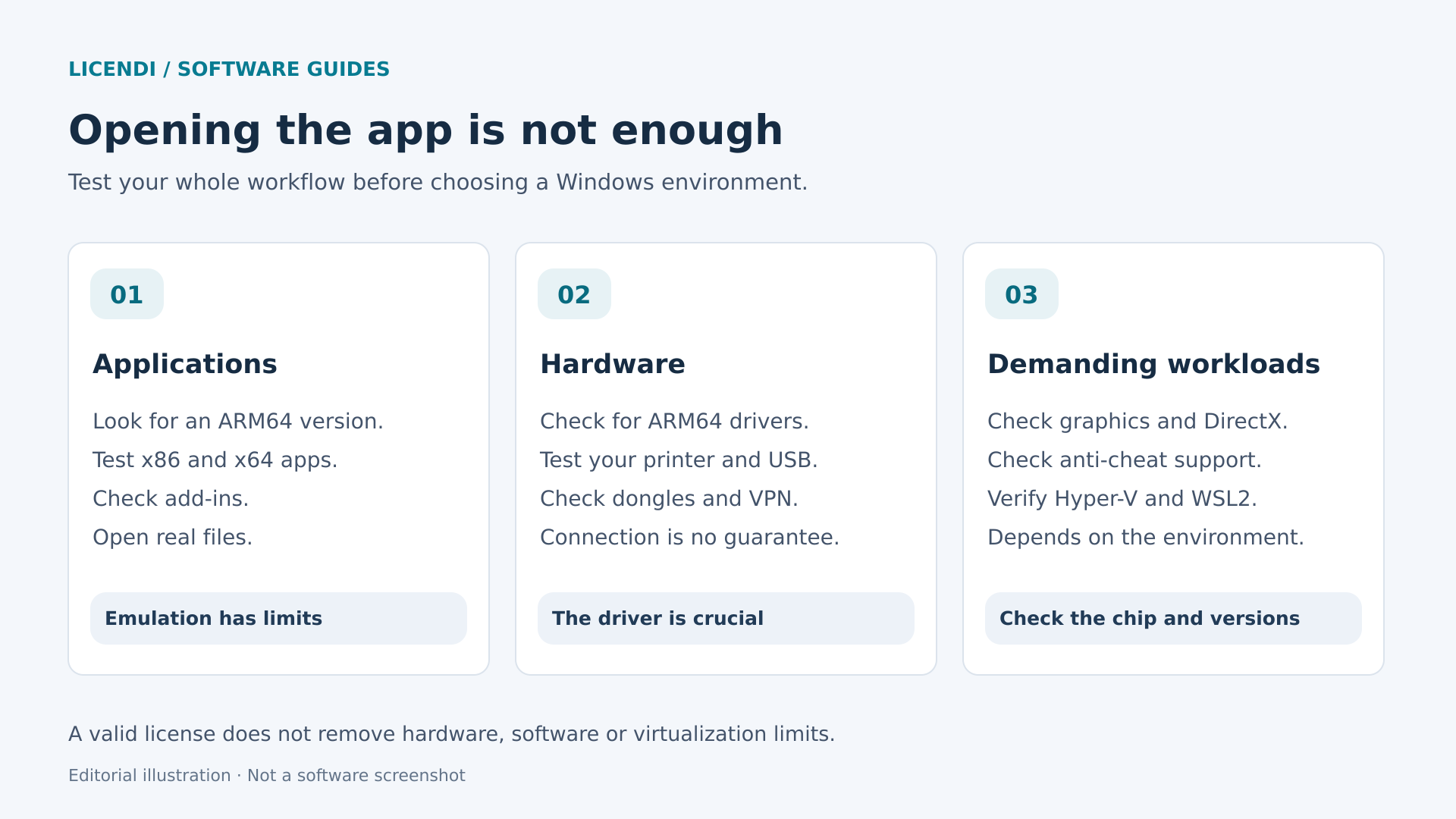
Prepare a small but representative test: open a real document, edit it, save it, print or export it, close the program and reopen the result. For a business application, add server connectivity, authentication and updating. An installation wizard finishing without errors proves far less.
Drivers, USB and add-ins
Windows ARM can emulate many applications, but that capability does not turn x86 drivers into ARM64 drivers. Microsoft requires native ARM64 versions for kernel-mode drivers and user-mode print drivers. This distinction affects scanners, industrial interfaces, specialized adapters and some security tools.
A virtual machine's USB redirection only passes the device through to the guest; it does not create a missing driver. Check the device's manufacturer, model and revision. A software protection dongle deserves a specific test, as does an electronic signature solution with a physical reader.
For spreadsheets, CAD or business management software, also check add-ins and connectors. The main application may open correctly while the module that exports to the invoicing system fails. Ask the supplier specifically about virtualized Windows 11 ARM, not just “Windows 11”.
Games, graphics and anti-cheat systems
For gaming, several factors need to line up: the program's architecture, available graphics features, the virtual driver and whether the game accepts the environment. Anti-cheat systems may depend on drivers or reject virtual machines. No configuration checkbox is guaranteed to solve this.
The Parallels documentation consulted lists its 3D acceleration as DirectX 11.1 and OpenGL 4.3. Do not extrapolate those levels to another version or product, or take them to mean that every game using those interfaces will work. Also check the launcher, multiplayer mode and developer policies. For must-have competitive titles, a compatible PC is usually the more predictable choice.
Nested virtualization: check the chip and version
Hyper-V, WSL2, Windows Sandbox and certain security features need additional capabilities when running inside a virtual machine. Having the feature listed as part of Windows Pro is not enough.
The Parallels documentation revised on August 25, 2026 explicitly states that nested virtualization is unavailable in the environment described: Hyper-V and WSL2 do not work, VBS is also unavailable, and WSL1 is suggested as an alternative. Do not extend this limitation to every future chip, version or hypervisor. Before planning a lab, verify the chip, macOS, virtualization software version and guest operating system. An improvement for Linux guests does not automatically confirm support for Hyper-V inside Windows ARM, either.
How to prepare and install Windows 11 ARM without unnecessary complications
1. Identify your Mac and the essential application
Open “About This Mac” and note the chip, memory and macOS version. Then check the available storage. Also record the name and version of the Windows application, its requirements and any peripherals you need. These details let you ask precise questions and avoid buying based on recommendations for a different model.
If the Mac belongs to a company, confirm its IT policies first. A personal setup may fall outside corporate inventory, security or backup tools, even if it works technically.
2. Download the virtualization software and the right image
Use the vendor's official website and a version compatible with your macOS. If the wizard offers to download Windows, check that it selects ARM64. If you need an ISO, Microsoft provides an official Windows 11 for Arm download suitable for creating virtual machines on compatible hardware.
Do not use an x64 ISO for this approach, or modified images that promise activation tools, universal drivers or removed restrictions. Downloading the installer and purchasing the right to use it are separate operations. Select the edition that matches your license, normally Pro for the scenario covered here.
3. Create the virtual machine and configure the essentials
Follow the product's own wizard. In UTM, distinguish the virtualization option from emulation. Use the Windows 11-compatible configuration provided by the vendor, including a virtual TPM and Secure Boot where applicable. Do not copy old tutorials whose first step is bypassing system checks.
Start with a cautious allocation of resources and shared networking if you do not need Windows to appear as a separate computer on the network. Avoid enabling shared folders, drives and devices out of habit. You can always expand that integration when a specific need arises.
4. Update Windows and install the guest tools
Complete the Windows installation and apply its updates. Then install the integration tools recommended by the virtualization software and check whether a restart is required. These tools affect resolution, mouse input, networking and other features; their absence can look like a general performance problem.
Check the language, keyboard layout, time zone and scaling. Test combinations you use every day, such as function keys or application shortcuts.
5. Verify the license and run your acceptance test
Confirm with Licendi that the license variant is eligible for that virtual machine before activating it, particularly if you are considering OEM. Then check the status under Settings, System, Activation. If an error appears, keep its code and consult the supplier; do not resort to third-party activation tools.
Install the essential application and work through your full test using copies of documents, not the only original. Only once it works does it make sense to move your day-to-day work across, configure synchronization and spend time customizing the desktop.
How much RAM and storage should you set aside?
The official minimum requirements for installing Windows do not describe a comfortable experience with macOS and several applications open. Nor is there a universal figure for every Mac. The memory needed depends on the program, the documents and what you keep open outside Windows.
As a practical guideline, a Mac with 16 GB could run a lightweight virtual machine with around 4 to 8 GB, adjusted to suit the workload. This is not a recommendation for every application or an official requirement. With 8 GB in total, there is less room to work in both systems; careful testing or considering remote access is advisable. For demanding projects, consult the specific requirements and monitor memory pressure in macOS.
For storage, an 80 to 128 GB virtual disk can be a starting point when planning a simple environment, not a guarantee of sufficient capacity. You also need actual spare space on the Mac's SSD for updates, files and backups. Dynamically allocated disks grow with use, even if they initially take up less space.
Do not allocate all the cores or almost all the RAM to Windows in pursuit of speed. You may end up slowing down the host. If you use an external SSD, choose a stable connection and do not disconnect it while the virtual machine is running or suspended.
When Windows works but using it is frustrating
Before changing virtualization software, identify when the problem occurs. If everything slows down while Windows updates, wait for it to finish and repeat the same task. If macOS also struggles, check memory pressure and free space. If only one application fails, focus on its requirements, add-ins and version.
A tiny display usually points to scaling or integration tools; a missing printer calls for checking redirection and drivers. These are not necessarily signs that the Mac is underpowered. Changing several settings at once makes it harder to identify the cause.
For a reproducible issue, note the versions of macOS, the virtualization software, Windows and the application. Include the exact message and the steps needed to trigger it, without including confidential documents. This information helps support far more than a generic description such as “Windows isn't working properly”.
It is also worth distinguishing between the virtual disk and a shared folder. Some programs with databases or complex working files impose requirements on where projects are stored. Follow the manufacturer's instructions and compare behavior with a local copy inside the guest before attributing the failure to ARM. Do not move an active database while someone is using it.
Licenses: Windows, virtualization software and applications are separate purchases
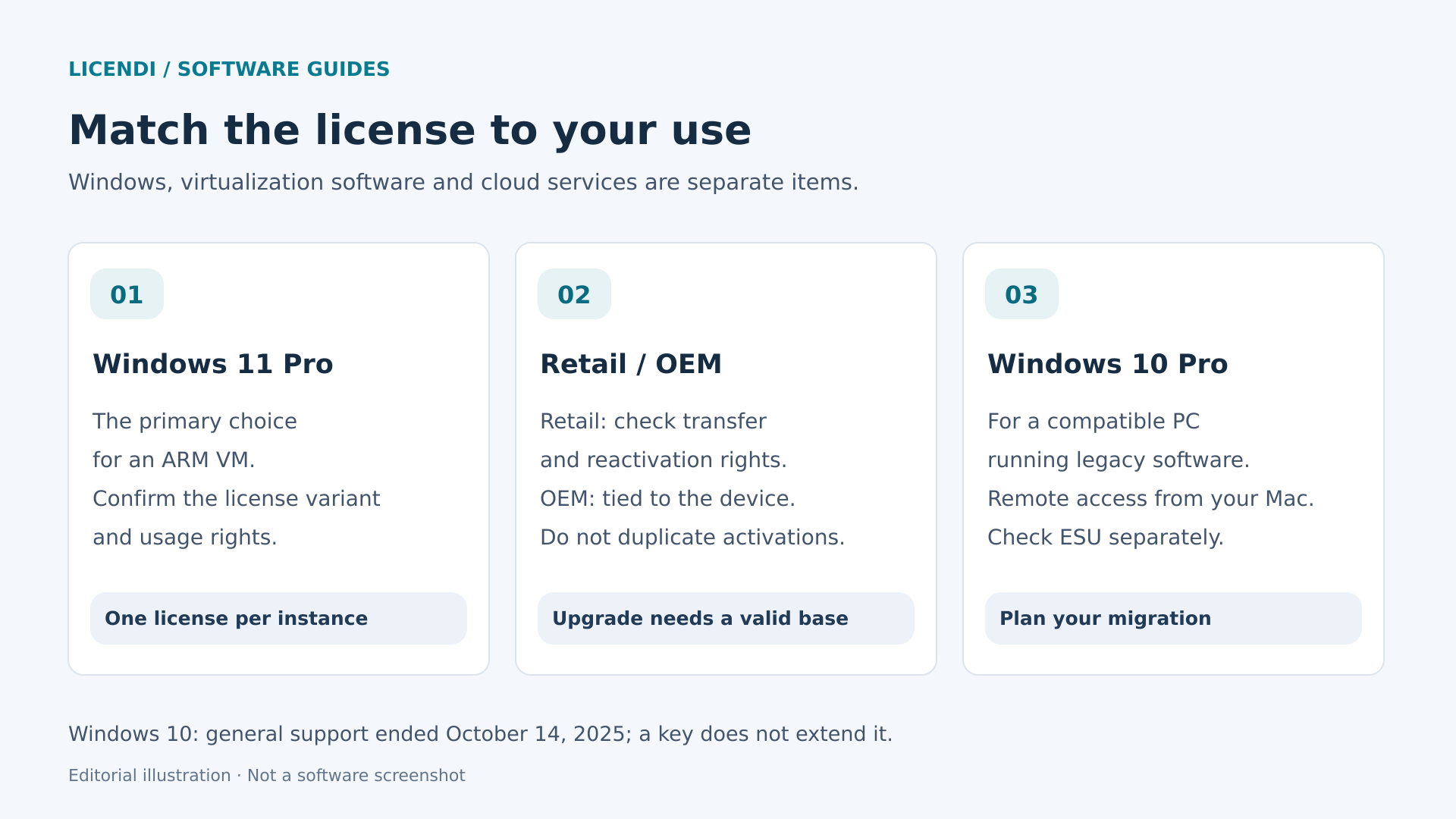
A virtual machine does not make Windows free. Microsoft states that each instance of Windows 11 Pro, physical or virtual, requires its own license. It also clarifies that Windows 11 Pro keys are platform-independent across x64 and ARM. This avoids searching for a supposed “special Mac” key, but does not remove the conditions attached to each license type.
If you want to manage your budget through the secondary market, compare Licendi's Windows 11 Pro offering with your specific intended use in mind. The product page offers perpetual Retail, OEM and Upgrade variants. “Perpetual” refers to the right of use under its terms, not indefinite support, free new versions or guaranteed compatibility with any future Mac.
- Retail: the product page describes it as reactivatable and transferable. Any transfer must comply with the applicable terms and does not allow simultaneous copies covered by a single license. If you plan to change Macs or rebuild the environment, ask about that specific case.
- OEM: this is offered as a one-time activation tied to a device. Do not assume that you can recreate, clone or move the virtual machine without consequences. Explicitly confirm with Licendi its eligibility for the VM and the reinstallation terms before activating it.
- Upgrade: this is intended for moving from Home to Pro and requires an eligible existing license. An empty virtual machine does not meet that requirement simply because macOS is installed.
When you change virtualization software or create another VM, the virtual hardware presented to Windows may change and trigger a new activation check. Do not treat this as though you had merely renamed a folder. Before deleting the previous environment, clarify the transfer procedure and keep a recovery copy that you do not use simultaneously.
Keep the invoice, a description of the variant purchased and the licensing documentation. These are important both for arranging a future transfer and for managing a company's inventory. Successful activation alone does not replace verification of usage rights.
Budget separately for Windows, the virtualization software if it has a cost, and the program you need. For a remote service, review its own contractual model. Do not assume that an individual Windows purchase covers shared desktops, multiple users or an entire enterprise deployment.
Where Windows 10 fits, and where it does not
For a new local virtual machine on Apple Silicon, this guide prioritizes Windows 11 Pro ARM. A commercial Windows 10 x86 license does not let you install that system natively on an Apple Silicon Mac. Do not buy Windows 10 expecting it to bring back Boot Camp.
Its potential role here is on a separate, compatible PC that you access remotely because a legacy application still needs it. In that case, you can look at a Windows 10 Pro license from Licendi, first checking whether the computer already has the necessary usage rights and which variant is appropriate.
General support for Windows 10 Home and Pro ended on October 14, 2025. A computer continuing to boot does not mean it still receives all the usual security updates. The ESU program has eligibility and enrollment requirements and limited coverage, with different terms depending on the user category. It is not automatically included when you buy a Windows 10 license.
If you keep that PC, define a security and migration plan: restrict access, secure the remote connection, check ESU coverage where applicable, back up the data and set a path toward a compatible, supported system. Accessing it from a Mac does not, in itself, protect the remote Windows computer.
Backups and maintenance that save you from starting over
A snapshot lets you return to an earlier state and is useful before installing a driver or updating an application. However, it is not a substitute for a backup: it may depend on the same virtual disk and be lost with it.
Save important documents through an independent backup system. To back up the whole machine, follow the virtualization software's instructions and, as a precaution, shut it down before copying its package. Do not assume that Time Machine or another tool is capturing a consistent backup of a VM that is always running.
Test restoration as well. Recovering a test file or opening a copy in a controlled test reveals problems that a progress bar does not show. Avoid running that copy as another everyday installation without reviewing its licensing rights.
Protect both the Mac and the guest, limit shared folders and keep encryption recovery keys outside the VM. Before a major update to macOS, Windows or the virtualization software, check compatibility and schedule the work for a time when you can recover the environment without disrupting a delivery deadline.
What to choose for your situation
You need an office application every day. Start by checking Windows 11 ARM with Parallels or Fusion. Compare integration, available support and results with your documents. If it passes the test, a perpetual Windows 11 Pro license appropriate for that VM lets you separate your investment in Windows from the cost of the virtualization software.
You only open a utility occasionally. First look for a macOS or web version. Then check CrossOver; if you need the full operating system and do not depend on advanced graphics, consider UTM. The least complicated option may be the best.
You depend on an old application and a specific peripheral. Keep running it on a compatible PC while you prepare the migration. If that computer needs its licensing brought into compliance or adapted, review Windows 10 Pro and its variants exclusively for that legacy scenario, with the support and ESU precautions already discussed.
You need demanding games, specialized drivers or nested virtualization labs. Do not buy based on a general promise of compatibility. Verify the exact combination or use a suitable physical or remote PC. For critical work, maintaining an alternative way to access your environment is also part of making the right choice.
Frequently asked questions
Is Windows ARM a cut-down version of Windows?
It is Windows compiled for a different architecture, not simply a reduced interface. The issue is compatibility: applications, drivers and features that depend on the environment may have limitations. Windows Pro remains the Pro edition, but an included feature may require capabilities that your virtualization software does not provide.
Can I reuse the virtual machine from my old Intel Mac?
Do not count on moving x86 Windows directly to ARM virtualization. The usual approach is to create a new Windows 11 ARM environment, reinstall compatible applications and migrate documents. Whether the license can be transferred must be checked separately; copying files does not automatically transfer rights.
Do I need an Internet connection to work?
A local VM can run applications offline if those applications and their licenses allow it, after the necessary setup is complete. Updates and certain services require Internet access. A cloud PC does depend on connectivity; a remote PC on your local network requires that network connection.
Will any Windows 11 Pro key work for ARM?
Microsoft states that Pro keys are platform-independent across x64 and ARM. Even so, the edition and usage rights must match. The OEM, Retail or Upgrade license type matters, as does the installation's eligibility. Confirm your situation with Licendi before activating.
Does free Fusion or UTM mean free Windows?
No. The virtualization software is free, not the guest operating system or the applications. CrossOver is different because it can run compatible programs without installing Windows, although it has its own terms and is not a substitute for a full virtual machine.
Can I share the same documents between macOS and Windows?
Yes, if you configure a shared folder or a compatible synchronization service. Decide which is the master copy and avoid editing the same file in both systems at once. Sharing a folder is not the same as backing it up: deleting a file from Windows can affect the file on the Mac. For important documents, keep versions and an independent backup.
Will a more powerful Mac solve every incompatibility?
No. More memory can ease a demanding workload, but it does not create an ARM64 driver or change an anti-cheat system's restrictions. Identify the cause first; then decide whether you need more resources, a different way to run the software or a compatible Windows computer.
Official sources consulted
- Microsoft: Windows on Mac and licensing, ARM64 download and driver compatibility.
- Apple: Boot Camp requirements.
- Parallels: Windows ARM limitations and WSL.
- VMware: Fusion 26H1 and free use and frequently asked questions.
- UTM: virtualization and graphics and installing Windows. CodeWeavers: CrossOver.
- Microsoft: Windows 10 lifecycle and ESU program.