EN
 FR
 DE
 IT
 PT
 ES


File Server vs NAS vs SharePoint
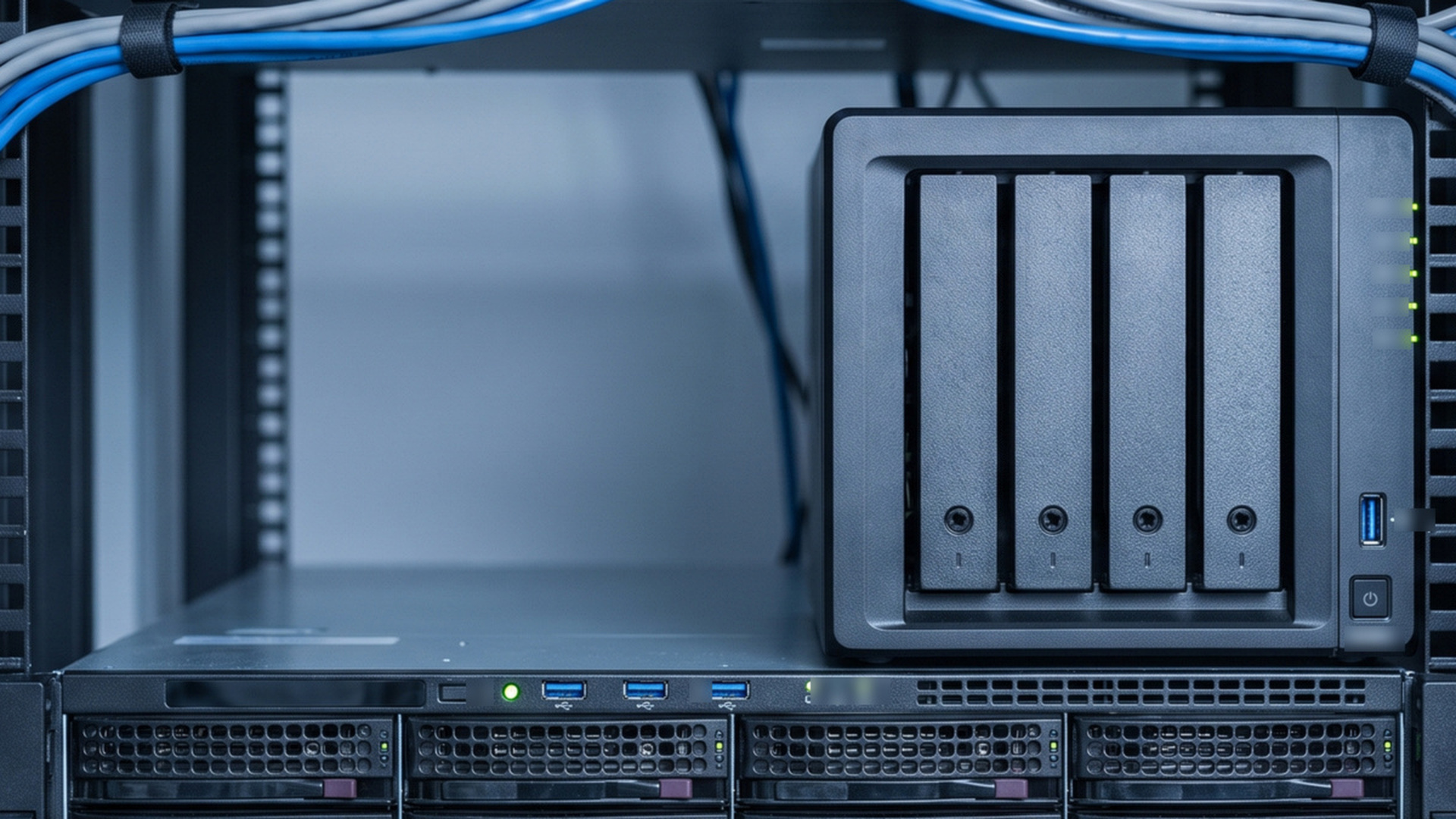
Pick the wrong home for your company’s files and you pay for it every working day. This is not old technology against new. Each platform answers a different question. A Windows file server hands you direct control over shared folders, permissions and the applications that still expect network paths. A NAS wraps that storage in an appliance you can stand up quickly. SharePoint Online is a cloud service built for collaboration — sites, document libraries, versioning, search and the rest of Microsoft 365.
Get it wrong and the friction lasts for years: sluggish remote access, duplicated files, permissions nobody understands, cloud sync running wild, or a costly server that nobody quite maintains. The honest answer is rarely one platform for everything. Most SMEs are better served by a deliberate hybrid — SharePoint for the documents people edit together, a file server or NAS for specialist workloads, and a backup system that stands apart from both.
This guide compares the three by use case, cost, security, administration, remote work and recovery. It ends with a decision framework for anyone who wants a practical answer rather than a reflexive “move to the cloud”.
Contents
What a file server, NAS and SharePoint actually are
Traditional file server
A file server is a general-purpose server set up to serve network file shares, usually over SMB on Windows Server. Users get the familiar mapped drives and folders they already know. Behind the scenes, administrators can layer share permissions, NTFS permissions, Active Directory groups, quotas, auditing and snapshots, and reach for technologies such as DFS. The same box can also feed applications that read and write through UNC paths.
That flexibility comes with a bill. You own the operating system, the hardware or virtual machine, the storage, the security updates, the antivirus, the backups, the monitoring, the power, the warranties and the disaster-recovery plan. And if the server lives in one office, remote users generally reach it through a secure VPN, a remote desktop environment or some other controlled path.
Network-attached storage
A NAS is a purpose-built storage appliance that plugs into the network. It typically presents SMB shares and adds a browser-based management console, RAID options, snapshots, user integration and a catalogue of add-on apps. For a small team, it delivers centralised storage with far less upfront complexity than building a full Windows Server.
Do not read “appliance” as “maintenance-free”. Firmware, apps, drives, admin accounts, remote-access features and backup jobs all need an owner. RAID keeps you running after a disk dies — nothing more. It will not save you from a fat-fingered deletion, ransomware, theft, fire, a failed controller or a hijacked admin account.
SharePoint Online
SharePoint Online keeps files in sites and document libraries inside Microsoft 365. It is built for collaboration, not for recreating a mapped drive in a browser. People co-author Office documents, search across content, roll back to earlier versions, tag files with metadata, share through managed links and work through Teams, OneDrive sync or the web.
Microsoft runs the infrastructure, but the rest stays with you: identities, access policies, site structure, retention choices, external sharing and endpoint security. The service has hard edges, too. Microsoft’s current SharePoint Online limits documentation caps individual files at 250 GB and warns that syncing more than 300,000 items can hurt performance. So design your libraries and your sync scope on purpose — do not tip an entire legacy drive into one location.
File server vs NAS vs SharePoint: direct comparison
| Decision factor | File server | NAS | SharePoint Online |
|---|---|---|---|
| Best at | Mapped drives, granular Windows permissions, legacy and specialist applications | Straightforward central file storage and local high-capacity data | Document collaboration, remote access, versioning and Microsoft 365 integration |
| Administration | Highest flexibility and generally the most infrastructure work | Simplified interface, but still needs patching, monitoring and backup | No local server hardware; governance and identity work remain essential |
| Remote work | Usually depends on VPN or remote desktop design | Possible, but direct internet exposure should be avoided | Native browser, Teams and managed sync access |
| Internet outage | Local office access can continue | Local office access can continue | Cloud access is affected; synced files may remain available offline |
| Large or unusual files | Strong fit when applications support SMB and local latency matters | Good capacity value, subject to network and appliance performance | Good for supported documents, but not every database or application workload |
| Cost pattern | Capital, licences, administration and refresh cycles | Appliance and drives plus replacement, support and backup | Recurring licences, storage growth, migration and governance |
Choose a file server when control and compatibility dominate
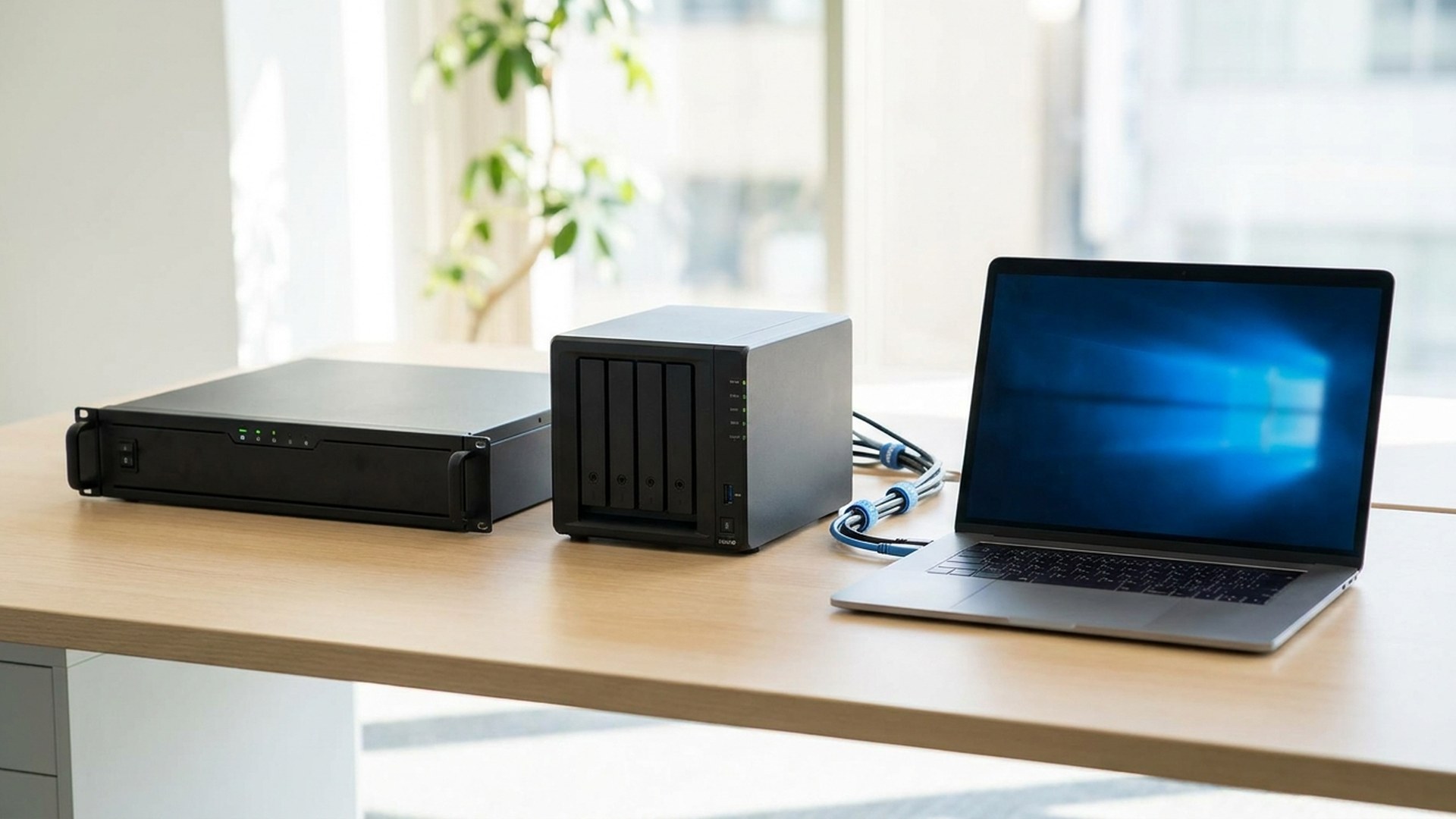
A Windows file server still shines when an application demands a mapped drive, file locking, stable UNC paths or low-latency access to large working files. CAD, media, engineering, accounting and line-of-business systems often carry vendor requirements that rule out browser-based document libraries outright. A server also suits organisations that lean on tightly integrated Active Directory permissions, or that must keep working locally when the internet drops.
Choose it on purpose, not because “we have always used the S drive”. Clear out dead data and tidy permissions before you migrate. Keep departmental shares apart from application data. Build access around security groups rather than named individuals, switch on the auditing you need, and set quotas or file-screening where they earn their keep. If you need a current platform, review Licendi’s verified Windows Server licence range.
A file server is a poor fit in a few clear cases: no capable administrator, an entirely remote team, an office connection that is unreliable from outside, or users who mostly collaborate on ordinary Office documents. Push it into that world and the infrastructure becomes a bottleneck — maintained at cost for a job a managed cloud service does better.
Choose a NAS for simple local storage with clear boundaries
A NAS can suit a small office that wants shared folders, real capacity and fast local transfers without the full weight of Windows Server. Think of a design studio holding source media, a workshop keeping machine files, a surveillance archive, or a branch office that needs its own local repository. You can often start with mirrored or parity-protected drives and grow within the appliance.
Before you buy, do the homework: usable capacity after RAID, drive compatibility, network interfaces, expected concurrent users, snapshot behaviour, encryption, directory integration, support period and replacement options. Two cheap drives on a slow network will disappoint a team editing large files. At the other end, a high-end NAS with expansion shelves, 10 GbE, backup software and support can creep up toward server-level cost.
Never expose the NAS management interface or its SMB service straight to the internet. Reach it through a maintained VPN or a zero-trust access solution, require multifactor authentication where you can, disable the services you do not use and patch firmware promptly. Then keep at least one backup copy outside the appliance — and outside the credentials you use for everyday administration.
Choose SharePoint for collaboration and distributed teams
For policies, proposals, contracts, project documents, spreadsheets, presentations and shared team knowledge, SharePoint Online is usually the strongest default whenever several people edit the same material. Access follows the person, not the office LAN. Microsoft 365 layers on co-authoring, version history, search, sharing controls and Teams integration. For licensing options, see Licendi’s Microsoft 365 pricing and buying guide.
SharePoint rewards a designed information architecture. Build sites around stable teams or business functions, split libraries by distinct security or lifecycle needs, and resist cloning a deep maze of old folders. Grant access through groups, name a site owner for each space, review external guests and decide up front when a user may sync a library to a device.
It is not a universal file system, though. Do not park active databases, PST archives, virtual-machine disks or application data there simply because they happen to be files. Test the awkward cases first: specialist formats, long paths, invalid characters, sync at scale, macros and integrations. When datasets are huge, transaction rates are high, or an application expects true SMB semantics, keep that workload on a proper server or NAS — and let SharePoint hold the documents around it.
A hybrid design is often the best SME answer
Hybrid need not mean some sprawling enterprise architecture. It can come down to one clear rule: collaborative documents live in SharePoint, while application and high-volume production data stay on a maintained local platform. A few examples make it concrete:
- A construction firm keeps CAD project files on a fast file server but puts contracts, meeting notes and approved PDFs in SharePoint.
- A video agency edits footage from a NAS and runs briefs, budgets, schedules and final documents through SharePoint.
- A retailer points an application at Windows Server shares while head-office teams collaborate in Microsoft 365.
- A professional-services firm moves nearly every document to SharePoint but keeps an encrypted NAS purely as a controlled backup target — not as a second, unmanaged filing cabinet.
The point is to stop two competing “truths” from forming. Publish a storage policy that names the authoritative platform for each class of data. Do not leave people to guess between a personal OneDrive, a Teams library, an old shared drive and a NAS folder. When you migrate, make the old location read-only once you have validated the move, and leave shortcuts pointing to the new home.
Security, backup and compliance: the platform does not remove responsibility
Any of the three can be run securely, and any of the three can be left wide open. Start with identity: unique accounts, least privilege, multifactor authentication for cloud and remote administration, protected admin roles and prompt offboarding. Revisit permissions on a schedule, and strip out sweeping groups such as “Everyone” unless there is an explicit reason to keep them.
Then keep availability, versioning and backup in separate mental boxes. RAID keeps a NAS alive through some disk failures. SharePoint version history undoes an accidental edit. File-server snapshots recover an earlier copy. None of these is a backup on its own. CISA’s current NIST ransomware guidance calls for offline, encrypted backups and regular restore testing. Apply that to on-premises and cloud data alike, with retention that fits your legal and operational needs.
For regulated or sensitive data, write down the essentials: where information sits, who can reach it, how sharing gets approved, which logs you keep, and how deletion or legal hold actually works. SharePoint brings sophisticated retention and compliance tools within the Microsoft ecosystem, though what you get depends on plan and configuration. A file server or NAS gives you physical control, yet it will still fail an audit if permissions, logging and disposal go unmanaged.

Compare total cost, not the purchase price
Cost a file server properly and the list runs long: server hardware or virtualisation, Windows Server licensing, client access licences where they apply, storage, UPS, backup, security software, warranties, electricity, rack space, administration and a replacement cycle. Treat Licendi’s Windows Server 2025 Standard licence as one line in that design, not the whole project.
A NAS carries its own list: the enclosure, suitable drives, spare capacity, network upgrades, support, off-site backup, monitoring and a replacement once the supported life ends. SharePoint adds Microsoft 365 subscriptions, extra storage if you need it, migration tooling, governance, training, a backup strategy and ongoing administration. The cloud trades capital spending for predictable recurring cost — but predictable is not the same as cheap.
Put a price on staff time and downtime, too. A “cheaper” platform that funnels remote staff through a slow VPN every day can cost far more than its invoice suggests. The reverse holds as well: paying monthly for advanced collaboration earns little if all you keep is a static archive. Model three to five years, and build in a realistic migration and exit plan.
A practical decision process for an SME
- Inventory the data. Record owners, volume, growth, file types, sensitivity, retention, access patterns and current permissions.
- Identify application dependencies. Ask whether any software requires SMB, mapped drives, file locks, low latency or a certified storage platform.
- Map the users. Note offices, remote workers, contractors, guest collaboration, shared devices and expected concurrent access.
- Define recovery. Set acceptable data loss and downtime, then design backup and restore testing independently of the primary platform.
- Classify the workload. Put collaborative documents, application data, media archives and personal working files into distinct categories.
- Pilot representative data. Test performance, search, sync, permissions, external sharing, restoration and user workflows.
- Calculate total cost. Compare at least three years of licences, hardware, support, administration and growth.
- Set ownership. Name who patches, monitors, reviews access, handles incidents and approves new sites or shares.
- Migrate in stages. Remove obsolete files, copy data, validate permissions, run a delta, switch users and make the former location read-only.
- Review after 90 days. Check support tickets, duplicate repositories, external guests, backup results, capacity and whether the chosen rule is being followed.
If the work is mostly Office documents edited by scattered teams, start with SharePoint. If specialist applications and local performance set the pace, start with a file server. If you simply need lots of storage for a single site, weigh up a NAS. And if the answer changes with the type of data, build a governed hybrid rather than cramming every workload into one box.
Businesses juggling multiple locations, tangled Microsoft licensing or an uncertain hybrid design can lean on Licendi’s enterprise licensing service to weigh the commercial options next to the technical plan.
Frequently asked questions
Is SharePoint a replacement for a file server?
It can replace plenty of shared folders full of collaborative business documents. It is not a universal replacement for application data, active databases or workloads that need SMB behaviour and low latency.
Is a NAS cheaper than a Windows file server?
A NAS usually costs less to get started and is simpler to set up. That gap narrows once you add high-performance drives, support, network upgrades, off-site backup and administration.
Can a small business use SharePoint without an IT department?
Yes, but someone still has to own Microsoft 365 identity, permissions, guest access, retention, endpoint security and recovery. Managed support can be the right call when internal skills are thin.
Does RAID mean a NAS is backed up?
No. RAID mainly protects availability after certain disk failures. It gives you no independent copy against ransomware, deletion, theft, fire or appliance failure.
Should every SharePoint library be synced to every PC?
No. Sync only the libraries people genuinely need. Large item counts and broad sync scopes invite performance, support and data-governance problems.
What should an SME migrate first?
Begin with a representative, low-risk department whose documents have clear ownership and few application dependencies. Use that pilot to test permissions, training, backup and support.
Choose by workload, then govern the result
For most SMEs the pattern is clear: SharePoint is the natural home for collaborative Office documents, a NAS is a focused local-capacity tool, and a Windows file server stays valuable for controlled SMB shares and specialist applications. The architecture that wins is the one that gives every class of data an owner, an authoritative location, protected access and a recovery path you have actually tested.