EN
 FR
 DE
 IT
 PT
 ES


Office 2019 or 2016 for Mac Opens Files but Cannot Edit: The Fix
Your document opens, the text is visible, and the deadline is close—but Word will not let you type. Excel may display the workbook while refusing changes, and PowerPoint may open a presentation without allowing you to save it. An activation banner often appears at the top. This is alarming, but it does not automatically mean that your files are damaged or that you must buy Office again.
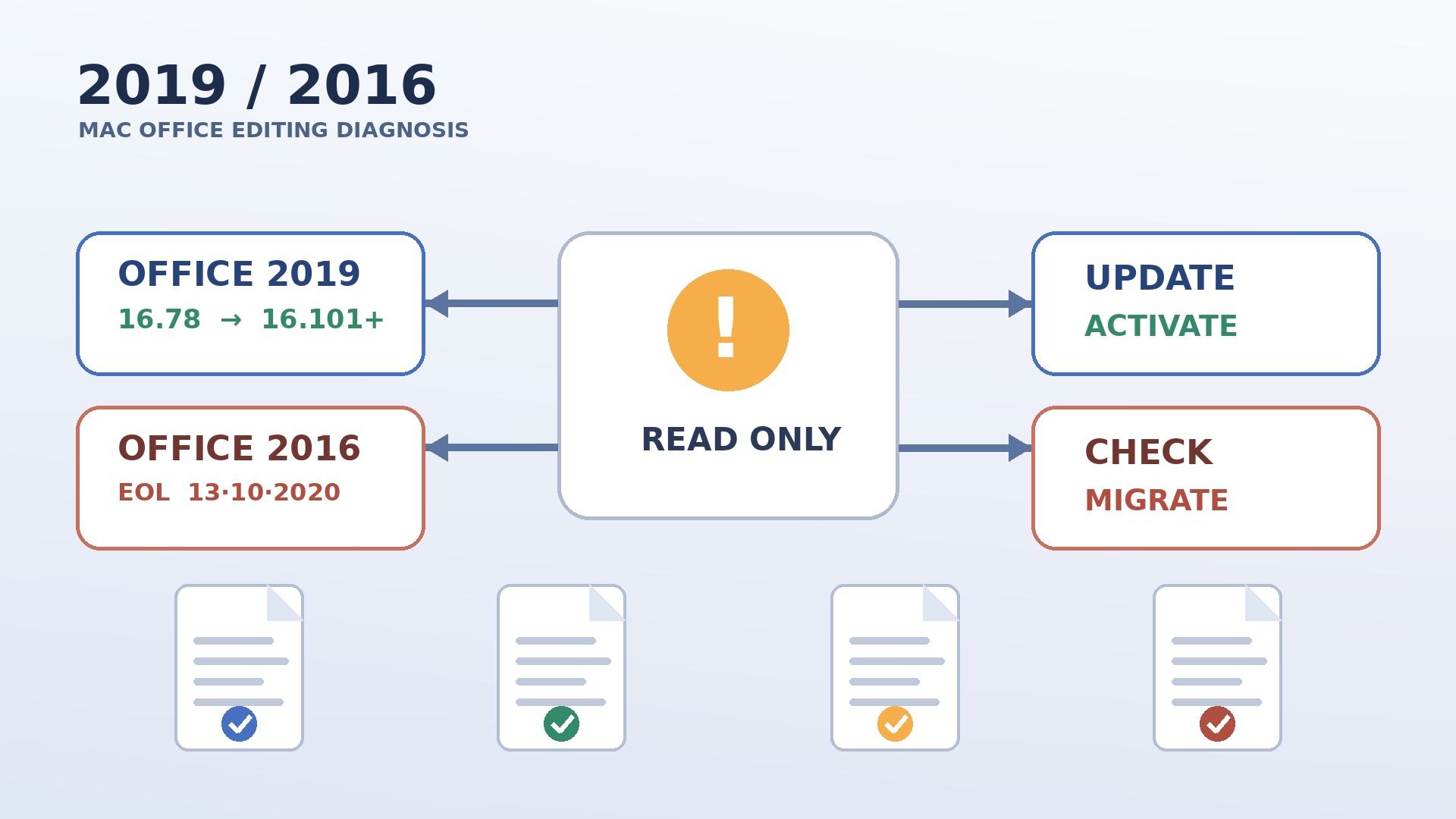
For many Office 2019 for Mac users, a very specific event explains a sudden change in February 2026: an embedded licensing certificate in the final supported Office 2019 build expired. Microsoft published a corrective update path. The right first response is therefore to identify the edition, protect the documents, update Office, restart it, and check activation. Buying a replacement before doing those checks can waste money and leave the original problem unexplained.
Office 2016 for Mac requires a different diagnosis. Microsoft’s February 2026 notice does not name Office 2016, and that edition has been unsupported since 2020. It can enter reduced functionality for several reasons, including failed activation, old licence records, an incompatible macOS version, or an installation linked to the wrong Microsoft account. This guide separates the two cases and gives you a safe route from symptom to solution.

What changed on February 9, 2026?
Microsoft states that Office 2019 for Mac’s final supported release was version 16.78. That build contains an embedded licensing certificate whose validity ended on February 9, 2026. Once the certificate expired, affected Word, Excel, and PowerPoint installations could ask users to activate Office even though the existing perpetual licence had previously worked. The applications could still launch and open files, but editing and saving were disabled.
The date matters. Office 2019 for Mac did not suddenly reach end of support in 2026; its support had already ended on October 10, 2023. Nor did Microsoft announce that every Office 2019 perpetual licence had been cancelled. The immediate problem was that the old 16.78 application build could no longer validate through that embedded certificate. Microsoft’s remedy is to update Office for Mac to version 16.101 or later. Those builds recognize an existing valid Office 2019 or Office 2021 licence and can restore editing and saving. If you are moving to a current perpetual edition instead, an Office 2021 Professional Plus licence is the most recent perpetual generation before Office 2024.
Follow Microsoft’s current instructions in Update Office for Mac to restore editing and saving. This update is a licensing-compatibility remedy, not a return to full product support. Office 2019 remains out of support, so it does not regain routine security updates, bug fixes, or compatibility commitments for future macOS releases.
Microsoft’s notice also covers Office 2021 for Mac in this certificate context. If About Word says Office 2021, the same update-first logic applies. This article concentrates on Office 2019 and 2016 because they are easy to confuse, but the edition shown by the application is more reliable than a remembered purchase date or an old installer filename.
Office 2019 and Office 2016 are not the same case
The most important distinction is evidence. Microsoft explicitly describes the February 2026 certificate issue for Office 2019 and Office 2021 for Mac. It does not say that the same certificate event affected Office 2016. Applying the 2019 explanation to every old Mac installation may lead to incorrect troubleshooting.
Office 2016 for Mac reached end of support on October 13, 2020. Microsoft no longer provides it with security updates, technical support, or ordinary fixes. If Office 2016 opens documents in read-only or reduced-functionality mode, possible causes include a lost activation state, obsolete local licence data, the wrong account, an incomplete installation, or incompatibility between the old applications and a current macOS release. The installation may also be so old that it cannot use today’s activation or update path reliably.
You can still perform sensible checks: confirm the exact edition, verify the associated account or product documentation, correct the Mac’s date and time, and test official activation. However, there is no sound basis for promising that installing version 16.101 will convert Office 2016 into a supported product. If Office 2016 remains unreliable after controlled checks, migration is the durable answer—not unofficial patches, modified installers, or repeated destructive resets.
Microsoft’s lifecycle notices provide the official status: Office 2019 for Mac end of support and Office 2016 for Mac end of support. Use those dates when deciding whether a temporary recovery is enough for the way you work.
What a perpetual Office licence really means
A perpetual licence is the right to use the purchased edition under its licence terms without paying a recurring Microsoft 365 subscription for that edition. It does not mean that Microsoft must update the software forever. It also does not guarantee endless certificate renewals, support for every future macOS release, continuing compatibility with changing cloud services, or entitlement to the next major Office version.
End of support normally does not turn a perpetual product off on the lifecycle date. Many unsupported installations continue to launch. The risk grows gradually: unpatched vulnerabilities accumulate, new operating systems stop being tested, sign-in services change, file integrations evolve, and third-party add-ins move on. The February 2026 incident is unusual because a certificate inside the last Office 2019 build created a clear functional interruption years after support ended, and Microsoft supplied a specific update route.
Reduced functionality is usually an activation state rather than a document state. Office can let you view or print existing content while blocking creation, editing, and saving. That is why copying the same file to another properly activated Mac may show that the document itself is healthy. Still, create backups before changing Office because reinstallations, licence resets, macros, templates, and Outlook profiles involve more than the document currently on screen.
Symptom diagnostic table
| What you see | Most likely direction | First safe action |
|---|---|---|
| Office 2019 version 16.78 worked until around February 9, 2026; an activation banner now blocks Edit and Save | The documented embedded-certificate expiry is a strong match | Back up work, then update all Office apps to version 16.101 or later |
| Office 2021 for Mac shows the same sudden activation behavior | Microsoft’s 2026 notice also names Office 2021 | Install version 16.101 or later and reopen Office |
| Office 2016 is read-only | Not the documented 2019 certificate case; activation, licence data, account, age, or macOS compatibility may be involved | Confirm edition and activation, then plan replacement if reliable operation cannot be restored |
| Only one downloaded file is read-only, while other documents edit normally | File permissions, Finder lock, Protected View, sharing rights, or cloud sync status | Save a copy locally, check Get Info and sharing permissions, and test a new blank document |
| All Office apps say no licence found after an account or Mac change | Wrong Microsoft account, missing licence association, or stale local activation data | Verify the purchase account and sign in; reserve the licence removal tool for last |
| Microsoft AutoUpdate offers no usable update | Old updater, unsupported macOS, damaged installation, or restricted network | Check macOS compatibility, disk space, and Microsoft’s official update packages |
| Office activates but crashes or renders documents incorrectly | Compatibility, fonts, add-ins, templates, or damaged app files rather than licensing alone | Test without add-ins, validate fonts, and try a clean user profile before reinstalling |
| Edit works but Save fails in OneDrive or a shared folder | Storage permission, sync, network, or ownership issue | Save locally under a new name and investigate the destination separately |
A diagnostic table narrows the problem; it does not replace observation. Record the wording of the banner, the exact version, the macOS release, and whether a brand-new blank document can be edited and saved locally. These four facts prevent an activation issue from being confused with a locked file or a failing cloud folder.
Step by step: restore editing in Office 2019 for Mac
1. Identify the installed edition and build
Open Word, choose Word > About Microsoft Word, and note the licence/edition and version number. Repeat in Excel if the information looks inconsistent. You are looking for Office 2019, Office 2021, Office 2016, Office 2024, or Microsoft 365—not merely “Microsoft Word.” If the version is 16.78 and the problem appeared in February 2026, the certificate issue is a close fit. Take a screenshot or write the details down before updating.
2. Protect documents and working data
Copy active documents to a location you control and verify that the copies open. Include custom templates, AutoCorrect lists, dictionaries, macros, font files you are licensed to use, and any local Outlook data that matters. If a file lives only in a synced folder, confirm its cloud status and retain an offline copy. Do not overwrite the only version while testing. Office updates should not delete documents, but a disciplined backup makes later reinstallation or migration safer.
3. Install every available Office update
In Word, select Help > Check for Updates. Allow Microsoft AutoUpdate to update itself if asked, then install the available Word, Excel, PowerPoint, Outlook, and OneNote updates together. Continue checking until About Word reports 16.101 or later. Updating only one app can leave a mixed installation, so finish the complete Office update set.
If Check for Updates is absent, stuck, or reports that no update is available while you remain on 16.78, use Microsoft’s official Office for Mac update packages from the support path linked earlier. Avoid download sites that repackage Office. A genuine installer is not enough by itself if it is old; the target is a Microsoft-provided build at or above 16.101 that supports recognition of the existing licence.
4. Quit Office completely and restart the Mac
Close every Office application, including Outlook and OneNote. Check the Dock for applications that remain open, then restart macOS. Restarting clears lingering application and licensing processes and ensures that the new components load together. After login, open Word first and recheck the version before opening the urgent document.
5. Sign in with the account associated with the licence
If Office prompts for activation, sign in with the Microsoft account or work account actually associated with that licence. Do not cycle through several accounts at random: that can obscure which entitlement is being detected. Search purchase records, the original order confirmation, or the organization’s software register if necessary. Microsoft’s Office for Mac activation guide describes the official sign-in flow.
6. Test editing and saving locally
Create a new blank Word document, type a sentence, and save it in a local folder such as Documents under a new filename. Then open a copy of the affected file and save another copy. Repeat a small test in Excel or PowerPoint if those apps were affected. A successful local test confirms that application activation is working; any remaining failure in OneDrive, SharePoint, Dropbox, a network drive, or an email attachment can then be diagnosed as a file-location or permissions problem.
7. Confirm that the result survives a second launch
Quit Word, reopen it, and repeat the local edit. Check that the activation banner does not return. If the Mac has more than one user profile, test only the profile that owns the relevant licence unless your licence terms and deployment allow otherwise. Record the resulting version so that support staff or a future administrator knows which remediation was applied.
If the update does not appear or will not install
First check free disk space and a stable internet connection. An Office update needs room for downloads, expansion, replacement, and rollback. Set macOS date, time, and time zone to update automatically; a significantly incorrect clock can break certificate validation and secure connections. Temporarily test without a restrictive VPN or web filter only if organizational policy permits, then restore the protection.
Next compare your macOS release with Microsoft’s Office for Mac and macOS support guidance. Microsoft supports current Office builds on a moving set of recent macOS versions. An older Mac may be unable to install a macOS release accepted by the current Office build. That is a platform limitation, not evidence that another product key will fix the machine.
Also inspect hardware and policy constraints. Confirm that the Mac meets the edition’s requirements, has a healthy startup disk, and is not managed by an organization that deliberately pins Office updates. On a managed Mac, contact the administrator before bypassing update controls. A company may need to approve the newer package, update its deployment channel, or test line-of-business add-ins.
Activation checks before resetting anything
Verify the account and licence association before deleting local data. A perpetual purchase may have been redeemed to a particular Microsoft account, while an organization may activate through its own deployment process. Keep the invoice, order confirmation, product information, and any transfer or provenance documentation supplied with a legitimate secondary-market licence. A product key photographed years ago is not always enough to reconstruct the correct account relationship.
Confirm that macOS can reach Microsoft’s activation services, that date and time are correct, and that no network security product is replacing certificates incorrectly. Sign out only when you know how to sign back in. If an employer, school, or previous owner installed Office, do not assume their entitlement belongs to the current user or device.
Never send a product key, password, recovery code, or full account screenshot to an unknown “support” contact. Legitimate troubleshooting should not require cracked activation utilities, command scripts from a forum, or disabling core macOS security. Those approaches can expose documents and credentials while leaving Office unsupported.
Use the licence removal tool only as a controlled last resort
If Office is updated and the correct account still cannot activate, Microsoft provides an official Office licence removal tool for Mac. It removes local Office licensing information. That can clear a stale or conflicting activation state, but it also means Office will need to be activated again.
Before running it, confirm that you possess the correct sign-in account, valid entitlement, and recovery documentation. Close Office, preserve work, and read Microsoft’s current instructions. After removal, restart, open Office, and activate with the intended account. Do not use the tool repeatedly; if the same failure returns, collect the exact error and escalate to Microsoft or the licence seller rather than erasing evidence.
Licence removal is different from uninstalling Office. If application files are damaged, a clean reinstall may be justified after activation and compatibility checks. Follow Microsoft’s official uninstall instructions for Office for Mac, because dragging only the app icons to Trash may leave support files behind. Reinstall from an official source and update before restoring templates or add-ins.
Office 2016 for Mac: recovery check or migration?
For Office 2016, begin with the same low-risk facts: confirm the edition in About Word, back up files, correct the clock, identify the account or licence records, and see whether normal official activation succeeds. Test a blank local document. If only one file is locked, solve its permissions rather than replacing Office.
Then be realistic about the product’s age. Support ended on October 13, 2020. Even if activation can be restored today, the edition receives no security updates and has no promise of compatibility with current macOS versions. A Mac used for business, client files, financial data, email attachments, or internet downloads should not depend indefinitely on an unpatched productivity suite.
Do not install a “fixed” Office 2016 package from an unofficial source. Do not edit licence databases with unexplained terminal commands, downgrade macOS merely to keep a vulnerable app alive without a risk assessment, or disable security controls. If you need a few hours to export documents, isolate the work appropriately, avoid untrusted files, produce backups, and schedule migration. For normal ongoing use, replace Office 2016 with a supported, Mac-compatible edition.
Office Home 2024 or Home & Business 2024?
For users who prefer a one-time purchase rather than a Microsoft 365 subscription, Office 2024 is the current perpetual generation considered here. It is not a subscription and does not automatically include every future major Office release. It receives security and quality servicing according to Microsoft’s lifecycle policy; consult the official lifecycle entries for Office Home 2024 and Office Home & Business 2024.
| Choice | Included applications and positioning | Best fit |
|---|---|---|
| Office Home 2024 | Word, Excel, PowerPoint, and OneNote for one PC or Mac; positioned for non-commercial use | Home users and students who do not need Outlook or business-use positioning |
| Office Home & Business 2024 | Word, Excel, PowerPoint, OneNote, and Outlook for one PC or Mac; positioned for commercial use | Self-employed professionals and businesses that need Outlook and commercial use |
Licendi offers legitimate secondary-market software licences across its Microsoft Office licences range. For non-commercial needs, review the localized Office Home 2024 licence. For professional work and Outlook, consider the Office Home & Business 2024 licence. Check current product terms, Mac compatibility, intended use, and included applications before ordering. Retain the invoice and all licence documentation.
Choose by use rights and required apps, not only price. A freelancer who sends client mail through Outlook and edits commercial documents should normally examine Home & Business. A household that uses Word for personal letters and Excel for a family budget may fit Home. If you already own an equivalent business edition such as Office 2019 Professional Plus, updating it can be enough before you consider a newer purchase. If you need continuous feature upgrades, multi-device rights, cloud services, or subscription benefits, compare Microsoft 365 separately rather than assuming a perpetual Office 2024 package includes them.
Migration checklist: move without losing the small things
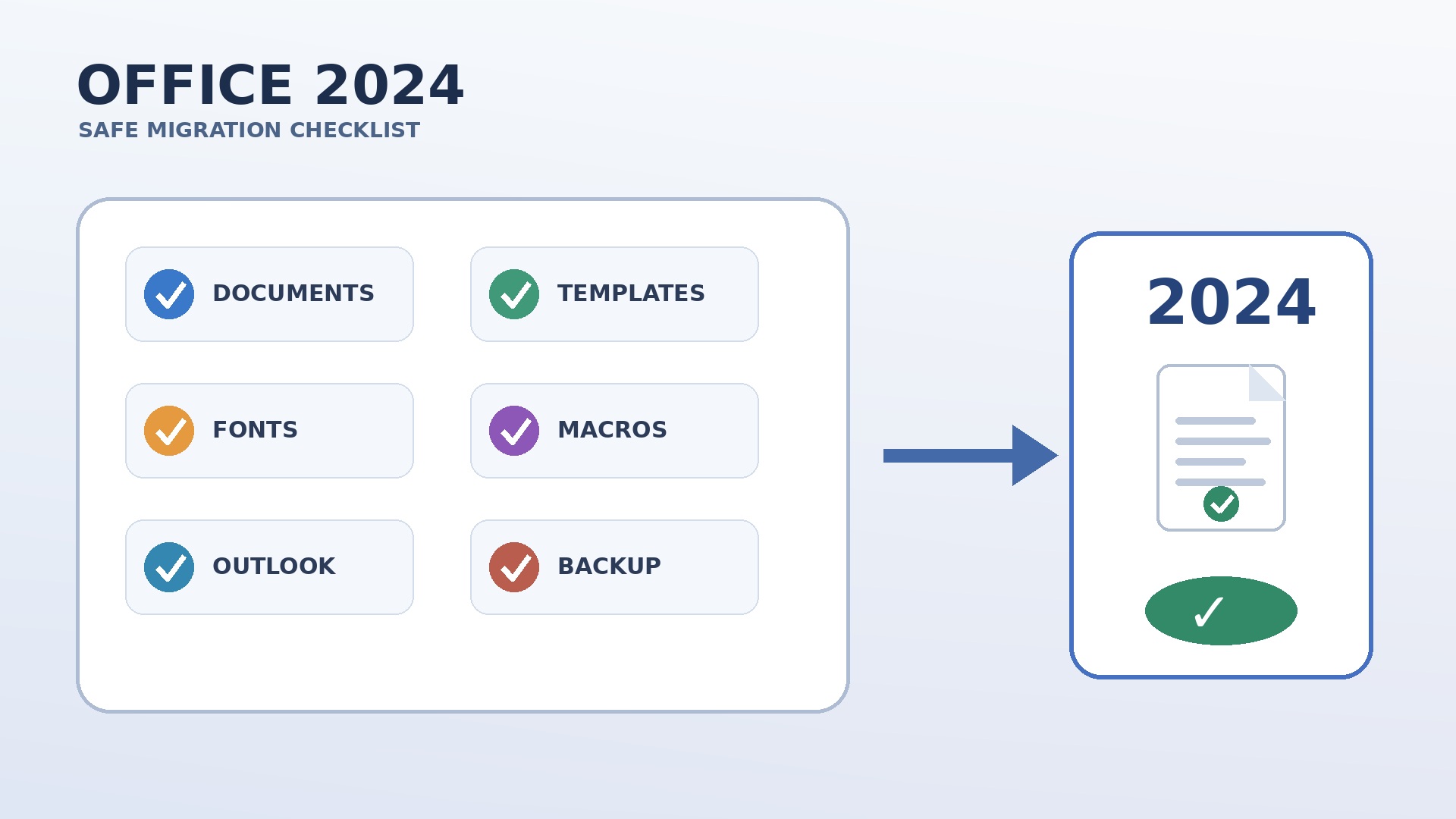
A successful migration is more than opening a DOCX file. Inventory the details that make Office feel familiar and that may be business-critical. Use the following sequence before removing the old applications.
- Confirm the target Mac. Check its macOS version, processor, free storage, user account permissions, and current Microsoft requirements. Resolve pending operating-system problems first.
- Back up documents. Preserve Word, Excel, PowerPoint, PDF, CSV, and legacy-format files in a verified backup. Keep folder structure and timestamps where useful.
- List templates and styles. Locate Normal templates, letterheads, labels, branded presentations, custom themes, AutoCorrect entries, dictionaries, and stationery.
- Audit fonts. Record nonstandard fonts and their licence terms. Missing fonts can change pagination, formulas printed to fixed layouts, and slide design. Install only trusted, licensed font files.
- Test macros and add-ins. Identify VBA workbooks, Word macros, COM-dependent workflows, citation managers, accounting connectors, and browser integrations. Mac Office does not support every Windows add-in, and newer Office versions may block insecure legacy code.
- Plan Outlook data. Confirm server-side mailbox synchronization, local folders, archives, signatures, rules, delegated mailboxes, calendars, and contact data. Do not assume deleting old Outlook leaves every local item recoverable.
- Install and activate the target edition. Use an official installer, update it fully, and sign in or activate according to the purchased licence. Preserve invoice and licence evidence.
- Run representative tests. Open complex reports, tracked-change documents, formulas, pivot tables, protected workbooks, presentations with media, mail merges, and PDFs. Compare results visually and functionally.
- Operate in parallel briefly. When licence and technical conditions permit, keep the old environment available only long enough to validate the new one. Avoid editing the same file in two unsynchronized places.
- Retire safely. After verification, remove obsolete software using official instructions, revoke accounts that should no longer have access, and keep approved backups for the required retention period.
Compatibility tests that catch expensive surprises
Start with representative documents, not empty examples. A long Word contract may depend on section breaks, linked styles, tracked changes, custom fonts, fields, and a table of contents. Verify page count, headers, footnotes, comments, cross-references, and PDF export. For collaboration, test a copy with the people and platform actually used; compatibility issues often appear only after another editor saves the document.
In Excel, inspect external links, named ranges, date systems, array formulas, Power Query features, pivot tables, conditional formatting, data validation, password protection, and VBA. Run calculations and compare known totals. A workbook opening without an error is not proof that every query refreshed or macro executed. Preserve an untouched original before allowing a newer version to convert a legacy format.
In PowerPoint, check theme fonts, embedded media, transitions, presenter notes, linked files, aspect ratio, and export. Test on the projector or meeting platform used in practice. For Outlook, send and receive, search old mail, open shared calendars, verify signatures, and test archive access. If the organization relies on a plug-in, obtain a currently supported release rather than copying old binaries into the new installation.
What not to do
- Do not buy a new licence before checking whether Office 2019 simply needs version 16.101 or later.
- Do not claim that Microsoft’s February 2026 certificate notice covers Office 2016; it identifies Office 2019 and 2021.
- Do not assume an end-of-support date automatically cancelled a perpetual licence.
- Do not download cracked installers, activation bypasses, or “certificate fixes” from unofficial sites.
- Do not remove licence files until you can reactivate with the correct account or entitlement.
- Do not uninstall Office before protecting templates, macros, fonts, and Outlook data.
- Do not confuse a read-only file or cloud permission problem with an unlicensed application.
- Do not promise that a new Office licence will make an obsolete Mac compatible with current software.
A practical decision sequence
If Office stopped editing suddenly, identify it before changing it. Office 2019 or 2021 on build 16.78 with a February 2026 activation banner should be updated to 16.101 or later. Restart, use the licence-associated account if prompted, and prove the fix by editing and saving a new local document. This is the fastest route that respects Microsoft’s documented remedy.
If activation still fails, check macOS compatibility, disk space, network access, date and time, and account association. Use Microsoft’s licence removal tool only when you are ready to reactivate. Reinstall only after simpler checks and with backups in place. If the application is Office 2016, treat recovery as temporary unless your risk assessment says otherwise, because the product has been unsupported since 2020.
Replace Office only when needed. When a perpetual edition suits the requirement, compare Office Home 2024 with Office Home & Business 2024 based on commercial use and Outlook—not on vague promises. A careful sequence protects both your documents and your budget: diagnose, update, reactivate, and replace only if necessary.
Frequently asked questions
Why did Office 2019 for Mac suddenly stop editing in February 2026?
Office 2019 for Mac’s final supported build, version 16.78, contained an embedded licensing certificate that expired on February 9, 2026. Affected apps could open files but disable editing and saving. Microsoft’s remedy is to update Office for Mac to version 16.101 or later.
Does updating to version 16.101 put Office 2019 back into support?
No. The update can restore licence recognition and editing, but Office 2019 for Mac remains out of support. Its support ended on October 10, 2023.
Is Office 2016 affected by the same February 9, 2026 certificate expiry?
Microsoft’s notice names Office 2019 and Office 2021 for Mac, not Office 2016. A read-only Office 2016 installation needs separate activation and compatibility checks, and replacement is the safer long-term plan because support ended on October 13, 2020.
Will I lose documents when I update Office for Mac?
An Office application update should not delete documents, but you should still make verified backups first. Preserve templates, macros, fonts, custom dictionaries, and relevant Outlook data before deeper resets or reinstallation.
Should I use Microsoft’s licence removal tool?
Only as a controlled last resort after updating, checking the correct account, and confirming that you can reactivate. The tool removes local Office licence information, so Office must be activated again afterward.
Could the document itself be read-only rather than Office?
Yes. If other files edit normally, check Finder’s Locked setting, file and folder permissions, sharing rights, cloud sync status, and whether you opened an email attachment. Save a copy locally and test a new blank document.
Which Office 2024 edition should a Mac user choose?
Office Home 2024 includes Word, Excel, PowerPoint, and OneNote for one PC or Mac and is positioned for non-commercial use. Home & Business 2024 adds Outlook and commercial-use positioning, making it the usual fit for self-employed people and businesses.
Is Office 2024 a subscription?
No. The editions discussed here are perpetual Office 2024 products, not Microsoft 365 subscriptions. They do not automatically include every future major Office release, and their servicing follows Microsoft’s lifecycle policy.