EN
 FR
 DE
 IT
 PT
 ES


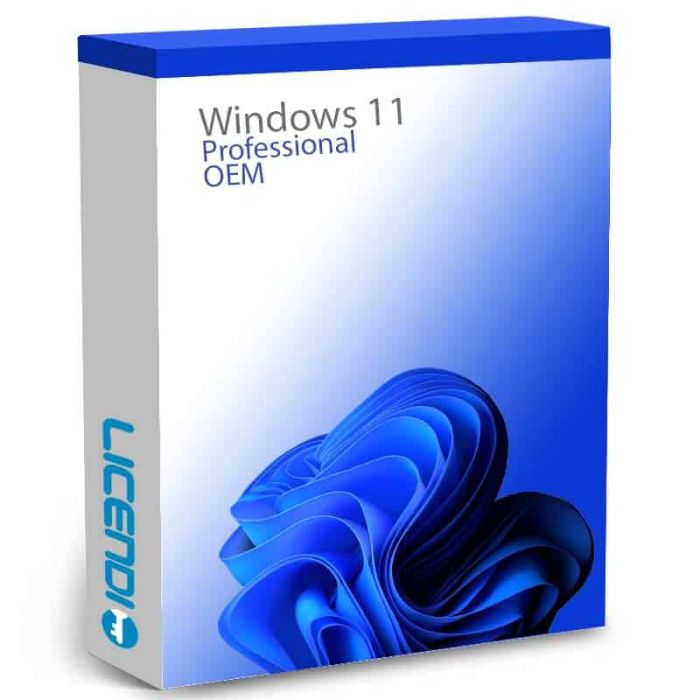
Microsoft Windows 11 Pro
-
Microsoft Windows 11 ProAs low as €20.65
-
Quantity discount
| Quantity | % discount |
|---|---|
| 2+ | 1% |
| 3+ | 3% |
| 5+ | 5% |
Microsoft Windows 11 Pro is the latest version of Microsoft’s desktop operating system, built for both home users and businesses that need extra security and management features. It pairs the redesigned Windows 11 interface with Pro-only tools like BitLocker, Hyper-V, and Remote Desktop — everything Home includes, plus the controls IT teams and power users rely on.
| License | Perpetual (one-time purchase, no subscription) |
| Versions | OEM (single activation) · Retail (reactivable and transferable) · Upgrade |
| Delivery | Digital key by email — instantly during office hours, within 24 hours otherwise |
| Platform | PC with 64-bit processor, TPM 2.0, UEFI with Secure Boot |
| Pro features | BitLocker, Hyper-V, Remote Desktop, Windows Sandbox, up to 2 TB RAM |
| Languages | 100+ languages available |
Which variant should I choose?
| If you... | Best variant |
| Build or upgrade PCs and want long-term flexibility | Retail |
| Buy once for a single build and never move it | OEM |
| Already run Windows 11 Home and want Pro features | Upgrade |
Pro features over Home
- BitLocker — full-drive encryption to protect data if your device is lost or stolen.
- Hyper-V — create and run virtual machines directly on your PC.
- Remote Desktop host — access your PC from anywhere (Home only includes the client side).
- Windows Sandbox — run untrusted apps in an isolated environment.
- Group Policy & Azure AD join — centralised management for businesses.
- Hardware ceiling — supports up to 2 TB of RAM and 2 processors with 128 cores total.
What’s new in Windows 11 Pro
Windows 11 Pro brings a redesigned interface — centred Start menu and taskbar, rounded corners, refreshed icons, sounds, and animations. Snap Layouts let you arrange multiple windows into preset grids; Snap Groups remembers the layout so you can switch back to a working set with one click. Widgets surface news, weather, and calendar at a glance.
Under the hood, Windows 11 includes faster wake-from-sleep, smaller security update sizes, and DirectX 12 Ultimate gaming features such as Auto HDR and DirectStorage. Voice typing and live captions work across the whole system, not just inside specific apps.
Upgrading from Windows 10
If your PC is currently running Windows 10 Home or Pro, you have two paths to Windows 11 Pro:
- In-place upgrade — keep your apps, files, and settings. Run Microsoft’s installer and choose “Keep everything when you upgrade.” Most apps continue to work; some older drivers or 32-bit-only utilities may need reinstalling. Activation: a Windows 11 Pro Upgrade key is enough if you’re already on Windows 10 Pro. Coming from Windows 10 Home, you’ll need a full Retail or OEM Windows 11 Pro key.
- Clean install — wipe the drive and start fresh. Best for older PCs that have accumulated leftover software, and for performance-sensitive use. Back up your files first (OneDrive or external drive), have your app installers and licence keys handy, and reconnect to your Microsoft account afterwards. Activation: any Retail or OEM Windows 11 Pro key works.
Files in your user folders (Documents, Pictures, Desktop, Downloads) stay put on an in-place upgrade. Browser bookmarks and passwords sync via your Microsoft or browser account. App-specific data (Outlook .pst files, game saves outside cloud sync, custom config files) should be backed up regardless — they usually survive but it’s not guaranteed.
TPM 2.0: how to check and enable
Windows 11 requires Trusted Platform Module 2.0 — a hardware security chip that handles encryption keys and identity attestation. Most PCs from 2018 onwards have one, but it’s often disabled in BIOS by default.
Check if it’s already on:
- Press Win + R, type
tpm.msc, and press Enter. - If the management console shows “The TPM is ready for use” and “Specification Version: 2.0”, you’re done.
- If you see “Compatible TPM cannot be found”, continue below.
Enable it in BIOS/UEFI:
- Restart your PC and press the BIOS key during boot — usually Del, F2, or F12 (varies by manufacturer).
- Look in the Security or Advanced section for an entry called TPM, fTPM (AMD), PTT (Intel Platform Trust Technology), or Trusted Computing. Set it to Enabled.
- Save changes and exit (usually F10). Boot back into Windows and re-run
tpm.mscto confirm it’s now active.
If your motherboard has neither fTPM/PTT nor a discrete TPM header, your hardware predates the Windows 11 requirement — you’ll need a TPM 2.0 add-in module (some boards) or a newer PC. Microsoft’s PC Health Check tool will tell you definitively whether your hardware can run Windows 11.
Frequently asked questions
Is this a subscription or a one-time purchase?
Windows 11 Pro is a one-time purchase (perpetual license). You pay once and use it indefinitely.
What is the difference between OEM, Retail, and Upgrade?
OEM: single activation bound to one PC. Retail: reactivable and transferable to another PC. Upgrade: for upgrading from a previous Windows edition.
What do I receive after purchase?
You receive a product key by email with installation instructions. Your key is delivered instantly during office hours, or within 24 hours otherwise.
Can I change the system language?
Yes. Windows 11 Pro supports 100+ languages that you can change in Settings.
What exclusive features does Pro have over Home?
BitLocker, Hyper-V, Remote Desktop, Windows Sandbox, support for up to 2 TB of RAM, and up to 2 processors with 128 cores.
What are the minimum requirements?
64-bit processor at 1 GHz with 2 cores, 4 GB RAM, 64 GB storage, TPM 2.0, and UEFI with Secure Boot.
Can I reinstall it?
With Retail, yes — you can reinstall and even transfer to another PC. With OEM, reinstalling on the same PC may work, but the license is not transferable.
What is TPM 2.0 and do I need it?
Trusted Platform Module 2.0 is a hardware security chip required by Windows 11 for features like BitLocker. Most PCs from 2018 onwards have it — enable it in BIOS if it’s off. Use Microsoft’s PC Health Check tool to verify your PC meets Windows 11 requirements.
Other Windows editions: Windows 10 Pro · Windows 11 Home · Windows 10 Home
Windows 11 Pro is sold as a perpetual licence — you pay once and keep the operating system with no recurring subscription. Each licence activates one PC. Choose between Retail (reactivable and transferable to another PC), OEM (single activation, bound to one PC), or Upgrade (converts an existing Windows installation to Windows 11 Pro).
Languages: Windows 11 Pro supports 100+ display languages — switch at any time in Settings after installation.
Platform coverage: requires a 64-bit processor (1 GHz, 2+ cores), 4 GB RAM, 64 GB storage, TPM 2.0, and UEFI with Secure Boot. Most PCs from 2018 onwards meet these requirements — use Microsoft's PC Health Check tool to verify.
What you receive
- Windows 11 Pro product key (by email)
- Download link for the official Microsoft installer
- PDF invoice with licence details
- Step-by-step activation guide
Digital key delivery — instant during office hours, within 24 hours at all other times.
How to activate
- Download Windows 11 from Microsoft using the link in your Licendi email
- Install Windows 11 (or boot into your existing Windows installation if you bought the Upgrade variant)
- Open Settings → System → Activation, then enter the product key shown in your Licendi email
Support
Support is available 24/7 by email and live chat. If anything goes wrong with your key or activation, contact us and we'll work on a solution for you.
As of 2026-04-16 the requirements are as follows:
| Processor | 1 GHz or faster, 2+ cores on a compatible 64-bit processor (or SoC) |
| Operating system | Windows 11 (64-bit only) |
| Memory | 4 GB RAM minimum |
| Storage | 64 GB or larger |
| System firmware | UEFI, Secure Boot capable |
| TPM | Trusted Platform Module (TPM) version 2.0 |
| Graphics | DirectX 12 or later with WDDM 2.0 driver |
| Display | 720p, >9" diagonally, 8 bits per colour channel |
| Internet & Microsoft account | Required for initial setup and updates |
Use Microsoft's PC Health Check tool to verify your PC meets all Windows 11 requirements.