EN
EN FR
FR  DE
DE  IT
IT  PT
PT  ES
ES 

How to Recover Unsaved Word Documents

Few things are more frustrating than spending hours working on a document, only to have your computer crash or Word close unexpectedly before you could save. That sinking feeling when you realize your work might be gone is something almost everyone has experienced at some point. The good news is that Microsoft Word has several built-in features designed to help you recover unsaved documents, and there are additional methods you can try even when those features do not work perfectly.
In this comprehensive guide, we will walk you through every method available for recovering unsaved Word documents in 2024 and beyond. Whether you are using the latest version of Microsoft Office or an older version, these techniques will help you get your work back. We will cover the AutoRecover feature, temporary files, Document Recovery pane, and several lesser-known methods that can save the day when all else seems lost.
Understanding How Word Saves Your Documents
Before diving into recovery methods, it helps to understand how Microsoft Word handles document saving in the background. This knowledge will not only help you recover lost documents but also prevent future data loss. Microsoft has spent decades refining these protection mechanisms, and understanding them gives you a significant advantage when things go wrong.
Microsoft Word includes a feature called AutoRecover that automatically saves a copy of your document at regular intervals. By default, this happens every 10 minutes, though you can adjust this setting to save more frequently. These AutoRecover files are stored in a special location on your computer and are designed to be used when Word closes unexpectedly. The AutoRecover system works silently in the background, creating periodic snapshots of your work without interrupting your typing or formatting.
Additionally, Word creates temporary files while you work. These files serve as a backup of your current session and are normally deleted when you close the document properly. However, if Word crashes, these temporary files may still exist and can sometimes be used for recovery. The temporary file system is separate from AutoRecover and provides an additional safety net for your work.
Word also maintains a list of recently opened documents and their locations. This feature can help you locate documents you thought were lost, especially if you saved them in an unexpected location or forgot where you stored them. The recent documents list remembers not just filenames but complete file paths, making it easier to track down misplaced work.
Understanding these three systems working together helps explain why document recovery is often possible even after seemingly catastrophic failures. Each system provides a different type of protection, and together they create multiple opportunities for recovery.
Method 1: Using the Document Recovery Pane
The first and easiest method to try is the Document Recovery pane. When Word restarts after a crash, it automatically checks for any AutoRecover files and displays them in a special pane on the left side of the screen. This is the most straightforward recovery method and should always be your first attempt.
To use this method, simply restart Microsoft Word after a crash. If Word detects any recoverable documents, you will see the Document Recovery pane appear automatically. This pane shows a list of all documents that Word was able to recover, along with information about when they were last saved. The timestamps are particularly important because they help you identify which version contains the most recent work.
Click on any document in the list to open it and review its contents. If the recovered version contains the work you need, save it immediately to a permanent location. You can do this by clicking File, then Save As, and choosing where you want to store the document. It is crucial to save to a permanent location rather than relying on the recovery file, as recovery files are temporary and may be deleted.
It is important to note that Word only displays the Document Recovery pane once after a crash. If you close Word without saving the recovered documents, they may be permanently lost. Always save any recovered documents before closing the application, even if you are not sure you need them. You can always delete them later, but you cannot recover them once they are gone.
The Document Recovery pane may show multiple versions of the same document if Word created several AutoRecover snapshots. In this case, review each version to find the one with the most complete content. Sometimes the most recent version is corrupted, and an earlier version may actually contain more usable content.
Method 2: Accessing AutoRecover Files Manually
If the Document Recovery pane does not appear or you accidentally closed it, you can still access AutoRecover files manually. These files are stored in a specific folder on your computer, and you can navigate to them directly. This method requires a bit more technical knowledge but can recover documents that the automatic system missed.
On Windows, AutoRecover files are typically stored in the following location: C:\Users\YourUsername\AppData\Roaming\Microsoft\Word. Replace YourUsername with your actual Windows username. Since the AppData folder is hidden by default, you may need to enable hidden files in File Explorer to see it. This is a security measure to prevent accidental modification of system files.
To enable hidden files in Windows 11 or Windows 10, open File Explorer and click on View in the menu bar. Then check the box next to Hidden items. You should now be able to navigate to the AppData folder and find your AutoRecover files. Alternatively, you can type the path directly into the File Explorer address bar, and it will take you there even if hidden files are not visible.
AutoRecover files have the .asd file extension. Look for files with names similar to your document. The naming convention usually includes part of your document title, making it easier to identify the correct file. When you find a potential match, you can open it by launching Word, clicking File, then Open, and navigating to the AutoRecover folder. Change the file type filter to All Files to see .asd files, then select the file you want to recover.
Sometimes AutoRecover files are stored in additional locations. Check the following paths as well: C:\Users\YourUsername\AppData\Local\Microsoft\Office\UnsavedFiles and C:\Users\YourUsername\Documents. Word may use different locations depending on your configuration and the type of document you were working on.
Method 3: Recovering from the Manage Document Feature
Microsoft Word includes a Manage Document feature that provides another way to recover unsaved documents. This method works even if the Document Recovery pane did not appear when you restarted Word. It is particularly useful for documents that were never saved at all, not just those that lost recent changes.
To use this feature, open Microsoft Word and click on File in the top left corner. Then click on Info in the left sidebar. Look for the Manage Document button and click the small arrow next to it. From the dropdown menu, select Recover Unsaved Documents. This option specifically targets documents that were closed without ever being saved to a permanent location.
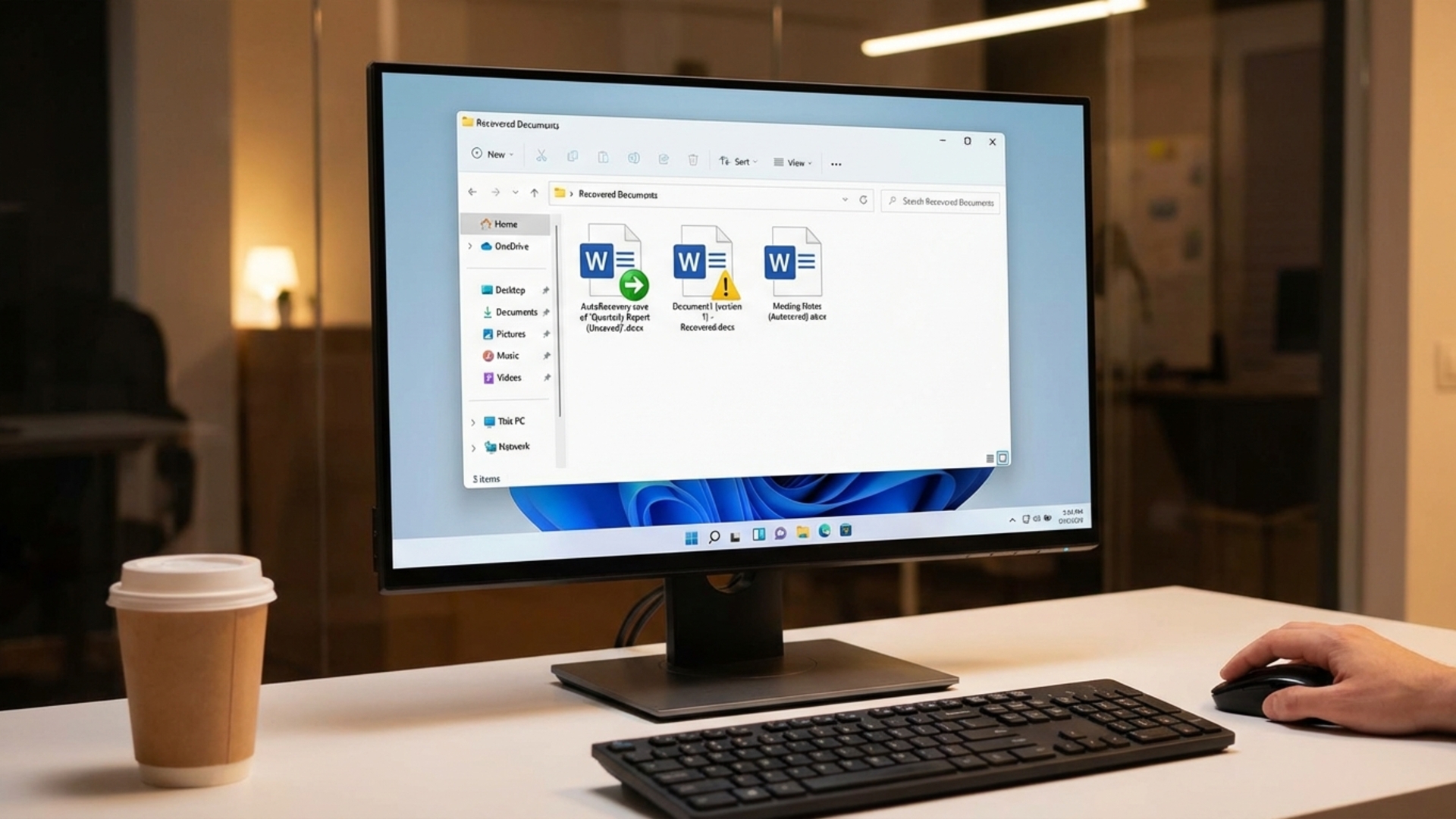
This action opens a special folder containing any unsaved documents that Word has stored. Browse through the files and look for your missing document. Unsaved documents typically have generic names like Document1 or may include a timestamp, so you may need to open several files to find the right one. The folder may contain multiple files from different sessions, so pay attention to modification dates.
Once you find your document, open it and immediately save it to a permanent location. Remember that these unsaved document files are temporary and may be deleted during system cleanup operations. Windows and Word both perform periodic cleanup of temporary files, so the window for recovery may be limited.
The Manage Document feature works best when used soon after the loss occurs. The longer you wait, the greater the chance that the temporary files have been deleted or overwritten. If you realize you have lost an unsaved document, try this method immediately before doing anything else on your computer.
Method 4: Searching for Temporary Files
Word creates temporary files while you work, and these can sometimes be recovered even when other methods fail. Temporary files have various extensions including .tmp, .wbk, and sometimes have filenames starting with ~$ characters. These files are created as part of Word's internal operations and may contain complete or partial copies of your document.
To search for temporary files, open File Explorer and navigate to your Documents folder. In the search box, type *.tmp or *.wbk to find temporary files. You can also search for ~*.doc to find Word backup files that start with a tilde character. Windows search will look through all subfolders, so you do not need to know the exact location of these files.
Another location to check is the Windows temporary folder. You can access this by pressing Windows key + R, typing %temp%, and pressing Enter. This opens the temporary files folder where Word may have stored backup copies of your document. This folder can contain hundreds or thousands of files, so using the search function with appropriate filters is essential.
When searching for temporary files, pay attention to the date modified column. Files created around the time of your crash are most likely to contain your lost work. Sort files by date to bring the most recent ones to the top of the list. Open promising files in Word to check their contents before deciding which one to recover.
Some temporary files may appear corrupted or may only open partially. In these cases, try copying the text content rather than recovering the entire file. You can often salvage significant portions of your work even from damaged temporary files.
Method 5: Using File History and Previous Versions
If you have File History enabled on Windows, you may be able to recover a previous version of your document. This feature automatically backs up files in your Documents, Pictures, Videos, and Desktop folders at regular intervals. File History is one of the most powerful recovery tools available in Windows, but it must be enabled before the data loss occurs.
To check for previous versions, navigate to the folder where your document was saved. Right-click on the document file and select Properties. Then click on the Previous Versions tab. If any previous versions exist, they will be listed here with timestamps showing when each version was created.
Select the version you want to recover and click Restore. Be careful, as restoring will replace the current version of the file. If you want to keep both versions, click the small arrow next to Restore and choose Restore to a different location. This allows you to compare the recovered version with the current one before deciding which to keep.
According to Microsoft's official support documentation, File History is one of the most reliable ways to recover lost documents, but it must be enabled before the data loss occurs. If you have not already enabled File History, consider doing so immediately after recovering your current document.
File History works best when connected to an external drive or network location for storing backups. Windows will prompt you to set this up when you first enable the feature. The more storage space available for backups, the further back in time you can recover files.
Method 6: Checking OneDrive Version History
If your documents are saved to OneDrive, you have access to an additional powerful recovery feature: Version History. OneDrive automatically maintains previous versions of your files for up to 30 days, and for Microsoft 365 subscribers, this can extend even longer for some file types.
To access OneDrive Version History, navigate to the OneDrive website or open the OneDrive folder on your computer. Find the document you want to recover, right-click on it, and select Version History. A panel will appear showing all available previous versions of the file, each with a timestamp and sometimes information about what changed.
You can preview each version before restoring to make sure it contains the content you need. When you find the right version, click Restore to replace the current file, or click Download to save the old version as a separate file. This flexibility allows you to compare versions and even combine content from multiple versions if needed.
OneDrive Version History works even better when combined with the AutoSave feature available in Microsoft 365. With AutoSave enabled, changes are saved continuously to OneDrive, and Version History captures these changes at frequent intervals. This combination provides near-continuous protection for your documents.
Configuring AutoRecover for Better Protection
Now that you understand how to recover unsaved documents, let us look at how to configure Word to provide better protection against future data loss. The key is adjusting the AutoRecover settings to save more frequently and ensuring all protection features are enabled.
To access AutoRecover settings, open Word and click on File, then Options. In the Options window, click on Save in the left sidebar. Here you will see several important settings related to automatic saving. Take time to review and adjust each one according to your needs.
The most important setting is Save AutoRecover information every X minutes. The default is 10 minutes, but you can reduce this to as low as 1 minute. While saving every minute may cause brief pauses in your work, it significantly reduces the amount of work you could lose in a crash. For most users, setting this to 3 or 5 minutes provides a good balance between protection and performance.
Make sure the box next to Keep the last AutoRecovered version if I close without saving is checked. This option ensures that Word saves a final AutoRecover copy even if you close a document without saving it. This is particularly important for protecting against accidental closure without saving.
You can also change the AutoRecover file location if you want to store these files in a specific folder, such as a cloud-synced directory for additional backup protection. Storing AutoRecover files in a OneDrive or Dropbox folder means they are backed up to the cloud automatically, providing protection even if your entire computer fails.
Additionally, check the box for Always create backup copy if you want Word to maintain a backup of the last saved version of each document. This creates a file with a .wbk extension that contains the previous version of your document, providing one more layer of protection.
Using OneDrive for Automatic Cloud Backup
One of the best ways to protect your documents is to save them to OneDrive, Microsoft's cloud storage service. When you save documents to OneDrive, they are automatically backed up to the cloud, and you can access previous versions through Version History. This approach provides protection against not just crashes but also hardware failure, theft, and natural disasters.
To enable this protection, save your documents to the OneDrive folder on your computer or directly to OneDrive through the Save dialog in Word. OneDrive continuously syncs your files, meaning your work is backed up almost in real-time. The sync happens automatically in the background without requiring any action from you.
If you need to recover a previous version, right-click on the file in OneDrive and select Version History. You will see a list of all previous versions, and you can restore any of them with a single click. OneDrive keeps versions for at least 30 days, giving you ample time to notice and recover from any problems.
This method is particularly useful for professionals who work with important documents regularly. Combined with a genuine Microsoft Word license, you get access to all the latest protection features and regular security updates. Modern versions of Word integrate seamlessly with OneDrive, making cloud backup nearly effortless.
Third-Party Recovery Tools
When built-in methods fail, third-party data recovery tools can sometimes retrieve lost documents. These tools scan your hard drive for deleted files and fragments of documents that may still be recoverable. They work at a lower level than Word's built-in recovery features, potentially finding files that Word itself cannot access.
Popular recovery tools include Recuva, which is free and easy to use, and professional solutions like Stellar Data Recovery or EaseUS Data Recovery Wizard. These tools work by scanning the file system for traces of deleted files that have not yet been overwritten. They can often recover documents that were deleted weeks or even months ago, depending on drive usage.
It is important to act quickly when using these tools. The longer you wait and the more you use your computer, the greater the chance that the deleted file will be overwritten with new data. If you suspect you have lost an important document, stop using the computer immediately and run a recovery tool as soon as possible. Ideally, boot from a recovery USB drive to avoid writing any new data to the main drive.
Keep in mind that recovery is not always guaranteed, especially if significant time has passed or if the storage drive has been heavily used since the file was lost. Prevention through proper backup strategies is always better than attempting recovery after the fact. Think of recovery tools as a last resort rather than a primary backup strategy.
Special Situations and Advanced Recovery
Sometimes document loss occurs in special situations that require different recovery approaches. Let us look at a few common scenarios and how to handle them effectively.
If Word crashes during the save process, the document may become corrupted. In this case, try opening the file using the Open and Repair feature. Go to File, then Open, select your document, click the small arrow next to the Open button, and choose Open and Repair. Word will attempt to fix any corruption and recover as much content as possible. This feature can often salvage documents that appear completely unusable.
If you accidentally clicked No when Word asked if you wanted to save changes, check the Recover Unsaved Documents feature immediately. Word often keeps a copy of unsaved changes for a short period after closing. The faster you act, the better your chances of recovery. This grace period typically lasts until you close Word completely or start working on another document.
For documents stored on network drives or servers, contact your IT department. Enterprise environments often have additional backup systems in place that can recover lost files. Many organizations use shadow copies, tape backups, and other enterprise-grade backup solutions that maintain multiple versions of files going back weeks or months.
If your hard drive has failed, professional data recovery services may be able to retrieve your files. These services can be expensive, often costing hundreds or thousands of dollars, but are sometimes the only option for recovering critical documents from a damaged drive. They have specialized equipment and clean room facilities that allow them to recover data from drives that appear completely dead.
Preventing Future Document Loss
While knowing how to recover documents is valuable, preventing loss in the first place is even better. Here are some best practices to protect your work going forward, organized from simplest to most comprehensive.
First, develop the habit of saving frequently. Press Ctrl + S every few minutes while working, or after completing any significant amount of work. This simple habit can save you hours of lost productivity. Make it automatic, like breathing, and you will never lose more than a few minutes of work even in the worst crash.
Second, use cloud storage services like OneDrive, Google Drive, or Dropbox. These services automatically sync your files to the cloud, providing an additional layer of backup protection. Even if your computer fails completely, your documents will be safe in the cloud. Most of these services also offer their own version history features.
Third, enable File History on Windows. This feature provides automatic backup of your important folders and makes it easy to recover previous versions of files. Go to Settings, then Update and Security, then Backup to enable File History. Connect an external drive for the best results.
Fourth, consider using the AutoSave feature available in Microsoft 365. When you save documents to OneDrive or SharePoint, AutoSave continuously saves your changes as you work. This eliminates the risk of losing work due to forgetting to save or experiencing a crash. It is the closest thing to real-time backup available in Word.
Finally, perform regular backups of your entire system. While cloud storage and AutoRecover are helpful, nothing beats a complete system backup for protecting against catastrophic data loss. Windows includes a built-in backup tool, and there are many third-party solutions available as well. Consider both local backups to an external drive and cloud backups for complete protection.
Conclusion
Losing an unsaved Word document does not have to mean losing your work forever. By understanding the recovery options available and acting quickly, you can often retrieve most or all of your lost content. The Document Recovery pane, AutoRecover files, temporary files, and File History all provide potential paths to recovery. Each method has its strengths, and trying multiple approaches increases your chances of success.
More importantly, taking preventive measures can eliminate the stress of document loss entirely. Configure AutoRecover to save frequently, use cloud storage for automatic backup, and develop good saving habits. These simple steps will protect your work and give you peace of mind. The few minutes spent configuring these features can save hours of lost work and frustration.
If you are still using an older version of Office without the latest protection features, consider upgrading to a current version. You can find genuine Microsoft Office licenses at competitive prices from Licendi's Microsoft Office collection, with digital delivery so you can start protecting your documents right away. Modern versions of Word include significantly improved recovery and protection features.
Remember, the best time to prepare for data loss is before it happens. Take a few minutes today to check your AutoRecover settings and backup configuration. Enable File History if it is not already active. Start saving your documents to the cloud. Your future self will thank you when the unexpected occurs and your work remains safe and recoverable.