EN
EN FR
FR  DE
DE  IT
IT  PT
PT  ES
ES 

How to Check if Your Windows License is Genuine
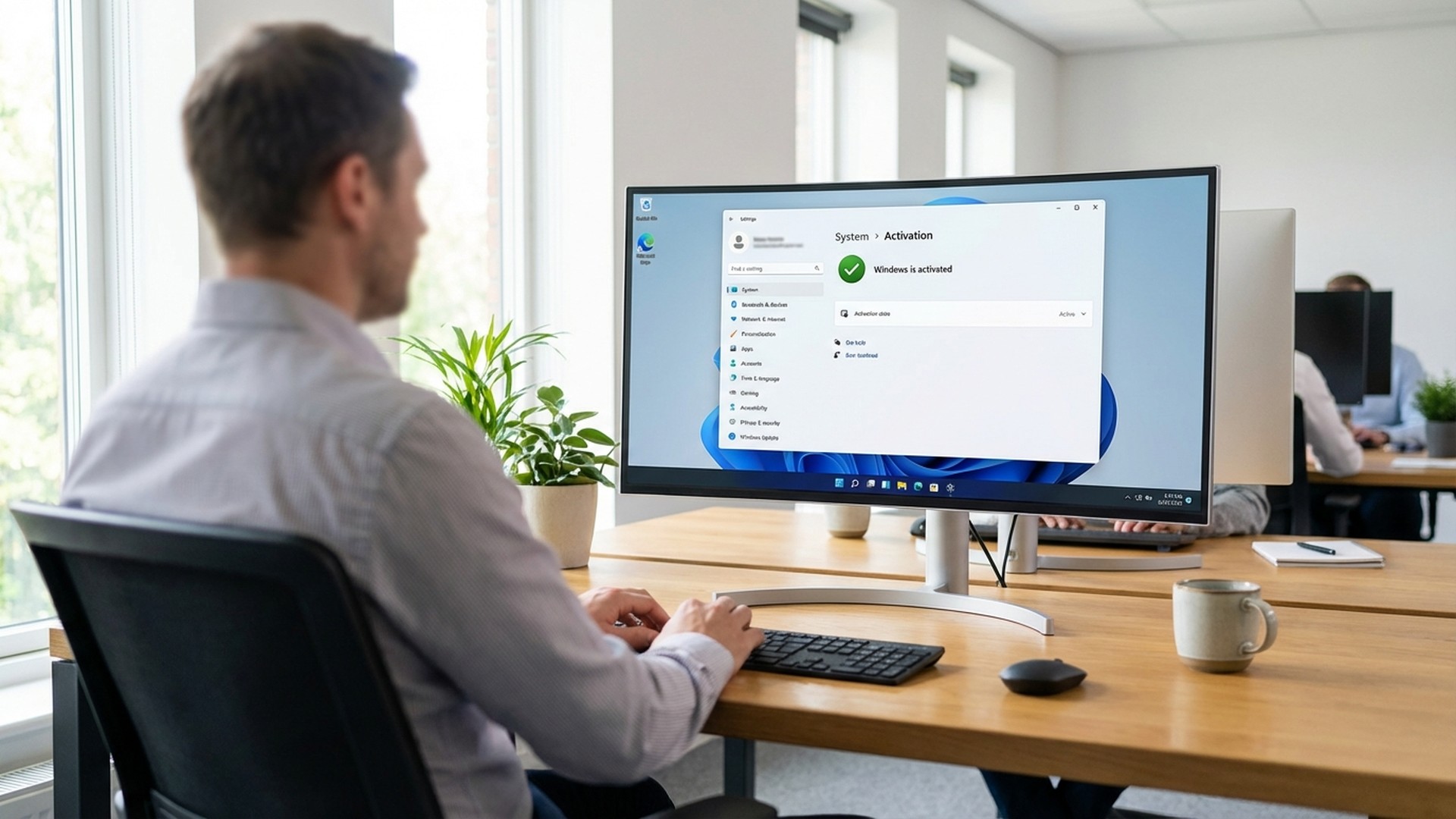
Checking if your Windows license is real is a key step for every user. It helps make sure your operating system is secure, stable, and legal. Many fake licenses and cheap deals exist. Knowing how to tell if your Windows copy is real can save you many problems later on. This guide will show you all the ways to check your Windows license in 2026.
Having a real license is more than just following the law. A genuine license gives you full access to all security updates. You also get official help from Microsoft. Plus, you'll have peace of mind knowing your system has no harmful changes. In this guide, we will look closely at each way to check your license.
Why Check Your Windows License?
Before we look at how to check your license, it's important to know why this check matters. A fake Windows license can put your computer at risk. It can affect both its security and how well it works.
Security Risks
Fake copies of Windows often have harmful software. This includes malware, spyware, or hidden backdoors. Hackers put these in when they change the system. These bad programs can steal your personal info, bank details, passwords, and other private data without you knowing. Also, fake versions often have some security features turned off. This helps them avoid being found. It leaves your system open to attacks.
Microsoft regularly releases security fixes to protect users. But systems with fake licenses might not get these important updates. This leaves your computer open to known weaknesses that attackers can easily use.
Legal Problems
Using software without a license breaks copyright laws. This can lead to serious legal trouble. In businesses, software checks are common. Using fake licenses can mean big fines, harm to your company's name, and even lawsuits. Even for home users, using fake software goes against the rules and can lead to legal issues.
Limited Features
Windows knows when a license is fake. It then puts limits on what you can do. These limits greatly affect how you use your computer. They include:
- A permanent message on your screen.
- Not being able to change your desktop background.
- Constant messages asking you to activate Windows.
- Sometimes, you can't use certain parts of the operating system.
Method 1: Check Through Windows Settings
The easiest way to check your license is right from your computer's settings. Anyone can do this. You don't need special tech skills. It gives you clear info about your license status.
Steps for Windows 11
To check your license in Windows 11, follow these steps:
- Click the Start button or press the Windows key on your keyboard.
- Select the Settings icon (the gear) or press Windows + I to open it directly.
- In Settings, go to the System section on the left.
- Scroll down and click on Activation.
On the Activation screen, you will see your Windows license status. If your system is correctly activated with a real license, you will see a message like "Windows is activated with a digital license." Or, it might say "Windows is activated with a digital license linked to your Microsoft account." The second message means your license is tied to your Microsoft account. This makes it easier to reactivate if you change computer parts.
Steps for Windows 10
The process in Windows 10 is very similar:
- Open Settings from the Start menu or use the Windows + I shortcut.
- Click on Update & Security.
- Then, select Activation from the side menu.
Here, you can see your license status and any important activation details.
What the Messages Mean
You might see these messages:
- "Windows is activated": Your system has a real, working license. All features are available, and you will get updates normally.
- "Windows is activated with a digital license": This is like the above. It means activation happened with a digital license, not a physical product key.
- "Windows is not activated": Your system does not have a real license. You will see limits and messages until you activate Windows with a genuine license.
- "Windows is activated with a digital license linked to your Microsoft account": This is the best case. Your license is saved online. You can easily reactivate it if you reinstall Windows or change computer parts.
Method 2: Check Using SLMGR Commands
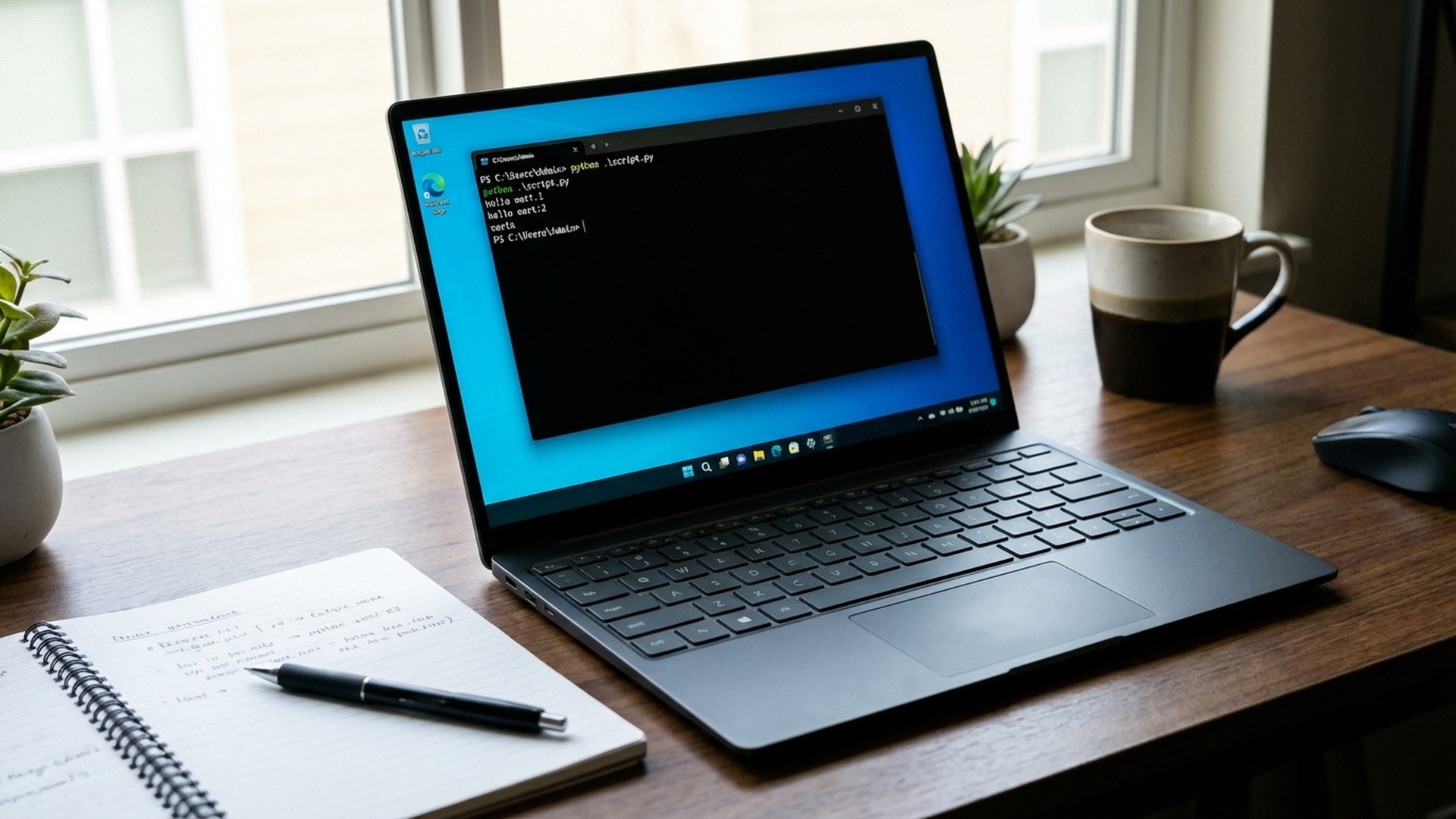
If you want more details about your license, the Software Licensing Management Tool (SLMGR) offers advanced options. This method gives exact technical info about your license type, when it expires, and its activation status.
Open Command Prompt as Administrator
To use SLMGR, you need to open Command Prompt with admin rights. Here's how:
- Right-click on the Start button.
- Select "Windows Terminal (Administrator)" or "Command Prompt (Administrator)".
- Alternatively, search for "cmd" in the Start menu. Right-click on the result and choose "Run as administrator".
Commands to Check Your License
Once Command Prompt is open with admin rights, you can use these commands:
slmgr /xpr: This command shows when your license expires. If your license is permanent (like retail or OEM licenses), it will say Windows is permanently activated. Volume licenses will show an expiration date.slmgr /dli: This shows basic license info. It includes the edition name, license description, and current status. It's good for quickly finding out your license type.slmgr /dlv: This gives very detailed license info. It includes the activation ID, license status, license type, and other technical details. This is the most complete command for fixing activation problems.
Understanding SLMGR Results
What SLMGR shows can change based on your license type:
- Retail licenses: Show "RETAIL channel" and usually mean permanent activation. You can move these licenses to different computers.
- OEM licenses: Show "OEM_DM channel" and are tied to the original computer hardware. You cannot move them to other computers.
- Volume licenses (VL): Show "VOLUME_MAK" or "VOLUME_KMS" and usually need to be renewed regularly.
Method 3: Check with PowerShell
PowerShell offers other commands to check your Windows license. It can give even more detailed info. System administrators and advanced users often prefer this method.
Basic PowerShell Command
Open PowerShell as administrator (right-click Start, select "Windows Terminal (Administrator)" or search "PowerShell" and run as administrator). Then, type this command:
Get-CimInstance -ClassName SoftwareLicensingProduct | Where-Object { $_.PartialProductKey } | Select-Object Name, LicenseStatus
This command shows the product name and license status. A "LicenseStatus" value of 1 means the license is active and valid.
Detailed Information with PowerShell
For more details, use this command:
Get-CimInstance -ClassName SoftwareLicensingProduct | Where-Object { $_.PartialProductKey } | Select-Object *
This command shows all available details about the license. This includes a partial product key, license channel, application ID, and much more.
Method 4: Use Microsoft Support Tools
Microsoft has official tools that can help check if your Windows license is real. These tools find fake software and give info about your license status.
Microsoft Genuine Diagnostics
Microsoft has stopped some older checking tools. But you can still use options built into Windows and official support. If you think your license might not be real, you can contact Microsoft support for an official check.
Online Verification
The Microsoft website has ways to check if Microsoft products are real. While mostly for physical software, it can guide you on how to spot genuine licenses.
Signs of a Fake License
Several things can tell you if your Windows license is not real:
- Desktop Watermark: You keep seeing a message in the bottom right corner of your screen. It might say "Activate Windows" or "Your Windows license will expire soon." This clearly means your system is not properly activated with a real license.
- Frequent Messages: Windows sends regular messages when it finds a fake license. These messages keep coming and get more frequent over time. They remind you to activate your Windows copy.
- Limited Personalization: Without a real license, you cannot change your desktop background, theme colors, lock screen, or other personal settings in Windows.
- Update Problems: Microsoft usually allows important security updates on systems that are not activated. However, you might have problems with some updates or features that need a real license.
What to Do if Your License is Not Real
If you find out your Windows license is not real, you have a few ways to fix it:
Buy a Real License
The easiest fix is to buy a real Windows license. You can buy it directly from Microsoft or from approved sellers. At Licendi, we offer real Windows 11 Pro licenses at good prices. You get them right away by email, and technical support is included.
Types of Licenses You Can Buy
When you look for a real license, you'll find different kinds:
- Retail Licenses: These are the most flexible. You can move them between computers. They usually include full Microsoft support. They are great for users who often upgrade their computer parts.
- OEM Licenses: These are tied to the original computer hardware. You cannot move them. They cost less but stay with the first computer they were installed on forever.
- Volume Licenses: These are for businesses that need to activate many computers. They require special agreements with Microsoft.
Check Before You Buy
When buying a license, make sure to buy from trusted sellers. Be careful of very low prices. They often mean the licenses were not obtained properly. A real Windows license costs money because of the ongoing work and support for the product.
Benefits of a Real License
Having a real Windows license offers many good things that make it worth the cost:
- Complete Updates: With a real license, you get all Windows updates. This includes security fixes, new features, and performance improvements. Microsoft gives updates first to systems with real licenses.
- Official Technical Support: Users with real licenses can get official help from Microsoft. This includes phone help, online chat, and access to Microsoft's full knowledge base.
- Full Features: All Windows features are available without limits. This goes from changing your desktop completely to advanced features like BitLocker, Hyper-V, and Windows Sandbox in Pro versions.
- Legal Peace of Mind: Using licensed software protects you from possible legal problems. This is especially important in businesses where software checks can lead to big penalties.
Common Questions About License Checks
Can I check my license without internet?
Yes, checking through Settings and SLMGR commands works without internet. But for digital licenses tied to a Microsoft account, a full check might need an internet connection.
My license shows as OEM, but I bought the computer used. Is it valid?
OEM licenses are valid as long as they are used on the original computer hardware they came with. If you bought a used computer that had Windows preinstalled with an OEM license, that license is still valid for that specific computer.
What is the difference between a digital license and a product key?
A digital license is linked to your computer hardware or Microsoft account. It doesn't need you to type in a product key to activate. A product key is a 25-character code you must type in by hand during or after installation.
Can I move my license to another computer?
It depends on the license type. You can move Retail licenses by first turning them off on the old computer. OEM licenses cannot be moved. Digital licenses linked to a Microsoft account make it easier to reactivate on new hardware. However, Microsoft might ask you to contact support for big hardware changes.
How do I know if my license was bought legally?
If you bought your license directly from Microsoft, from an approved seller, or it came preinstalled on a computer from a known brand, it is likely real. Licenses from shady places, with prices much lower than normal, or needing special "activators" are suspicious.
Conclusion
Checking if your Windows license is real is easy. Any user can do it using tools already in the operating system. You have many ways to check your license status, whether through Windows settings, SLMGR commands, or PowerShell.
Having a real license gives you full access to all Windows features and updates. It also protects you from security risks and legal problems. If you find your license is not valid, think about buying a real one. This way, you can enjoy all the benefits Windows offers.
At Licendi, we offer real Windows 11 Pro licenses. You get them right away by email, and technical support is included. Fix your system today and enjoy all Windows benefits without limits.