EN
EN FR
FR  DE
DE  IT
IT  PT
PT  ES
ES 

How to Transfer a Windows License to a New Computer
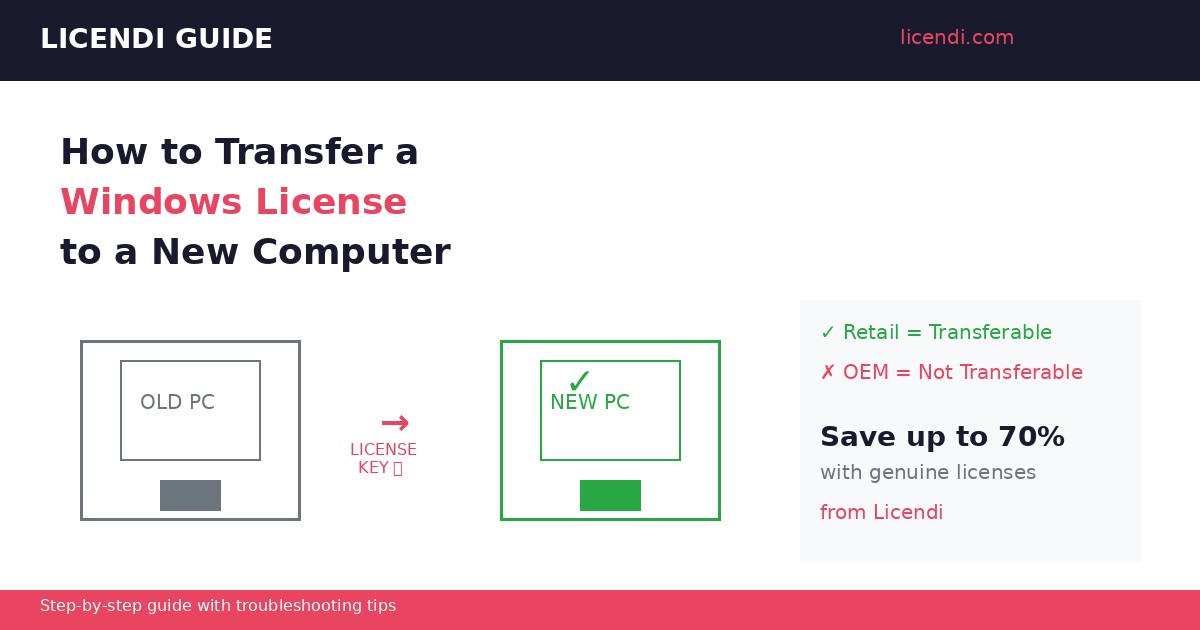
Getting a new computer is exciting — until you realize your Windows license might not come along for the ride. Whether you're upgrading your hardware, replacing a broken machine, or consolidating workstations, understanding how to transfer a Windows license can save you hundreds of euros.
In this step-by-step guide, we'll walk you through everything: which licenses you can transfer, which ones you can't, and exactly how to move your Windows key to a new PC without losing your activation. Already know you need a new key? Get a transferable Windows 11 Pro license from Licendi — instant delivery, lifetime transferability.
Table of Contents
Which Windows Licenses Can Be Transferred?
Before you start, the most important question is: what type of license do you have? Not every Windows license is transferable. Here's the breakdown.
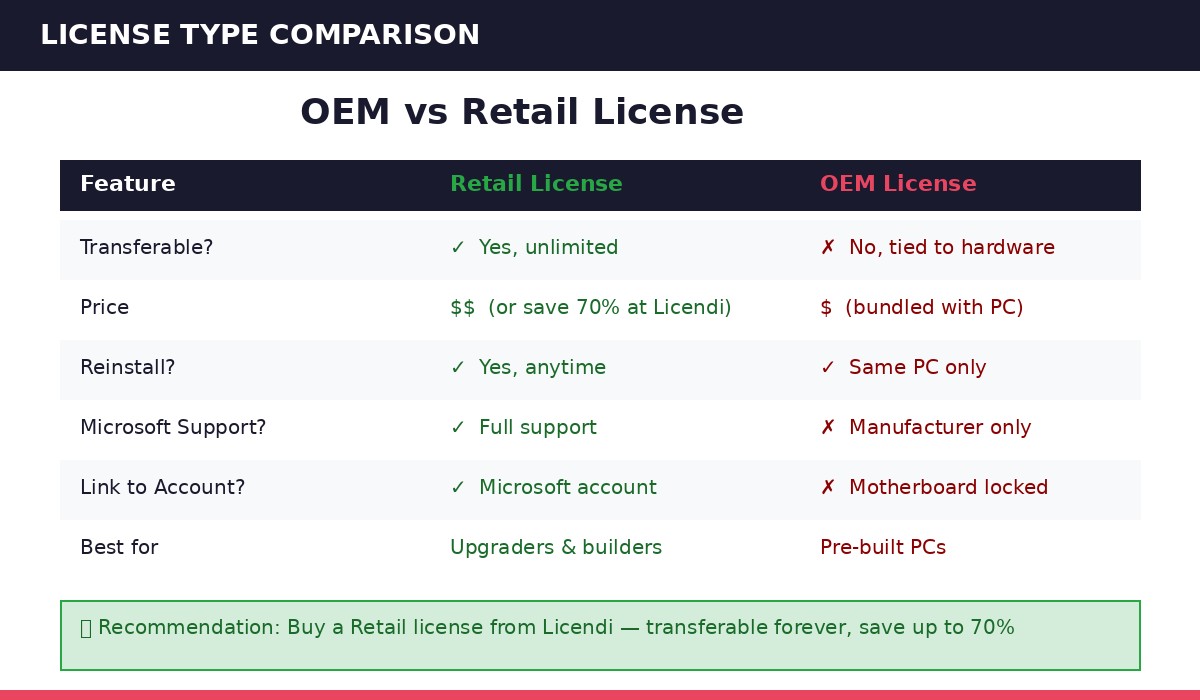
Retail Licenses — Fully Transferable
A Retail license (sometimes called a "Full Packaged Product" or FPP) is the most flexible type. Microsoft's license terms explicitly allow you to uninstall Windows from one device and reinstall it on another — as many times as you want, on any compatible hardware.
If you purchased a standalone Windows key from a retailer like Licendi, you almost certainly have a Retail license. These keys are tied to you, not to a specific machine. Not sure about the differences? Our guide on the difference between Windows 10 OEM and Retail explains everything in detail.
Key characteristics of Retail licenses:
- Can be transferred to a new PC unlimited times
- Must only be active on one device at a time
- Linked to your Microsoft account for easy reactivation
- Available for Windows 10 and Windows 11 Home and Pro
OEM Licenses — Not Transferable
An OEM license (Original Equipment Manufacturer) is the type pre-installed on laptops and desktops from manufacturers like Dell, HP, or Lenovo. These licenses are permanently bound to the original motherboard.
If your motherboard dies and is replaced with a different model, your OEM license is technically void. Microsoft may grant a one-time exception via phone activation, but there's no guarantee.
Bottom line: If you have an OEM license and you're moving to a completely new computer, you'll need to purchase a new Windows key. The good news? A Windows 11 Pro Retail license from Licendi solves this problem permanently — you can transfer it to your next PC, and the one after that.
Volume Licenses — It Depends
Volume licenses are managed by organizations and governed by specific agreements. Transferability depends on the terms of the Volume License Agreement. If you're an IT administrator, check your agreement or contact your Microsoft representative.
How to Check Your Current License Type
Not sure what type of license you have? Here's how to find out in 30 seconds. If you're wondering whether your license is even active, check out our article on whether you should activate Windows 10 and why it matters.
Method 1: Command Prompt
- Press Windows + R, type
cmd, and press Enter - Type the following command and press Enter:
slmgr /dli - A window will pop up showing your license information
- Look for the Description line:
- RETAIL channel = Retail license (transferable)
- OEM_DM channel or OEM_SLP = OEM license (not transferable)
- VOLUME_KMSCLIENT = Volume license (check your agreement)
Method 2: Settings App
- Go to Settings → System → Activation
- Your activation status and edition are displayed here
- While this won't directly tell you the channel, if it says "Windows is activated with a digital license linked to your Microsoft account," your transfer process will be smoother
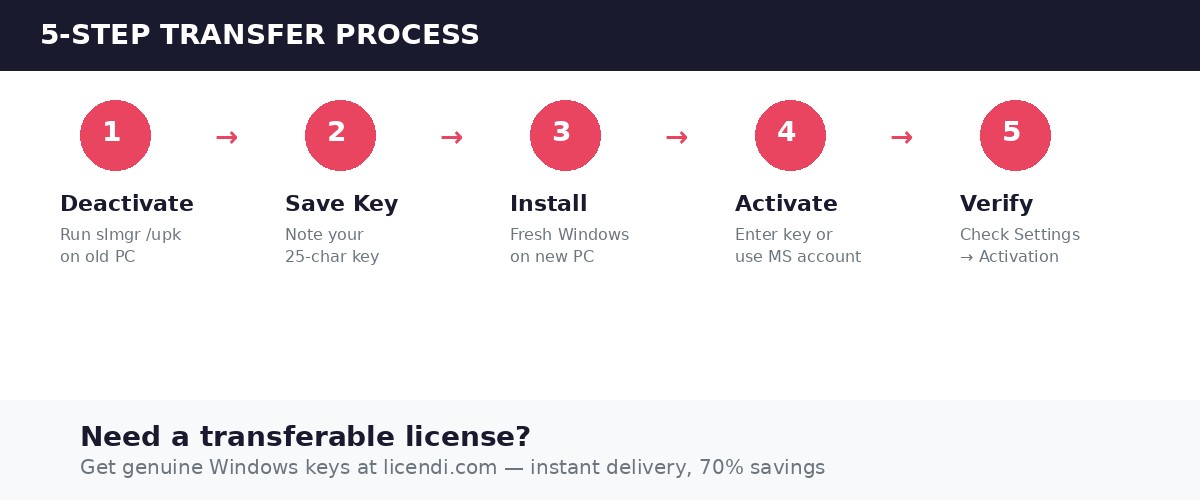
Step-by-Step: Transfer Your Windows License to a New Computer
Once you've confirmed you have a transferable Retail license, follow these steps.
Step 1: Deactivate Windows on Your Old PC
Before installing on a new machine, you should deactivate the license on your current one. This isn't strictly required — Microsoft's activation servers will detect the change — but it prevents potential conflicts.
Option A: Uninstall the product key via Command Prompt
- Open Command Prompt as Administrator (right-click Start → Terminal (Admin))
- Run:
slmgr /upk - This uninstalls the product key from the current installation
- Optionally, clear the key from the registry:
slmgr /cpky
Option B: Simply wipe or stop using the old PC
If you're disposing of or repurposing the old machine, you can skip deactivation. When you activate on the new PC, the old activation will eventually be invalidated.
Step 2: Note Down Your Product Key
If your license is linked to your Microsoft account, you may not need the key at all (see Step 4). But it's smart to have it as a backup.
Find your product key:
- Check your original purchase email or receipt
- Look in your Licendi account order history if you purchased from us
- Use a third-party key finder tool like ProduKey or ShowKeyPlus on the old PC (before wiping it)
Important: The key shown by slmgr /dli is only a partial key. You need the full 25-character key for manual activation.
Step 3: Install Windows on the New PC
Need help downloading the installation files? Our guide on how to download Windows 11 Pro or Home walks you through the entire process.
- Create installation media using the Microsoft Media Creation Tool
- Boot from the USB drive on your new computer
- When prompted for a product key during setup, you can either enter your key now, or click "I don't have a product key" and enter it after installation
- Select the correct edition (Home or Pro — must match your license). Not sure which to choose? See our comparison of Windows 11 Pro vs Home.
- Complete the installation
Step 4: Activate Windows on the New PC
This is where the magic happens. You have three activation methods:
Method A: Digital License (Microsoft Account)
If your Windows license is linked to your Microsoft account:
- Go to Settings → System → Activation
- Click "Troubleshoot" next to the activation status
- Select "I changed hardware on this device recently"
- Sign in with the Microsoft account linked to your old PC
- Select your old device from the list and click "This is the device I'm using right now"
- Windows will activate automatically
This is the easiest method and works without needing your product key.
Method B: Enter Product Key Manually
- Go to Settings → System → Activation
- Click "Change product key"
- Enter your full 25-character product key
- Click Next and wait for activation
Method C: Phone Activation
If online activation fails (common when hardware has changed significantly):
- Open Command Prompt as Administrator
- Run:
slui 4 - Select your country/region
- Call the toll-free number displayed
- Read the Installation ID to the automated system
- Enter the Confirmation ID you receive
- Activation complete
Phone activation has the highest success rate for transferred licenses, especially when the automated online system flags a hardware mismatch.
Step 5: Verify Activation
After completing any of the methods above:
- Go to Settings → System → Activation
- You should see: "Windows is activated with a digital license" (or "with a digital license linked to your Microsoft account")
- Run
slmgr /xprin Command Prompt to confirm — it should say "The machine is permanently activated"
Congratulations — your Windows license has been successfully transferred!
Need a transferable Windows license?
All Licendi keys are Retail licenses — fully transferable, instant delivery. Browse our Windows licenses
Common Problems and How to Fix Them
"This product key is already in use"
This usually means the old PC still has the license active. Go back to Step 1 and deactivate it, or wait 24–48 hours for Microsoft's servers to update.
"The product key you entered didn't work"
Double-check that you're installing the correct edition. A Windows 11 Pro key won't activate Windows 11 Home, and vice versa. Learn more about edition differences in our Windows 10 Home vs Pro comparison.
"We can't activate Windows on this device"
Try the Troubleshooter method (Method A) or phone activation (Method C). If neither works, contact Microsoft Support — they can often resolve it manually for legitimate Retail licenses.
Activation worked but reverted after a few days
This can happen with OEM keys mistakenly used on new hardware. Confirm your license type (see "How to Check Your Current License Type" above). If it's OEM, you'll need a new Retail license.
Tips to Make Future Transfers Easier
- Always link your license to your Microsoft account. This makes digital reactivation seamless on future hardware changes.
- Buy Retail licenses. If you upgrade PCs every few years, a Retail license pays for itself. An OEM key dies with the machine; a Retail key follows you forever.
- Keep your product key stored safely. Use a password manager or keep the purchase confirmation email. Licendi customers can always retrieve their keys from their order history.
- Don't activate on multiple PCs simultaneously. One Retail license = one PC at a time. Violating this will cause activation failures.
When It Makes Sense to Buy a New License
Sometimes transferring doesn't make sense:
- Your old license is OEM — it simply can't be transferred
- You're upgrading from Home to Pro — you'll need a Pro key anyway. See our guide on upgrading to Windows 10 Pro for the full walkthrough.
- You're setting up multiple machines — each one needs its own license
- Your old key is from a dubious source — grey-market keys often stop working after transfers
In any of these cases, purchasing a legitimate, fully transferable Retail key is the smartest move. At Licendi, we offer genuine Microsoft licenses at competitive prices:
- Windows 11 Professional — ideal for business users and power users
- Windows 11 Home — perfect for personal use
- Windows 10 Professional — still supported and widely used
All Licendi licenses are Retail keys — fully transferable to your next PC.
Final Thoughts
Transferring a Windows license is straightforward when you have the right type of key. Retail licenses give you the freedom to move between PCs without repurchasing — making them the best long-term investment for anyone who upgrades their hardware.
If you're stuck with an OEM license that can't be transferred, or if you simply want a fresh, transferable key for your new machine, visit the Licendi Windows store to pick up a genuine Windows Retail license at a great price. Instant delivery, full transferability, and real customer support — that's the Licendi difference.
Need help choosing the right license? Contact our team — we're happy to help.
Related Articles
- Windows 10 OEM vs Retail: How to Tell the Difference
- Windows 11 Pro vs Home: Which Edition Do You Need?
- Should I Activate Windows 10? Why It Matters
- How to Download Windows 11 Pro or Home
- Upgrading to Windows 10 Pro: Step-by-Step Guide
Frequently Asked Questions
Can I transfer a Windows license from a laptop to a desktop?
Yes, as long as it is a Retail license. Retail licenses are not tied to a specific device type. OEM licenses (the ones that came pre-installed on most laptops) cannot be transferred to any other device.
How many times can I transfer a Windows Retail license?
There is no limit. Microsoft allows unlimited transfers of Retail licenses, provided you only use the key on one device at a time. You must deactivate or stop using it on the old device before activating on the new one.
Can I transfer my Windows 10 license and upgrade to Windows 11 for free?
Yes. If your new PC meets the Windows 11 system requirements, you can transfer your Windows 10 Retail license and then upgrade to Windows 11 at no additional cost through Windows Update or the Installation Assistant. Your license edition stays the same (Home to Home, Pro to Pro).
Do I need internet access to transfer a Windows license?
For digital license reactivation and product key activation, yes — you need an internet connection. However, phone activation works without internet, making it useful for air-gapped or restricted environments.
What happens to the old PC after I transfer the license?
The old PC will eventually show as "not activated." Windows will still function but with limitations: you will see a watermark on the desktop, you will not be able to personalize settings, and you will receive activation reminders. To fully use the old PC again, you will need to purchase a new license.
Can I transfer an Office license the same way?
Microsoft Office Retail licenses can also be transferred between PCs. The process is similar: uninstall from the old device, install on the new one, and activate with your product key. Office 365/Microsoft 365 subscriptions are tied to your account and can simply be signed into on the new device.