 EN
EN FR
FR  DE
DE  IT
IT  PT
PT  ES
ES 

Download Windows 11 Enterprise: ISO File
If you're interested in downloading Windows 11 Enterprise via an ISO file, you've come to the right place. In this article, you'll find a simple and comprehensive guide on downloading and installing the Enterprise edition of Microsoft's latest operating system. Additionally, we'll provide you with secure and reliable links so you can quickly and worry-free complete your download.
What is Windows 11 Enterprise?
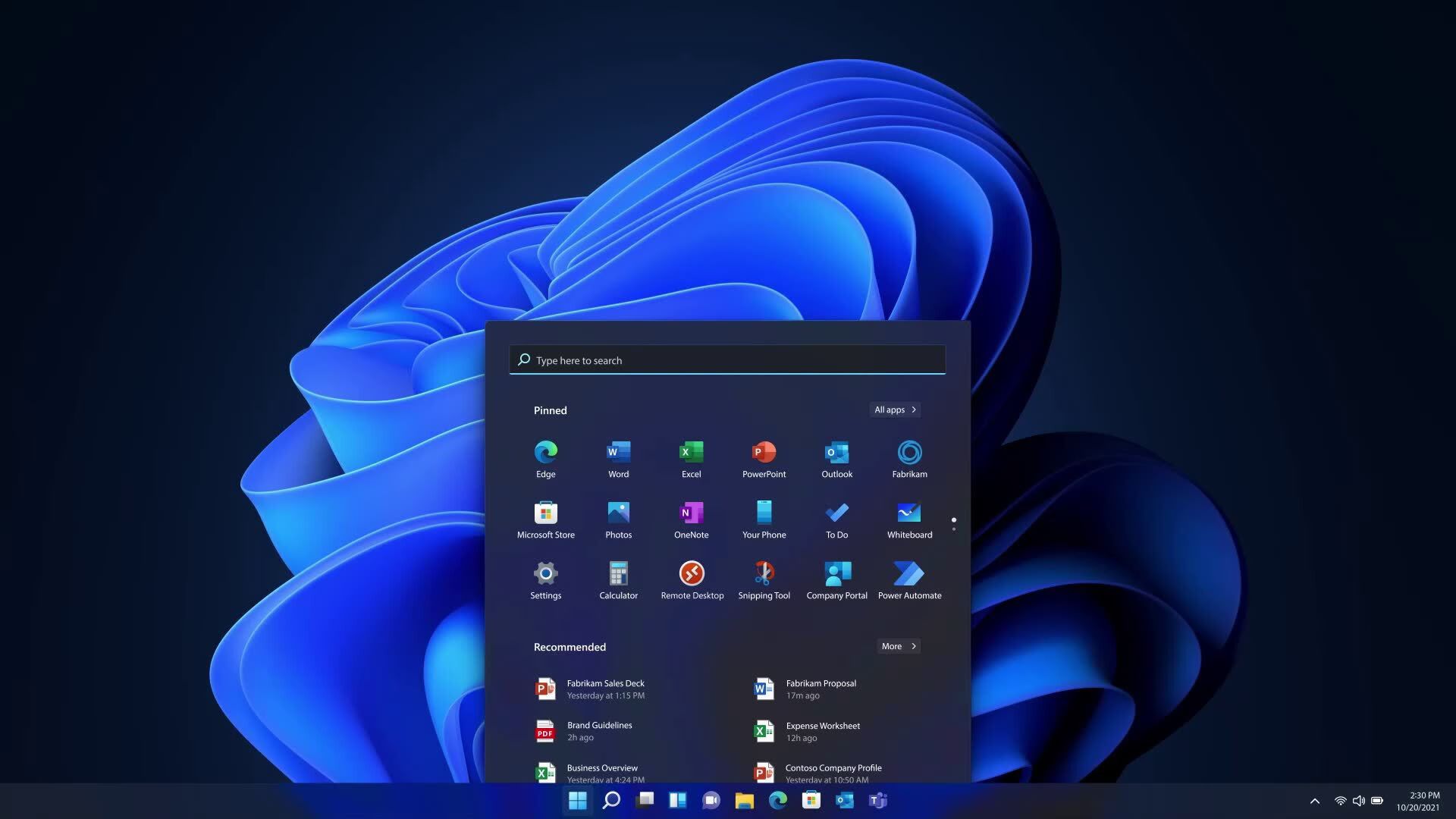
Windows 11 Enterprise is the most advanced version of Microsoft's latest operating system, specifically designed to meet the needs of large enterprises and technology professionals. This edition includes unique features that enhance security, simplify resource management, and optimize performance in demanding corporate environments.
Some standout features of Windows 11 Enterprise include:
- Windows Hello for Business: Advanced biometric authentication significantly enhances security and simplifies system access through facial recognition or fingerprints.
- BitLocker: Advanced technology for encrypting your entire hard drive content, protecting your sensitive information from theft or unauthorized access.
- Windows Defender Advanced Threat Protection: Advanced security against threats, providing deep analysis and immediate actions against cyber-attacks.
- Microsoft Endpoint Manager: Tool for effectively managing applications, devices, and security policies from a single centralized dashboard.
- Enterprise Remote Desktop: Enables secure remote access from any location and device, greatly increasing productivity.
What is an ISO File?
Before proceeding with the download, it is essential to clarify exactly what an ISO file is. Basically, an ISO image is an exact and complete copy of the Windows 11 Enterprise operating system. This file includes all necessary components to install or upgrade the operating system on your device. You can use it to create installation USB drives or DVDs.
Requirements to Download Windows 11 Enterprise
It's important to verify that your device meets the minimum requirements for installing Windows 11 Enterprise. Here are the basic requirements recommended by Microsoft:
- Processor: 1 GHz or faster, compatible with 64-bit.
- RAM: minimum 4 GB, recommended 8 GB or more.
- Storage: at least 64 GB available.
- System Firmware: UEFI, compatible with Secure Boot.
- TPM: version 2.0 activated.
- Display: Larger than 9 inches, HD resolution (720p).
- Internet Connection: required for updates and specific features.
Important Clarification about Installing Windows 11 Enterprise
To install Windows 11 Enterprise, you must first download and install the Windows 11 Pro ISO. Once this version is installed, enter your Windows 11 Enterprise product key, and the operating system version will automatically upgrade from Windows 11 Pro to Windows 11 Enterprise.
What is an ISO File?
Before proceeding with the download, it is essential to clarify exactly what an ISO file is. Basically, an ISO image is an exact and complete copy of the Windows 11 Enterprise operating system. This file includes all necessary components to install or upgrade the operating system on your device. You can use it to create installation USB drives or DVDs.
Requirements to Download Windows 11 Enterprise
It's important to verify that your device meets the minimum requirements for installing Windows 11 Enterprise. Here are the basic requirements recommended by Microsoft:
- Processor: 1 GHz or faster, compatible with 64-bit.
- RAM: minimum 4 GB, recommended 8 GB or more.
- Storage: at least 64 GB available.
- System Firmware: UEFI, compatible with Secure Boot.
- TPM: version 2.0 activated.
- Display: Larger than 9 inches, HD resolution (720p).
- Internet Connection: required for updates and specific features.
Important Clarification about Installing Windows 11 Enterprise
To install Windows 11 Enterprise, you must first download and install the Windows 11 Pro ISO. Once this version is installed, enter your Windows 11 Enterprise product key, and the operating system version will automatically upgrade from Windows 11 Pro to Windows 11 Enterprise.
Steps to Download Windows 11 Enterprise ISO
Now that you know your device is compatible, you can proceed to download the Windows 11 Enterprise ISO file. Follow these simple steps:
1. Access Reliable Links
Ensure the site you use for downloading is trustworthy and secure. At Licendi, we guarantee our links are completely secure.
2. Download the File
Click on the link and patiently wait while the download completes. This process may take several minutes, depending on your connection speed and device specifications.
3. Create an Installation Medium
Once the download has finished, you can create a bootable USB drive or DVD using tools like Rufus or Microsoft's official Media Creation Tool.
Installing Windows 11 Enterprise from ISO
After preparing the installation medium, proceed as follows:
- Insert the USB drive or DVD into your PC and restart it.
- Access the boot menu (usually by pressing keys such as F12, Esc, or F2 depending on your device).
- Select the created installation medium.
- Follow the on-screen instructions, select the language, and accept the terms.
- Select the partition where you want to install Windows 11 Enterprise and continue.
The installation will start and take several minutes. When it completes, carry out the initial settings requested by Windows.
Activate Windows 11 Enterprise
Finally, to fully enjoy all functionalities and obtain updates, you must activate your Windows 11 Enterprise license. If you don't yet have one, at Licendi you can obtain original European digital licenses, legal, and guaranteed for activation.
Conclusion
Congratulations! Now you know all the steps to download, install, and activate Windows 11 Enterprise on your device. This powerful operating system will boost your productivity and provide a secure and optimized work environment.
If you have questions or need additional assistance, don't hesitate to contact us.
Your Licendi Team.




