 EN
EN FR
FR  DE
DE  IT
IT  PT
PT  ES
ES 

Windows 10 Migration Guide for 2026
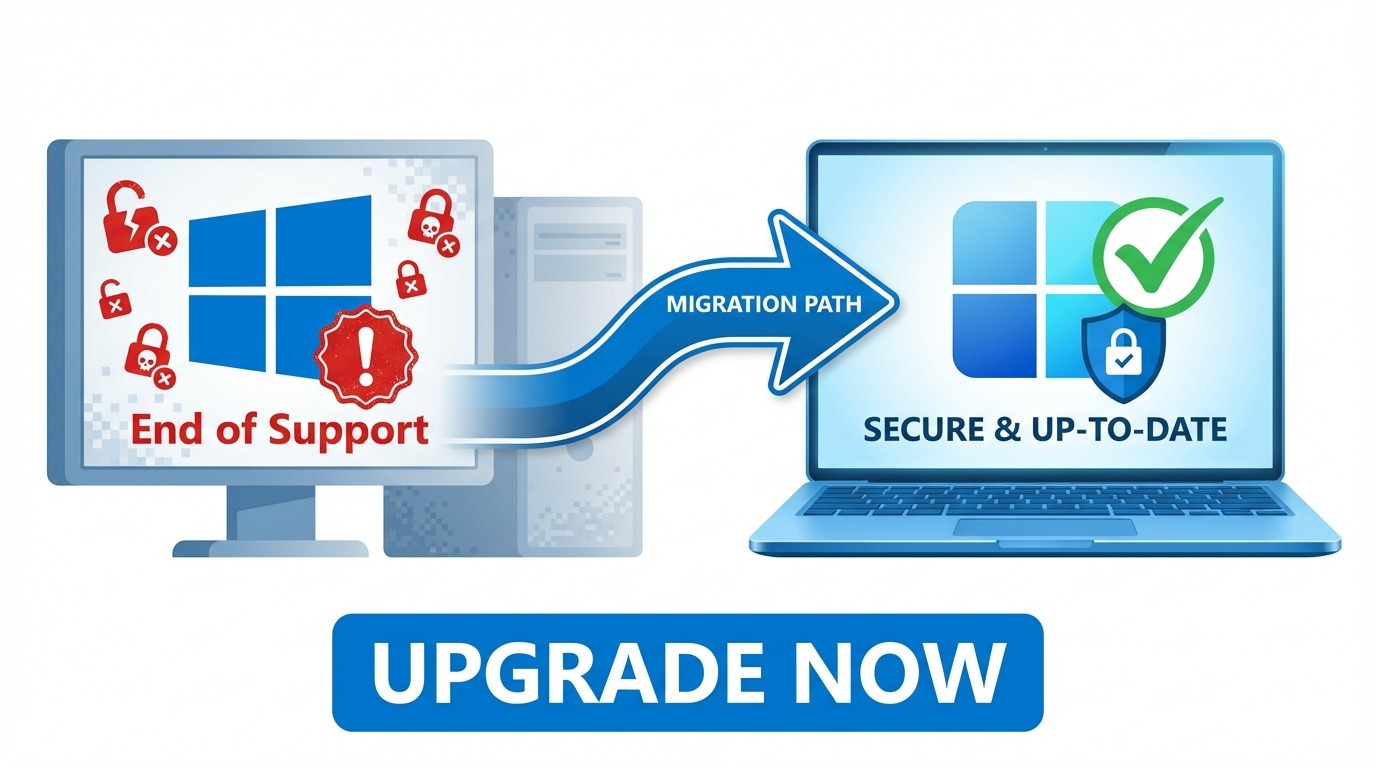
Windows 10 reached its end of life on October 14, 2025. If you are still running Windows 10, your computer is no longer receiving security updates from Microsoft - leaving your systems vulnerable to new threats every single day.
But do not panic. This comprehensive guide will walk you through everything you need to know about migrating to Windows 11 in 2026: compatibility requirements, upgrade options, and how to do it without breaking the bank.
What Does End of Life Actually Mean?
When Microsoft ends support for an operating system, it means:
- No more security patches - New vulnerabilities discovered after October 2025 will NOT be fixed
- No more bug fixes - Any bugs or issues will remain permanently
- No technical support - Microsoft will not help with Windows 10 issues
- Software compatibility risk - New software versions may stop supporting Windows 10
- Compliance issues - Many industries require supported operating systems for regulatory compliance
In practical terms: every day you stay on Windows 10, your security risk increases. Hackers actively target unsupported systems because they know vulnerabilities will not be patched.
Extended Security Updates (ESU): A Temporary Option
Microsoft does offer Extended Security Updates (ESU) for organizations that cannot migrate immediately. However, this comes at a significant cost:
- Year 1 (2025-2026): $61 per device
- Year 2 (2026-2027): $122 per device (doubles)
- Year 3 (2027-2028): $244 per device (doubles again)
For a company with 100 devices, that is $6,100 in year one alone - and $42,700 over three years. For most organizations, migrating to Windows 11 is significantly cheaper than paying for ESU.
Windows 11 Hardware Requirements
Before planning your migration, you need to check if your current hardware supports Windows 11. Microsoft requirements are stricter than previous versions:
Minimum Requirements
- Processor: 1 GHz or faster with 2+ cores on a compatible 64-bit processor (8th gen Intel or AMD Ryzen 2000 series or newer)
- RAM: 4 GB minimum (8 GB recommended)
- Storage: 64 GB or larger
- TPM: Trusted Platform Module version 2.0
- Secure Boot: UEFI firmware with Secure Boot capability
- Graphics: DirectX 12 compatible with WDDM 2.0 driver
How to Check Compatibility
Option 1: PC Health Check App
Download Microsoft official PC Health Check app from microsoft.com. It will scan your system and tell you exactly whether your PC is compatible.
Option 2: Manual Check
Press Windows + R, type tpm.msc, and press Enter. This shows your TPM status and version. You need TPM 2.0 for Windows 11.
Your Migration Options
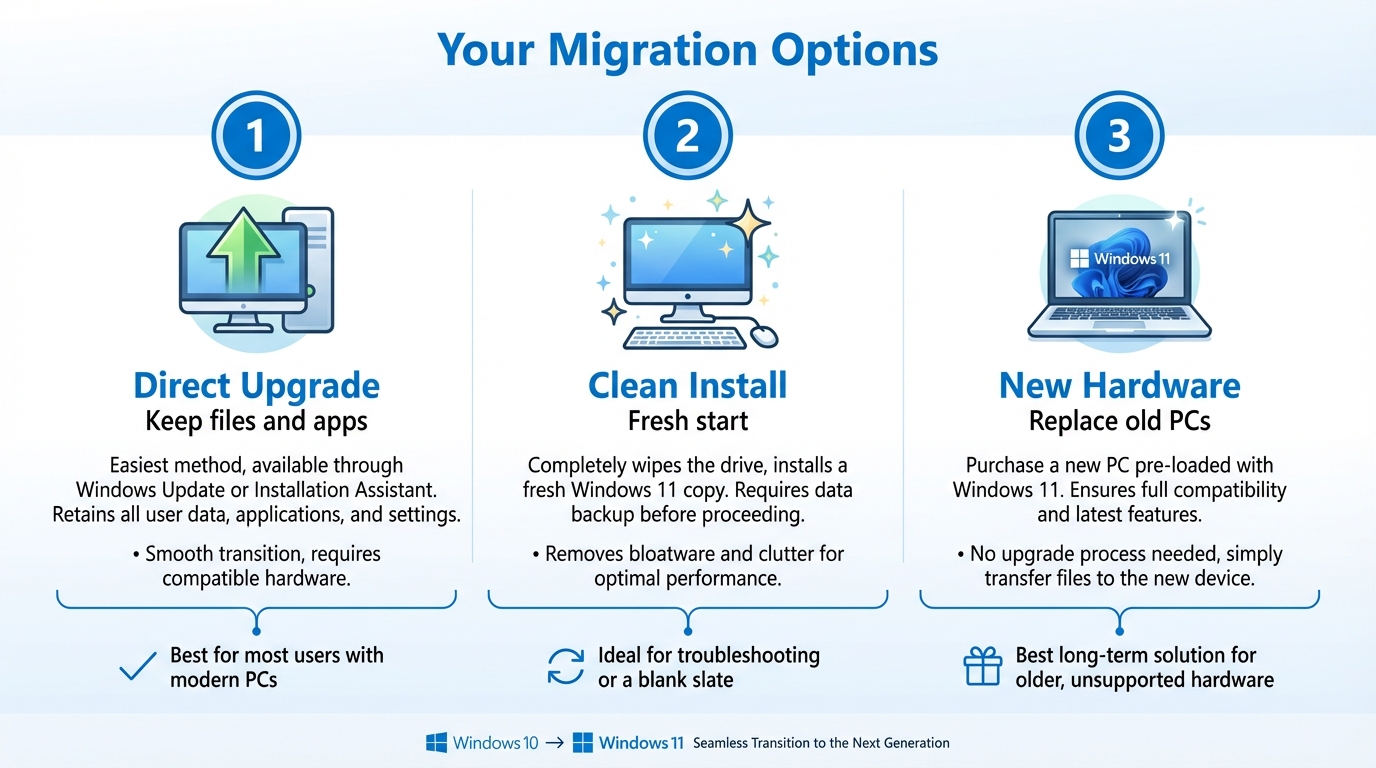
Option 1: Direct Upgrade (Compatible Hardware)
If your PC meets all Windows 11 requirements, you can upgrade directly:
- Back up your important data
- Go to Settings → Update & Security → Windows Update
- If eligible, you will see Upgrade to Windows 11 option
- Follow the prompts to complete the upgrade
Option 2: Clean Installation
For a fresh start or when upgrading from a different edition:
- Download the Windows 11 Installation Media from Microsoft
- Create a bootable USB drive
- Back up all your data
- Boot from the USB and perform a clean installation
- Activate with your Windows 11 license key
Option 3: Hardware Replacement
If your current PCs do not meet Windows 11 requirements, you will need to upgrade hardware. This is common for computers more than 5-6 years old that lack TPM 2.0 or have older processors.
Windows 11 Home vs Pro
For most home users, Windows 11 Home is sufficient. However, businesses typically need Windows 11 Pro for:
- BitLocker encryption - Full disk encryption for data protection
- Remote Desktop host - Allow remote connections to your PC
- Domain join - Connect to company Active Directory
- Group Policy - Centralized management and security settings
- Hyper-V - Built-in virtualization
If you are a business, freelancer, or power user, Windows 11 Pro is almost always the right choice.
How to Save Money on Windows 11 Licenses
Here is what most people do not realize: you do not have to pay Microsoft full retail price for Windows 11.
In the European Union, the resale of software licenses is completely legal. The EU Court of Justice confirmed this in 2012 (UsedSoft v Oracle, Case C-128/11). This means you can purchase genuine, pre-owned Windows 11 licenses at a fraction of the retail cost.
Price Comparison
| License Type | Microsoft Retail | Licendi (Used) | Savings |
|---|---|---|---|
| Windows 11 Home | EUR 145 | from EUR 39 | up to 73% |
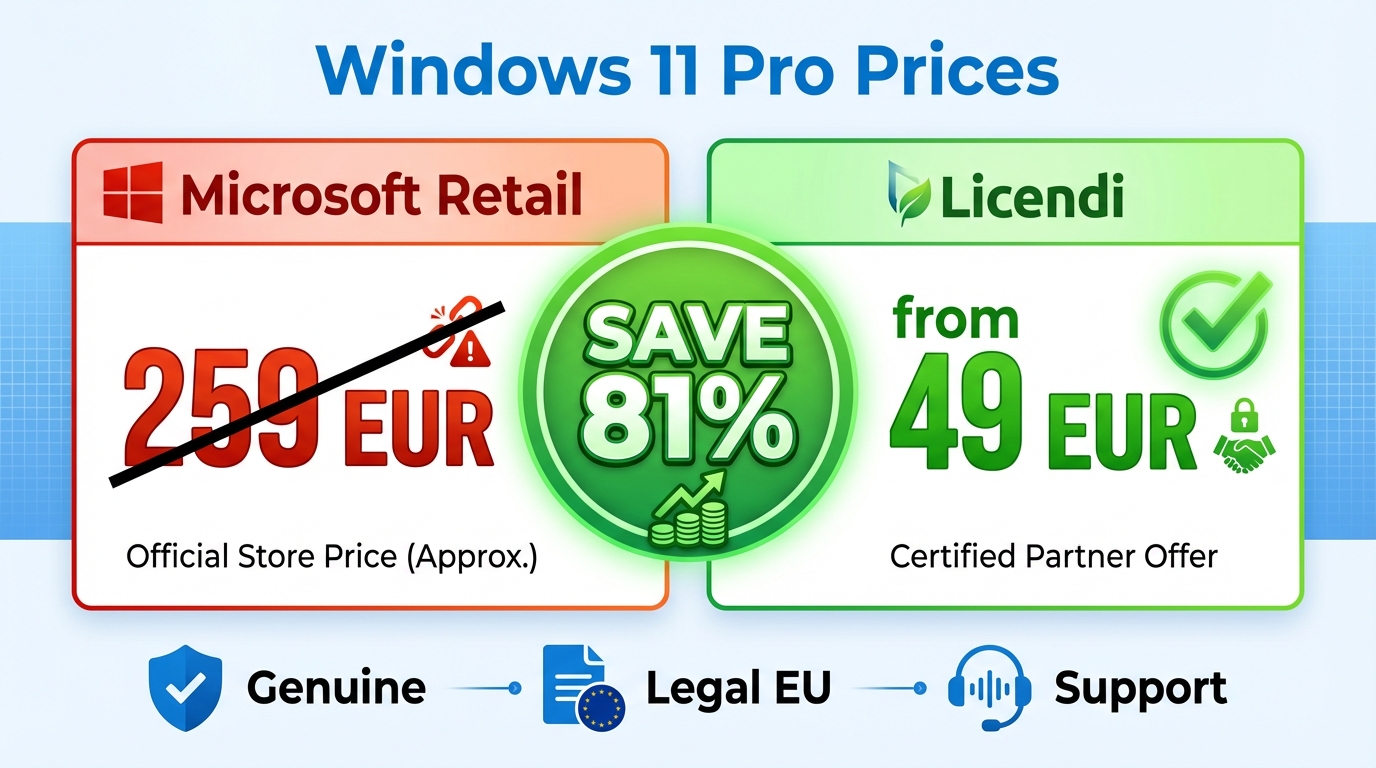
| Windows 11 Pro | EUR 259 | from EUR 49 | up to 81% |
For a company upgrading 50 PCs to Windows 11 Pro:
- Microsoft retail: EUR 12,950
- Licendi: approximately EUR 2,450
- Total savings: over EUR 10,000
Are Used Licenses Legitimate?
Yes, absolutely. Here is why you can trust used software licenses in the EU:
- Legal basis: EU Court of Justice ruling (UsedSoft v Oracle, 2012) established that software resale is legal
- Genuine licenses: These are real Microsoft licenses originally purchased by companies who no longer need them
- Full functionality: Same features, same updates, same security patches as retail licenses
- Audit-compliant: With proper documentation, used licenses pass Microsoft licensing audits
At Licendi, every license includes full legal documentation and chain of custody verification.
Step-by-Step Migration Checklist
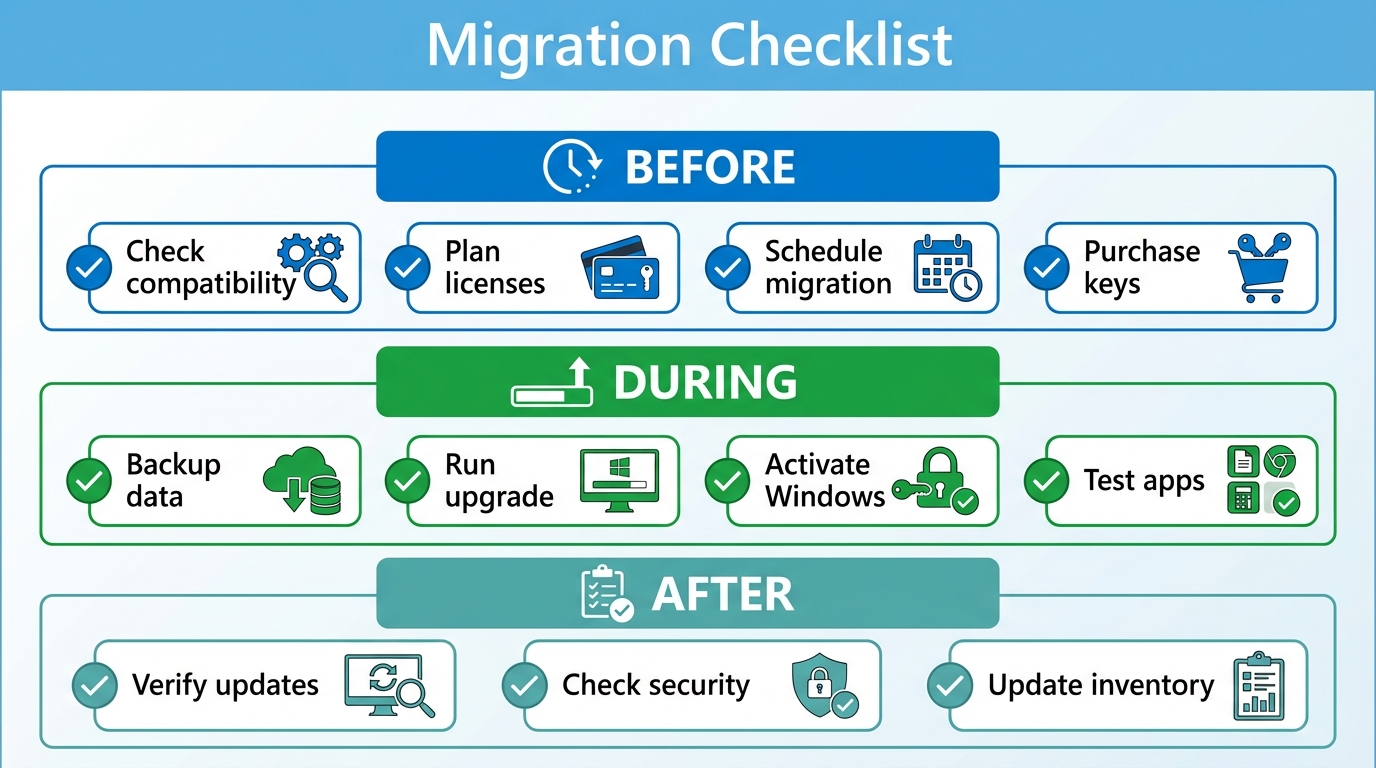
Before Migration
- Inventory all PCs and check Windows 11 compatibility
- Identify which machines need hardware upgrades or replacement
- Audit current software for Windows 11 compatibility
- Calculate license requirements (Home vs Pro)
- Purchase required licenses
- Plan migration schedule (we recommend waves of 20-30 machines)
During Migration
- Back up all user data before each upgrade
- Perform upgrade or clean install
- Activate Windows with license key
- Verify all applications work correctly
- Configure security settings (BitLocker, Windows Hello, etc.)
After Migration
- Confirm Windows Update is working
- Verify antivirus/security software is active
- Document any issues for remaining machines
- Update your IT asset inventory
Frequently Asked Questions
Can I still use Windows 10 after end of support?
Technically yes, but it is not recommended. Your system will continue to work, but without security updates, you are increasingly vulnerable to malware and ransomware.
Is the Windows 11 upgrade free?
If your PC came with Windows 10 and meets Windows 11 requirements, you may be eligible for a free upgrade to the same edition. However, upgrading from Home to Pro requires a license purchase.
How long will Windows 11 be supported?
Windows 11 follows Microsoft Modern Lifecycle Policy with annual feature updates. Each version is supported for 24 months (Home/Pro) or 36 months (Enterprise).
Take Action Now
Every day on Windows 10 is a day without security updates. The migration to Windows 11 does not have to be expensive or complicated.




