EN
EN FR
FR  DE
DE  IT
IT  PT
PT  ES
ES 


Microsoft Visio and Microsoft Project are two of the most powerful professional tools in the Microsoft ecosystem, but they serve very different purposes. While Visio specialises in creating diagrams, organisation charts and visual workflows, Project is designed to plan, manage and control complex projects with schedules, resources and budgets. In this comprehensive comparison guide we analyse both tools in depth to help you decide which one you need — or whether you need both.
What is Microsoft Visio
Microsoft Visio is Microsoft's professional diagramming tool, used by millions of professionals worldwide since 1992. It allows you to create visual representations of processes, systems, organisational structures and much more.
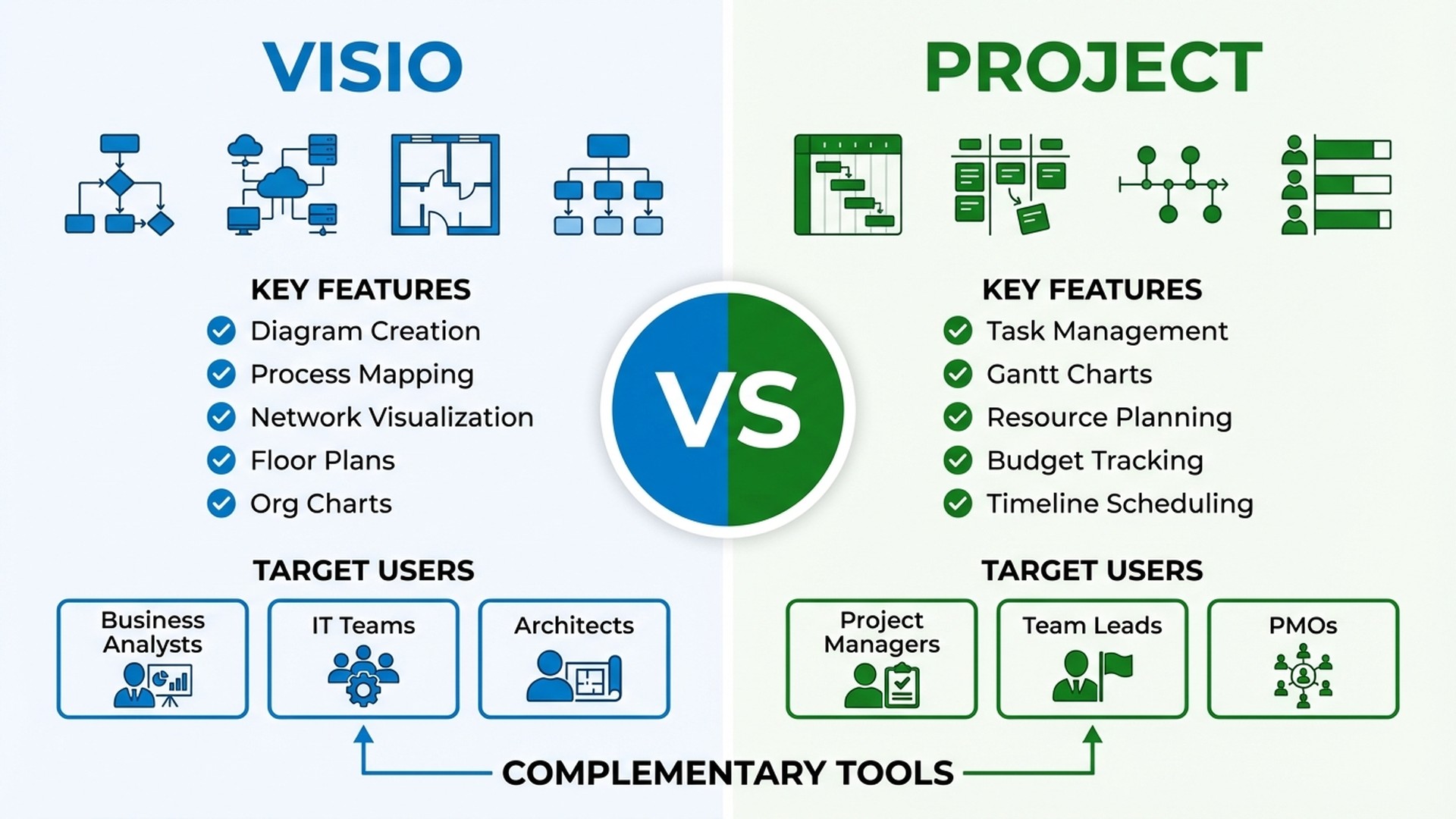
Key Features of Visio
- Flowcharts: Create workflow diagrams, business processes and BPMN (Business Process Model and Notation) diagrams with pre-built templates and drag-and-drop shapes.
- Organisation Charts: Generate company org charts that update automatically from data sources like Excel or Active Directory.
- Network Diagrams: Design network topologies, IT infrastructure architectures and server diagrams with specialised shapes.
- Floor Plans: Create office layouts, space plans and facility diagrams with precise measurements.
- UML Diagrams: Model software with class diagrams, sequence diagrams, use case diagrams and other UML standards.
- Process Maps: Document business processes with standard notation for audits, ISO certifications and continuous improvement.
- Data Linking: Connect diagrams to external data sources (Excel, SQL Server, SharePoint) for dynamic real-time visualisations.
Who is Visio For
Visio is the ideal tool for:
- Business analysts who need to document and optimise processes
- IT teams managing infrastructure who need network diagrams
- Architects and engineers creating technical plans and schematics
- Consultants presenting workflows and organisational structures to clients
- Quality teams documenting processes for certifications
What is Microsoft Project
Microsoft Project is the industry standard for project management, in use since 1984. It allows you to plan complete projects with tasks, dependencies, resources, costs and detailed schedules.
Key Features of Project
- Gantt Charts: Create visual timelines with task bars, milestones, dependencies and critical path. This is the default and most widely used view.
- Task Management: Define tasks, subtasks, estimated durations, start/end dates and percentage complete.
- Task Dependencies: Establish relationships (finish-to-start, start-to-start, finish-to-finish) to correctly model the project sequence.
- Resource Allocation: Assign people, equipment and materials to tasks, automatically detecting over-allocations and conflicts.
- Cost Tracking: Monitor budgets by task, resource and project phase, comparing planned vs actual costs.
- Baselines: Save snapshots of the original plan to compare actual progress against what was planned.
- Critical Path: Automatically identify the tasks that determine the minimum duration of the project.
- Reports and Dashboards: Generate visual reports on progress, costs, resources and project variances.
Who is Project For
Project is the ideal tool for:
- Project managers handling projects with multiple tasks and teams
- PMOs (Project Management Offices) overseeing project portfolios
- Team leads who need to assign and track work
- Construction managers in building and engineering
- Software development teams planning sprints and releases
Detailed Comparison: Visio vs Project
Purpose and Focus
This is the fundamental difference: Visio is a visualisation tool and Project is a management tool. Visio answers the question "what does this look like?" while Project answers "how do we execute this?"
With Visio you create a flowchart showing the steps of a hiring process. With Project you plan the tasks, assign responsible people, set deadlines and monitor that the hiring process is completed on time and within budget.
Project Management
Project is clearly superior for project management. It offers interactive Gantt charts, automatic critical path calculation, resource levelling and cost tracking. Visio can create basic timeline diagrams and simple schedules, but it has no scheduling engine or resource management.
Diagrams and Visualisation
Visio wins decisively in diagramming capability. With over 250,000 shapes and templates, it can create virtually any type of professional diagram. Project has visual views (Gantt, timeline, board), but these are limited to representing project data — you cannot create a network diagram or organisation chart with Project.
Microsoft 365 Integration
Both tools integrate with the Microsoft 365 ecosystem:
- Visio: Integrates with SharePoint, Teams, Power BI and Power Automate. Diagrams can be embedded in Teams documents and SharePoint pages.
- Project: Integrates with Teams, SharePoint, Power BI and Planner. Projects can be managed directly from Teams using the Project app.
- Together: Visio can import Project data to create custom visual representations of schedules, resources and statuses.
Learning Curve
Visio has a moderate learning curve — the drag-and-drop interface is intuitive, but mastering advanced features (data linking, macros, custom shapes) takes practice. Project has a steeper learning curve, especially for features like resource levelling, custom fields and earned value analysis.
Visio vs Project Comparison Table
| Feature | Visio | Project |
|---|---|---|
| Flowcharts | Excellent | Not available |
| Gantt Charts | Basic | Excellent |
| Organisation Charts | Excellent | Not available |
| Task Management | Not available | Excellent |
| Resource Management | Not available | Excellent |
| Network Diagrams | Excellent | Not available |
| Cost Control | Not available | Excellent |
| Floor Plans | Excellent | Not available |
| Critical Path | Not available | Excellent |
| External Data Integration | Excellent | Good |
| Real-time Collaboration | Yes (web) | Yes (web) |
| Templates Available | 250,000+ | 30+ |
When to Choose Visio
Choose Microsoft Visio if your work centres on visualising, documenting and communicating information graphically. Here are the scenarios where Visio is the right choice:
- Documenting business processes: If you need to map workflows for ISO certifications, internal audits or process improvement.
- Designing IT infrastructure: If you manage networks and need topology diagrams, rack layouts or cloud architectures.
- Creating organisation charts: If your HR department needs up-to-date org charts connected to real data.
- Presenting ideas visually: If you are a consultant or analyst who needs to communicate complex concepts clearly to stakeholders.
- Designing spaces: If you need office floor plans, warehouse layouts or facility diagrams.
When to Choose Project
Choose Microsoft Project if your work centres on planning, executing and controlling projects with multiple tasks, teams and deadlines. Here are the scenarios where Project is the right choice:
- Managing complex projects: If you handle projects with dozens or hundreds of interrelated tasks, critical dependencies and multiple phases.
- Allocating and managing resources: If you need to know who is available, detect over-allocations and balance workloads.
- Controlling budgets: If you need to track planned vs actual costs by task, resource and phase.
- Reporting progress: If you must generate progress reports for management, sponsors or project clients.
- Managing portfolios: If your PMO oversees multiple simultaneous projects and needs a consolidated view.
Can You Use Both Together
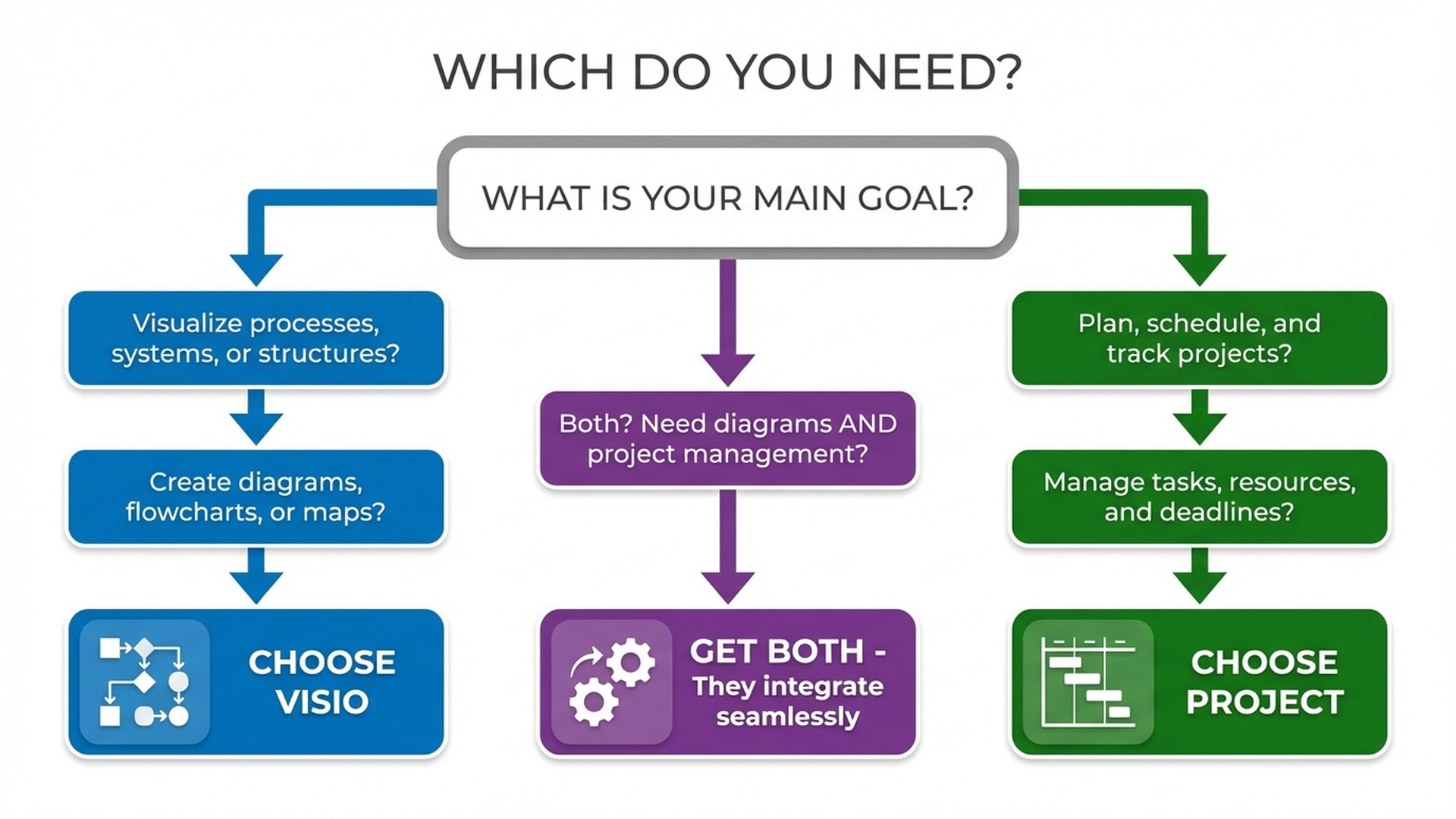
Yes, and in fact it is a very powerful combination. Visio and Project complement each other perfectly because they cover different needs within the same professional workflow.
Combined use cases:
- Plan and document: Use Project to create the project schedule and Visio to document the processes being executed within that project.
- Visualise Project data: Visio can connect to Project data to create custom visual representations of schedules, resources and statuses.
- Present to leadership: Use Project data for internal team tracking and Visio to create executive visual presentations.
- Certifications and audits: Project manages the certification process tasks, Visio documents the processes being certified.
Versions and Pricing 2024
Visio: Standard vs Professional
Visio Standard includes basic diagramming features: flowcharts, organisation charts and standard diagrams with default templates. It is sufficient for users who create diagrams occasionally.
Visio Professional adds advanced features: data linking to shapes, advanced network diagrams, BPMN diagrams, detailed floor plans, custom shape support and macros. This is the recommended option for professionals who use Visio regularly.
Project: Standard vs Professional
Project Standard includes task management, Gantt charts, cost tracking and basic report generation. It works as a standalone application without server connection.
Project Professional adds collaboration with Project Server/Project Online, advanced resource management, enterprise custom fields, approval workflows and SharePoint synchronisation. It is essential for teams and PMOs.
At Licendi you can find Visio licences and Project licences at prices up to 70% lower than Microsoft's direct pricing, with instant activation and support included.
Frequently Asked Questions
Does Visio include project management features like Project?
No. Visio can create basic timeline diagrams and simple schedules, but it has no scheduling engine, task management, resource allocation or cost tracking. For real project management you need Microsoft Project.
Does Project include diagramming tools like Visio?
No. Project has visual views (Gantt chart, Kanban board, timeline), but these are limited to representing project data. You cannot create flowcharts, organisation charts, network diagrams or floor plans with Project.
Do I need both programmes?
It depends on your role. If you are a project manager who also needs to document processes or create technical diagrams, yes. If you only need to manage projects, Project is enough. If you only need to create diagrams, Visio is enough. Many organisations purchase both licences for different teams.
Which is easier to learn?
Visio has a gentler learning curve thanks to its intuitive drag-and-drop interface. Project requires more training, especially for advanced features like resource levelling and earned value analysis.
Do they work on Mac?
Neither Visio nor Project has a native Mac desktop application. However, both are available as web versions (Visio for the web and Project for the web) that work in any browser, including on Mac. You can also use the desktop versions through Windows virtual machines or Parallels.
Conclusion: Which Is Better For You
The question is not really "Visio or Project" but "what do I need to do". They are complementary tools, not competitors:
- If you need to create diagrams, document processes and visualise systems → Visio Professional 2024
- If you need to plan projects, manage tasks and control resources → Project Professional 2024
- If you need both → purchase both licences and take advantage of their native integration
At Licendi you will find Visio licences and Project licences at unbeatable prices, with instant activation, technical support and a lifetime guarantee. Buy your licence today and start working in minutes.