EN
EN FR
FR  DE
DE  IT
IT  PT
PT  ES
ES 

Microsoft Office 2010 Migration Guide
The Microsoft Office productivity suite has accompanied millions of users for decades. However, keeping outdated versions poses an increasing risk. This comprehensive guide is designed for individual users, small and medium-sized businesses (SMBs), and IT administrators who wish to plan and carry out a safe and effective transition from Microsoft Office 2010 to more recent versions: Office 2019, Office 2021, and Office 2024. Throughout the guide, we explain the reasons for upgrading, the new features in each version, technical requirements, migration steps, and practical tips.
Why migrate from Office 2010
End of support and security risks
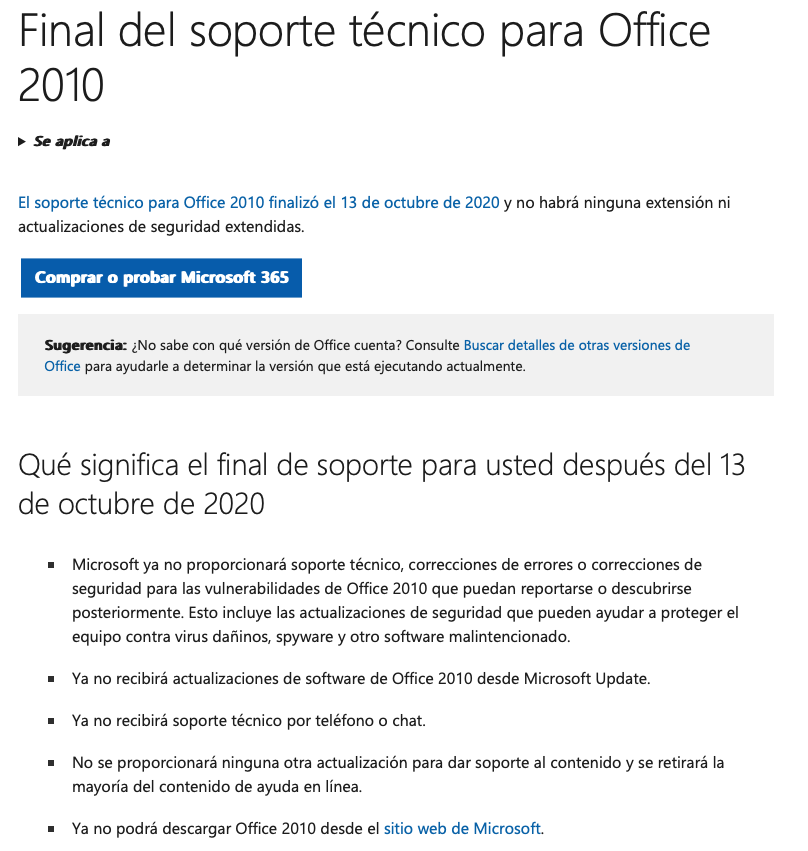
Microsoft officially ended extended support for Office 2010 on October 13, 2020. Since then, no security updates, bug fixes, or technical assistance have been provided.
Microsoft’s official page warns that once support ends, users no longer receive product updates, help content, or installation downloads. This means that any vulnerability discovered after that date remains unpatched, exposing systems to malware, ransomware, or phishing attacks.
Compatibility and functionality
Running office software that is fifteen years old causes compatibility issues with modern operating systems and new file formats. Documents created in Office 2010 can be opened in newer versions, but recent features (real-time co-authoring, dynamic formulas, or modern comments) are not available. In addition, many current add-ins and extensions are no longer compatible with Office 2010.
Performance and productivity
Older applications do not take advantage of improvements in modern hardware and 64-bit operating systems. The 2010 interface, while familiar, lacks accessibility enhancements and performance optimizations implemented in later editions. Remaining on an outdated version limits individual productivity and collaboration within organizations.
Regulatory compliance
Regulations such as the GDPR (General Data Protection Regulation) require organizations to adequately protect personal data. Running software without security updates may violate legal obligations. Upgrading to a supported version helps demonstrate due diligence and regulatory compliance.
Overview of versions 2019, 2021 and 2024
Office 2019
Office 2019 is the last perpetual license edition released before the 2021 generation. It stands out as a one-time purchase product (no subscription) aimed at users and businesses that need desktop applications and do not require continuous updates. Its main programs (Word, Excel, PowerPoint, and Outlook) have been modernized compared to 2010, although they lack some collaborative features. According to comparisons, Office 2019 does not include real-time co-authoring and lacks native integration with Microsoft Teams. Its mainstream support ends in October 2025.
Office 2021
Microsoft released Office 2021 in October 2021 as the successor to 2019. It retains the perpetual license model but introduces features previously found in Microsoft 365, such as real-time collaboration, Teams integration, and major improvements in Word and Excel. Word offers productivity tools like Line Focus, while Excel adds XLOOKUP and dynamic array functions. These enhancements improve collaboration and data analysis. Office 2021 will continue to receive security updates for several years; its support lifecycle extends at least until 2026.
 Microsoft Office 2021 Professional PlusAs low as €62.99
Office 2024
Office 2024 is the most recent desktop version at the time of writing this guide. It introduces the modernized “Fluent UI” interface, featuring a smoother ribbon, rounded corners, and a unified visual experience. It includes performance improvements that enable faster startups and smoother processing. The applications incorporate advanced features: Excel adds more data analysis tools (TEXTSPLIT, VSTACK, TOROW, WRAPCOLS, image insertion in cells); Word improves document review, modern comments, and ODF 1.4 support; PowerPoint offers Cameo (live video embedding) and a more robust recording studio. Office 2024 integrates closely with OneDrive and Teams, making real-time co-authoring and sharing easier. Although it retains one-time purchase options, some business prices have increased by up to 10%.
Hardware and operating system compatibility
Upgrading from Office 2010 requires checking that your devices meet the requirements of newer versions. Below are the main requirements for Windows and macOS.
Office 2019
Windows:
- Operating system: Windows 10 or Windows Server 2019.
- Processor: Dual-core CPU at 1.6 GHz or higher.
- RAM: 4 GB (2 GB for 32-bit versions).
- Storage: 4 GB of free space.
- Graphics: DirectX 9–compatible card with WDDM 2.0 driver (or WDDM 1.3 on Windows 10); for advanced graphics features such as Skype for Business, a GPU with at least 128 MB is required.
- Resolution: Display with at least 1280 × 768 pixels.
Mac:
- Operating system: The three most recent versions of macOS (macOS Monterey, Ventura, and later versions as of 2024).
- Processor: Intel processor or Apple silicon.
- Memory: 4 GB of RAM.
- Storage: 10 GB of available hard drive or SSD space.
- Resolution: At least 1280 × 800 pixels.
Office 2021
Windows:
- Operating system: Windows 10 or Windows Server 2019.
- Processor: 1.1 GHz or faster CPU with two cores.
- Memory: 4 GB of RAM.
- Storage: 4 GB of free space.
- Graphics: DirectX 9 with WDDM 2.0 driver.
- Display: Minimum 1280 × 768; 64-bit required for 4K resolutions.
Mac:
- Operating system: The three most recent versions of macOS.
- Processor: Intel or Apple silicon.
- Memory: 4 GB of RAM.
- Storage: 10 GB of free disk space.
- Resolution: 1280 × 768 pixels or higher.
Office 2024
The minimum and recommended specifications are more demanding in order to take advantage of the new features.
Minimum requirements (Windows):
- Operating system: Windows 10 64-bit or later.
- Processor: Dual-core at 1.6 GHz.
- Memory: 4 GB of RAM.
- Storage: 4 GB of free space.
- Graphics: DirectX 9 with WDDM 2.0 driver.
- Resolution: 1280 × 768.
Recommended requirements (Windows):
- Operating system: Windows 11.
- Processor: Quad-core at 2 GHz.
- Memory: 8 GB of RAM.
- Storage: SSD with at least 10 GB of free space.
- Graphics: GPU compatible with DirectX 12.
- Resolution: Full HD display.
Minimum requirements (macOS):
- Operating system: macOS Monterey or later.
- Processor: Intel Core i5 or Apple M1.
- Memory: 4 GB of RAM.
- Storage: 10 GB of free space.
- Resolution: 1280 × 800.
Recommended requirements (macOS):
macOS Ventura, Apple M1/M2 processor, 8 GB of RAM, and 15 GB of SSD space.
Importance of compatibility
Checking requirements not only ensures that Office runs properly but also affects performance and device longevity. One article highlights that meeting only the minimum requirements can lead to slow performance and stability issues; moreover, using an outdated operating system increases security risks and reduces device lifespan. For organizations, migration may be the ideal time to replace obsolete hardware or consider modern operating systems such as Windows 11.
Key feature comparison table
The following table summarizes the main differences between Office 2019, 2021, and 2024 in terms of licensing, support, new features, cloud integration, and system requirements.
| Feature | Office 2019 | Office 2021 | Office 2024 |
|---|---|---|---|
| License model | Perpetual license (one-time purchase) | Perpetual license | Perpetual or subscription; slightly higher prices for businesses |
| Support cycle | Mainstream support until Oct 2025 | Support until 2026 or later | Support until the next version (at least 2029) |
| System compatibility | Windows 10/Server 2019, recent macOS versions | Windows 10/Server 2019, recent macOS versions | Windows 10 (64-bit) or 11, and macOS Monterey or later |
| Key new features | Few compared to 2016; lacks real-time co-authoring and Teams | Co-authoring, Line Focus, XLOOKUP, dynamic arrays in Excel | Fluent UI interface, TEXTSPLIT, VSTACK, TOROW, Cameo, advanced recording, ODF 1.4 |
| Performance | Better than 2010 but limited | Efficiency improvements; faster open and save | Faster startup and smoother operation |
| Cloud integration | No native integration; optional OneDrive use | Integration with OneDrive and Teams for co-authoring | Deep integration with OneDrive/Teams, real-time collaboration, and modern comments |
| Security | Limited updates; ends in 2025 | Longer support cycle; enhanced encryption | Advances in encryption, granular control, and auditing |
| Minimum/recommended requirements | 1.6 GHz, 4 GB RAM, Windows 10 | 1.1 GHz, 4 GB RAM, Windows 10 | 64-bit, 1.6 GHz (min.), 4 GB RAM; recommended 8 GB RAM and Windows 11 |
| User focus | Conservative organizations seeking to avoid subscriptions | Users wanting new features without a subscription | Organizations and users wanting the latest features and better integration with Microsoft 365 |
Recommended migration steps
A successful transition from Office 2010 requires careful planning and execution. The following stages are recommended to minimize risks.
1. Assess infrastructure and plan
Inventory and compatibility: The first step is to analyze the IT infrastructure and installed software. A Brytesoft article recommends evaluating hardware, operating systems, and existing applications to identify incompatibilities. Check the Windows/macOS version, storage capacity, memory, and compatibility with Office 2019/2021/2024 requirements. Custom macros and add-ins should be tested in controlled environments to ensure they function properly in the new version.
Planning and schedule: Define a realistic timeline that considers the time needed to prepare devices, back up data, install the new software, and train users. Planning should include resource allocation (personnel, budget, licenses) and prioritization of critical departments or teams. For SMEs, dividing the migration into batches can help avoid workflow interruptions.
2. Back up data and prepare the migration
Backup: Before installing a new version, back up all essential data, including documents, templates, macros, and Outlook emails. Experts emphasize the importance of “back up, back up, back up” to avoid data loss. For Outlook, export .pst files; a Microsoft Q&A thread highlights that newer versions often detect accounts and .pst files automatically, but keeping a copy allows restoration in case of errors.
Check macro and add-in compatibility: Many organizations use VBA macros or third-party add-ins to automate processes. Before migrating, test these solutions in the target version. Some functions may require refactoring due to programming object changes. In complex cases, consider keeping a virtual machine with Office 2010 for specific compatibility needs.
Evaluate file conversion: Older documents (.doc, .xls, .ppt) work in current versions under compatibility mode but do not leverage new features. An article warns that bulk conversion can cause formatting issues and consume time; therefore, convert only when necessary and always work with backup copies.
3. Run pilot tests
Before deploying the new suite across the organization, a pilot program is recommended. According to Brytesoft, migration should be implemented gradually, starting with a small group of users or one department. The pilot phase helps identify compatibility issues, measure performance impact, and gather user feedback on the new interface and features. Adjust procedures based on these results.
4. Deploy the new version
License acquisition: Obtain the appropriate licenses (perpetual or Microsoft 365 subscription). Modern licenses are usually tied to a Microsoft account; verify product keys and activate them at the appropriate time.
Installation: For individual users, installation is done via an installer downloaded from the Microsoft website or physical media. During setup, you may choose to retain existing configurations; the Office 2019 and 2021 installers allow keeping preferences and mail accounts. Although it’s possible to keep Office 2010 installed, it’s recommended to uninstall it after migration to avoid conflicts.
Initial configuration: Once installed, open each application so it can load add-ins and update file schemas. Outlook will detect existing accounts and find .pst files automatically. If data isn’t imported, use Outlook’s “Open & Export” option to point to the backup .pst file. For users migrating to Office 2021 or 2024, signing in with a Microsoft or corporate account is required to enable OneDrive/SharePoint synchronization.
Security updates: Configure the suite to receive automatic security updates. Enable Protected View for downloaded documents and adjust macro settings according to your organization’s policy.
5. Verification and validation
After installation, test all applications to ensure they function correctly and that documents open without errors. Pay special attention to:
- Opening and saving Word, Excel, and PowerPoint files.
- Functionality of macros and add-ins.
- Email flow and calendar synchronization in Outlook.
- Access to OneDrive or SharePoint and real-time co-authoring (for 2021 and 2024).
Conduct a performance review to ensure that hardware meets expectations. If slowness occurs, consider upgrading RAM or migrating to a device with an SSD.
6. Training and adoption
Resistance to change can be a challenge, especially for companies that have used the same interface for years. Brytesoft notes that a communication and training plan is essential to ensure adoption of Office 2024. Implement training sessions, user guides, webinars, and Q&A spaces. Use incentives to motivate employees to adopt new tools and gather continuous feedback to refine the process.
7. Continuous management
After migration is complete, establish a maintenance plan. Ensure devices receive security updates and consider upgrading to Microsoft 365 or future versions later on. Monitor license usage and participation in collaboration tools. For administrators, maintain a record of migrated macros, compatible add-ins, and security policies.
Specific tips for different user types
Individual users and freelancers
- Choose the right version: If you work independently and prefer a one-time purchase, Office 2019 remains a valid option until 2025. However, if you collaborate with clients or colleagues in real time and want the new Excel and Word features, choose Office 2021 or 2024.
- Prepare your PC or Mac: Check available memory and storage space. Consider upgrading to Windows 10/11 or the latest version of macOS to ensure compatibility.
- Manage personal files: Organize your documents before migration. Sort old projects and decide which ones need to be converted to the new format. Back up important photos and emails.
- Explore new features: Learn about new capabilities like XLOOKUP, dynamic arrays, modern comments, and co-authoring. Use OneDrive to sync files across devices.
Small and medium-sized businesses (SMEs)
- Phased planning: Divide the migration by departments or groups to minimize disruption. Teams that rely less on macros can migrate first.
- Budget and licensing: Evaluate whether a Microsoft 365 subscription is more cost-effective in the long run (continuous updates) or if a perpetual purchase is preferable. Keep in mind that Office 2024 may have a price increase for organizations.
- Security policies: Define macro and add-in settings. Enable advanced security features like those available in Office 2024 (enhanced encryption, granular control, and auditing).
- Employee training: Schedule training sessions to showcase the new interface and collaboration tools. Encourage the use of Teams and OneDrive to enhance internal communication.
- Technical support: Assign an IT manager or hire a provider to resolve issues during the transition. Document procedures for future reinstallations.
IT administrators
- Detailed compatibility analysis: Conduct hardware and software inventories. Identify obsolete devices and plan upgrades. Verify the compatibility of add-ins, templates, and macros; rework solutions that use deprecated APIs.
- Development of migration procedures: Document every step: backup, uninstallation of old versions, installation of new versions, and configuration of policies. Define automated installation scripts (for example, using Microsoft Endpoint Configuration Manager) to streamline deployment across multiple devices.
- Communication and support: Coordinate with departments to schedule pilot tests and training sessions. Establish a support channel for questions and issues. Brytesoft recommends offering incentives and a change management plan.
- Post-migration monitoring: Set up monitoring tools to track license usage, application performance, and security incidents. Apply updates and patches regularly.
- Future planning: Technology evolves quickly; consider transitioning to Microsoft 365 Apps for continuous updates or, at minimum, prepare for the next Office version after 2024.
Additional benefits of recent versions
In addition to solving security and compatibility issues, the 2019, 2021, and 2024 versions bring improvements that can significantly boost productivity:
Collaboration and co-authoring
Since Office 2021, users can co-edit documents in real time in Word, Excel, and PowerPoint—similar to the Microsoft 365 experience. Moreover, integration with Microsoft Teams allows starting chats or meetings directly from within the applications. Office 2024 enhances collaboration with modern comments and faster synchronization.
Data analysis and advanced functions
Excel 2021 introduced XLOOKUP and dynamic arrays, simplifying data analysis. Excel 2024 goes further with functions like TEXTSPLIT, VSTACK, TOROW, WRAPCOLS, and image insertion within cells. These tools allow creating powerful formulas with less effort.
Presentations and communication
PowerPoint 2024 includes Cameo, which allows inserting a live video feed from the user’s camera directly into slides, and a recording studio for creating narrated presentations. Additionally, real-time subtitles have been added to improve accessibility.
Productivity and accessibility
Office 2024 includes accessibility enhancements: tools to review title inclusion, alternative text for images, improved screen reader compatibility, and a more user-friendly reading mode. Overall performance has also been optimized with more efficient code, reducing load times and unexpected crashes.
Security and control
The latest versions include advanced encryption, granular permission control, digital rights management, and audit logs. These tools help organizations meet legal requirements and protect sensitive information.
Licensing and cost considerations
The choice between perpetual licenses (Office 2019/2021/2024) and subscriptions (Microsoft 365) depends on needs and budget. Perpetual licenses require a one-time payment and allow indefinite use of that version, but they do not receive new features—only security updates during the support lifecycle. Microsoft 365 Apps, on the other hand, provides continuous updates and cloud services but requires a recurring payment. For organizations with many users, Microsoft 365 can offer cost savings and greater flexibility; for individuals or small businesses with limited budgets and basic needs, a perpetual license may be sufficient.
Office 2024 retains the perpetual license option, but commercial prices have increased by approximately 10% for some editions. Consumer editions maintain a similar price to Office 2021. Analyze long-term costs and keep in mind that perpetual licenses must be renewed when support ends.
Frequently asked questions and common issues
Can I upgrade directly from Office 2010 to Office 2024?
Yes. You can purchase an Office 2024 license and install it directly. It is recommended to uninstall Office 2010 afterward to avoid conflicts. The installer will detect Office 2010 documents and open them in compatibility mode. Remember to back up your data before starting the process.
Will I lose my Outlook settings and accounts?
During the installation of Office 2019 or 2021, there is an option to preserve your settings and preferences. The newer versions usually detect existing email accounts and .pst files automatically. However, always back up your emails and rules in case something goes wrong.
Can I keep Office 2010 and 2021 installed on the same device?
It is technically possible to install two versions side by side, but Microsoft does not recommend it. Running simultaneous versions may cause conflicts with file associations, add-ins, and updates. The best practice is to uninstall the older version once all data works properly in the new one.
What happens to custom macros and add-ins?
VBA macros and add-ins may need adjustments to function in newer versions. Test all scripts in a sandbox or test environment before migrating. Some incompatible add-ins will need to be replaced with updated or alternative versions.
Do I need a permanent Internet connection?
Perpetual licenses of Office 2019, 2021, and 2024 work offline, although Internet access is required for activation and security updates. If you use real-time co-authoring, Teams, or OneDrive, an Internet connection is necessary.
Conclusion
Migrating from Microsoft Office 2010 to newer versions is not just about having the latest features—it’s a necessity to ensure security, compatibility, and productivity. The end of support for 2010 left users without patches, updates, or assistance, exposing them to vulnerabilities and performance issues. Office 2019 offers a secure transition for those who prefer a one-time purchase but lacks some collaborative tools; Office 2021 adds co-authoring, new formulas, and performance improvements; Office 2024 introduces a refreshed interface, better cloud integration, and expanded analysis and collaboration capabilities.
The key to a successful migration lies in careful planning, thorough backups, and controlled testing. Adopting the latest versions not only eliminates security risks but also provides modern tools that enhance efficiency and collaboration. IT administrators should lead the process, train users, and ensure the organization fully leverages the new features. For individuals and small businesses, the effort of upgrading is rewarded with a smoother, safer, and more modern work experience.