EN
EN FR
FR  DE
DE  IT
IT  PT
PT  ES
ES 

How to Resolve Error 0x80072F8F in Windows Update
Error 0x80072F8F is one of the most frustrating problems you can encounter when trying to update Windows. This error means Windows Update can't connect safely to Microsoft's servers. This stops your system from getting important security updates and new features. If you've arrived here looking for a solution, you're in the right place, and we'll help you resolve this issue.
This guide will explain what the error means, why it happens, and how to fix it step-by-step. We've gathered proven solutions from tech experts to help you update Windows again. Whether you use your computer for daily tasks or manage many systems, you'll find the help you need to fix this problem once and for all.
What is Error 0x80072F8F and Why It Appears
Error 0x80072F8F means Windows can't make a secure connection. It happens when your computer can't check the digital certificates needed to talk safely with Microsoft's update servers. Simply put, your computer can't be sure it's talking to the right Microsoft server. So, for your safety, it stops the connection to protect your system.
This error can show up in different ways:
- When trying to download updates through Windows Update.
- When trying to activate Windows or Microsoft Office.
- When accessing the Microsoft Store to download apps.
- When trying to sync the system time with internet servers.
The error code is the same, but the reasons for it can be different depending on your computer's setup.
This error usually doesn't mean your computer has a serious problem. Most often, it's a setting issue that you can fix easily. But if you ignore this error and don't update, your system could be at risk. So, it's important to fix it quickly.
Main Causes of Error 0x80072F8F
Knowing why this error happens helps you fix it faster. Here are the most common reasons for this problem on Windows:
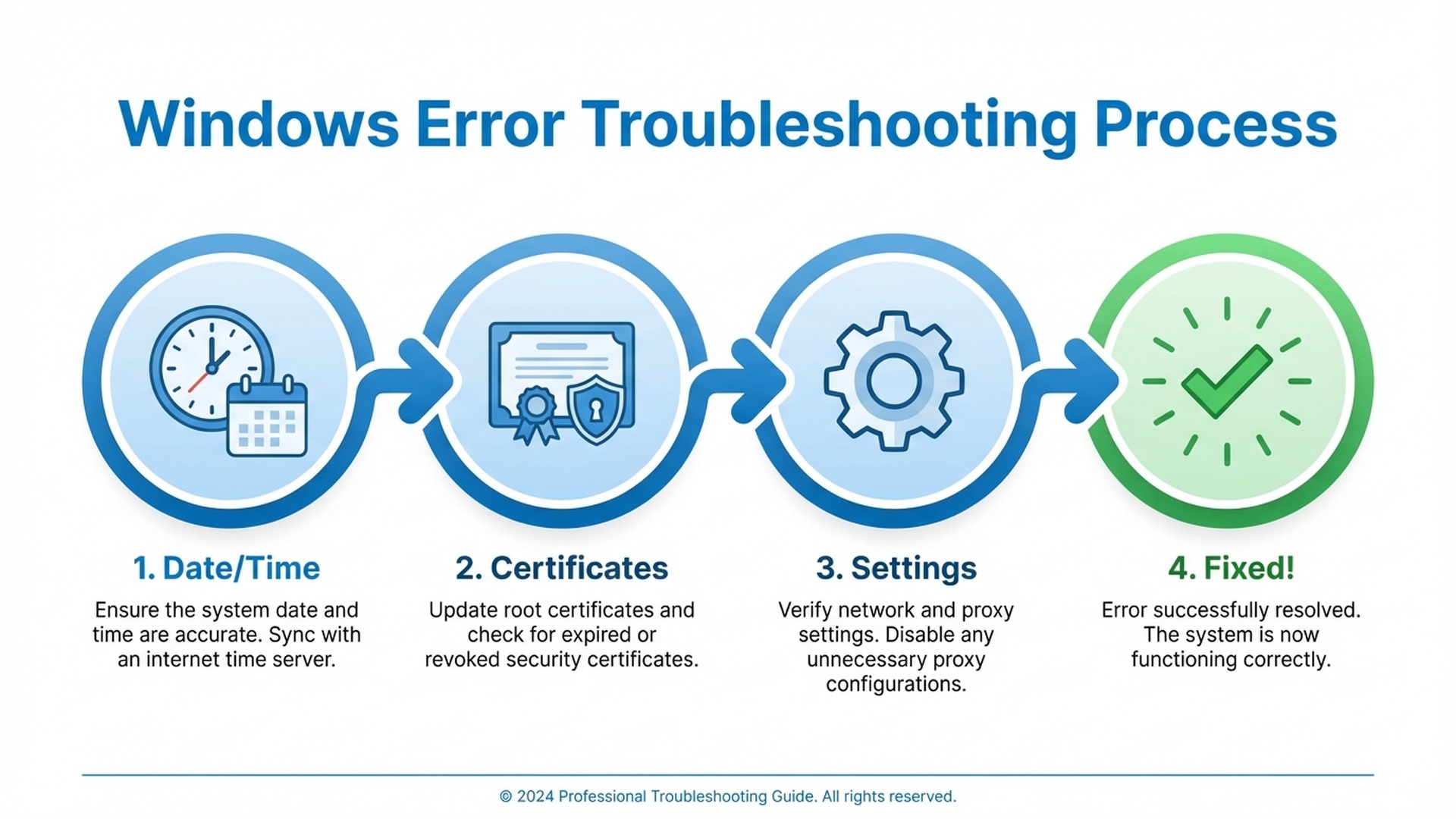
- Incorrect system date and time: This is the most common reason, causing about 70% of these errors. Secure certificates have a start and end date. If your computer's date is wrong (too old or too new), these certificates will look invalid. Even a small time difference can cause issues. This often happens with computers that have been off for a while or have a bad motherboard's CMOS battery.
- Outdated or damaged root certificates: Windows uses special "root certificates" to make sure secure connections are real. If these certificates are old, missing, or damaged, your system can't check connections to Microsoft servers. This then causes error 0x80072F8F.
- Proxy or firewall interference: Your network settings, especially in workplaces, can block secure connections. Strong firewalls, wrong proxy settings, or other security programs can stop Windows from connecting to Microsoft's update servers. This is common in offices with strict security rules.
- Malware or malicious software: Some harmful software (malware) can change your network settings or certificates. This can stop your computer from checking real certificates and cause error 0x80072F8F. If you think you have malware, scan your system fully before trying other fixes.
- System file corruption: Damaged system files or Windows registry problems can stop Windows Update from working right, leading to error 0x80072F8F. This can happen from bad shutdowns, hard drive issues, interrupted updates, or faulty software.
Solution 1: Correct System Date and Time
As we said, wrong date and time is the most common cause of this error. It's easy to fix and should be your first step before trying more complex methods.
Check and Adjust Date and Time Manually
To check and change date and time settings in Windows 10 and 11, follow these steps:
- Right-click on the clock in the taskbar (bottom right corner).
- Select "Adjust date and time" from the menu.
- In the Settings window, make sure "Set time automatically" is on.
- Also, turn on "Set time zone automatically" if you see it.
- If the time is still wrong, turn off the automatic option. Then, click "Change" under "Set the date and time manually."
- Enter the correct date and time, then click "Change."
Synchronize with an Internet Time Server
If automatic time doesn't work or often goes out of sync, you can force a manual sync with an official time server:
- Open the classic Control Panel (search for "Control Panel" in the Start menu).
- Go to "Clock and Region," then click "Date and Time."
- In the window that appears, click the "Internet Time" tab.
- Click the "Change settings" button (you might need admin rights).
- Make sure "Synchronize with an Internet time server" is checked.
- Select "time.windows.com" as the main server, or "time.nist.gov" as a backup.
- Click "Update now" to force an immediate sync.
- If it works, you'll see a message. Click "OK."
If the time keeps going wrong, your computer's CMOS battery might be low. This small battery on the motherboard keeps the date and time when your computer is off. Older computers might need a new battery, which is a simple and cheap fix for a technician.
Solution 2: Update System Root Certificates
If the date and time are correct but the error is still there, check if your system's root certificates are updated. These certificates are key for Windows to trust secure connections and check server identities.
Update Certificates via Windows Update
Normally, Windows Update updates root certificates automatically. But this is a problem if Windows Update isn't working. If you can't use Windows Update, you can download and install the root certificate update manually from Microsoft's website. You might need another computer to download the files.
Manually Install Root Certificates via Command Line
If you're comfortable with advanced steps, you can update certificates using the Windows command line. This can be very helpful for tough problems:
- Open Command Prompt as administrator (search for "cmd" in Start, right-click, select "Run as administrator").
- Run this command to download the latest root certificates from Microsoft:
certutil -generateSSTFromWU roots.sst - Wait for the download to finish. This may take a few minutes.
- Once downloaded, import the certificates with this command:
certutil -addstore -f root roots.sst - You should see a message saying the certificates were added.
After updating, restart your computer. Then, try Windows Update again to see if the error is gone.
Solution 3: Check and Adjust Proxy and Firewall Settings
Complex network settings can stop Windows Update from connecting. If you're on a work network, use a proxy, or have other security software, this might be the problem.
Reset Proxy Settings to Default Values
To check and reset the proxy settings that Windows Update uses:
- Open Command Prompt as administrator (as described above).
- Run the command:
netsh winhttp reset proxy - This command will reset the WinHTTP proxy settings (used by Windows Update) to their default.
- You can also check the current settings with:
netsh winhttp show proxy
Check Windows Firewall Settings
Make sure Windows Defender Firewall isn't blocking Windows Update connections:
- Open Windows Settings (press Windows + I keys).
- Go to "Privacy & security," then select "Windows Security."
- Click on "Firewall & network protection" to open firewall settings.
- To test, you can turn off the firewall for a short time to see if it's causing the issue.
- If Windows Update works with the firewall off, you'll need to add exceptions for the update services.
- Remember to turn the firewall back on right after testing.
If you use other antivirus software with its own firewall, try turning it off temporarily for this test. Always turn all security back on after testing.
Solution 4: Run the Windows Update Troubleshooter
Windows has a built-in tool to find and fix many common Windows Update problems automatically. You don't need advanced tech skills for this.
Use the Windows Built-in Troubleshooter
- Open Windows Settings (press Windows + I keys).
- Go to "System," then click on "Troubleshoot."
- Click on "Other troubleshooters" to see the full list.
- Find "Windows Update" and click "Run" next to it.
- The troubleshooter will start looking for known issues.
- Follow the on-screen steps and apply any suggested fixes.
This tool can fix issues like stopped Windows Update services, damaged update files, or wrong settings that block connections to Microsoft's servers.
Solution 5: Reset Windows Update Components
If other fixes haven't worked, you might need to reset Windows Update parts to their original state. This is a more advanced step using the command line, but it's very good at fixing stubborn problems.
Complete Windows Update Reset Procedure
Open Command Prompt as administrator and carefully run these commands in order:
- First, stop all Windows Update related services:
net stop wuauservnet stop cryptSvcnet stop bitsnet stop msiserver - Rename the cache folders to force new ones to be created:
ren C:\Windows\SoftwareDistribution SoftwareDistribution.oldren C:\Windows\System32\catroot2 catroot2.old - Restart all the services we stopped earlier:
net start wuauservnet start cryptSvcnet start bitsnet start msiserver
After running these commands, restart your computer and try Windows Update again. This makes Windows create new, clean update files and download all update info fresh. This often fixes problems caused by old or damaged data.
Solution 6: Repair System Files with SFC and DISM
Damaged system files can cause many Windows problems, including error 0x80072F8F. Luckily, Windows has strong tools to check and fix these files.
Run System File Checker (SFC)
- Open Command Prompt as administrator.
- Run the command:
sfc /scannow - Wait patiently for the scan to finish. This can take 15 minutes to an hour.
- If it finds problems, it will try to fix them using backup copies of files.
- When done, check the result to see if problems were found and fixed.
Run DISM to Repair the System Image
If SFC can't fix all problems, or reports damaged files it couldn't repair, use the more powerful DISM tool:
- In Command Prompt as administrator, first run:
DISM /Online /Cleanup-Image /CheckHealth - Then run a deeper scan:
DISM /Online /Cleanup-Image /ScanHealth - And finally, to repair any problems found:
DISM /Online /Cleanup-Image /RestoreHealth
The RestoreHealth command can take a long time, sometimes an hour or more on slower computers. Be patient and do not stop it, as this could cause more problems.
Solution 7: Check the System for Malware
Malware can change your network settings and certificates in ways you might not notice. This can cause errors like 0x80072F8F. It's important to do a full system scan to check for this.
Use Windows Defender or Your Preferred Antivirus
- Open Windows Security (search for it in the Start menu).
- Go to the "Virus & threat protection" section.
- Click on "Scan options" to see all scan types.
- Select "Full scan" for a thorough check of all system files.
- Click "Scan now" and wait for the scan to finish.
Also, run another scan with Malwarebytes or another trusted tool for a second check. Different tools can find threats that others miss.
The Critical Importance of Keeping Windows Updated
Fixing error 0x80072F8F is more than just getting rid of an annoying message. Windows updates are vital for your system's safety, your personal data, and your privacy online. Each month, Microsoft releases fixes for security flaws. Cybercriminals can use these flaws to steal your bank details, install ransomware (which locks your files), or harm your system in other ways.
Reports show that old systems are much more open to all kinds of computer attacks. Microsoft's 2025 security report says over 60% of successful attacks on Windows use flaws that already had fixes available. This means most attacks could have been stopped just by keeping systems updated. Updating your system is one of the easiest and best ways to protect yourself.
Secure Your System with a Genuine Windows License
To get all security updates and Windows features without issues, you need a real Windows license. Systems not properly activated might have limited updates, no full Microsoft support, and annoying watermarks that slow you down.
At Licendi, we sell real Windows 11 Pro licenses and other versions at great prices for any budget. All our licenses are real and legal. You get them instantly by email to activate your system in minutes, plus Spanish tech support for any questions. Buying a real Windows license means you get security, top performance, and peace of mind knowing your computer is safe.
At Licendi you'll find original Windows licenses with up to 70% discount off Microsoft's official price. Immediate email delivery, lifetime guaranteed activation, and dedicated technical support. Don't risk your computer's security.
Frequently Asked Questions About Error 0x80072F8F
Does error 0x80072F8F only appear in Windows Update?
No, while it's most common in Windows Update, this error can also show up when activating Windows or Office, using the Microsoft Store, or syncing time. The main reason is always the same: a problem checking secure certificates, which stops a safe connection.
Can this error indicate that my computer has a virus or malware?
It's possible, but not the most common cause. Some advanced malware can change system settings or certificates to spy on your computer. This can cause the error. If other fixes don't work, do a full scan with antivirus and anti-malware tools to check for infection.
Why do incorrect date and time cause this error?
Secure certificates (SSL/TLS) have specific start and end dates. If your computer's date is set outside this valid period (either too early or too late), the certificate will seem invalid or expired, even if it's actually fine for the real date.
Do I need to be an administrator to apply these solutions?
Most fixes in this guide need administrator rights. This is especially true for using command line tools, changing Windows settings, or editing the registry. If you use a work computer, you might need to ask your IT department for help.
What do I do if none of these solutions work?
If no solutions work, you have other choices. You can repair Windows using Microsoft's tool, which reinstalls system files but keeps your documents and apps. As a last resort, a clean Windows install will fix any OS problem, but you'll need to reinstall all your apps.
Conclusion: Resolve Error 0x80072F8F and Stay Protected
Error 0x80072F8F can be frustrating when it stops your system from updating. But as this guide shows, it can be fixed. Most often, fixing the system date and time solves the problem in seconds. If that quick fix doesn't work, the other step-by-step solutions cover almost all possible causes, from updating certificates to resetting Windows Update parts.
Remember, keeping Windows updated is key for your personal data, money info, and online privacy. Don't let a tech error stop you from protecting your computer from new threats. Follow this guide step-by-step, and Windows Update will be working again soon.
If you need a real Windows license for best performance and protection, visit Licendi. We offer great deals on original software with guarantees, fast delivery, and support. Your OS should work its best, and we help you get that at a great price.