EN
EN FR
FR  DE
DE  IT
IT  PT
PT  ES
ES 


Complete Guide to Excel Keyboard Shortcuts
Mastering keyboard shortcuts in Microsoft Excel can radically transform your productivity. If you spend hours working with spreadsheets, every second counts. Professionals who regularly use keyboard shortcuts can complete tasks up to 30% faster than those who rely exclusively on the mouse. In this comprehensive guide, we present over 150 key combinations that will turn you into a true Excel expert.
Whether you're a financial analyst, project manager, student, or simply someone who needs to organize data efficiently, keyboard shortcuts are a fundamental skill you must master. Throughout this article, we'll explore everything from the most basic commands to the advanced combinations used by professional users.
This guide is organized by categories to facilitate your learning. We recommend bookmarking this page and consulting it whenever you need to remember a specific shortcut. With consistent practice, these commands will become a natural part of your workflow.
Why keyboard shortcuts are essential in Excel
Before diving into the complete list of shortcuts, it's important to understand why dedicating time to learning them represents a smart investment. According to workplace productivity studies, office workers spend an average of 8 hours per week using spreadsheets. Reducing the time for each operation, even by fractions of a second, translates into hours saved per month.
The main benefits of using keyboard shortcuts include:
- Greater work speed: Executing commands without moving your hand from keyboard to mouse eliminates interruptions in workflow. A study from Bryn Mawr University showed that users who master keyboard shortcuts complete office tasks 25% faster than those who primarily use the mouse.
- Less physical fatigue: Reducing mouse use decreases the risk of repetitive strain injuries like carpal tunnel syndrome. Ergonomists recommend minimizing repetitive movements between keyboard and mouse to prevent musculoskeletal discomfort.
- Greater precision: Shortcuts execute exact commands without the risk of clicking in the wrong place. This is especially important when working with large datasets where a selection error can have significant consequences.
- Professional appearance: Mastering shortcuts demonstrates technical competence in work environments. During presentations or collaborative work, using shortcuts projects an image of expertise and efficiency.
- Less distraction: By not having to search for options in menus, you maintain focus on the task at hand. This improves work quality and reduces errors due to distraction.
To get the most out of Excel and its features, it's recommended to have an official Microsoft Excel license, which guarantees access to all features and security updates.
Fundamental navigation shortcuts
Efficient navigation through spreadsheets is the foundation of any work in Excel. These shortcuts allow you to move quickly between cells, sheets, and workbooks without using the mouse. Mastering these commands is the first step to becoming an advanced user.
Basic cell movement
Movement shortcuts are probably the ones you'll use most frequently. Learning them well will save you countless hours throughout your professional career:
- Arrow keys: Move one cell in the indicated direction. It's the most basic but fundamental movement.
- Ctrl + Right/Left Arrow: Jump to the edge of the current data range in the horizontal direction. Extremely useful for navigating large tables.
- Ctrl + Up/Down Arrow: Jump to the edge of the current data range in the vertical direction. Combined with the above, allows you to instantly move to any corner of your data.
- Ctrl + Home: Takes you directly to cell A1. Perfect for quickly returning to the beginning of your sheet.
- Ctrl + End: Positions you at the last cell with data in the sheet. Ideal for verifying the extent of your data.
- Page Up / Page Down: Scrolls one full screen up or down. Useful for visually reviewing data.
- Alt + Page Up / Page Down: Scrolls one screen left or right. Complements vertical navigation.
- Ctrl + Backspace: Scrolls the view to show the active cell if it's off-screen.
Navigation between sheets and workbooks
When working with multiple sheets within a workbook or with several files simultaneously, these shortcuts are indispensable for maintaining an agile workflow:
- Ctrl + Page Up: Switch to the previous sheet within the same workbook. Perfect for alternating between related sheets.
- Ctrl + Page Down: Switch to the next sheet within the same workbook.
- Ctrl + Tab: Toggle between open Excel workbooks. Very useful when working with data from multiple sources.
- Ctrl + Shift + Tab: Toggle between workbooks in the opposite direction.
- Ctrl + F6: Switch to the next open workbook window.
- Alt + Tab: Toggle between all open applications in Windows. Not exclusive to Excel but essential for general productivity.
Go to specific locations
These shortcuts allow you to jump directly to any location in your spreadsheet:
- Ctrl + G or F5: Opens the "Go To" dialog box, allowing you to navigate to any specific cell or range. Also provides access to special options like selecting cells with formulas or comments.
- Ctrl + F: Opens the search box to find text or values. Supports searches across the entire sheet or workbook.
- Ctrl + H: Opens the Find and Replace dialog box. Indispensable for mass data modifications.
- Name Box + Enter: Typing a cell reference in the Name Box and pressing Enter takes you directly to that location.

Cell and range selection shortcuts
Selecting data precisely is fundamental for performing editing, formatting, or analysis operations. Excel offers multiple ways to select cells that go far beyond simple click and drag. Mastering these techniques will allow you to work with large datasets efficiently.
Basic selection
- Shift + Arrows: Extend the selection one cell in the indicated direction. The basis of all keyboard selection.
- Ctrl + Shift + Arrows: Extend the selection to the edge of the data range. Combines navigation and selection in a single command.
- Ctrl + Shift + Home: Select from the current cell to A1. Useful for selecting everything before your current position.
- Ctrl + Shift + End: Select from the current cell to the last cell with data.
- Ctrl + A: Select the entire current data range. Pressed twice, selects the entire sheet. One of the most versatile shortcuts.
- Ctrl + Space: Select the entire column of the active cell.
- Shift + Space: Select the entire row of the active cell.
- Ctrl + Shift + Space: Select the entire spreadsheet.
Advanced selection
- Ctrl + Shift + *: Select the current region around the active cell. This region is defined by empty rows and columns acting as boundaries.
- Ctrl + . (period): Move between the corners of a rectangular selection. Useful for verifying the limits of your selection.
- Shift + F8: Activate multiple selection mode, allowing you to add non-contiguous ranges to your current selection.
- Ctrl + click: Add individual cells or ranges to the current selection. Perfect for discontinuous selections.
- Shift + click: Extend the selection from the active cell to the cell where you click.
Format and style shortcuts
Proper formatting makes your spreadsheets more readable and professional. These shortcuts allow you to apply styles quickly without accessing menus. Good formatting not only improves appearance but also facilitates data interpretation.
Text formatting
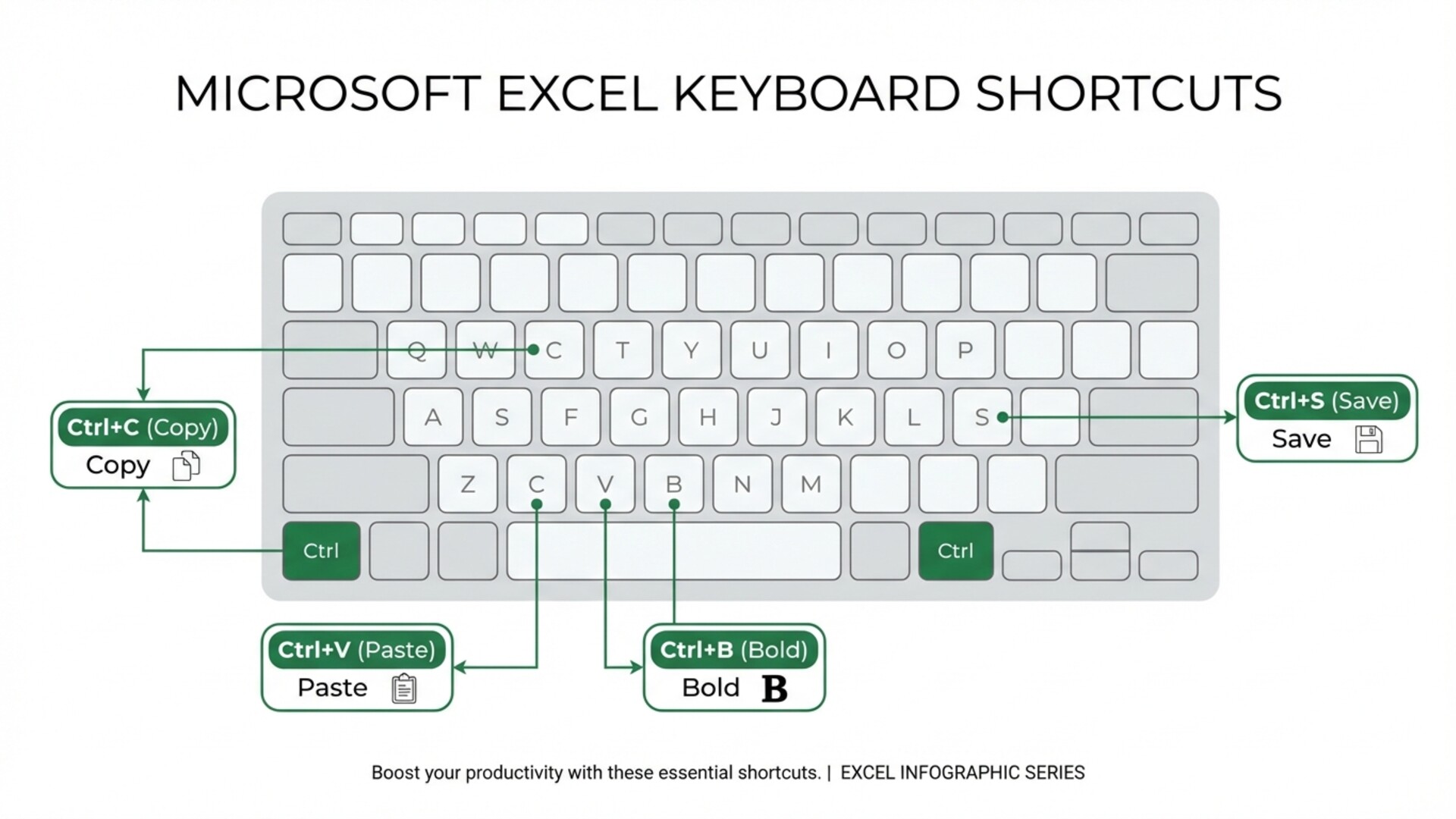
- Ctrl + B: Apply or remove bold from selected text. One of the most universal shortcuts.
- Ctrl + I: Apply or remove italics. Useful for emphasizing text or indicating work titles.
- Ctrl + U: Apply or remove underline. Traditionally used to indicate links or important terms.
- Ctrl + 5: Apply or remove strikethrough from text. Perfect for marking completed items in lists.
- Ctrl + Shift + F: Open the Format Cells dialog on the Font tab. Provides access to advanced options like subscripts and superscripts.
- Ctrl + Shift + P: Open the font size selector.
Number formatting
Excel offers multiple number formats that you can apply instantly:
- Ctrl + Shift + 1: Apply number format with two decimals and thousands separator. Ideal for general numerical quantities.
- Ctrl + Shift + 2: Apply time format (hh:mm). Converts decimal values to time representation.
- Ctrl + Shift + 3: Apply date format (dd-mmm-yy). Standardizes date display.
- Ctrl + Shift + 4: Apply currency format with the regional setting symbol.
- Ctrl + Shift + 5: Apply percentage format. Multiplies the value by 100 and adds the % symbol.
- Ctrl + Shift + 6: Apply scientific format with two decimals.
- Ctrl + Shift + ~: Apply general format, removing any previous number formatting.
Cell formatting and alignment
- Ctrl + 1: Open the complete Format Cells dialog. The gateway to all formatting options.
- Alt + H, B: Access border options to add lines around cells.
- Alt + H, H: Access fill color options to highlight cells.
- Alt + H, F, C: Change font color for selected text.
- Alt + H, A, L: Align content to the left.
- Alt + H, A, C: Center content horizontally.
- Alt + H, A, R: Align content to the right.
- Alt + H, M, M: Merge selected cells and center content.
- Alt + H, W: Enable text wrap in the cell to display long content on multiple lines.
Data entry and editing shortcuts
Entering and modifying data is one of the most frequent tasks in Excel. Mastering these shortcuts will significantly streamline your daily workflow and reduce data entry errors.
Data entry
- Enter: Confirm entry and move to the cell below. Default behavior can be configured.
- Tab: Confirm entry and move to the cell to the right. Ideal for filling data rows.
- Shift + Enter: Confirm and move to the cell above. Useful for correcting previous entries.
- Shift + Tab: Confirm and move to the cell to the left.
- Ctrl + Enter: Enter the same value in all selected cells simultaneously. Extremely powerful for filling multiple cells.
- Alt + Enter: Insert a line break within the same cell without confirming the entry.
- Esc: Cancel the current entry without saving changes and restore the previous value.
- F7: Open the spell checker to review sheet text.
Content editing
- F2: Activate edit mode in the current cell, positioning the cursor at the end of the content.
- Ctrl + C: Copy selected cells to clipboard.
- Ctrl + X: Cut selected cells to move them to another location.
- Ctrl + V: Paste copied content at the current location.
- Ctrl + Alt + V: Open the Paste Special dialog with multiple paste options.
- Ctrl + D: Copy the content of the cell above to all selected cells below.
- Ctrl + R: Copy the content of the cell to the left to all selected cells to the right.
- Ctrl + Z: Undo the last action. Can be pressed multiple times to undo several actions.
- Ctrl + Y: Redo the last undone action.
- Delete: Delete the content of selected cells while keeping formatting.
- Backspace: In edit mode, delete the character to the left of the cursor.
Special characters and autocomplete
- Ctrl + ; (semicolon): Insert the current system date as a static value.
- Ctrl + Shift + ; : Insert the current system time as a static value.
- Ctrl + ' (apostrophe): Copy the formula from the cell above to the active cell.
- Ctrl + Shift + ": Copy the value from the cell above without the formula.
- Ctrl + K: Open the dialog to insert a hyperlink.

Shortcuts for working with formulas
Formulas are the heart of Excel and what makes it such a powerful tool. These shortcuts will help you create, edit, and audit formulas more efficiently. To access all advanced formula features, make sure you have a full version of Excel. At Licendi you can find Microsoft Office licenses at competitive prices that include Excel with all its functionality.
Formula creation and editing
- = (equals): Start formula entry. Every calculation in Excel begins with this character.
- Alt + =: Automatically insert the SUM function for the adjacent range. One of the most useful shortcuts for quick calculations.
- Ctrl + ` (grave accent): Toggle between showing formulas and showing results across the entire sheet. Excellent for auditing and documenting.
- F4: Toggle between reference types (relative, absolute, mixed) while editing a formula. Essential for creating copyable formulas.
- Ctrl + Shift + U: Expand or collapse the formula bar to see long formulas completely.
- Tab: Autocomplete a selected function from the smart suggestions list.
- Ctrl + A: Within a function, display function arguments in a popup window.
Formula evaluation and auditing
- F9: Calculate all sheets in all open workbooks. Also evaluates the selected part of a formula in edit mode.
- Shift + F9: Calculate only the active sheet, saving time in large workbooks.
- Ctrl + Alt + F9: Force complete recalculation of all formulas, even those Excel considers unchanged.
- Ctrl + Shift + Enter: Enter an array formula in versions before Excel 365. In modern versions, dynamic arrays don't require this shortcut.
- Ctrl + [: Select cells referenced by the active formula, known as direct precedents.
- Ctrl + ]: Select cells containing formulas that reference the active cell, the direct dependents.
- Ctrl + Shift + {: Select all precedents, direct and indirect.
- Ctrl + Shift + }: Select all dependents, direct and indirect.
Quick functions
- Shift + F3: Open the Insert Function dialog with search and categories.
- Ctrl + Shift + A: Insert function argument names after typing the function name and opening parenthesis.
Row and column management shortcuts
Modifying the structure of your spreadsheets is a common task. These shortcuts allow you to insert, delete, and modify rows and columns quickly without interrupting your workflow.
Insert and delete
- Ctrl + Shift + +: Open the dialog to insert cells, rows, or columns based on the current selection.
- Ctrl + -: Open the dialog to delete cells, rows, or columns.
- Ctrl + Shift + + (with entire row selected): Insert a complete row directly without dialog.
- Ctrl + Shift + + (with entire column selected): Insert a complete column directly.
Adjust size
- Alt + H, O, I: Automatically adjust column width to the widest content.
- Alt + H, O, A: Automatically adjust row height to content.
- Alt + H, O, W: Open dialog to set specific column width.
- Alt + H, O, H: Open dialog to set specific row height.
Hide and show
- Ctrl + 9: Hide selected rows from view.
- Ctrl + Shift + 9: Show hidden rows within the current selection.
- Ctrl + 0: Hide selected columns.
- Ctrl + Shift + 0: Show hidden columns. Note: this shortcut may require additional configuration in some Windows versions.
Group and outline
- Alt + Shift + Right Arrow: Group selected rows or columns, creating an outline level.
- Alt + Shift + Left Arrow: Ungroup selected rows or columns.
- Ctrl + 8: Show or hide outline symbols in the margin.
Workbook and sheet management shortcuts
Managing your Excel files efficiently is crucial for maintaining an organized workflow and protecting your work.
File operations
- Ctrl + N: Create a new blank workbook instantly.
- Ctrl + O: Open the dialog to open an existing file or access recent files.
- Ctrl + S: Save the current workbook. If it's the first time, opens Save As.
- F12: Open the Save As dialog to save with a new name or location.
- Ctrl + W: Close the current workbook while keeping Excel open.
- Ctrl + P: Open print options and preview.
- Ctrl + F4: Close the current workbook window, equivalent to Ctrl + W.
- Alt + F4: Close Excel completely with all open workbooks.
Sheet operations
- Shift + F11: Insert a new blank worksheet before the active sheet.
- Alt + Shift + F1: Also inserts a new sheet, functioning as an alternative.
- Ctrl + Page Up/Down: Navigate between workbook sheets sequentially.
Views and windows
- Ctrl + F1: Show or hide the ribbon to maximize workspace.
- Alt + F1: Create an embedded chart based on selected data.
- F11: Create a chart on a new dedicated sheet.
- Ctrl + F2: Open print preview directly.
- Alt + W, F, F: Freeze panes to keep rows or columns visible while scrolling.
Advanced shortcuts for professional users
Once you've mastered the basic shortcuts, these advanced commands will allow you to take your productivity to the next level and work like a true Excel expert.
Tables and filters
- Ctrl + T: Convert the selected range into an Excel table with automatic formatting and filters.
- Ctrl + Shift + L: Enable or disable automatic filters on the current range.
- Alt + Down Arrow: Open the filter dropdown menu on a table column or with active filters.
- Ctrl + Shift + F: Open advanced filters panel when a table is selected.
Pivot tables
- Alt + N, V: Insert a pivot table based on selected data.
- Alt + J, T: Access the pivot table tools contextual tab when one is selected.
- Alt + Down Arrow (in pivot table field): Open the filter menu for that field.
Comments and notes
- Shift + F2: Insert or edit a comment in the active cell.
- Ctrl + Shift + O: Select all cells containing comments in the sheet.
Names and references
- Ctrl + F3: Open the Name Manager to create, edit, and delete named ranges.
- Ctrl + Shift + F3: Create names automatically from the selection using row or column labels.
- F3: Open the Paste Name dialog to insert a defined name into a formula.
Macros and VBA
- Alt + F8: Open the Macro dialog to view and run available macros.
- Alt + F11: Open the Visual Basic for Applications Editor for advanced programming.
Validation and conditional formatting
- Alt + A, V, V: Access data validation to create entry rules.
- Alt + H, L: Access conditional formatting menu to highlight data automatically.
For more detailed information about Excel functions and shortcuts, you can consult the official Microsoft documentation on Excel keyboard shortcuts, which is regularly updated with new software versions.

Function key shortcuts F1-F12
Function keys provide quick access to important Excel features. Knowing them allows you to access functions without remembering complex combinations:
- F1: Open Excel help. With Ctrl + F1 you hide or show the ribbon.
- F2: Activate edit mode in the selected cell.
- F3: Show the Paste Name dialog if names are defined.
- F4: Repeat the last action. In formulas, changes the reference type.
- F5: Show the Go To dialog for advanced navigation.
- F6: Toggle between the sheet, ribbon, task pane, and zoom controls.
- F7: Open the spell checker.
- F8: Activate selection extend mode. Shift + F8 activates add to selection mode.
- F9: Calculate all open workbooks.
- F10: Activate ribbon key tips, showing shortcut letters.
- F11: Create a chart on a new sheet based on the current selection.
- F12: Open the Save As dialog.
Tips for learning and memorizing shortcuts
Learning so many shortcuts may seem overwhelming at first. Here we offer some effective strategies to gradually incorporate them into your work routine:
Start with the most frequent
Don't try to memorize all shortcuts at once. Start with the ones you'll use most often in your daily work:
- Ctrl + C, Ctrl + V, Ctrl + X: Copy, paste, and cut are universal.
- Ctrl + Z, Ctrl + Y: Undo and redo save you from errors.
- Ctrl + S: Saving frequently prevents loss of work.
- Ctrl + B, Ctrl + I, Ctrl + U: Basic text formatting.
- Ctrl + Arrows: Quick navigation through data.
Deliberate practice
When you find yourself using the mouse for an action, stop and look for the corresponding shortcut. Although it may be slower at first, conscious repetition will create lasting habits that will benefit you in the long run.
Use visual aids
Place a reference sheet with the most important shortcuts next to your monitor. You can also set a desktop wallpaper with the main shortcuts or use sticky notes in your work area.
Set reminders and goals
Set a goal to learn three new shortcuts each week. In a few weeks, you'll have incorporated dozens of commands into your repertoire. Keep a record of the shortcuts you learn to motivate yourself to continue.
Practice on real projects
The best way to consolidate learning is to use shortcuts in your real work. Every time you complete a task using shortcuts, you reinforce muscle memory and mental association.
Frequently asked questions about Excel keyboard shortcuts
Are shortcuts the same on Windows and Mac?
Not exactly. On Mac, the Command key (Cmd) generally replaces Ctrl in most shortcuts. For example, Ctrl + C on Windows is Cmd + C on Mac. However, some specific shortcuts may vary significantly. It's recommended to consult Microsoft documentation for Excel on Mac for the complete list of equivalences and differences.
Do shortcuts work in all Excel versions?
Most fundamental shortcuts work in all modern Excel versions, including Excel 2016, 2019, 2021, and Microsoft 365. However, some specific combinations may vary or not be available in older versions. It's always recommended to have an updated software version to access all functionality.
Can I create my own custom shortcuts?
Yes, Excel allows you to customize some shortcuts through macros. You can record a sequence of actions and assign it a key combination using the Visual Basic Editor (Alt + F11). You can also customize the Quick Access Toolbar to create numbered shortcuts to frequent functions using Alt + number.
Why don't some shortcuts work in my Excel?
There can be several reasons: the Excel version may not support that specific shortcut, another program may be intercepting the key combination at the operating system level, or the regional keyboard configuration may affect some combinations that use special characters. Check your system settings and consult Excel help for your specific version.
What's the best way to practice shortcuts?
Consistent practice in your daily work is the best way to learn them. There are also online resources with interactive exercises to practice Excel shortcuts. Try dedicating 10 minutes a day to consciously practicing new shortcuts until they become automatic. The key is spaced repetition and use in real contexts.
Conclusion
Mastering keyboard shortcuts in Excel is a skill that pays for itself. The initial time investment in learning them quickly translates into hours saved and a much smoother and more enjoyable work experience. From basic copy and paste commands to advanced formula auditing functions, each shortcut you add to your repertoire brings you closer to becoming an Excel expert.
Remember that you don't need to learn all shortcuts at once. Start with the most relevant ones for your daily work and gradually expand your knowledge. Over time, using the keyboard to control Excel will become natural and automatic, and you'll wonder how you ever worked without these commands.
We encourage you to save this guide as a reference and consult it whenever you need to remember a shortcut. Consistent practice is the key to turning these commands into automatic habits that will boost your professional productivity.
To make the most of all Excel features, including the most advanced data analysis, pivot tables, and automation capabilities, you need a full software license. At Licendi we offer original Microsoft Excel 2021 licenses and other Office versions at very competitive prices, with immediate digital delivery and support. Invest in your productivity and get all the tools you need to work more efficiently.