EN
EN FR
FR  DE
DE  IT
IT  PT
PT  ES
ES 

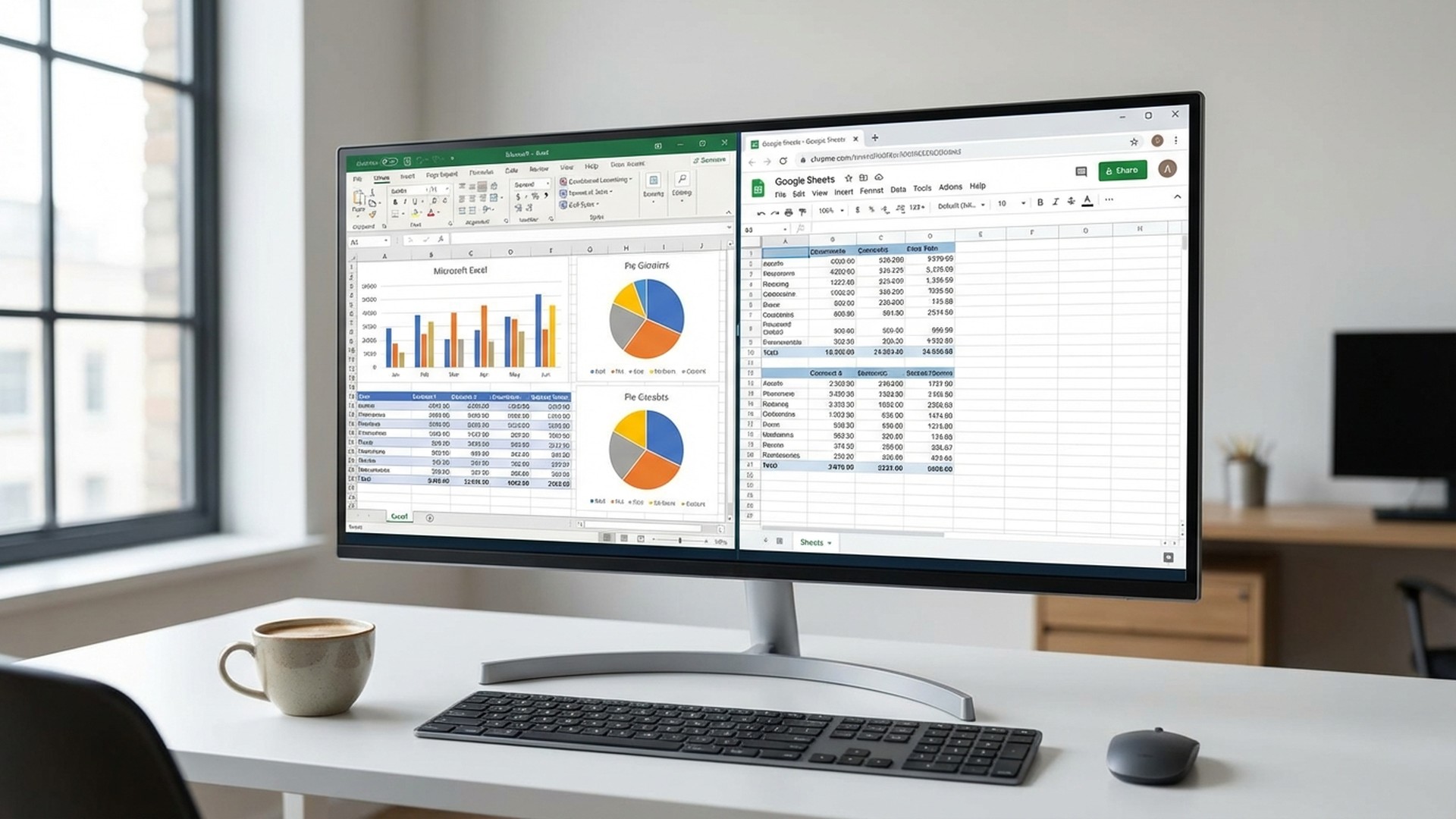
Microsoft Excel and Google Sheets are the two most popular spreadsheet applications in the world — but they are built for very different workflows. Whether you are a student managing personal budgets, a small-business owner tracking inventory, or a financial analyst running complex models, choosing the right tool can save you hours every week and hundreds of euros every year. In this comprehensive comparison, we break down every major feature so you can make the right choice in 2026.
Table of Contents
- What Are Microsoft Excel and Google Sheets?
- Side-by-Side Comparison
- Quick Comparison Table
- Pricing: How Much Does Each One Cost?
- Which One Should You Choose?
- Can You Use Both Together?
- Frequently Asked Questions
- Conclusion — Our Recommendation
What Are Microsoft Excel and Google Sheets?
Microsoft Excel
Microsoft Excel has been the gold standard for spreadsheets since 1985. Available as a desktop application for Windows and macOS — and as a web app through Microsoft 365 — Excel is the go-to tool for professionals who need advanced data analysis, financial modelling, macros, and complex formulas. With over one billion users worldwide, it dominates in industries like finance, accounting, engineering, and enterprise management.
In 2026, Excel continues to evolve with Copilot AI integration, Python scripting directly inside cells, and improved real-time co-authoring through OneDrive. It remains the most powerful spreadsheet application on the market.
Google Sheets
Google Sheets launched in 2006 as part of what is now Google Workspace. It is a cloud-native spreadsheet application that runs entirely in your browser — no installation required. Its strongest feature is real-time collaboration: multiple users can edit the same spreadsheet simultaneously, with changes appearing instantly.
Free for anyone with a Google account, Sheets has become the default choice for startups, remote teams, and educational institutions. In 2026, Google has integrated Gemini AI for formula suggestions, data insights, and automated chart creation, narrowing the feature gap with Excel.
Side-by-Side Comparison
Interface and Ease of Use
Google Sheets wins on simplicity. Its clean, minimalist interface makes it easy for beginners to start working immediately. There is no learning curve — if you can use a web browser, you can use Sheets. Auto-save happens in the background, so you never lose your work.
Excel is more powerful but also more complex. The ribbon interface exposes hundreds of features across multiple tabs. For newcomers, this can be overwhelming. However, once mastered, the depth of tools at your fingertips is unmatched. The desktop app feels snappier and more responsive than any browser-based alternative.
Winner: Google Sheets for beginners; Excel for power users.
Functions and Formulas
Excel offers over 500 built-in functions, including advanced statistical tests (t-tests, ANOVA, regression), financial modelling tools (IRR, NPV, XIRR), and array formulas that can process entire ranges at once. It also supports dynamic arrays and the LAMBDA function for creating custom, reusable formulas.
Google Sheets covers most common formulas — VLOOKUP, INDEX/MATCH, SUMIFS, QUERY — and even has some unique ones like GOOGLEFINANCE for live stock data and IMPORTHTML for scraping web tables. However, it lacks the depth of Excel’s statistical and engineering function library.
Winner: Excel, by a wide margin.

Real-Time Collaboration
This is where Google Sheets truly shines. Multiple users can edit the same document simultaneously, with coloured cursors showing who is working where. Comments, suggestions, and a built-in chat make teamwork seamless. Version history lets you roll back to any previous state.
Excel has improved significantly with Microsoft 365’s co-authoring feature. When files are stored in OneDrive or SharePoint, multiple users can edit at the same time. However, the experience is not as smooth as Sheets — occasional sync conflicts can occur, and the desktop app sometimes locks cells being edited by others.
Winner: Google Sheets.
Performance with Large Datasets
Excel handles large data with ease. The desktop application supports over 17 billion cells per workbook and can process millions of rows without breaking a sweat. Features like Power Query and Power Pivot enable ETL workflows and data modelling on datasets that would crash a browser tab.
Google Sheets caps out at 10 million cells per spreadsheet. In practice, performance degrades noticeably with just a few thousand rows if you are using complex formulas or pivot tables. For serious data work, this is a significant limitation.
Winner: Excel, decisively.
AI Integration: Copilot vs Gemini
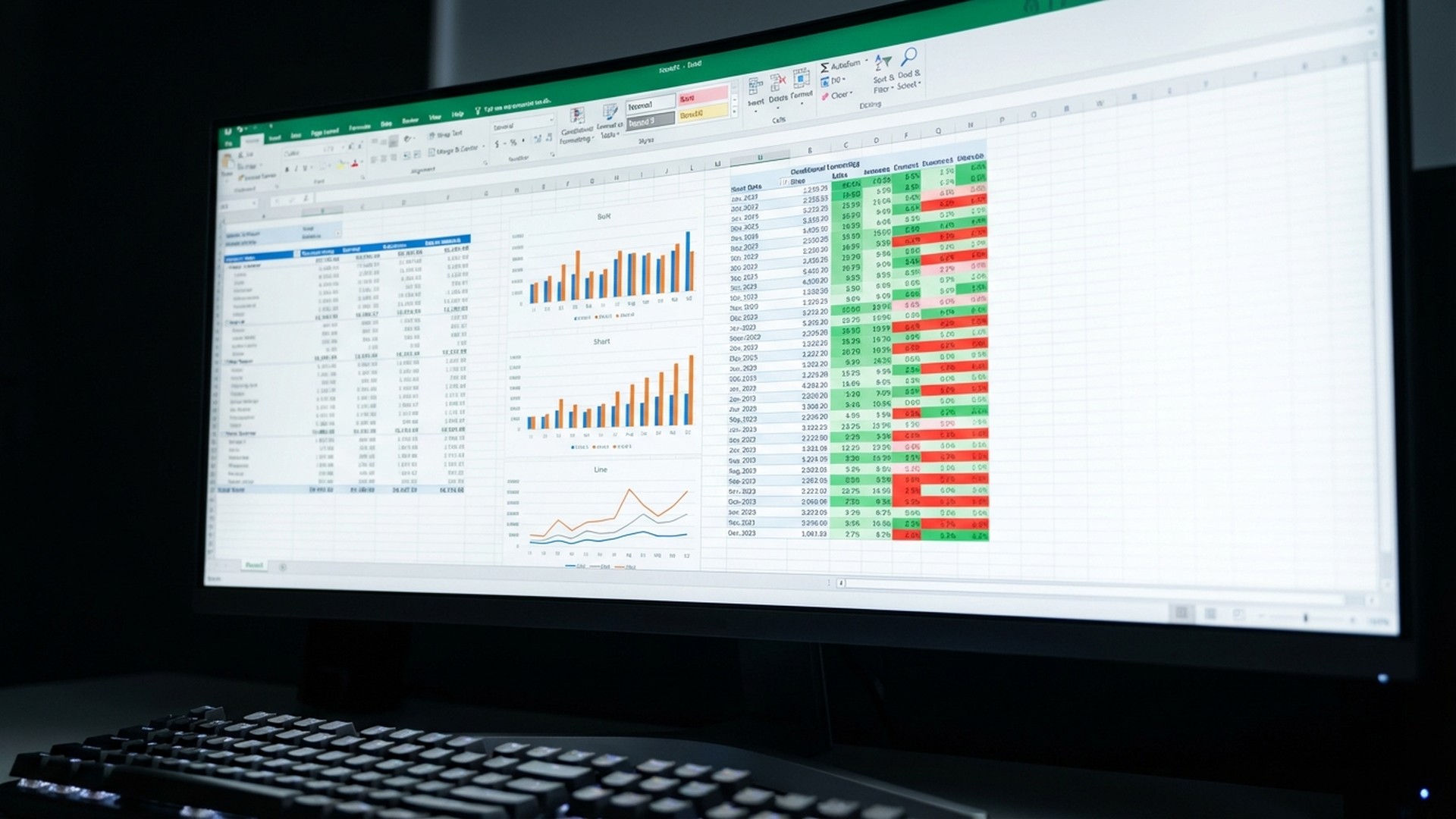
Both platforms now offer AI assistants. Microsoft Copilot in Excel can generate formulas from natural language, create charts, identify trends, and even write Python code within cells. It is deeply integrated into the Microsoft 365 ecosystem and is one of the most capable AI tools in any productivity app.
Google Gemini in Sheets provides formula suggestions, data analysis summaries, and automatic chart creation. While impressive, it is not yet as powerful as Copilot for advanced analytical tasks.
Winner: Excel (Copilot), though Gemini is catching up.
Macros and Automation
Excel supports VBA (Visual Basic for Applications), a mature programming language that can automate virtually anything within a spreadsheet — from formatting reports to pulling data from external APIs. In addition, Office Scripts (TypeScript-based) and the new Python in Excel feature offer modern alternatives.
Google Sheets uses Apps Script (JavaScript-based), which is excellent for web-based automation and integration with other Google services. It is arguably easier to learn than VBA and integrates well with Google Forms, Gmail, and Google Drive. However, it lacks VBA’s depth for complex desktop automation.
Winner: Tie — depends on your ecosystem.
Compatibility: Operating Systems and Devices
Google Sheets works on any device with a web browser — Windows, macOS, Linux, ChromeOS, Android, iOS. It is truly platform-agnostic. The mobile apps for Android and iOS are well-designed and functional.
Excel is available on Windows, macOS, iOS, Android, and as a web app. The desktop version (Windows and Mac) offers the full feature set, while the web and mobile versions are more limited. Linux users must rely on the web version or third-party compatibility layers.
Winner: Google Sheets for cross-platform access.
Storage and Offline Access
Excel files live wherever you save them — locally, on OneDrive, or on any cloud storage. The desktop app works perfectly offline. OneDrive syncs changes when you reconnect.
Google Sheets is cloud-first. Files are stored in Google Drive and sync automatically. Offline editing is possible through a Chrome extension, but it requires setup and only works in Chrome. If you lose internet without having enabled offline mode, you are stuck.
Winner: Excel for offline reliability; Sheets for cloud convenience.
Quick Comparison Table
| Feature | Microsoft Excel | Google Sheets |
|---|---|---|
| Price | From 6.99 €/month (or one-time licence) | Free (Workspace from 5.75 €/month) |
| Collaboration | Good (OneDrive) | Excellent (built-in) |
| Max cells | 17 billion+ | 10 million |
| Functions | 500+ | 400+ |
| Automation | VBA, Office Scripts, Python | Apps Script (JS) |
| AI Assistant | Copilot | Gemini |
| Offline access | Full (desktop app) | Limited (Chrome only) |
| Best for | Power users, finance, enterprise | Teams, students, startups |
Pricing: How Much Does Each One Cost?
Google Sheets: Free vs Google Workspace
Google Sheets is completely free for personal use with any Google account. You get 15 GB of shared storage across Drive, Gmail, and Photos. For businesses, Google Workspace plans start at 5.75 €/user/month and include additional storage, admin controls, and custom email domains.
Microsoft Excel: Microsoft 365 vs Perpetual Licence
Microsoft 365 Personal costs 6.99 €/month (or 69 €/year) and includes Excel, Word, PowerPoint, 1 TB of OneDrive storage, and Copilot AI. The Family plan at 9.99 €/month covers up to 6 users.
However, there is a third option many people overlook: perpetual licences. With a one-time purchase, you get Microsoft Office (including Excel) forever — no recurring fees. Office 2024 Professional Plus, for example, gives you the full desktop version of Excel with all professional features.
The Most Affordable Option: Perpetual Licences
If you primarily need Excel and don’t require cloud-based Copilot AI, a perpetual licence is the most cost-effective solution. Instead of paying 69 € per year indefinitely, you make a single investment. Over three years, that saves you over 100 € compared to a Microsoft 365 subscription.
At Licendi, we offer genuine perpetual licences for Microsoft Office at competitive prices. You get the full version of Excel 2024 with all its professional features — pivot tables, Power Query, VBA, and more — without any recurring costs.
Which One Should You Choose?
For Students and Personal Use
Recommendation: Google Sheets for everyday tasks, or a perpetual Office licence if you need Excel for university assignments, statistics, or data-heavy coursework. Google Sheets handles budgets, to-do lists, and group projects perfectly. But if your professors require .xlsx files with macros or advanced formatting, invest in a one-time Office licence.
For Small Businesses and Remote Teams
Recommendation: Google Sheets for collaboration, combined with Excel for financial analysis. Many small businesses use Sheets for shared project tracking and CRM-style databases, but switch to Excel when they need to crunch quarterly numbers or create detailed financial reports. A perpetual Office licence for the finance team keeps costs low.
For Finance and Data Professionals
Recommendation: Microsoft Excel, without question. Pivot tables, Power Query, Power Pivot, VBA macros, What-If Analysis, and now Python integration make Excel the undisputed champion for financial modelling and data analysis. No other spreadsheet comes close.
For Large Enterprises
Recommendation: Microsoft 365 or volume perpetual licences. Large organisations benefit from Excel’s enterprise features, IT admin controls, and integration with the broader Microsoft ecosystem (Teams, SharePoint, Power BI). For companies that want to avoid subscription fatigue, volume perpetual licences through authorised resellers offer the best value.
Can You Use Both Together?
Absolutely — and many professionals do. Google Sheets excels at quick collaborative work, shared dashboards, and real-time data collection (especially when combined with Google Forms). Excel is better for heavy analysis, financial modelling, and report generation.
The two are largely compatible: you can open .xlsx files in Google Sheets and export Sheets files as .xlsx. However, complex macros, VBA code, and some advanced formatting may not transfer perfectly. For critical work, always verify compatibility before switching between platforms.
Frequently Asked Questions
Is Google Sheets really free?
Yes. Google Sheets is free for anyone with a Google account. Business features (admin controls, additional storage, SLA) require a Google Workspace subscription starting at 5.75 €/user/month.
Can Google Sheets replace Excel completely?
For basic to intermediate spreadsheet tasks, yes. For advanced data analysis, financial modelling, macros, or working with large datasets (over 100,000 rows), Excel remains significantly superior.
What is a perpetual licence and how is it different from Microsoft 365?
A perpetual licence gives you a one-time purchase of Microsoft Office that you own forever. There are no monthly or annual fees. Microsoft 365, by contrast, is a subscription: you pay monthly or annually, and lose access if you stop paying. Both include Excel, Word, and PowerPoint.
Can I open Excel files in Google Sheets?
Yes. Google Sheets can open and edit .xlsx files. However, complex features like VBA macros, certain conditional formatting rules, and Power Query connections will not transfer. For simple spreadsheets, compatibility is excellent.
Which has better mobile apps?
Both have solid mobile apps for iOS and Android. Google Sheets’ mobile app is slightly more polished for quick edits and collaboration. Excel’s mobile app offers more features but can feel heavier.
Conclusion — Our Recommendation
There is no single winner in the Excel vs Google Sheets debate — the best choice depends on your needs:
- Choose Google Sheets if real-time collaboration, free access, and cross-platform convenience are your priorities.
- Choose Microsoft Excel if you need advanced formulas, large-dataset performance, macros, financial modelling, or AI-powered analysis with Copilot.
- Use both if your workflow combines teamwork with heavy data analysis.
For most professionals and businesses, having Excel available is not optional — it is a necessity. The good news is that you do not need an expensive subscription to get it. A perpetual licence gives you the full power of Excel without recurring costs.