EN
EN FR
FR  DE
DE  IT
IT  PT
PT  ES
ES 

Everything You Need to Know About Visio Viewer
Have you received a diagram created in Microsoft Visio and don’t know how to open it without having that program? Visio Viewer is Microsoft’s free solution that lets you view those diagrams easily, without having to buy or install the full Visio.
In this blog, we’ll explain in an accessible and detailed way everything you need to know about Visio Viewer: what it is, what it’s for, how to use it, and some useful tips. In addition, we’ll tell you where you can purchase Microsoft Visio at a competitive price with activation guarantee in the Licendi store, in case you ever need the full Visio features. Let’s get started!
What is Microsoft Visio and What Is It For?
Before diving into Visio Viewer, it’s useful to understand what Microsoft Visio is. Microsoft Visio is an application from the Microsoft Office family specialized in creating diagrams and vector graphics. With Visio, professionals from various fields can easily design flowcharts, organizational charts, process maps, floor plans, network diagrams, and much more. Visio offers a wide variety of templates and pre-designed shapes that make it easier to turn complex ideas into something visual and easy to understand. For example, an engineer can diagram a computer network architecture, an architect can draw a building floor plan, or a project manager can design an organizational chart for their team.
Although Visio is part of the Office ecosystem, it is usually sold separately as a standalone product (with Standard and Professional editions, and versions tied to different years, such as Visio 2016, 2019, 2021, etc. (see our detailed comparison of Visio 2024 vs 2021).). This means that not all Office users have Visio installed by default. In addition, the full version of Visio is paid software that requires a license (learn about the differences between OEM, Retail, and Bound licenses). So, what happens if someone shares a Visio file with you (.vsd, .vsdx, etc.) and you don’t have Visio installed? That’s where Visio Viewer comes in.

What is Visio Viewer?
Visio Viewer (sometimes referred to in Spanish as Visor de Visio) is a free application provided by Microsoft that allows you to open and view Microsoft Visio files without having the full Visio program installed. In short, it’s a “reader” for Visio files. With Visio Viewer you can see all the details of a Visio diagram, zoom in, zoom out, navigate through its pages, and even print it—at no cost. It’s the ideal tool for users who only need to view diagrams occasionally, or for sharing diagrams with people who don’t have the full application.
Visio Viewer does not require a paid license and its available on Microsoft's official site’s official site. When opening a Visio file with the Viewer, you’ll be able to examine it exactly as you would in Visio: with its shapes, colors, texts, and connections intact. However, it’s important to note that Visio Viewer does not allow you to edit diagrams or create them from scratch; its function is only for viewing (and printing, if necessary).
In summary, Visio Viewer is used for:
- Viewing Visio diagrams (.vsd, .vsdx, etc.) accurately, without having Microsoft Visio installed.
- Printing Visio diagrams if you need a physical copy or a PDF.
- Easily sharing diagrams with other users: anyone can open them with the viewer without worrying about licenses.
Think of Visio Viewer like a PDF reader, but for Visio files. Just as Adobe Reader lets you read PDFs without being Adobe Acrobat Pro (which is used for editing), the Visio Viewer lets you read Visio diagrams without having the full application.
Why Use Visio Viewer? – Advantages and Use Cases
Visio Viewer is very useful in different scenarios. Here are some common situations where using this free viewer is the best option:
Easily share diagrams with others:
Imagine you’ve created a complex diagram at work using Microsoft Visio and need to send it to colleagues or clients. You can’t assume that all of them have Visio installed. If you send the original file (.vsd or .vsdx), they might have trouble opening it. With Visio Viewer, any of your colleagues can open the file quickly without complicated installations. This makes collaboration and sharing the information in diagrams much easier.
Cost savings
Not everyone needs to edit Visio diagrams. Often, it’s only necessary to view the content. Visio Viewer is completely free, which means significant savings compared to buying a full Visio license just to view occasional files. Businesses and individual users can avoid unnecessary expenses by using the viewer for employees who only need to consult diagrams.
Simplicity and lightness
The viewer is lightweight and simple software. It doesn’t take up much disk space or consume large system resources. This is an advantage if you just want to review a diagram quickly without the overhead of installing the full Visio application (which is heavier and more complex due to all its editing features).
Integration with Windows
An additional advantage is that Visio Viewer integrates conveniently with the Windows operating system. For example, with the viewer installed, you can preview Visio files directly in the Windows Explorer preview pane (just like when you see thumbnails or previews of images or PDFs). It’s also possible to preview Visio files attached in Outlook, directly from the email, without having to save and open them separately. This greatly speeds up document review in a business environment.
Basic collaboration without a license
In corporate environments with Microsoft 365, even without a Visio license, employees can use Visio Viewer via the web (integrated in OneDrive or SharePoint, as we’ll see later) to view and comment on diagrams within tools like Microsoft Teams. This ensures everyone is literally on the same page when discussing a diagram, even if only a few have the full editing tool.
In summary, using Visio Viewer gives you quick and free access to the content of a Visio diagram. If in your company only a few people are responsible for creating diagrams and the rest just need to consult them, the viewer solves the problem efficiently. Now let’s see how to get it and use it step by step.
How to Download and Install Visio Viewer
Installing Visio Viewer on your Windows PC is simple (and if you need the full program, check our step-by-step Visio installation guide) and only takes a few minutes. Here’s a step-by-step guide:
Downloading the Viewer
Visio Viewer is available for different versions. Microsoft offers free downloads for Visio Viewer 2010, 2013, and 2016, which are compatible with their respective Visio file versions. It’s recommended to download the most recent version of the viewer (Visio Viewer 2016), as it is backward compatible with diagrams created in earlier versions of Visio and supports both .vsd files (older formats up to Visio 2010) and the newer .vsdx/.vsdm formats (introduced starting with Visio 2013). You can find the installer on Microsoft’s official page (search for “Microsoft Visio Viewer download” and choose the right version).
Note: Even though it is called “Viewer 2016,” it also works for Visio 2019 and 2021, since they use the same .vsdx file format.
System Requirements
Make sure you’re using Windows on your computer, as Visio Viewer is software designed for the Windows environment. It works on versions such as Windows 7, Windows 8.1, Windows 10, and even Windows 11 (with some special considerations in the latter, which we’ll explain). In addition, Visio Viewer relies on Internet Explorer technology to display content, so in Windows 10 you must have Internet Explorer 11 installed (it comes included by default, even if you normally use Edge or Chrome). In Windows 11, Internet Explorer no longer exists as a standalone application, but Edge includes an “Internet Explorer mode” for compatibility; we’ll see later how this affects the viewer.
Installation
Once you’ve downloaded the installer file (usually named visioviewer.exe), double-click to run it. You’ll likely need to accept Microsoft’s license terms, and then the program will install quickly. No special rights are required beyond those of a user allowed to install programs on the PC. After completing installation, you won’t see a standalone “Visio Viewer” program in the Start menu; in fact, the viewer integrates with your system and with Internet Explorer to open .vsd/.vsdx files.
And that’s it! No additional configuration is needed. In just a few steps, your computer is ready to open Visio files. Next, we’ll look at how to use it in practice to view diagrams.
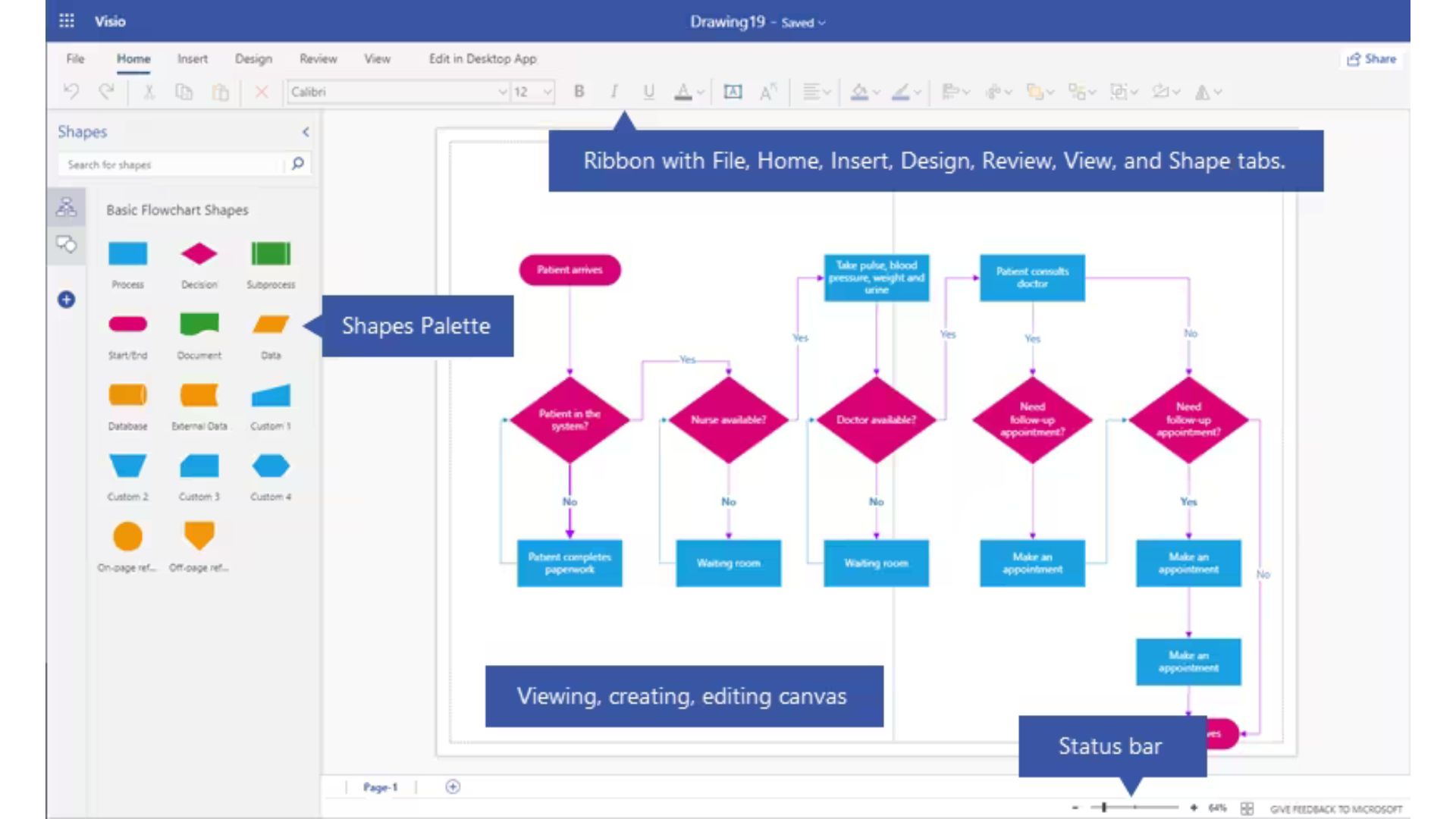
How to Open and View Visio Files with Visio Viewer
Once Visio Viewer is installed, opening a Visio diagram is very easy. You don’t need to manually launch any application; everything is done through the file you want to view. Follow these typical steps:
Open a .vsd/.vsdx File
Locate the Visio diagram you want to view in your file explorer. If the viewer was installed correctly, files with the .vsd, .vsdx (or other compatible Visio formats) extension should display the Visio icon as a thumbnail. Double-click the file. What happens then? Instead of trying to open with Visio (which you don’t have, remember), Windows detects Visio Viewer and opens the file using Internet Explorer as the interface. You’ll see an Internet Explorer window displaying the diagram’s content. In fact, Visio Viewer works as an embedded control within the browser to render the diagram.
Navigating the Diagram
Inside the Viewer window (Internet Explorer showing the file), you can freely navigate the diagram. Zoom and navigation tools will appear:
You can use the scroll bars or your mouse wheel to move around different areas of the drawing.
To zoom in or out, use the zoom buttons (usually a magnifying glass with + and - on the toolbar) or simply hold down the Ctrl key while moving your mouse wheel up or down. The context menu also usually works: right-click on the diagram and you should see zoom options (for example, “Zoom > Whole Page” to fit the entire diagram to the window, or specific percentages).
If the diagram has multiple pages (Visio allows multi-page diagrams, like a document with sections), you can switch between them. Look for tabs or a page menu at the bottom of the view. Visio Viewer will display tabs with the names of each page in the diagram, similar to sheets in Excel. Click the tab of the page you want to view to switch to it. Another option: right-click on the diagram and choose “Go to Page…” to jump to another page.
Viewing Details
A common concern is whether the Viewer will display all details correctly. Rest assured: Visio Viewer renders all diagram elements with high fidelity. You’ll see shapes with their colors, texts, connection lines, etc., just as they were designed. It even respects features such as transparencies, line styles, and layer arrangements. However, if the diagram includes dynamic elements (e.g., macros, hyperlinks, or interactivity), keep in mind that these are not functional in the Viewer; you’ll only see the static information. For example, if a shape had a hyperlink, you probably won’t be able to click it directly in the Viewer to open the link. Its main purpose is to display the drawing statically.
Printing the Diagram
If you need a physical copy of the diagram or want to save it as a PDF, Visio Viewer lets you print it. Simply go to the File -> Print menu (in the Internet Explorer interface) or use the Ctrl+P shortcut while viewing the diagram. You can print to a connected printer or use a virtual PDF printer to save it as a PDF document. Printing will preserve the layout as much as the format allows (for example, if the diagram is larger than the paper size, you can adjust the scale or split it across pages). Keep in mind that, just like when viewing, you cannot modify advanced diagram settings before printing (such as repositioning shapes); you can only print what you see.
Closing the Viewer
When you’re done reviewing the diagram, simply close the browser window (Internet Explorer) as you normally would. No document will remain open, and there’s no risk of accidentally modifying anything, since the viewer mode is read-only.
Extra Tip
If for some reason the file doesn’t open with a double-click (say Windows didn’t associate it correctly), you can also open Visio Viewer manually. To do this, start Internet Explorer first (in Windows 10 you can search for “Internet Explorer”; in Windows 11 you’ll need to use IE Mode in Edge, which we’ll cover shortly). Then, in IE, go to the File -> Open menu and locate the .vsd or .vsdx file. Open it, and it should load in the Viewer just the same. This is usually unnecessary, but it’s good to know if the file association fails.
At this point, you can already view Visio diagrams on your PC without issues. But Microsoft also offers other, more modern ways to do this, especially by leveraging the cloud and the web. Let’s look at those options, as they extend the flexibility of Visio Viewer to other devices and scenarios.
Visio Viewer on the Web: View Diagrams Online from Any Device
With the evolution of Microsoft 365 tools, it’s no longer mandatory to install Visio Viewer on your PC to view a diagram. Microsoft has integrated Visio file viewing directly into web browsers through its cloud services. This is commonly known as Visio for the Web (or Visio Online) and, in practice, it also works as a “Visio Viewer on the web.” Here’s how you can take advantage of it:
OneDrive and SharePoint (Microsoft 365)
If you (or the person sharing the diagram with you) have a Microsoft 365 account, you can store the .vsdx file in OneDrive (for individual users) or in SharePoint (in business environments). By doing so, you don’t need to download anything to view it: simply sign in to your Microsoft account from any browser (Chrome, Edge, Firefox, etc.), navigate to the file in OneDrive/SharePoint, and when you click it, the diagram opens directly in the browser. Microsoft 365 includes a built-in Visio viewer that will display the diagram with high fidelity.
This option is fantastic because it works on any operating system: you can view diagrams on Windows, Mac, or Linux, as long as you have an up-to-date web browser and an internet connection. It’s also useful on computers where you’re not an administrator and can’t install software; a simple web connection solves the need.
Visio in Microsoft Teams
In corporate environments where Microsoft Teams is used for collaboration, Visio files can also be viewed there. If someone uploads a Visio diagram to a Teams channel (which is ultimately stored in SharePoint), any team member can click and view the diagram directly within Teams. They can even add in-context comments on the diagram without each person needing a Visio license.
This commenting functionality is designed to improve collaboration: for example, a team member without Visio can open the diagram in Teams, insert comments or notes on a shape, and the original creator will see those comments when they open the file.
Mobile devices
What if you’re on a phone or tablet? There are solutions, too:
- On iPhone and iPad, Microsoft offers an official app called Visio Viewer (available free on the App Store). Just download it to your iOS device and it will let you open Visio files directly on your phone. This is great when you’re away from the office and need to urgently review a diagram from your email or saved in OneDrive. The app is optimized for touchscreens, so you can pinch to zoom and easily pan around the diagram.
- On Android, there is currently no official Microsoft Visio Viewer. However, you have a couple of options: the first is similar to PC—use the web browser in mobile mode. If you have the file in OneDrive, you can open the web version of OneDrive or SharePoint from Chrome on Android and view the diagram (the experience may not be as smooth as on PC, but it works in a pinch). The second option is to use a third-party app that serves as a Visio viewer on Android. There are apps from other developers on the Play Store capable of opening .vsd/.vsdx, for example “VSD Viewer” by Nektony and others. These apps are not from Microsoft, but they can be useful if you frequently need to view diagrams on your Android phone. Alternatively, you can always ask to have the diagram exported to PDF and view it with any mobile PDF reader if you don’t want to install specific apps.
Compatibility and ease
The advantage of using Visio Viewer on the web or mobile is immediacy and platform independence. It doesn’t matter if you’re on an Apple Mac, a Chromebook, or a Linux computer: as long as you have internet, a browser, and someone shares the diagram with you via OneDrive/SharePoint (or sends you a link), you’ll be able to view it without hassle. This removes barriers and makes Visio accessible to all users, whether or not they have Windows or the program installed. Microsoft has invested in online integration precisely to make it easier to disseminate the information contained in these documents.
In short, Visio Viewer is no longer limited to a small program on Windows. It’s now a broader concept that includes the ability to view Visio diagrams from almost any device via the cloud. If you work in a modern organization, it’s likely that many of your viewings will be done this way. And if you’re an individual user, you can also take advantage by uploading your files to your own OneDrive account (even without a paid subscription, a free Microsoft account also lets you view Office files online).
Tips and Common Troubleshooting with Visio Viewer
Although Visio Viewer is quite straightforward, questions or small hurdles can arise when using it. Below, we’ve compiled some useful tips and solutions to frequent issues:
Ensure version compatibility
If a diagram doesn’t open correctly, check that you have the appropriate version of Visio Viewer. For example, for files created with Visio 2019 or 2021, it’s best to use Visio Viewer 2016, since it supports those modern formats. If you try to open a very recent .vsdx with an old 2010 Visio Viewer, it probably won’t work. Update the viewer to the latest version available on Microsoft’s website to ensure the best backward compatibility.
Windows 11 and Internet Explorer
As mentioned, Windows 11 no longer includes Internet Explorer as such. If you’ve installed Visio Viewer on Windows 11, double-clicking a Visio file may appear to do nothing, because there’s no IE to call.
The solution? Use Microsoft Edge in Internet Explorer mode.
Edge allows you to enable a compatibility mode (in Settings → Default browser → “Let Internet Explorer open sites in Edge,” and manually add addresses that should use IE). A quick trick is to open Edge, press F12 for developer tools, and then choose “IE Mode” for a local file (this is a bit technical). A more user-friendly route: open Edge, type file:///C:/path/to/file.vsdx in the address bar and, if Edge detects it’s a Visio file, it may offer to open it in compatibility mode. If this sounds complicated, a simpler alternative is to avoid relying on the local viewer in Windows 11 and use the web viewer (OneDrive) as explained earlier, which lets you bypass IE entirely.
Display issues (blank or incomplete diagram)
If you open a diagram and see missing information or a blank view, several things could be happening. First, make sure you’ve waited for it to fully load; very large files can take a few seconds to render in the viewer.
Second, check that you’re not viewing only part of the diagram: verify the zoom level (you might be zoomed too far out or focused on a blank corner; set it to “Whole Page” to recenter the view).
Third, if the diagram has layers or special elements, the Viewer should display them all statically. However, it won’t show things like macros or scripts that the file might contain, because the viewer doesn’t execute code or advanced functionality. If in doubt, you can ask the diagram’s author to export it as a PDF and compare: if the PDF also looks incomplete, perhaps the original file was corrupted or had unsupported content.
File association and conflicts with full Visio
If at some point you install the full version of Microsoft Visio on your computer, it will usually take over the association for .vsd/.vsdx files. That is, double-clicking will open them in full Visio instead of Visio Viewer. This is logical and usually desirable once you have the full program. But suppose you still want to use the Viewer even with Visio installed (perhaps to preview quickly without launching the heavier program).
One way is to use the Windows Explorer Preview Pane: select the file in Explorer and press Alt+P to see the preview; thanks to the Viewer, you’ll see the contents there without opening full Visio. Another, more technical way would be to manually change the file association so that .vsd opens with Internet Explorer/Visio Viewer; this isn’t usually recommended if you already have Visio, but it’s possible. In general, keep this interaction in mind: Visio and Visio Viewer can coexist, but the behavior when opening files will depend on which one is set as default.
Visio Viewer on Mac or in non-Windows environments
Reiterating what was mentioned, there is no official Visio Viewer for macOS or Linux. If you work on a Mac, the official solution is to use the online route (OneDrive/SharePoint) to view diagrams in your browser. And if you’re offline on Mac and someone sends you a Visio file, you could ask them to send it as a PDF or SVG. There are also third-party apps on Mac that open Visio files, though they’re often paid or limited. For most users, the free and easy route will be: OneDrive + web browser = diagram viewable on Mac.
Keep your Viewer up to date
Although Visio Viewer doesn’t receive frequent updates like other programs, it’s a good idea to keep your Windows system updated, since Microsoft occasionally includes improvements or security patches. For example, through Windows Update, Service Packs or patches for Visio Viewer 2016 can be installed to improve stability. Having the latest version ensures better performance and compatibility.
In general, Visio Viewer tends to work quite transparently. Many users don’t even realize they have it: they simply install it and then every time they open a diagram, everything “just works.” But if you run into something odd, these tips will surely help you resolve it.
Visio Viewer vs. Full Microsoft Visio: Which Do You Need?
At this point, it’s worth recapping the differences between Visio Viewer and the full Microsoft Visio so you’re clear on when to use one or the other:
Functionality
Visio Viewer lets you view and print diagrams. Microsoft Visio (the full application) lets you create, edit, and save diagrams, in addition to viewing them. If you only need to consult diagrams made by others, the Viewer is sufficient. If you need to make changes or produce your own diagrams, then you’ll need the full version of Visio.
Cost
Visio Viewer is free. Microsoft Visio is a paid product. The cost difference is significant. That’s why a common strategy in companies is to purchase a few Visio licenses for the diagram designers and have the rest of the staff use Visio Viewer to view them. This saves money without losing access to information.
Ease of use
Using Visio Viewer is extremely simple (as we’ve seen, it’s basically opening files and navigating). Microsoft Visio, on the other hand, has a steeper learning curve since it’s a design tool with many features (templates, rulers, alignment, dynamic connectors, automations, etc.). If your goal is just to view a diagram once, it doesn’t make sense for you to have to learn the full Visio. But if your role requires regularly producing complex visual documents, investing time in learning Visio and acquiring the license will give you great power and versatility.
Advanced features
There are things that simply aren’t possible in Visio Viewer because they exceed its purpose. For example, full Visio allows you to validate diagrams against rules (useful in process diagrams), link external data (such as connecting a diagram to Excel data to display values dynamically), run macros to automate tasks, or export to special formats. None of these features are available in the Viewer. Visio Viewer will always display a static version of the diagram as it was saved, with no data connections and no ability to change anything.
In conclusion, choose Visio Viewer when you want simplicity and speed and don’t need to edit, and choose the full Microsoft Visio when you need to create or modify professional diagrams. The good thing is it’s not a mutually exclusive decision forever: you can have both. You can use the Viewer at certain times and the full version at others, depending on what you need to do.
And if you discover that you do need the full program, you might want to get it at the best possible price. That’s where we can help you from Licendi!
Microsoft Visio at a Low Price and with a Guarantee at Licendi
If after using Visio Viewer you decide to move up to the full version of Microsoft Visio, a logical concern is the price. Licenses purchased directly from Microsoft or traditional distributors can be costly.
At Licendi, our online software store, we offer Microsoft Visio at very competitive prices, with the peace of mind of an activation guarantee.
At Licendi we have a wide variety of Visio licenses to suit your needs and budget. For example, you can find versions such as Visio Standard or Visio Professional, and editions corresponding to different years: Visio 2016, Visio 2019, Visio 2021, etc.
This is ideal whether you want the latest version with all the new features, or you prefer an earlier version that’s more economical but still covers your requirements just as well. All our licenses are 100% official and when you buy them you’ll receive your legitimate product key.
The activation guarantee means we ensure that key works correctly when activating your software, or we’ll quickly assist you to fix it. You can buy with confidence knowing the product will be properly activated and genuine.
In addition to the price savings, at Licendi we pride ourselves on providing personalized customer support. If you have questions about which version of Visio suits you or how to install it, our team is here to help. When you purchase your license with us, you get the backing of a store experienced in software with thousands of satisfied customers.
Conclusion
Visio Viewer has become a quiet yet important ally for anyone who works with Visio diagrams sporadically or needs to share their work with a broad audience. Thanks to this free tool, viewing a diagram no longer depends on having paid, specialized software. We’ve seen that with Visio Viewer you can open, navigate, and print diagrams quickly and easily. Whether by installing it on Windows or leveraging cloud options, you have a range of possibilities to access diagrams from any place and device.
We’ve explored the advantages of using the viewer: its ease of use, its integration with the system, and how it democratizes access to visual information in collaborative environments. We also clarified what it cannot do (edit or create new diagrams) and when it becomes necessary to move up to the full Microsoft Visio application.
If that moment comes for you, you know you can count on Licendi to get Visio Professional 2024 with activation guarantee, so you can enjoy all the advanced features without overspending.
In short, Visio Viewer and Microsoft Visio form a duo that covers every need: from those who only require reading to those who need full editing and creation. We hope this “everything you need to know” overview has been helpful. You now have the knowledge to view any Visio file that comes your way and to decide wisely when to take the next step toward the full version. May nothing stop you from expressing or understanding ideas through diagrams!
Thanks for reading! If you still have any questions about Visio Viewer or Visio licenses, don’t hesitate to contact us or visit Licendi.
We’ll be delighted to help you get the most out of these tools, always with an accessible tone for everyone and aiming for the best solution for you. See you next time!
Frequently Asked Questions
What is Visio Viewer?
A free Microsoft application to open and view Visio files (.vsd, .vsdx) without the full Visio program.
Is Visio Viewer free?
Yes, completely free with no paid license required.
Can I edit Visio diagrams with Visio Viewer?
No. Viewing and printing only. Editing requires full Microsoft Visio.
What file formats does Visio Viewer support?
Supports .vsd (older) and .vsdx/.vsdm (newer) formats.
Does Visio Viewer work on Windows 11?
It relies on Internet Explorer technology. On Windows 11, use Edge Internet Explorer mode for compatibility.
How do I install Visio Viewer?
Download visioviewer.exe from Microsoft's official page, double-click to install.