 EN
EN FR
FR  DE
DE  IT
IT  PT
PT  ES
ES 

Practical Cases: Windows Server CAL Licenses for SMBs
Introduction
Server software licensing can become a real headache for small and medium-sized businesses (SMBs). In particular, Windows Server CAL licenses are a critical element that often raises questions. A CAL (Client Access License) is required for users or devices to legally connect to a Windows network server.
In this blog, we’ll dive deep into what CALs are, the types available, and how to apply them in practical scenarios for SMBs. We’ll also offer technical comparisons, detailed real-world examples, and suggest helpful visual content such as infographics and screenshots to aid understanding. At the end, we include a Frequently Asked Questions (FAQ) section optimized for rich snippets, covering the most common doubts about user and license management—including Adobe license administration and the use of enterprise consoles like Adobe Creative Cloud.
What is a Windows Server CAL?
When a company purchases Windows Server, it obtains a license to install the server operating system on a physical or virtual machine. However, that server license alone does not authorize users or devices on the network to connect to it. To allow client connections to the server (for example, to access shared files, printers, or Active Directory services), additional CALs are required for each client (user or device) accessing the server. In other words, a Windows Server CAL is a legal permission for a user or client device to use the server's services.
CALs are not software you install, but licenses the company must have documented. Microsoft relies on customer compliance: the Windows Server typically does not “block” users without CALs automatically, but the company is required to have the proper licenses to comply with the usage agreement. Not having the correct CALs could result in a license violation and issues during a software audit. That’s why it’s essential to understand the different types of CALs and how many your SMB truly needs.
Types of CALs: User CAL vs Device CAL
Microsoft offers two main types of CALs for Windows Server:
- User CAL: A license assigned to a specific person (named user). Each user with a User CAL can access the server from multiple devices. This option is ideal when employees typically use several devices (e.g., an office PC, a laptop, and a mobile phone) or when the company has more devices than users in total.
- Device CAL: A license assigned to a specific device. Anyone using that device can access the server under the same license. This is the cost-effective alternative when the organization has more users than devices; for example, multiple employees sharing computers in different work shifts.
Illustration 1: Comparison infographic – User CAL vs Device CAL
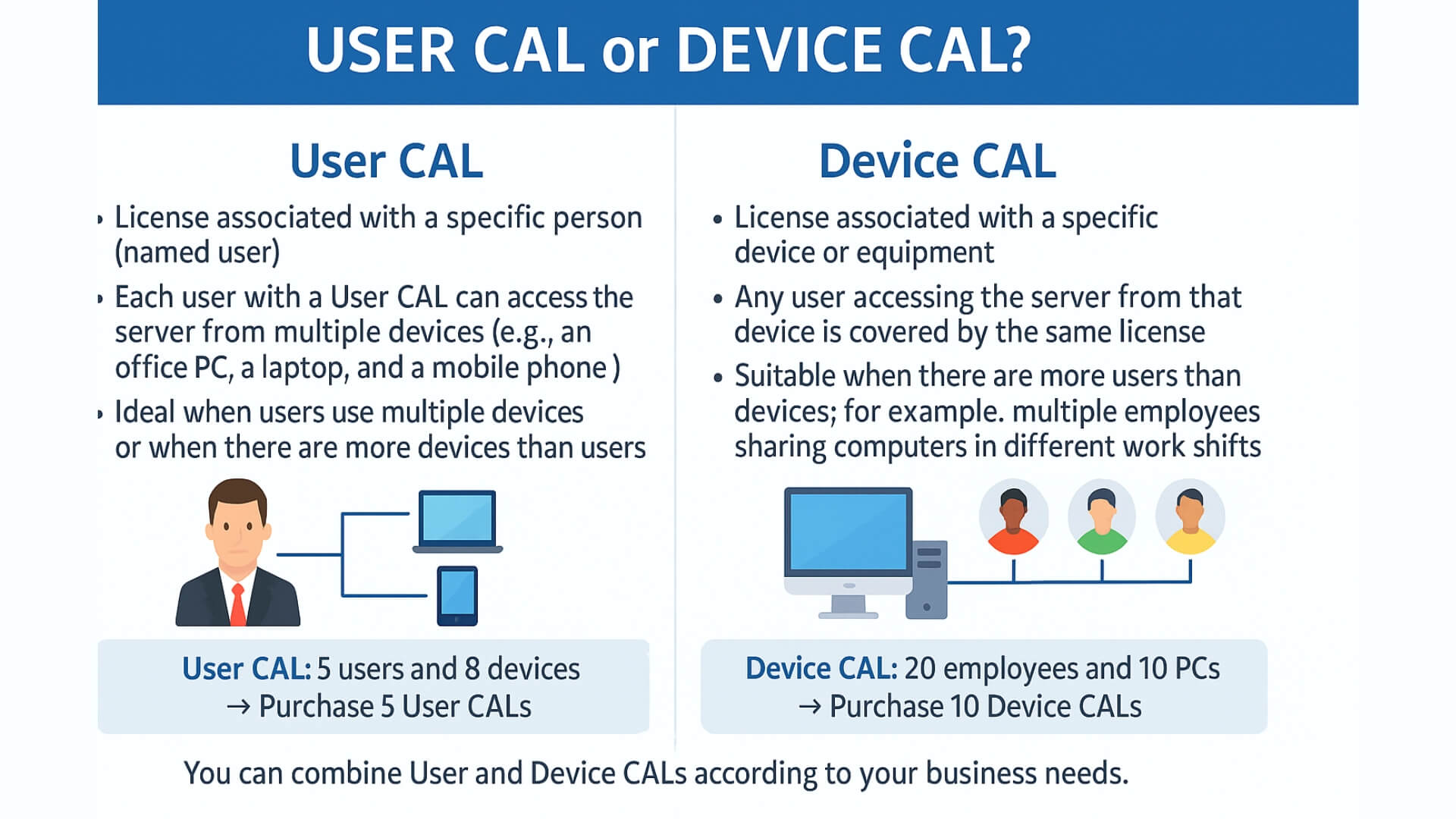
The infographic above illustrates this difference: if a company has, for example, 5 users and 8 total devices, it would be more cost-effective to purchase 5 User CALs (each employee can use all their devices). On the other hand, if a company has 20 employees but only 10 shared PCs, it would probably be better to purchase 10 Device CALs (each PC licensed, covering all users on rotating shifts).
It’s important to note that User and Device CALs can be combined as needed. An SMB can purchase a mix of User and Device CALs to suit different usage profiles within its network. However, you cannot convert or exchange one type for the other; the choice made at the time of purchase must remain, so planning ahead is key.
Remote Desktop (RDS CAL) and Other Add-Ons
In addition to standard Windows Server CALs (which cover general access to server services such as files, printers, or domain authentication), there are specific licenses for advanced functionalities. A common one in SMBs is the Remote Desktop Services (RDS) CAL.
If your Windows Server will provide remote desktop sessions or remote applications to users (formerly known as Terminal Services), you will need an additional RDS CAL for each user or device using those services. RDS CALs also come in User or Device format, following the same logic as standard CALs. In a remote work environment or across multiple branches, this distinction is crucial: for example, an employee accessing the server remotely from multiple devices is covered by a single User RDS CAL, whereas in a public kiosk with multiple users, a Device RDS CAL may be more appropriate.
Another related license is the External Connector license. Instead of purchasing individual CALs for each external user (non-employee, such as partners, clients, or collaborators) who needs to access certain server resources, Microsoft offers a per-server External Connector license. This license is typically recommended for scenarios like public portals or extranets, and allows an unlimited number of external users to access that server. The decision between individual external CALs or an External Connector license is usually based on cost: for just a few external users, individual CALs may be cheaper, but if you expect high volumes of external access (e.g., clients accessing a data portal on your server), the External Connector simplifies management and can reduce costs.
Included Licenses and Special Editions for SMBs
Not every situation requires purchasing CALs separately. Microsoft offers editions of Windows Server designed for small businesses where CALs are either included or not required at all:
Windows Server Essentials
Specifically designed for small businesses, this edition (available in versions like 2016, 2019, and even a variant in 2022) allows a limited number of users and devices without the need to purchase additional CALs. For example, Windows Server 2019 Essentials supports up to 25 users or 50 devices without CALs (these limits are set in the license). In other words, by purchasing the Essentials edition, a company is already entitled to connect up to that number of users/devices to the server. This greatly simplifies deployment for micro-businesses. The trade-off is that Essentials has some limitations in advanced features and does not allow growth beyond the 25-user threshold. Still, it’s a very attractive solution for a typical SMB with, say, 10 or 15 employees.
Standard vs Datacenter Editions
In Windows Server Standard and Datacenter, the base server licensing is based on physical cores, and still requires CALs per user or device for access. The Standard edition is typically used in SMBs with one or a few physical machines (it covers two virtual instances per 16-core license, which is sufficient for most SMB scenarios). The Datacenter edition is more suitable for large companies with extensive virtualization (it allows unlimited virtual instances) and is usually too expensive for a typical SMB—although some small tech firms use it for special needs. In any case, both follow the “Server + CAL” licensing model.
Another important point: anonymous access to web services. If your Windows Server provides an open web service (e.g., a public website or an application accessible without authentication), that traffic does not require CALs, as long as the access remains unauthenticated. CALs are required only for authenticated users or devices on the network or domain. This means that if you host a public-facing corporate website in IIS accessible to anyone over the Internet, you don’t need a CAL for each anonymous visitor. But if those visitors authenticate using accounts in your Windows Server domain, then licensing requirements apply (and that’s where external users and the External Connector license come into play).
Practical CAL Licensing Cases in SMBs
Let’s now look at a series of real (or hypothetical) use cases that illustrate how to approach CAL licensing in different SMBs. These practical examples include everyday situations where an IT administrator must decide what type and how many CALs to purchase, highlighting specific challenges and solutions that go beyond theory.
Case 1: Traditional Office with Multiple Devices per Employee
Scenario: Contoso S.L. is a consulting firm with 15 office employees. Each employee has a desktop PC at the office and a company laptop to work from home. Some even occasionally access the server from their mobile phones (e.g., to check files via VPN). In total, they estimate around 15 human users, but about 35 different devices might connect to the server (15 PCs, 15 laptops, and some personal mobiles).
Challenge: Contoso needs to set up a domain controller with Windows Server to centralize file access and authentication (Active Directory). How many CALs should they buy, and which type? If they choose Device CALs, they would need to license up to ~35 devices. In contrast, with User CALs, only 15 would be needed (one per employee). Clearly, in this scenario with more devices than users, User CALs are the right and most cost-effective choice.
Solution: Contoso purchases 15 Windows Server User CALs. With these licenses, each employee can connect to the domain and use server resources from any of their devices (office PC, laptop, even personal phone). The company documents which employees are covered by CALs and keeps that record updated. In the future, if new employees are hired, they simply purchase new User CALs for those additional users.
Case 2: Workshop with Shared PCs Across Shifts (More Users Than Devices)
Scenario: Industrias López is a small manufacturing company with 3 work shifts and a total of 30 operators. On the shop floor, there are 10 shared terminals (PCs); in each shift, different employees rotate using the same machines to enter production data into a client-server application. All PCs connect to a central Windows Server running the internal ERP and database software.
Challenge: How should the company license these employees' access to the server? There are 30 individuals who will use the system at some point in the day, but only 10 physical devices connecting (each PC is shared by users from different shifts). Buying 30 User CALs (one per operator) would be legally correct but very expensive, and in practice, no more than 10 users access the system simultaneously because of the limited number of terminals. In this setup with more users than devices, Device CALs are more efficient.
Solution: Industrias López buys 10 Device CALs. Each of the 10 workshop PCs is assigned its server access license. It doesn’t matter which employee logs in during which shift—as long as they use those 10 licensed devices, access to the server is covered. The company significantly reduces costs compared to buying 30 User CALs and remains legally compliant since no unlicensed device accesses the server. The system administrator ensures no new PCs are added to the network without first obtaining the proper CAL.
Case 3: Remote Workers and Teleworking with Offsite Access
Scenario: Diseño Creativo S.A. is a marketing agency with 10 permanent employees, several of whom work remotely from different locations. They use a Windows Server 2019 at the main office that acts as a file server and hosts internal applications. Remote employees connect to the server using Remote Desktop to run a management application that is only installed on the server, and they also access shared folders via VPN.
Challenge: The company needs to consider two types of licenses: the standard Windows Server CALs to allow each user to access the server, and RDS CALs for Remote Desktop use. Since each remote employee may connect from their personal laptop, tablet, or other devices outside the office, the logical choice is to use User CALs (each person can access from any device). Additionally, they will need User RDS CALs to enable Remote Desktop sessions on the server.
Solution: Diseño Creativo S.A. buys 10 Windows Server User CALs (one per employee) and 10 User RDS CALs for Remote Desktop. This way, all 10 workers are fully licensed to access the server and open their remote sessions regardless of device or location. The IT department configures the Remote Desktop licensing server to assign those 10 RDS CALs to authorized users. Each new employee will require two licenses (one standard CAL and one RDS CAL) to be fully covered.
Case 4: External Users Accessing Resources (Clients or Partners)
Scenario: DataBiz is a startup offering its clients a data portal hosted on a Windows Server. Clients (who are not employees) log in with their own credentials to view personalized reports and documents. Let’s assume there are 50 external users authorized to use this portal, and that number could grow if more clients are added in the future.
Challenge: By granting server access to people outside the organization, DataBiz must also license those connections. They have two options: purchase 50 individual Windows Server CALs (one per external user) or buy an External Connector license for the server. They need to decide which is more practical and cost-effective. Individual CALs offer flexibility by only paying for existing external users, but if the client base grows into the hundreds, managing all those individual CALs becomes complicated. The External Connector license has a higher fixed cost but covers unlimited external users with a single license per server.
Solution: After reviewing the situation, DataBiz opts to purchase the External Connector license for their Windows Server, since their business strategy involves scaling up the client base. With this license in place, they no longer need to track individual external users or buy additional CALs as new clients sign up: any authorized external user can log in to the portal without licensing concerns (the company has fulfilled its requirement by purchasing the External Connector). The IT department implements controls to ensure only “external” users (non-employees) access via this method, as internal employees still require regular User CALs.
Case 5: Cost Savings with Second-Hand Licenses
Budget is a critical factor for many SMBs when it comes to software licensing. A good example is a company with 20 employees that needed Windows Server Standard and 20 CALs for their team. Instead of buying new licenses at full price, they chose to purchase second-hand licenses from an authorized reseller. The result? They saved nearly 60% compared to the original license cost.
Graph: Cost comparison – new license prices vs second-hand licenses (real-world example).
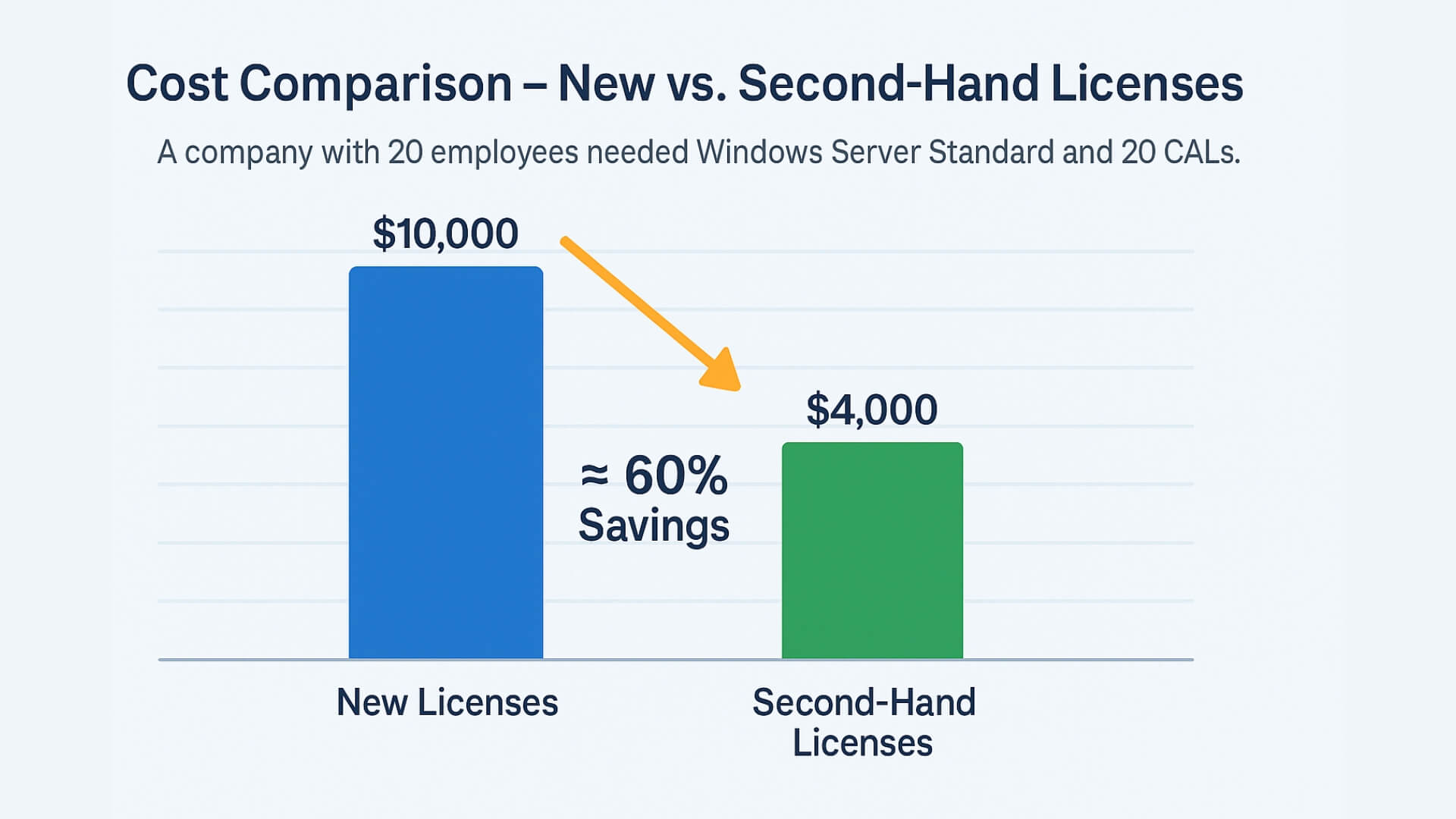
With those savings, they were able to invest in better hardware while remaining fully compliant, since the pre-owned licenses were official and came with transfer certificates.
Conclusion: Second-hand software licenses (whether for Windows Server, CALs, or other programs like AutoCAD or Adobe) have become a viable strategy for SMBs to get the functionality they need at a fraction of the cost—provided they seek advice and buy from trusted resellers.
Comparison: User Management in Windows Server vs Adobe Creative Cloud
We’ve discussed Windows Server licensing in depth, but it’s worth placing this topic within the broader context of user and license management in SMBs. More and more companies use a mix of on-premise infrastructure (Windows servers, databases, etc.) and cloud-based subscription services (such as Microsoft 365, Adobe Creative Cloud, etc.). This means managing different licensing models in parallel.
Let’s take a look at a comparison of how user access is managed in Windows Server versus a very common cloud software scenario: Adobe Creative Cloud for business.
Licensing Model
Windows Server + CAL uses a perpetual (one-time payment) licensing model, based on local users or devices. In contrast, Adobe Creative Cloud for teams or enterprises follows a subscription model (typically annual), assigned per named user. There is no “device-based CAL” concept in Adobe; all licenses are user-based (each license is assigned to a specific person, who can install the applications on multiple devices, although typically only use them on one at a time).
Administration Console
In Windows Server, users are managed through Active Directory or other local tools, and the admin must manually monitor CAL compliance (keeping a record of the number of users in Active Directory versus CALs purchased, or using inventory software). Adobe, on the other hand, provides the Adobe Admin Console, a centralized web-based platform where IT administrators manage Adobe licenses. There, admins add users (by name or email) and assign or revoke licenses for products (Photoshop, Illustrator, etc.). The Adobe Creative Cloud Admin Console prevents overuse: if you purchased only 10 licenses, you can assign them to a maximum of 10 users at a time. This makes Adobe license management more transparent, as the tool itself shows how many licenses are in use and how many are available at any time.
User and Credential Management
Windows Server uses user accounts within Active Directory (local domain). In Adobe Creative Cloud, users are managed in the Adobe Admin Console with company-assigned identities. Adobe allows login integration with corporate systems (e.g., via Federated ID linked to Azure AD or another SSO service), so employees can use their corporate credentials to access Adobe applications. This facilitates onboarding/offboarding across both environments and gives the company better control over who has access to Adobe licenses.
Costs and Predictability
With Windows Server and CALs, the company makes an upfront capital expense (CAPEX) for perpetual licenses that can be used for years (though if upgrading to a new version of Windows Server, updated CALs must be purchased—unless Software Assurance is included). In contrast, Adobe Creative Cloud involves a recurring operational expense (OPEX) via user-based subscriptions. Over time, subscriptions may be more costly than perpetual licenses, but they always include the latest software version and cloud support. Some SMBs opt for hybrid solutions: for example, using older perpetual versions of Adobe software (like Photoshop or Illustrator CS6) for certain workstations, while only paying Creative Cloud subscriptions for users who need the latest features or cloud services. It’s a trade-off between cost and functionality that must be evaluated case by case.
In summary, both Windows Server CALs and Adobe Creative Cloud licenses require good user management, but the mechanisms differ: one is local and trust-based (with potential audits), the other is cloud-managed by the vendor. For an SMB, understanding both worlds is essential, as they likely need to manage licenses for both on-premise systems (Windows, SQL, etc.) and online services (Adobe, Microsoft 365, etc.). Integrating best practices—such as maintaining a master record of which employees hold which licenses across all systems—can help avoid headaches, extra costs, and legal issues down the road.

Conclusion
Ultimately, the Windows Server CAL licensing system is a crucial aspect that every SMB using on-premises servers must understand. Although it may seem complex at first, we’ve seen that with the right knowledge it is possible to license correctly without wasting resources. The practical cases presented show the importance of analyzing each scenario (number of users, devices, type of remote access, presence of external users, etc.) to decide between User or Device CALs and other options like RDS CALs or External Connectors. We also saw that there are ways to reduce costs, such as legally purchasing second-hand licenses.
Proper license management not only helps avoid issues during potential software audits but also ensures that the IT investment is maximized. By planning ahead and following best practices, a small or medium-sized business can scale its Windows Server infrastructure with confidence, knowing that each employee and device is properly covered by the necessary licenses. In this way, technology remains a business driver—without setbacks or unexpected expenses.
Frequently Asked Questions (FAQ)
What exactly is a Windows Server CAL and why do I need one?
A Windows Server CAL (Client Access License) is a license that grants a client (user or device) the right to access services on a Windows Server. You need it because, in addition to the server license itself, Microsoft legally requires that every user or device connecting to the server be covered by a CAL. Without a CAL, the access—while technically possible—is not authorized under Microsoft’s terms of use.
What is the difference between a User CAL and a Device CAL?
A User CAL is assigned to a specific person (e.g., an employee) and allows them to connect to the server from any of their devices. A Device CAL, on the other hand, is assigned to a specific device (e.g., a particular PC) and allows multiple users to access the server from that device. The choice depends on your business scenario: if each user works on multiple devices, a User CAL is more efficient; if you have more staff than devices and they share workstations, a Device CAL makes more sense.
If I have Windows Server Essentials or another special edition, do I still need to buy CALs?
Windows Server Essentials (for example, the 2019 Essentials edition) does not require separate CALs as long as you stay within its usage limits (typically up to 25 users or 50 devices). That edition includes access rights for that number of clients. Other editions aimed at small businesses, such as Windows Server Foundation (in older versions), also included limited access rights. However, the Standard and Datacenter editions do require CALs even for the first user or device, as they do not include any. It’s always recommended to review the documentation for the edition you're using to confirm its licensing requirements.
Do Windows Server CALs expire, or can they be used for future versions?
CALs purchased for a specific version of Windows Server (e.g., CAL for Windows Server 2019) are perpetual for that version: they do not expire over time, but they only authorize access to servers of that same version (or earlier). If you upgrade your server to a newer version (e.g., Windows Server 2022 or 2025), you’ll need to acquire new CALs for the new version, as CALs do not “auto-upgrade.” The only exception is if you purchased Software Assurance along with the CALs—in that case, you have the right to upgrade your licenses to the latest version during the Software Assurance coverage period.
How is user licensing managed in services like Adobe Creative Cloud compared to Windows Server?
In Adobe Creative Cloud for business, license management is handled through the Adobe Admin Console, where licenses are assigned to specific users (by name or email). Adobe does not offer “device-based” licenses; each licensed user can install the applications on multiple devices, but the platform itself ensures that the number of concurrent licensed users is not exceeded. Therefore, the company remains compliant as long as it uses the console to manage license assignments. In Windows Server, CAL licensing is more manual: the server does not track the number of licensed users, so it is up to the administrator to ensure that each user or device accessing the server is covered by a purchased CAL. In summary, Adobe provides a centralized cloud-based tool to manage per-user licenses, while in Windows Server, it is the organization's responsibility to maintain CAL compliance.
Do I need additional CALs to use Remote Desktop on Windows Server?
Yes. If you plan to offer Remote Desktop sessions or published applications to users, you will need both standard Windows Server CALs and RDS CALs (Remote Desktop Services CALs) specific to that service. RDS CALs are also available per User or per Device (and you must choose the most appropriate just as with standard CALs). For example: an employee connecting via Remote Desktop to a Windows Server must be covered by a Windows Server CAL (to access the server) and also by an RDS CAL (to use the Remote Desktop functionality). Both licenses are independent but cumulative.
What if external users (clients, vendors) access my server? Do I need to buy CALs for them?
If people outside your organization access your server in an authenticated manner, they should also be properly licensed. You have two options: purchase individual Windows Server CALs for each external user (if they are few and clearly identified) or acquire an External Connector License for the server. The External Connector is a single license per server that authorizes access for unlimited external users without assigning individual CALs. It is usually the better choice when you have many clients or partners connecting to your systems. If there are only one or two external users, it may be more cost-effective to assign them regular User CALs. The decision is mostly financial, but from a compliance standpoint, both options are valid as long as all access is properly licensed in one way or another.




