EN
 FR
 DE
 IT
 PT
 ES


How to Install and Uninstall Apps in Windows 10
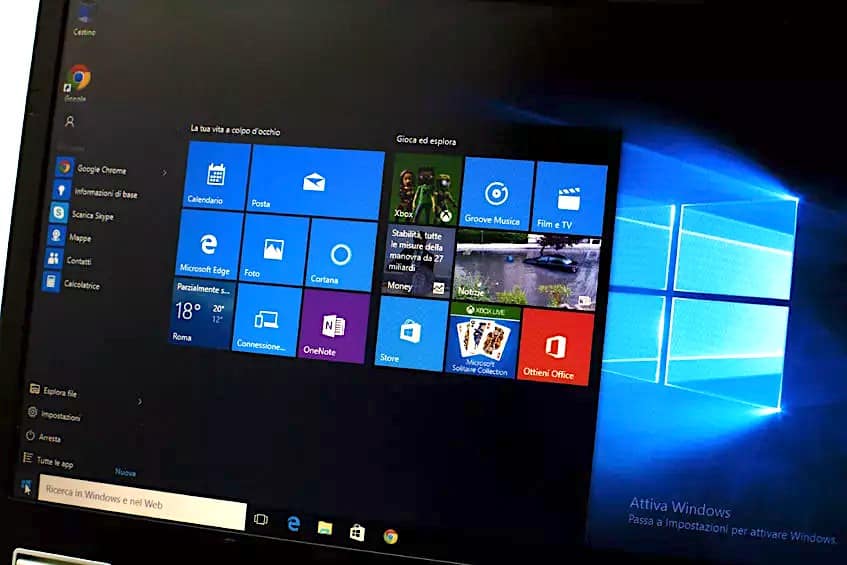
Installing new apps and uninstalling ones you no longer need in Windows 10 is the most basic form of computer maintenance. Below, we look at how to perform these two tasks on a Windows 10 device. In short, the process of installing or uninstalling apps in Windows 10 is as follows:
1. Find the search box in the taskbar, type Control Panel and select it from the results.
2. Select Programmes > Programmes and Features.
3. Press and hold (or right-click) the programme you want to remove and select Uninstall or Uninstall/Change. Then follow the instructions on the screen.
In this article, we explain these steps in detail.
Before We Get Down to Business
Windows 10 has a solid selection of built-in software, such as Microsoft Edge for browsing, but it is always a good idea to install new third-party apps. They can handle more tasks and offer additional features.
At the same time, some apps may become outdated or cause conflicts on your device. To free up storage space, it may be best to uninstall them. You can do this easily from within Windows 10 itself.
Before you start, we recommend reading our article on getting started with Windows 10 to familiarise yourself with the basics of the system. If you want to make sure you only install safe apps, take a look at our guide to the differences between Windows 10 Home and Pro for tips on choosing the right edition.
How to Install Apps in Windows 10
There are two methods when you want to install new applications on your computer.
Using an Installer
If you have purchased a physical copy of software or downloaded an application from the internet, you must use the installation programme that comes with it. This is an executable file (i.e. it has the file extension .exe) which, when started, installs the software on your computer.
In the installation programme, you can configure the installation to suit your preferences. With some developers, you can choose the type of installation, the installation location, and other options. This varies from installer to installer.
Below you will find general instructions on how to install an application with an installer. As an example, we will install Malwarebytes.
1. Get the installer on your machine. If you have a physical copy of an application, insert the CD/DVD or other medium into your device. Otherwise, download the installer from the internet.
2. Find the executable file. This file usually has the word Installer in its name and carries the file extension .exe. Once you have found it, double-click it to run it.
3. When prompted by UAC (User Account Control), click Yes to allow the installer to make changes to your machine.
4. Allow Windows 10 to extract the installation files and start the installation wizard. Depending on the application you are installing and your device, this may take some time.
5. Follow the instructions of the installation programme on the screen. You can continue by pressing the Next button. When you see the option, make sure you customise your installation.
6. You can change the installation location by clicking the Browse button if the installer gives you the option. Simply navigate to the desired folder on one of your drives and press OK. Always make sure there is enough space on the drive where you want to install.
7. Accept the licence conditions and click the Install button.
8. In some cases, you may need to restart your computer before you can use the application. A prompt appears where you can choose whether to restart immediately or restart manually later.
Using the Microsoft Store
For added security, you can get apps and games from the Microsoft Store. Search for free and paid apps, check their popularity and ratings, and download them to your device. Apps you get from the Microsoft Store are also automatically updated, so you always have the latest features.
How to Download Apps from the Microsoft Store
Follow these steps to find and download apps:
1. Click on the Start menu.
2. Scroll down the list of apps and select Microsoft Store.
3. Visit the Apps or Games tab in the Microsoft Store and start browsing. If you want to see more than one category, select Show All at the end of the row.
4. Select the application or game you want to download, then click the Get button. This will start the download.
5. Click the Install button to install the software application.
How to Uninstall Apps in Windows 10
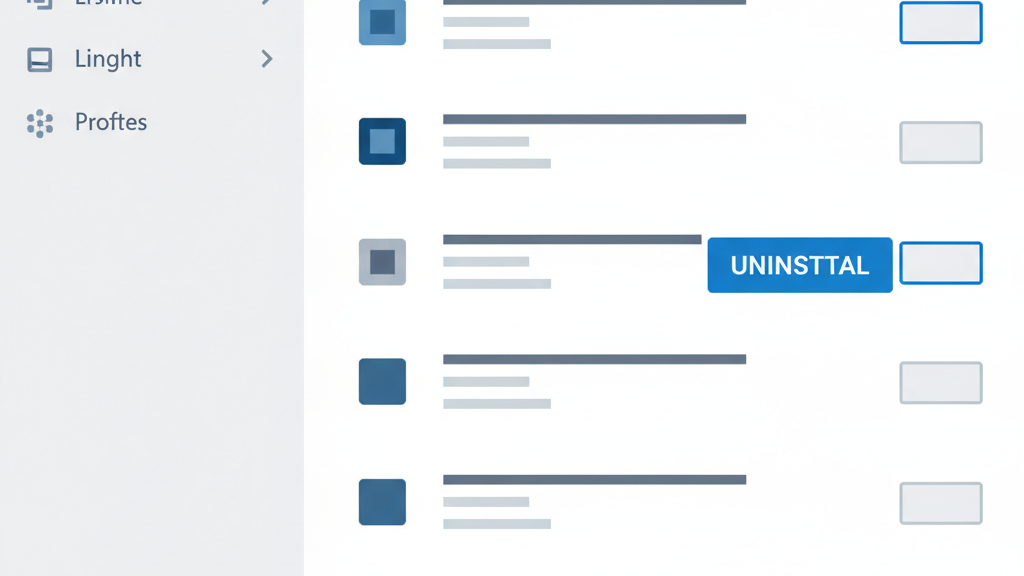
1. Click on the Start menu in the taskbar. This icon shows the Windows 10 logo. If you are not familiar with the Windows 10 interface, we recommend reading our introductory guide.
2. Click on the Settings icon. You can also use the keyboard shortcut Windows + I to reach this application more quickly.
3. Click on the Apps tile.
4. In the left pane, go to Apps and Features. You should see a list of apps currently installed on your computer that Windows 10 can detect.
5. Select the app you want to uninstall by clicking on it once. Now you can click the Uninstall button.
6. Click Uninstall again to confirm your choice and open the uninstallation wizard. This opens in a new window. Please note that you can only uninstall one app at a time.
7. If User Account Control (UAC) prompts you, click Yes to allow the uninstaller to make changes to your machine.
8. Follow the developer's instructions on screen. In some cases, you have the option to save configuration files on your device in case you want to install the same application again in the future. Continue with the Next button, similar to installations.
9. Wait until the uninstallation is complete. This may take a few minutes depending on the application and your device.
Boost Your Windows 10 Experience
Now that you know how to install and uninstall apps, why not explore some Windows 10 tools that will increase your productivity? And if you need a genuine licence, browse our Windows licences collection or pick up a Windows 10 Pro licence at the best price.
We hope this article has helped you with the installation and uninstallation of apps in Windows 10. If you need further assistance, our customer service team will be happy to help.
Browse all Windows licences at Licendi and get your genuine key today.
Best regards,
The Licendi Team